When I am designing in Tinkercad, I mainly design using millimeters (mm), because most of the time I am using a .04 mm nozzle on my 3D Printer. If I want to make a cover for something, like my Alexa Device, I will measure it in millimeters.
I made this ruler in Tinkercad so it would be easier to measure items in millimeters.
First, I can place the ruler on top of an object and see the object through the ruler.
Second, I can place an object on top of the ruler and against the left side and get a measurement.
I printed three rulers in different colors, because every time I changed the filament in the printer for another project, I used the ruler to make sure the printer was calibrated correctly. If I got a good print on the ruler, there was a high chance that the next print would come out good.
The ruler is available for copying and tinkering in Tinkercad.
This tutorial, Creating a Snowflake Using Tinkercad, focuses on using a Star shape to create a snowflake and using other shapes to put holes in the star.
I got the inspiration seeing an office that was decorated with paper snowflakes. Each one was unique because they were created by hand. If you are interested in learning how to create a paper snowflake, check out CYNICALifornia’s Paper Snowflake instructions. The first thing I did was create a paper snowflake.
The next step was creating one in Tinkercad. But I did not stop at one, I created seven snowflakes.
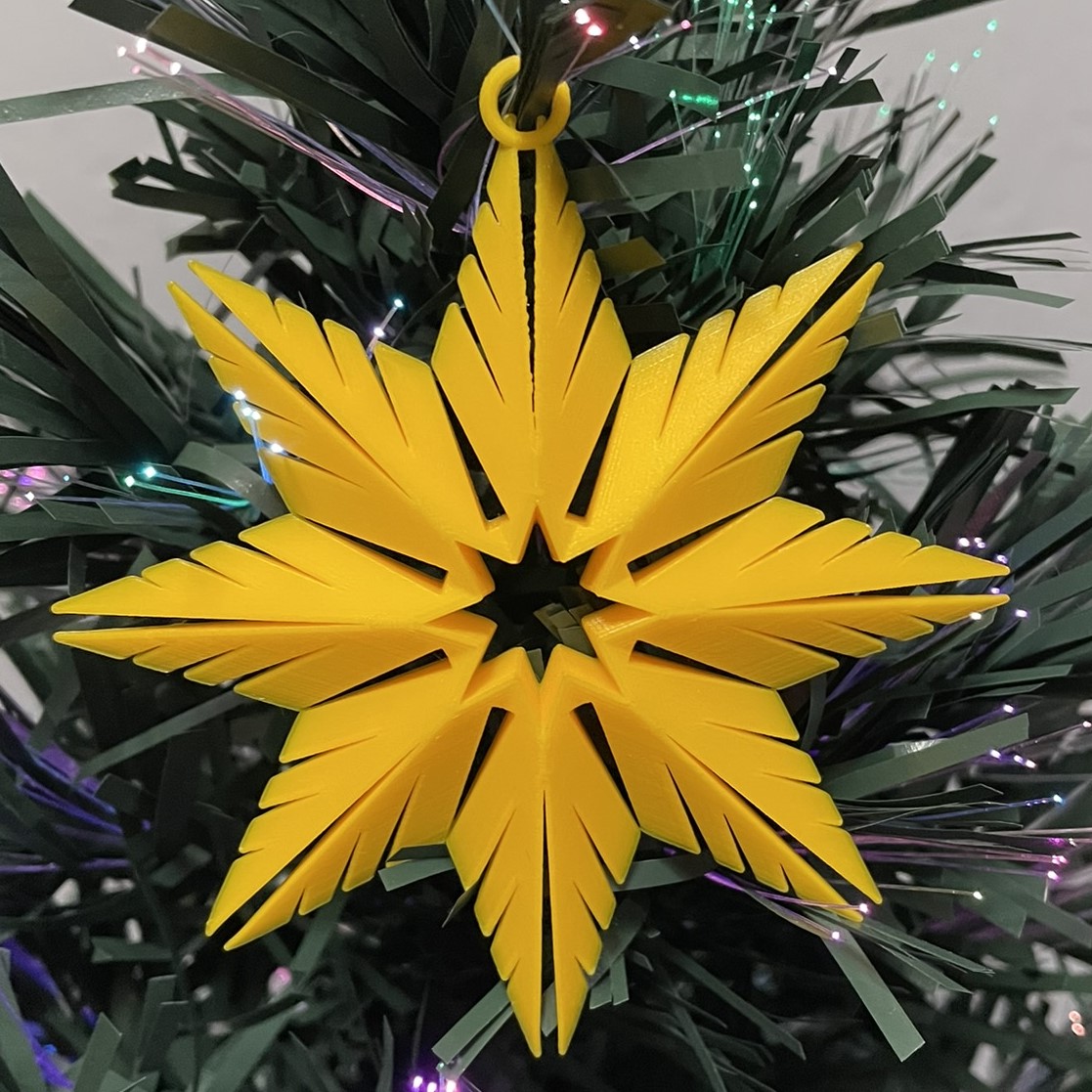
Below is the first one I created. It uses the only the Star shape and the Roof Shape. Even the back looks good.
This is the link (Snowflakes) to the seven snowflakes I created in Tinkercad. I encourage you to copy the design and deconstruct the snowflakes to see how they were designed. Then create your own snowflake using the tutorial and information you learned by viewing my design.
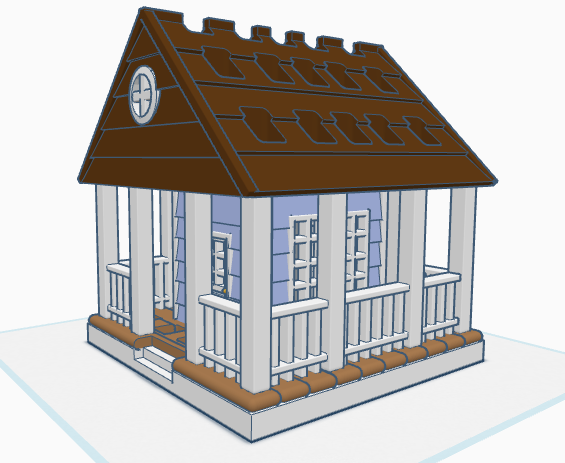
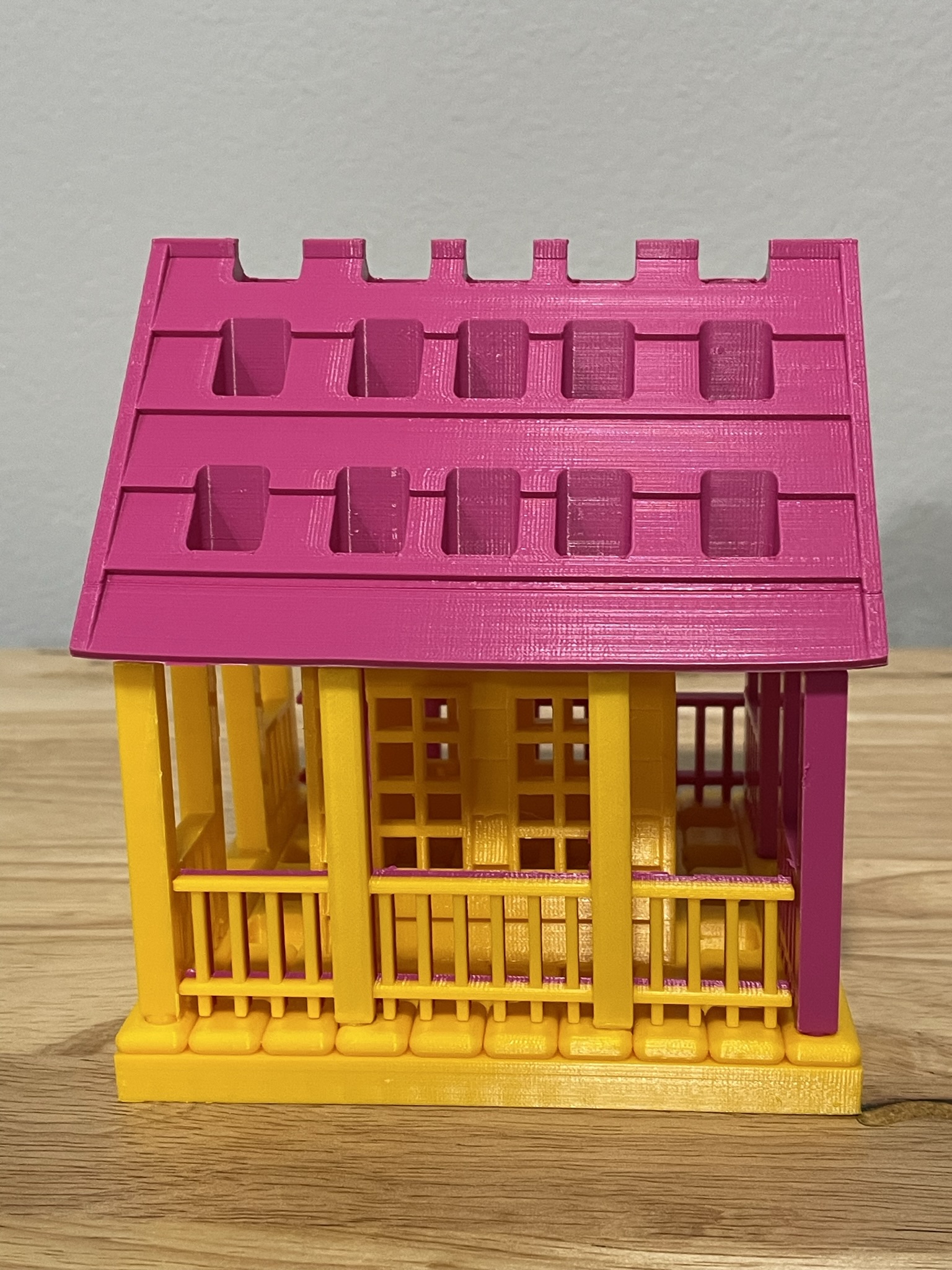
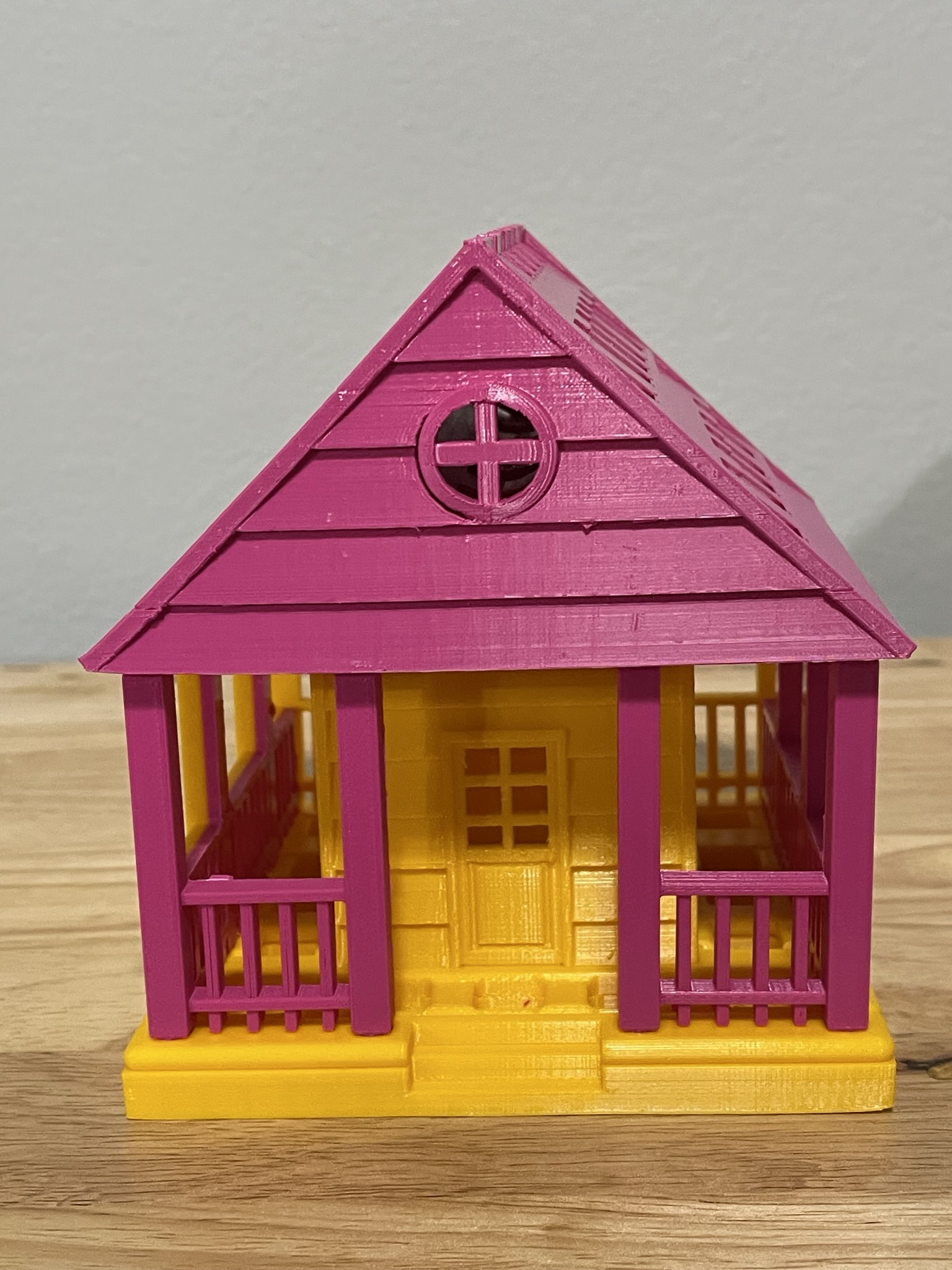
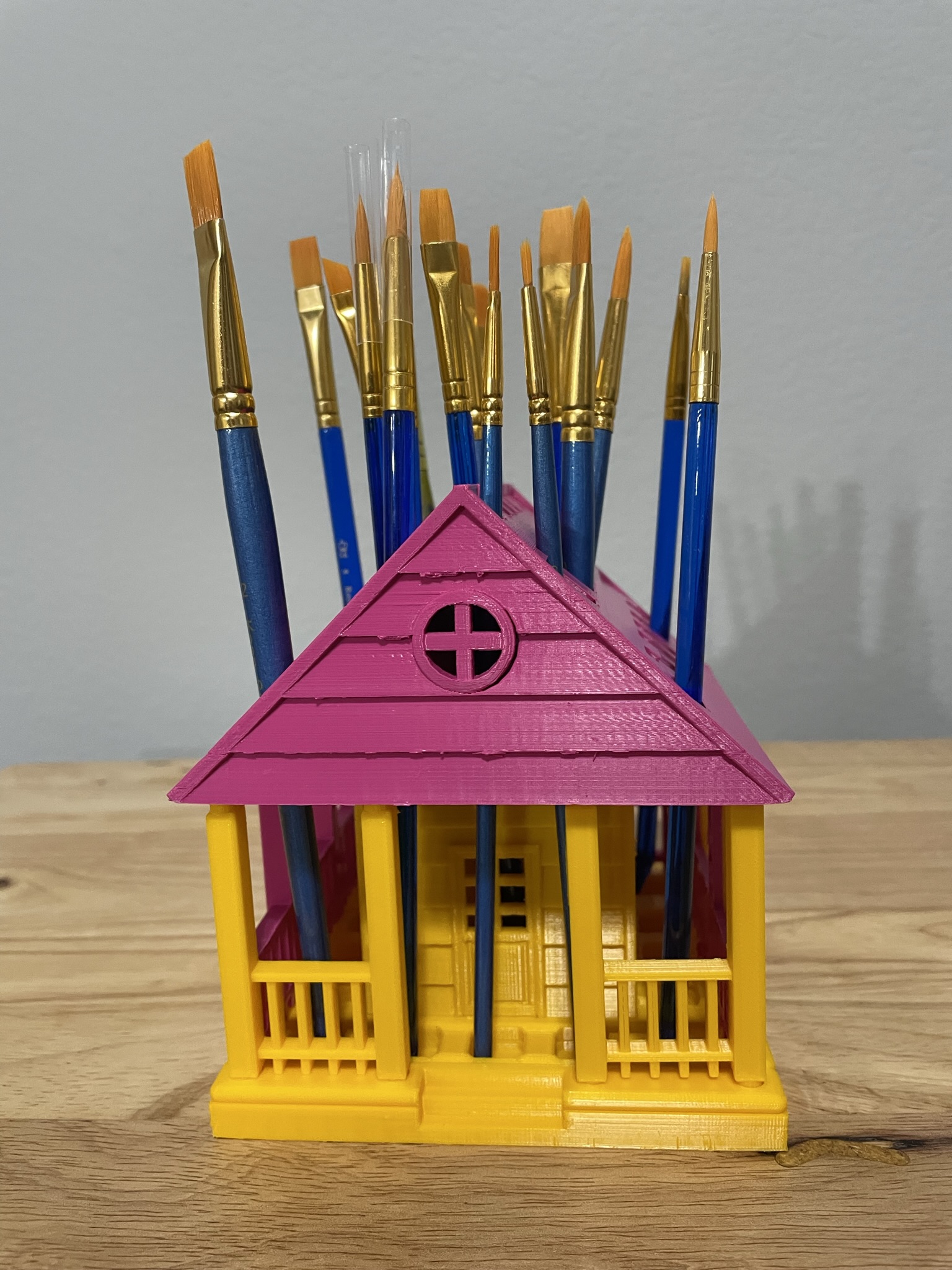
If you have seen some of my previous posts, you know that I paint little plaster houses. While I was painting a new set of houses, I decided it would be nice if I had a paintbrush holder. Yes, I could have purchased one on Amazon, but what is the fun in that. I decided to design a paintbrush holder that looked like a house. The size was not important as long as I could print the design on my 3D printer. The base is 120 mm or 4.724 inches x 120 mm x 8 mm. It provided the design with enough weight and support to prevent it from tipping over. This is the final version of the design in Tinkercad. It was tweaked several times for printing. Paintbrush Holder – Tinkercad
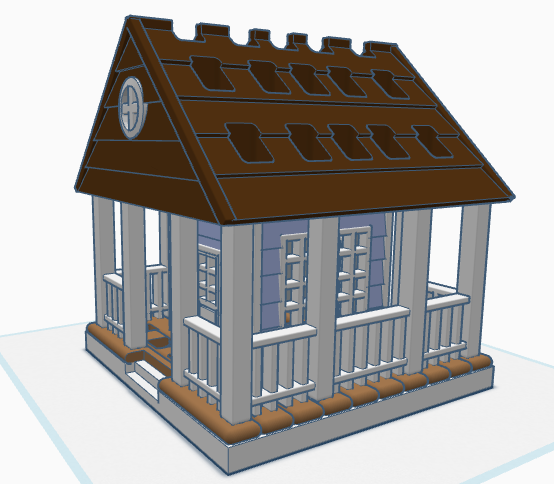
If I printed the design as shown in the picture, it would require a lot of support. My first attempt to print, I split the design into two pieces; roof and building. The roof I selected the Support Type of Tree. There is a lot that can go wrong with printing something for hours and hours, however the roof printed beautifully, and the supports detached easily.
The next print was the bottom piece. Again, a lot can go wrong when something prints for hours and hours and hours. First, after 12 hours the printer would not allow me to pause the print. Second, when the print finished the build plate did on return to its lower position, so extra filament built up on its final print location. Third, the support around the railing was impossible to remove without damaging the railing, which was 2mm in diameter. I went back to Tinkercad and tweaked the design.
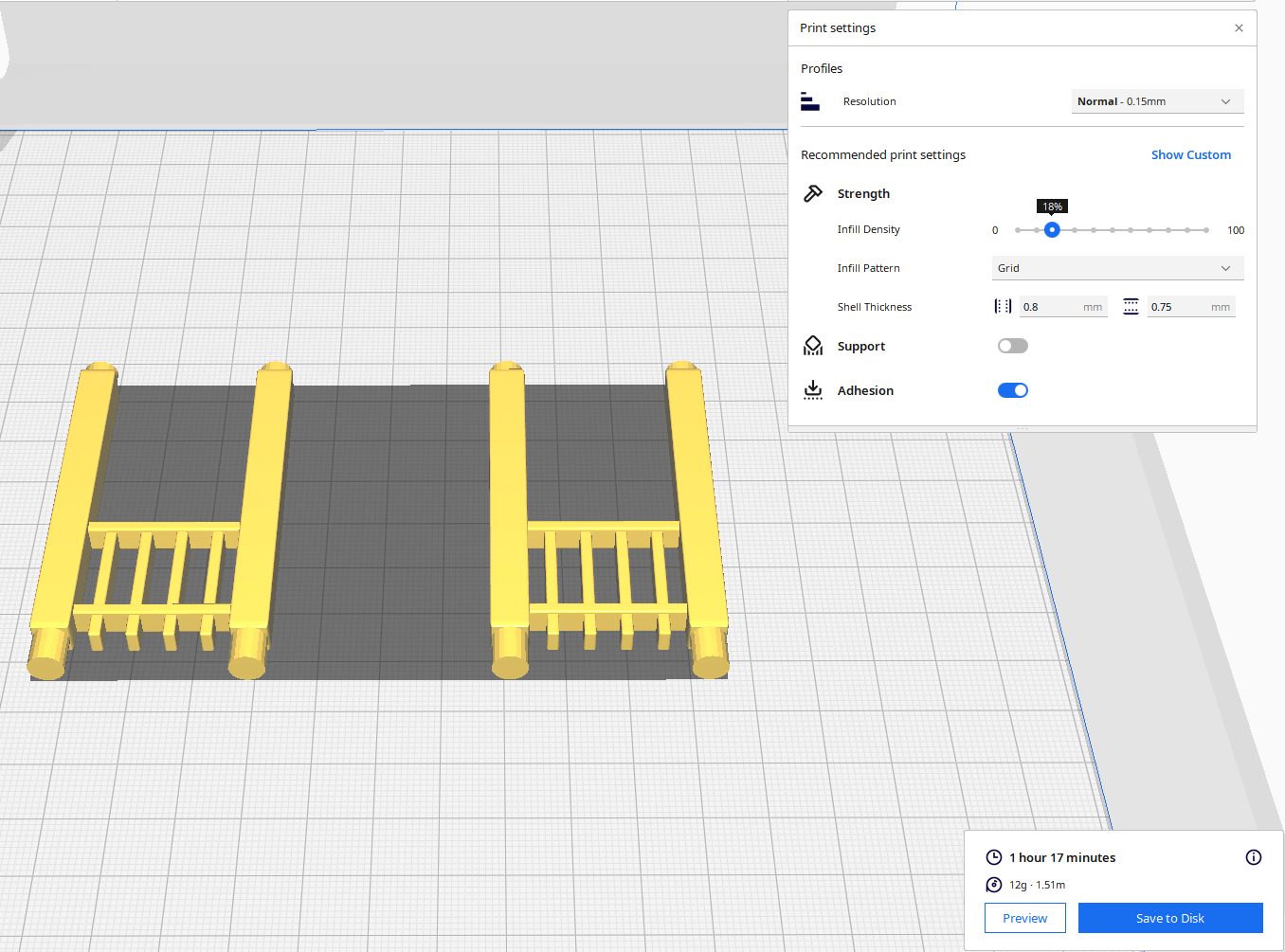
For the second attempt, I made the railing detachable. With detachable railing, I could lay it flat on the print bed and not use any supports. After it was printed, I could assemble the design.
Front and Back Railing – I printed two copies. Note, I went from round to square railing.
Side Railing – I printed two copies.
Structure – I printed one copy with Normal Supports.
Below is the printed version of my new paintbrush holder. It was printed in two different colors because I ran out of the pink filament. The design was easy to assemble, and gluing was not required.
According to Wikipedia Googly Eyes are: “Googly eyes, or wiggle eyes, are small plastic crafting items used to imitate eyeballs. Googly eyes traditionally are composed of a white plastic or card backing covered by a clear, hard-plastic shell, encapsulating a black plastic disk. The combination of a black circle over a white disk mimics the appearance of the sclera and pupil of the eye to humorous effect. The inner black disk is allowed to move freely within the larger clear plastic shell, which makes the eyes appear to move when the googly eyes are tilted or shaken.”
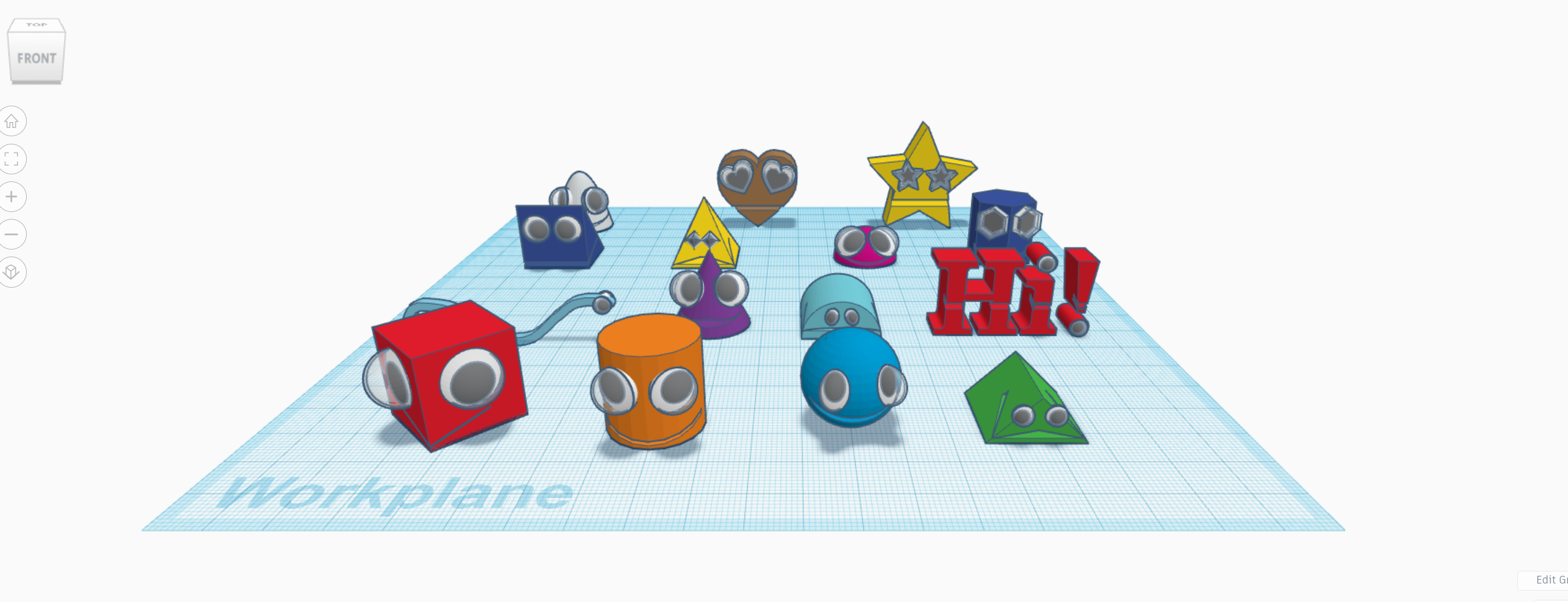
Tinkercad has some amazing 3D Designs created by some talented people. Looking at these designs, you can’t help to say “Wow!” Instead of trying for the “Wow” factor, I went with the “Fun” factor. Googly Eyes are fun, but they can also be spooky. It all depends on how they are used.
Previously, I created a sunflower using Tinkercad Codeblocks. (You may copy the Codeblock Sunflower file.) This would be a good design for the Googly Eye instructions. I exported as a Shape to be used in 3D Design.
Googly Eyes in Tinkercad
I created a new design and place the sunflower into the design, by selecting the shape from Your Creations on the Shape Panel.
The four shapes used for Googly Eyes
Next, I created the Googly Eyes. These Googly Eyes consist of 4 shapes: three half spheres and one sphere.
Sunflower with Googly Eyes
I moved the resized and moved the Googly Eyes into position. It looked so strange with just the eyes, so I created it a mouth.
Smiley Sunflower with Googly Eyes
The mouth is a flatten sphere hole that was group with the sunflower. The Googly Eyes Sunflower file is not available for copying, because creating your own is usually fun and will be a learning experience. See the instructions or watch the videos to create you own.
The next building I designed for my Railroad Town is the Bank. With the Railroad Station, Saloon, Livery, and others a lot of commerce would be conducted in the town, the town would need a place for the residence to store their funds. I did not create a inside for the bank, because I wanted to print the design. See the 3d Bank in Tinkercad.
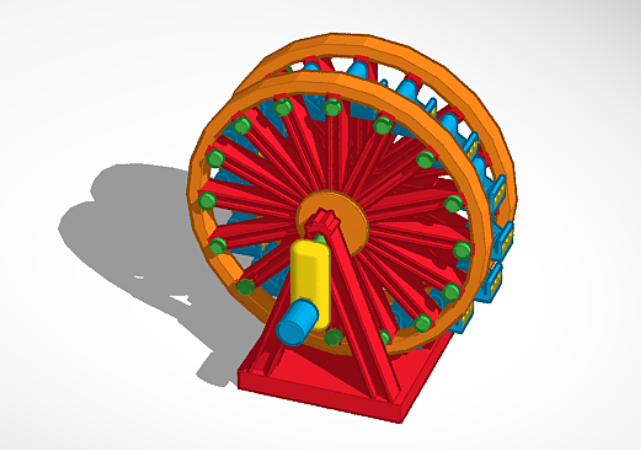
Here is the Ferris Wheel I created with Tinkercad. If I were to deconstruct Ferris Wheel, it’s parts can be 3d printed and reassembled. Maybe one day, I will test this theory. I am tempted to create people to ride the Ferris Wheel.
Link to the Ferris Wheel in Tinkercad: Ferris Wheel
Link to the Ferris Wheel in Thingverse: Ferris Wheel
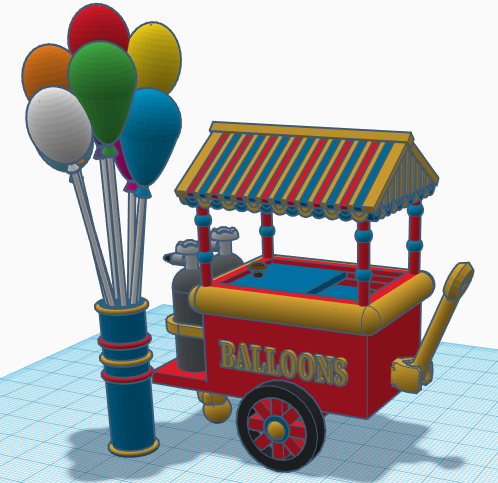
Three years ago, I designed this Balloon Cart in Tinkercad. I thought I would feature it in this blog because I been finishing up another similar project. This design has been downloaded numerous times from Tinkercad. I think they are just after my balloons.
Here is the link to view it in Tinkercad: Balloon Cart
This link will let you view it in MakerBot Thinkverse: Balloon Cart
I do not believe that it can be 3D printed without some tinkering.
Another three house painted from my Rescued Houses series. Why are they called “Rescued Houses.” In August 2016, South Louisiana had what some believed to be a 1000 year flood. The storage unit which held these houses flooded. These plaster houses were in water for over week. There is minor damage to all the houses, but that may add to their charm.
Notice the Railroad Crossing sign. It is not original to the house. The original sign is currently missing, which means it could be in another box. Therefore, I created the sign in Tinkercad, printed with my 3D printer, and painted the sign. I only had to print one sign, because I got the measurements right on the first design.
I do not believe that Amazon is spying on us, but there are a numerous hackers in the world. And, getting dressed in front of a camera….
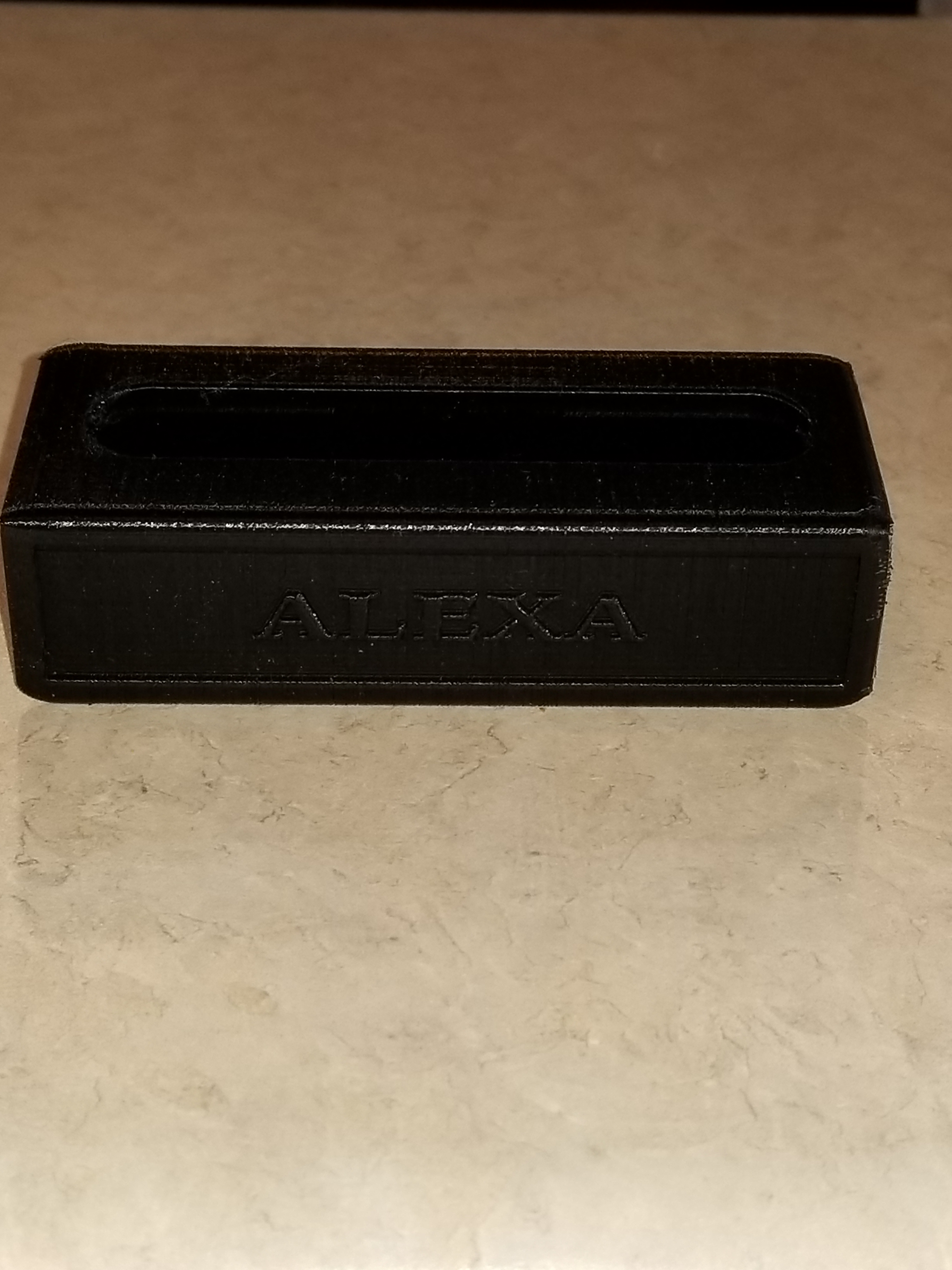
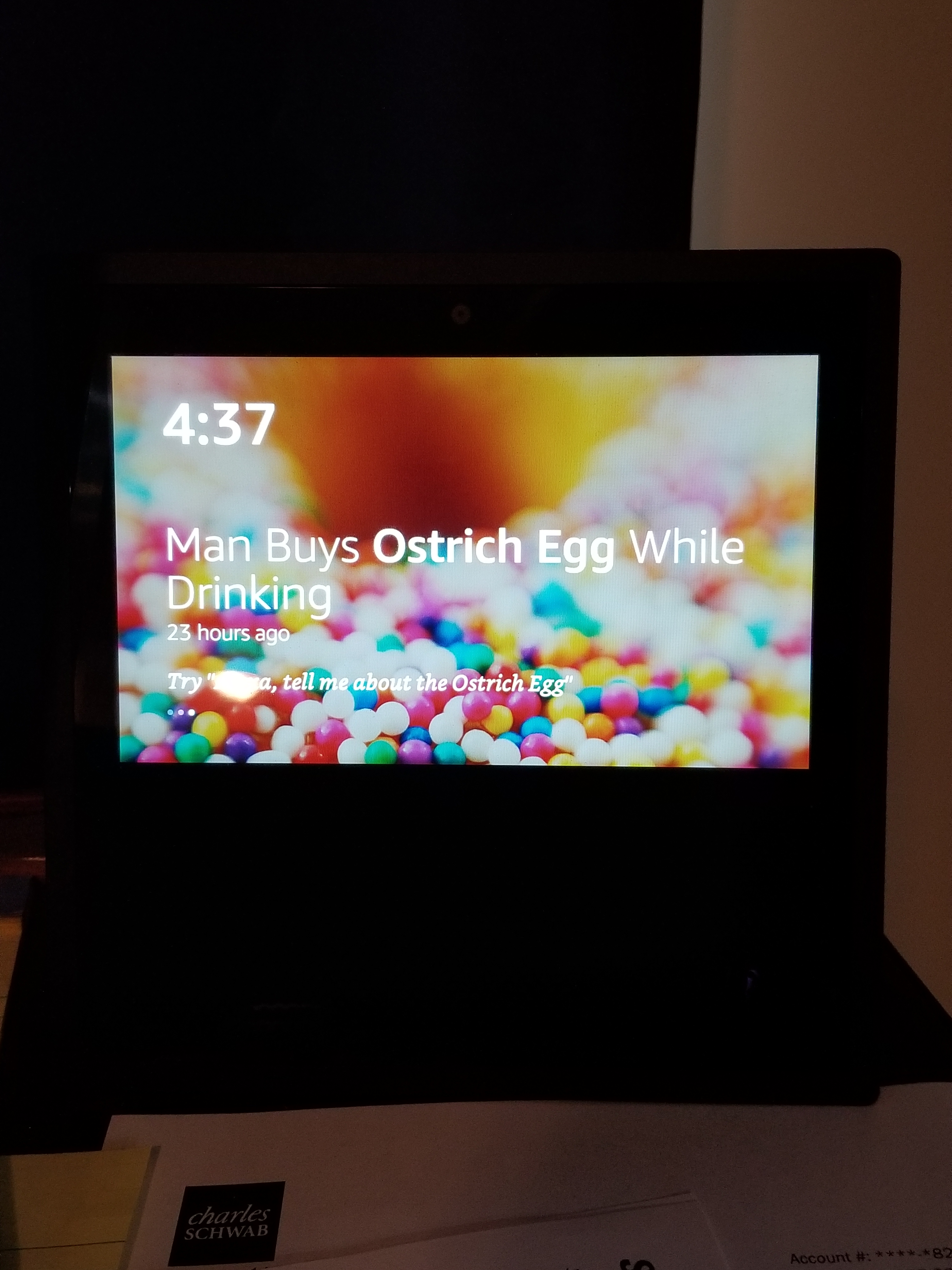
This privacy shield is for the Amazon Echo Show to cover the camera. It will put the device to sleep because it can not detect movement in the room. You can still access the three buttons on top of the device with the shield installed.
The Camera is in the top center of the device.
I put “Alexa” on the shield because that is the wake up word for the AI.
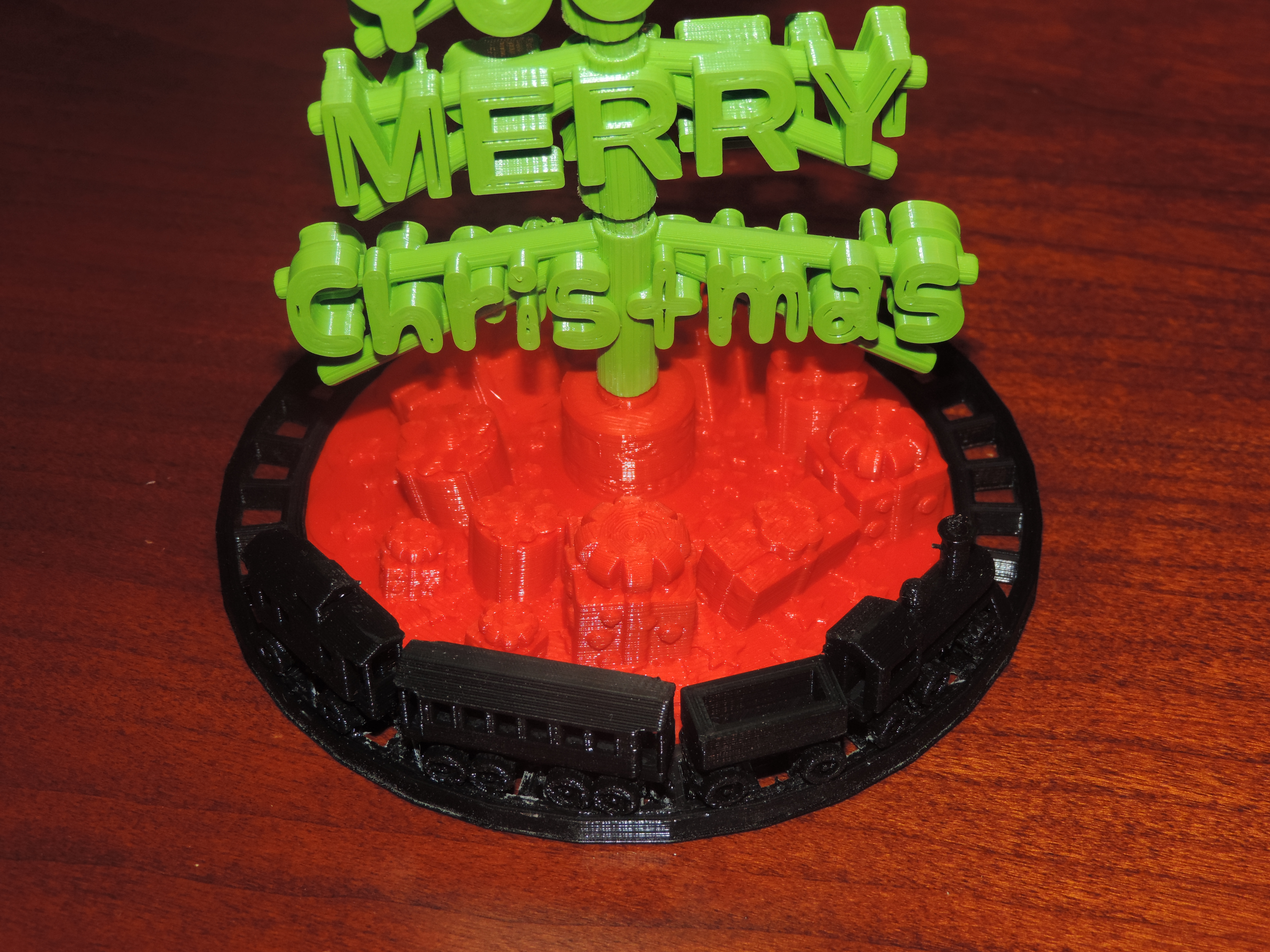
I know Christmas is over and the new year has started, but this was my main adventure for November and December.
Many months ago, I got the idea that this year’s Christmas card would be 3D printed. After many rough drafts, I decided on the “We Wish You a Merry Christmas” design.
The initial design phase went smoothly. And then, I had more ideas. The words on the tree should turn, so the tree would look like it had stagger branches. The words on the tree should be readable from any angle. Oh, it need a tree skirt and the simplest design would have stars on the skirt.
It then occurred to me the tree needed a train going around it. Well, the train could not literally go around it, because the size of the train. My printer would not be able to print the tiny detail the train would need to allow it’s wheels to turn.
I still was not entirely happy with the tree skirt. The tree needed presents. I designed three unique presents and place them under the tree scaling them to different sizes and placing them under the tree at different angles.
Designing the tree was the easy part. Printing the tree out, proved to be the most challenging part. The filament started grinding. I regularly had be dismantle the extruder box to remove filament. I also had to dismantle and reassemble the printer head on no least three occasions to correct issues. That is why only 6 of these Christmas tree were sent to friends and family.
There were eight .stl files created to print the tree.
The .stl files can be downloaded from youmagine.com.






















 Sarah Cath's Adventures