Art of Concentration: Day 7

Sometimes, with art, you need to break the rules to create amazing pieces.

The Art of Concentration rules are:

  1. Draw lines on a page.  Circles, squares, squiggly lines, it does not matter.
  2. Color every other section.  Start anywhere.  Use any color.
  3. If you desire, use multiple colors.  Sections of the same color can not touch.

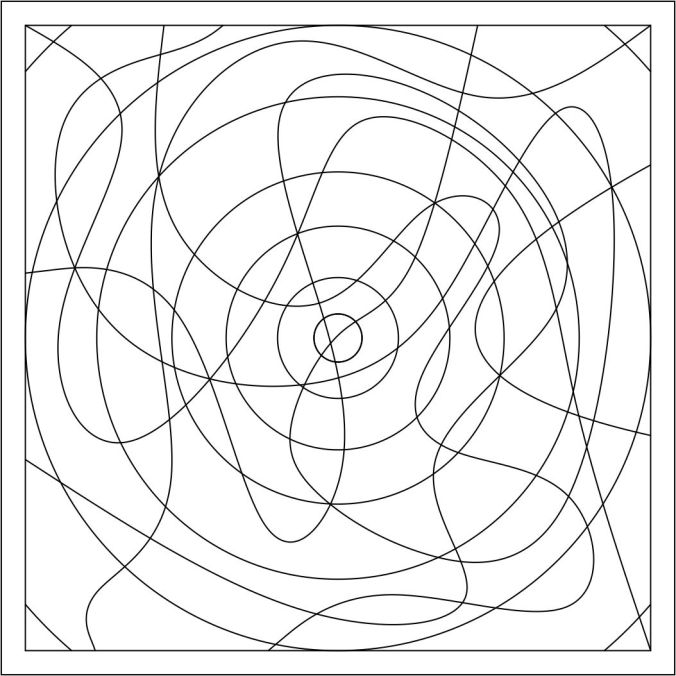
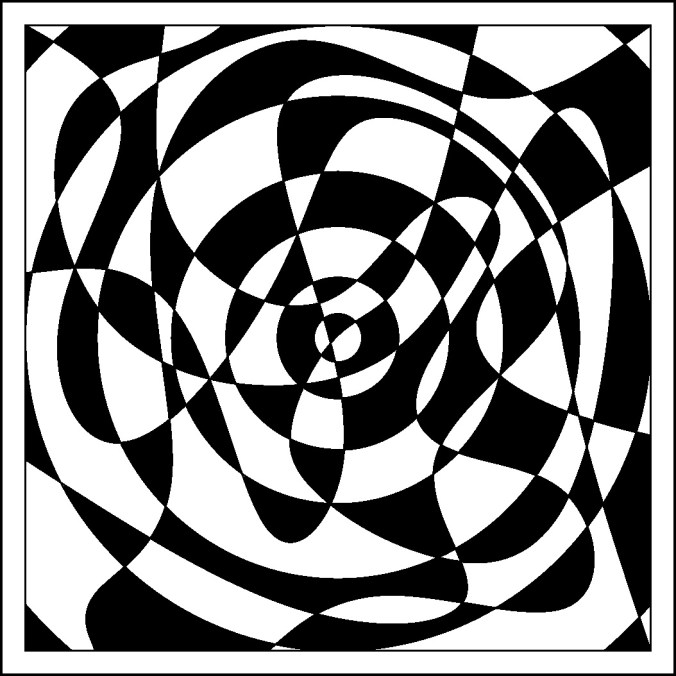
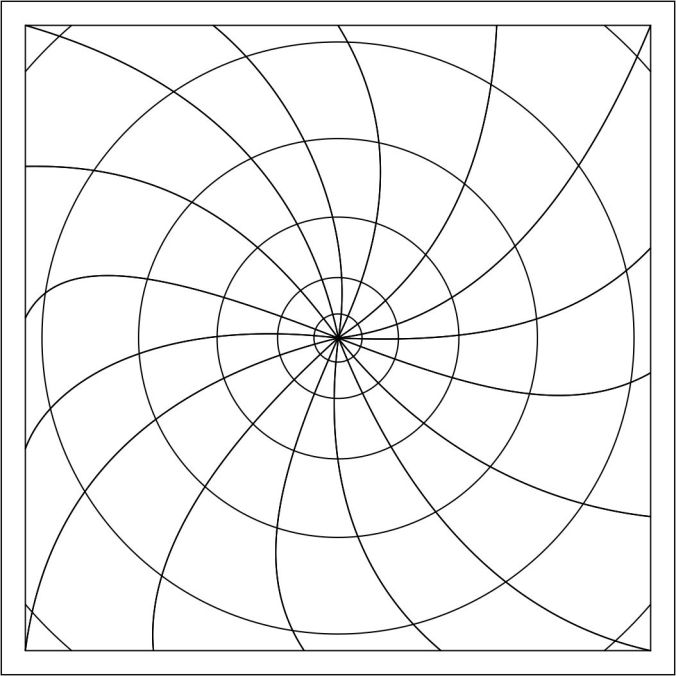
The extreme line drawing.

AofC x-treme

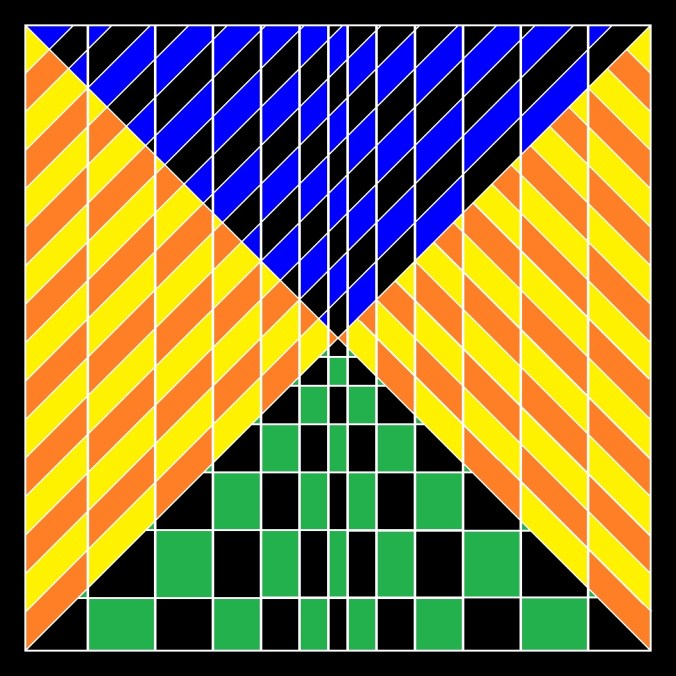
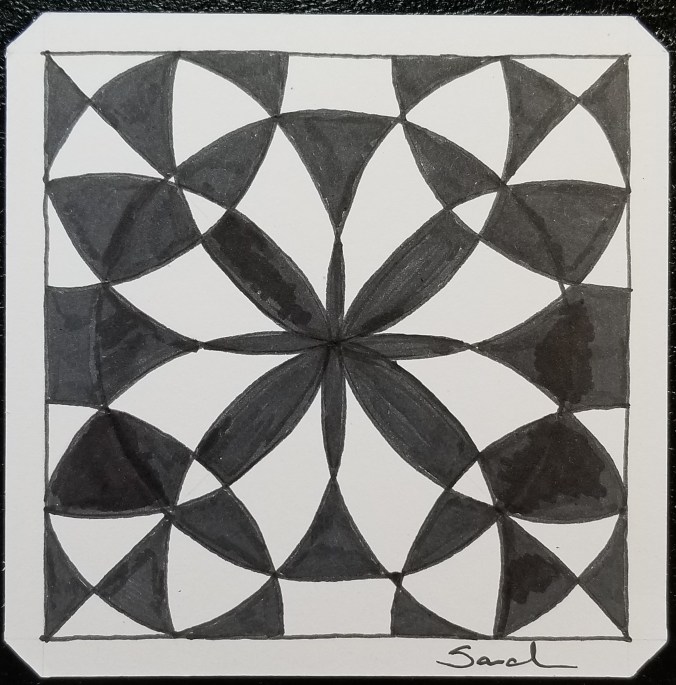
Rule three does not work for black and white drawings.  If  you follow the line from the bottom right corner to the center, there are occurrences of one section touching two sections.    It may be more obvious on the black and white example below.  Even though the rule is broken, you still can get lost in the drawing, or dizzy.

AofC x-treme color 1

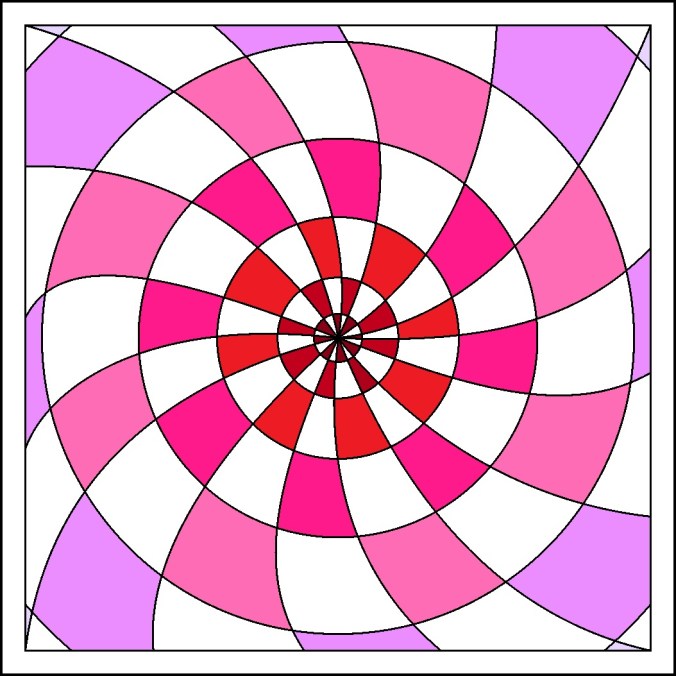
To follow the rule, I used multiple colors on the one below.

AofC x-treme color 2

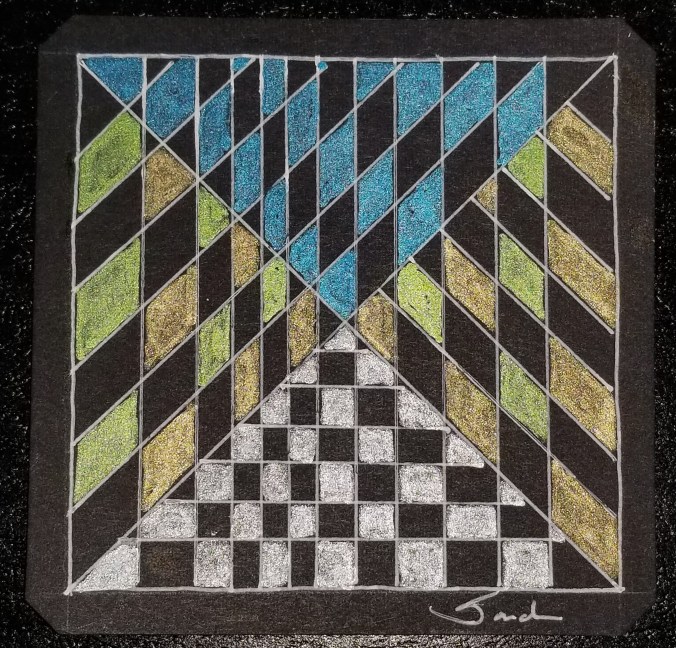
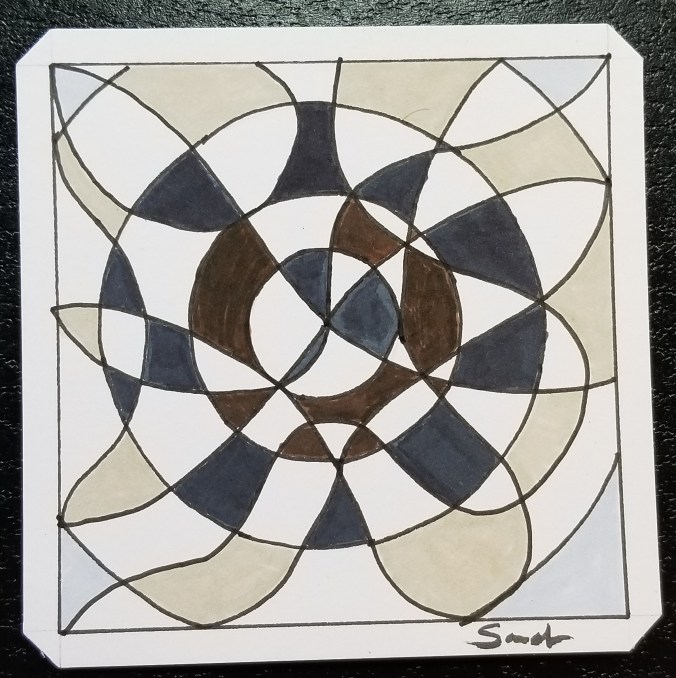
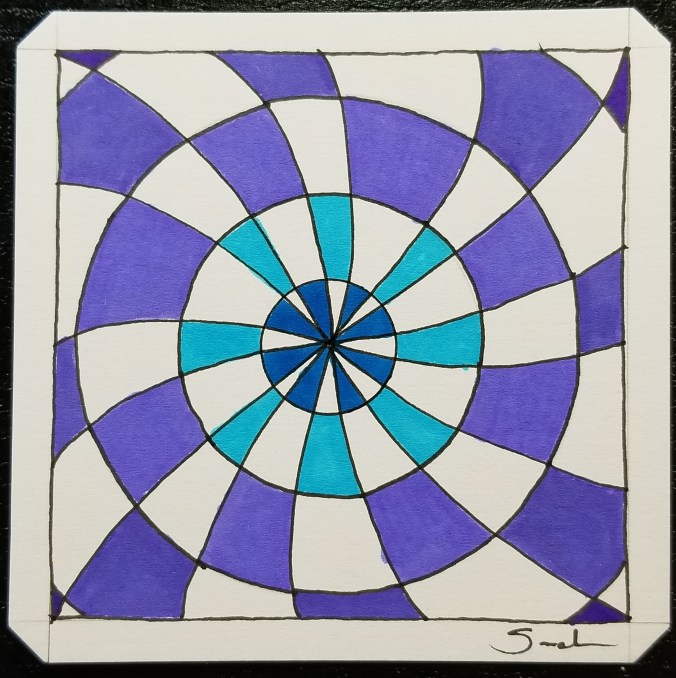
This is the original had drawing done on a black Studio Series Artist Tile with Sakura pens.

20180407_091855.jpg

The X Divides

Click here for a PDF version of the line drawing.   It is also available on the Coloring Page.

Art of Concentration: Day 6

The ability to create something beautiful is a wonderful experience.

The Art of Concentration rules are:

  1. Draw lines on a page.  Circles, squares, squiggly lines, it does not matter.
  2. Color every other section.  Start anywhere.  Use any color.
  3. If you desire, use multiple colors.  Sections of the same color can not touch.

What started out as a page with a mess of lines, can turn into something beautiful.  Here is the line drawing from today.  If you look closely, you will see some circles.

AofC circle mess

First, the line drawing was colored using just black.

circle mess color 1

Next, I colored the line drawing using four colors.  Remember the rule, the same color can not touch each other.  If the colors were placed differently, it could had a completely different look.  See how different it looks from the black and white version.

circle mess color 2

Here is the hand drawn version:

20180406_091009.jpg

Circle Mess

Sometimes, when the black lines gets close, you will need to assume the blank space between the lines, e.g. lower right corner.

Click here for to download a PDF version of the line drawing.  PDF copies of the line drawings are available on the Coloring Page.


Art of Concentration: Day 4

The Art of Concentration can be a game, and it can a experience in the creation of art. The purpose is to help you focus while creating a masterpiece.

The rules are:

  1. Draw black lines on a page.  Circles, squares, squiggly lines, it does not matter.
  2. Color every other section.  Start anywhere.  Use any color.
  3. If you desire, use multiple colors.  Sections of the same color can not touch.

Circles and Swirls is probably one of the easiest, even though it may look complicated.  Today, was the first day, I did not turn the tile over and start again on the reverse side.

AofC circle swirl

This is a fun line drawing.  For today’s coloring, I decided to use the same line drawing to create two pieces..  One, I did in gray scale.  The other was colored in shades of red.  Yes, I believe pink to be a shade of red.

circle swirl color 1

The grayscale version appears to me that everything is falling into a funnel.  Where the shades of red piece, has a different effect.  Both were created in Corel Draw, export as a bitmap, and colored in Microsoft Paint.

circle swirl color 2

My hand drawn piece was done on a Studio Series Artist tile with brush marker and a Micron pen.

20180404_112821.jpg

Swirl to Purple

Click here to download a PDF copy of today’s Circles and Swirl.  It is also available on the Coloring Page.


The Art of Concentration: Day 2

Today, I selected an easier design (The Spiral) for my “Art of Concentration” project.  The rules for designing and coloring the drawing is simple:

The rules are:

  1. Draw black lines on a page.  Circles, squares, squiggly lines, it does not matter.
  2. Color every other section.
  3. If you desire, use multiple colors.  Sections of the same color can not touch.

Since the outline was simple, I decided to use some shading.

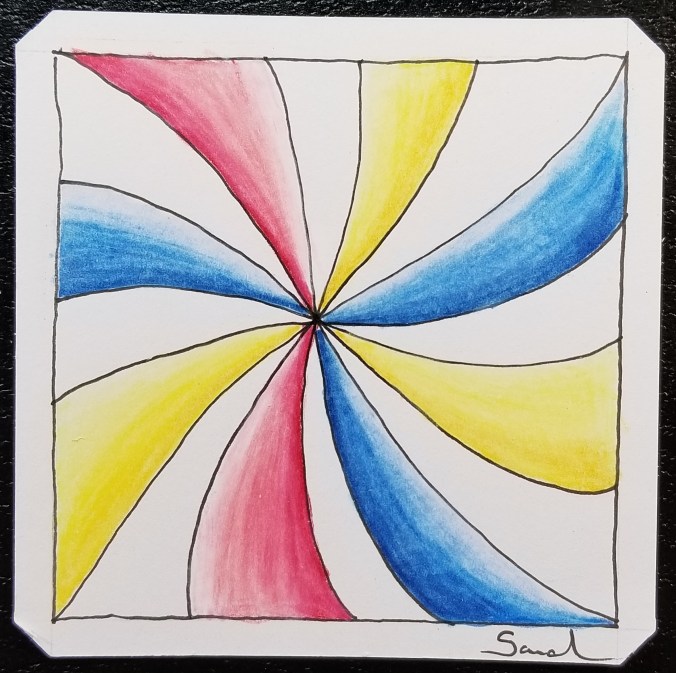
Created and colored by hand using Pigma Micron pen and Prismacolor pencils:

20180402_130235.jpg

The Swirl

The outline created on the computer using Corel Draw:

AofC spiral

The drawing colored in Corel Draw.  I did not use Microsoft Paint today to color the drawing, because I like the gradient done in Corel Draw.

color of spiral

For a copy today drawing, The Spiral, click here.  You may also for this and other drawings on the Coloring Page.

The Art of Concentration: Day 1

For many years, I did not doodle in meeting.  I did not doodle in classes.  I did not doodle in my spare time.  What I did, was grab a piece of paper (any size) draw some black lines on a page, and color every other section on the page until the page was full.  During computer classes, I would open up Microsoft Paint and do the same thing.

Some people may call it OP Art, Optical Art.  I never got that detail.  I never tried to create an optical illusion.  It just was lines on a page.  It was like a game.  If helped me from falling asleep in meetings and classes.  I could do this task and still pay attention to what was going on around me.  In computer classes, the people sitting behind me would watch my monitor as I was creating a piece.  Microsoft Paint was always installed on the computers, even if games or the internet was not.

The rules were:

  1. Draw black lines on a page.  Circles, squares, squiggly lines, it did not matter.
  2. Color every other section
  3. If you were brave, use multiple colors.  Sections of the same color not could touch.

I am going to try over the next few days to repeat this experiment.  I am going to call it the Art of Concentration.  Even though, this art work sound simple enough, it requires concentration.  You have to figure out what section to color.  If you lose concentration, you may color the wrong section.

Today’s piece, I thought is was something simple.  Wrong!

20180401_080146.jpg

Now to color every other section:  Where did I go wrong?

20180401_083927.jpg

Flower Madness

To figure it out, I created the line drawing in Corel Draw and created a bitmap.

AofC Flower BMP

I opened the line drawing in Microsoft Paint and colored the page.  Paint vs. paper – if you mess up in Paint, you can correct it.

AofC Flower

If you would like to try coloring the page, I have created a PDF.  Click Here.  You do not have to color the same section that I colored, just pick a section to start.

You can also find it on my newly created Coloring Page.

2017 Christmas Card

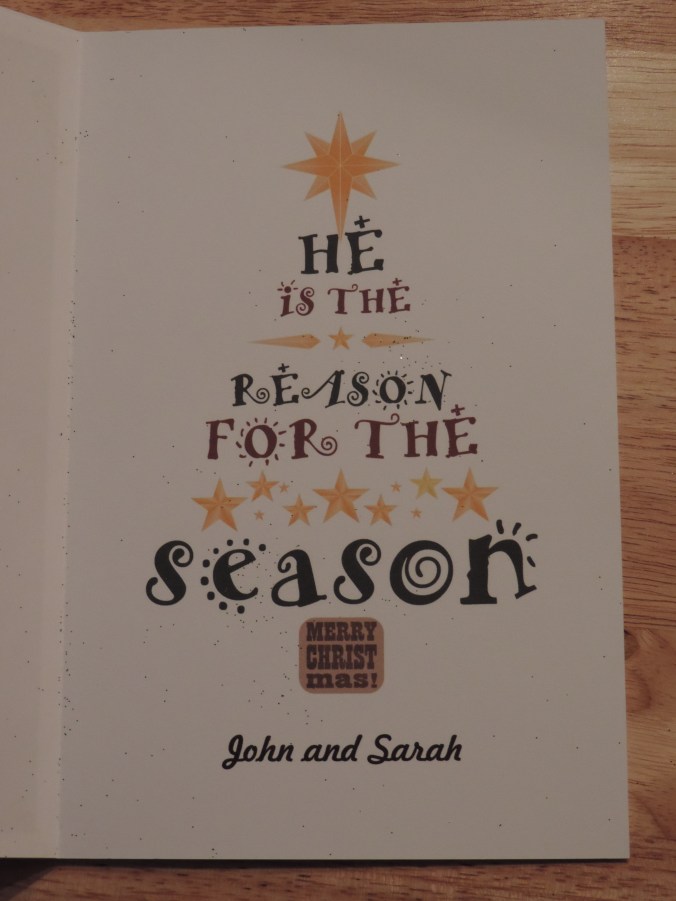
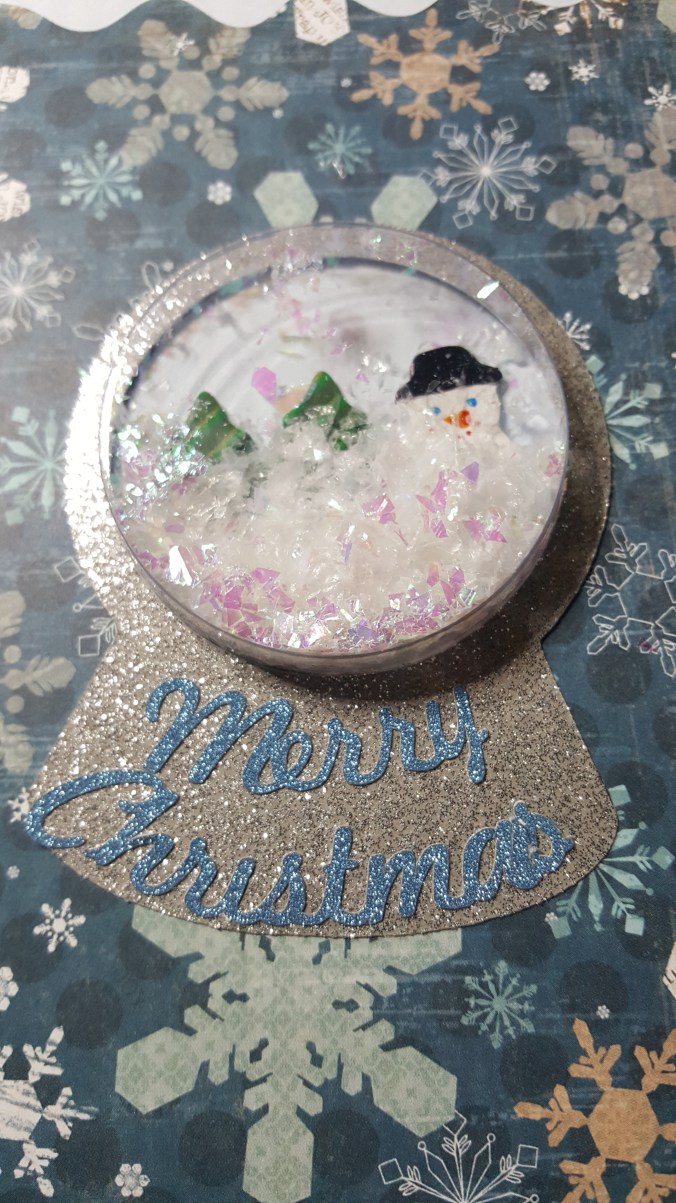
It is the Christmas Season!  All the presents are wrapped and all the cards have mailed; it is time that I share with you my Christmas Card of 2017.

I usually start thinking about my Christmas Cards around July.  If I wait until Thanksgiving, I sure that disasters will strike and I would be force into buying Christmas cards from the store.  This year the ideal was a Snow Globe Christmas card.  I researched the ideal and knew it was possible.

But, I didn’t really want to put a piece of plastic wrap or it’s equivalent on the card.  And, than I found Jullibean Soup’s Large Circles by Hampton Art.  It was a quick Click and Order from Amazon.  Once the circles came in, I started to work on the card.

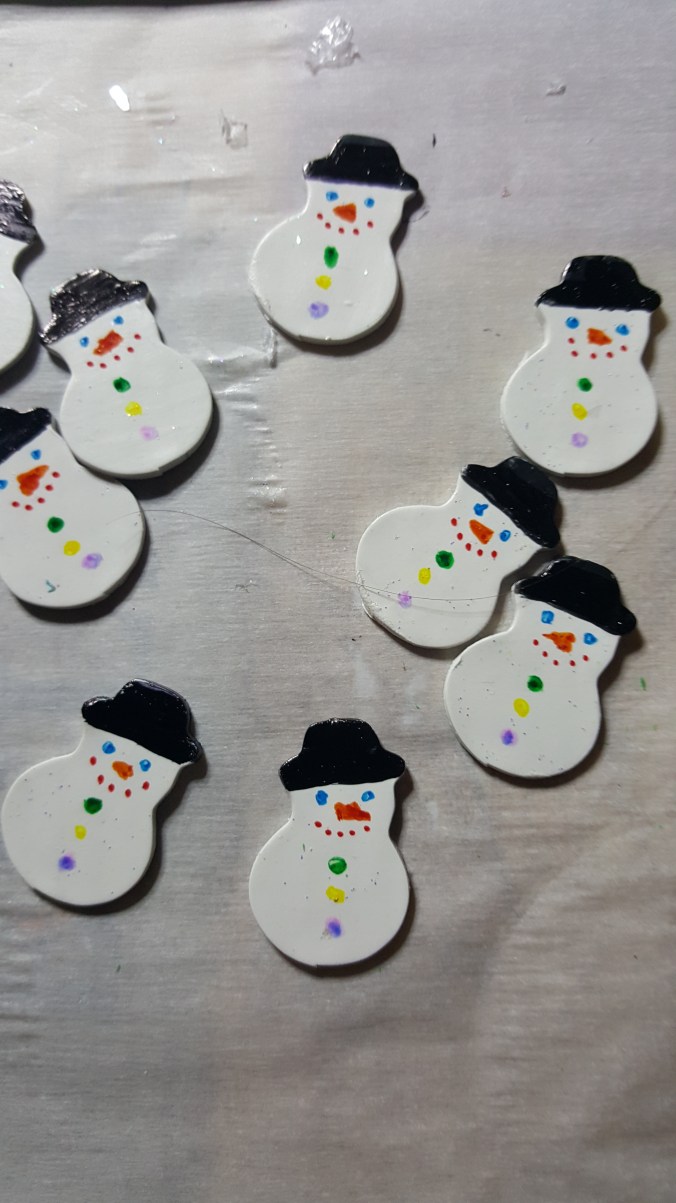
I thought about designing a village scene to put inside the snow globe, but I wanted a little deep.  Then it occurred to me; I have polymer clay, I have cutters for snowman and trees.  The card was coming together.

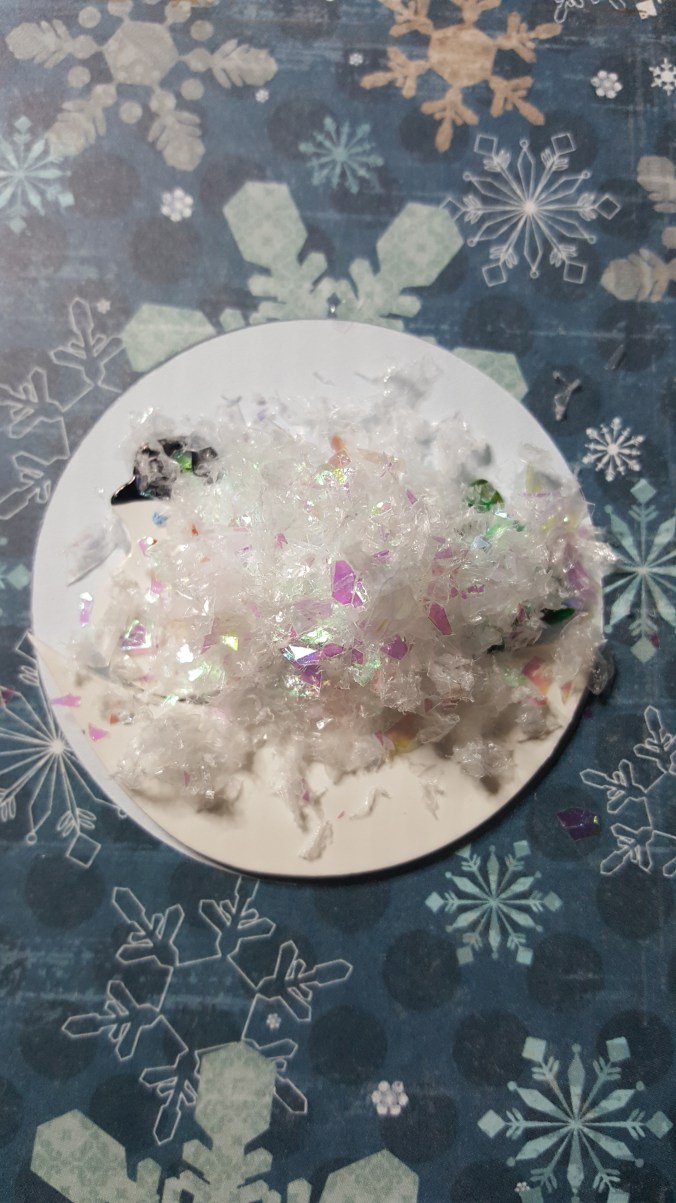
The snowman, trees, and snow were made with Sculpey Polymer Clay using a setting of 3 in the pasta machine and cut with “cookie” cutters, bake and covered with sparkle varnish.  (Which was the first mistake.)  However, I need to draw the face and buttons, and color the hats on the snowman.  I got out may Sharpie pens and colored the hats.  They looked awful.  I should not have varnished the snowmen first.  What was I going to do, paint all the snowmen?  Nooooo!  I had just recent purchase a set of Chameleon Pens, which worked with beautiful results.  It even covered where I used a Sharpie.
20171102_15362220171102_15362920171102_153709

Since the Snowman were coming together, I could now design the inside of the card.  This was done using Corel Draw.  I probably spend too much time making snowflakes, but I was having so much fun.  I hope the shading on the snowman gives it some dimension.

2017 Card Snowman

At Office Depot, I found dual color cardstock.  It was light blue on one side and white on the other side.  This was perfect for my card.  It would give me the blue sky I wanted behind the snowman scene on the front and white on the inside.  I found the snowflake paper at Hobby Lobby.  I found some nice light blue glitter paper at JoAnn’s and had the silver paper left over from last year.

The Jullibean Soup circle comes with adhesive around the circle, so it was not necessary to stick it through the first layer of paper and glue everything down.  I used Silhouette Studio to design the silver snow globe and the cut for the top paper layer.   Everything was cut using my Silhouette Curio.   I was really dreading gluing it all together.

More research.  I found this wonderful blog that talked about ways to glue paper together.  Did you know you can put cheap plastic wrap between two piece of paper and use a hot iron to fix them together.  I didn’t use plastic wrap.  The blog also talk about Xyron Creative Station for sticking paper together.  This is the best machine I have bought all year.  It did exactly what I expected.  It basically creates stickers when you roll your paper through the machine.  Afterwards, you just peel it off and stick it where you want it.  It even handled the delicate “Merry Christmas”.

To assemble the card:

First step: print the inside of the card on cardstock on the correct side of the paper and cut everything.  Run the snowflake paper, the silver snow globe, and the Merry Christmas through the Xyron Creative Station.

Second step: stick the snowflake paper to the correct side of the card.20171102_153614

Third step:  Use glue dots to fix the snowman, trees, and snow to the card.  Top with snow.  (Second mistake.)  After sitting in a box for several weeks, the trees and snowman started to come loose.  The problem was I did not use permanent glue dots for those items.  I had to gently open up at least half of the cards and redo the inside.  I am glad I switched glue dots during the assembly.

20171102_15391620171102_153942

Fourth step:  Place plastic circle on tope of snowman and snow.

20171102_154018

Fifth step:  Place silver globe around circle and add Merry Christmas.
20171102_154833

We have a finished card.  Well, almost.  It needed something else.  I used glitter glue to around the border to give it more sparkle.
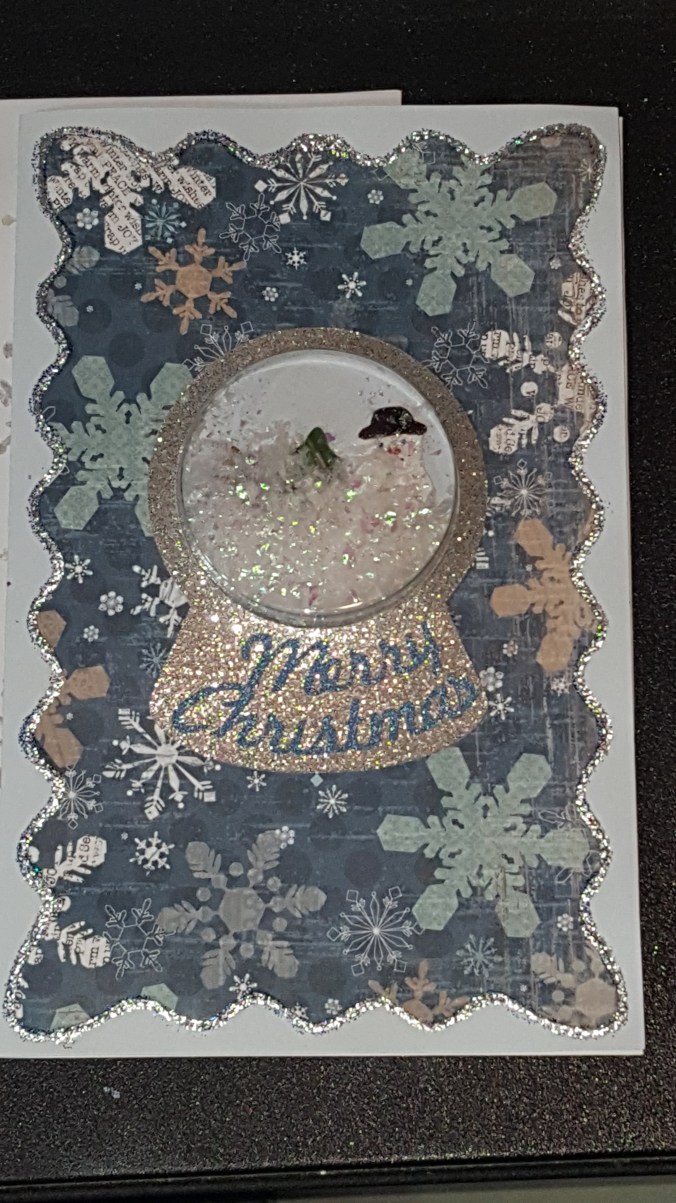
20171215_134056

I put the card in an envelope that I stamped with snowflakes.  Both, envelope and card was mail in a bubble mailer.  Any thicker and the card could not be sent First Class mail.

3D Print – Birthday

There are plenty of March birthdays in my family.  I needed cards.  Someone suggested buying gift cards for my dad.  So, I needed some gift card boxes.  Out comes the Corel Draw, the Silhouette, and the Ultimaker 2 to handle two of the birthdays.

Dad’s Birthday!

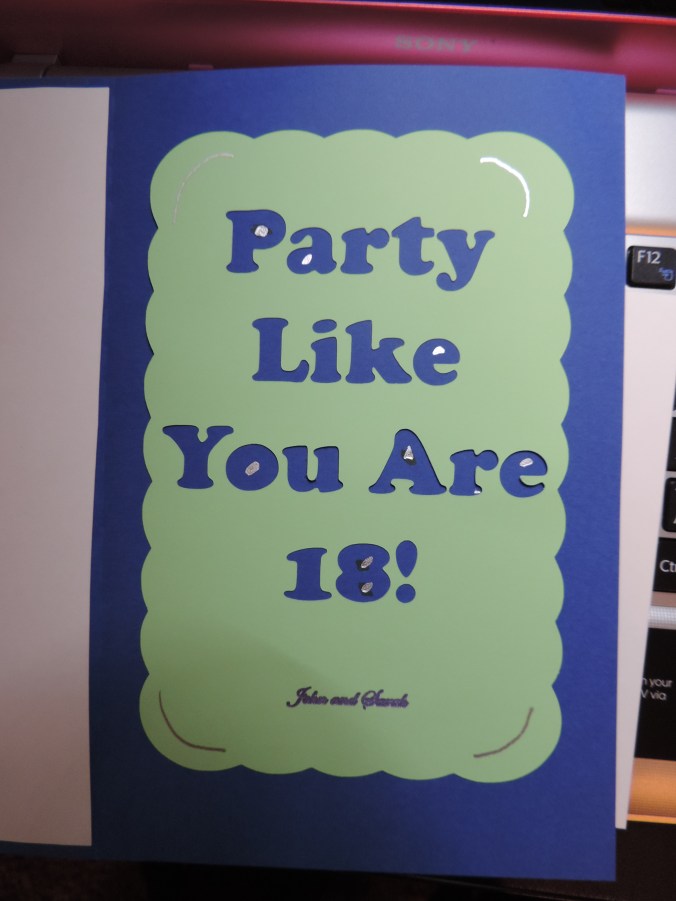
I used Corel Draw to create the background, then I printed it on metallic photo paper.  I designed the rest of the card using Silhouette Studio.

DSCN7169DSCN7175

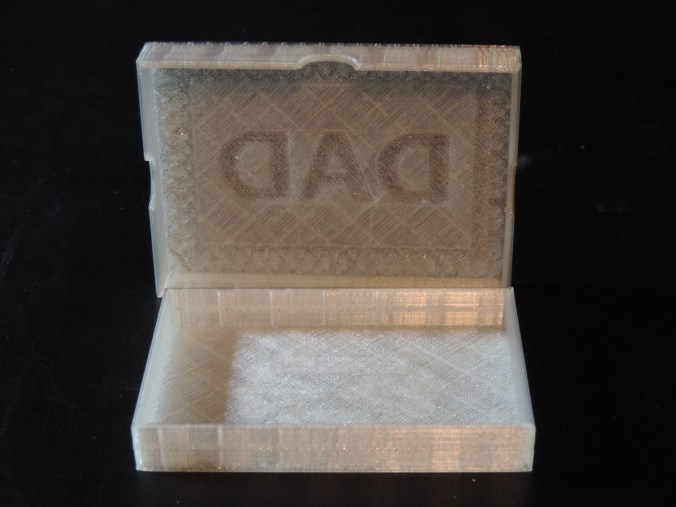
I designed the gift card box in Tinkercad getting the dimension from a credit card.  The box was printed on the Ultimaker 2 using semi-transparent filament.

DSCN7192DSCN7195

Print Time: 3 hours 45 minutes
Filament: PLA – 5.22 meters 41 grams
Layer height: 0.1 mm
Shell Thickness: 0.8

Object Size (W, D, H): 100.001, 164.001, 12.701 mm  (Both pieces printed together)

Amanda’s Birthday!

I used a template for Amanda’s card and cut it on the Silhouette.  However, I did design the envelope since no envelope was a good size..  Alas, I didn’t get a picture.

DSCN7166

I tweak the gift card box after the other one was printed to make the top smaller and fit better.  It was printed using pink filament.

DSCN7183DSCN7187

Print Time: 3 hours 45 minutes
Filament: PLA – 5.25 meters 42 grams
Layer height: 0.1 mm
Shell Thickness: 0.8

Object Size (W, D, H): 100.001, 163.501, 12.701 mm  (Both pieces printed together)

The boxes was printed with the top and bottom laying flat on the printer bed to make the boxes smoother.

Christmas Cards (2015)

Here is a preview of my handmade 2015 Christmas card.

This slideshow requires JavaScript.

The blue starry background was created using Coral Draw and printed on glossy photo paper.  The star, trees, and windows were created using Silhouette Studio and cut using the Curio device.  The star was cut on glitter paper, but the trees was cut on regular card stock and I glued the glitter on after they were cut.

Instead of having the window on the same cardstock, I thought using different pattern cardstock provide a wallpaper background and some uniqueness.

The inside of the card was the same for all the cards.

DSCN6465

I got the text and layout from the internet, but I recreated it in Coral Draw and printed it on card stock.  If I had thought about it before December, I would have created a inside scene and place it in a window frame.  So, the outside of the card would be looking out and the inside of the card would have been looking in.  But, there just wasn’t enough time.

The next card will have to be a birthday card.  There are so many birthdays in January.

Silhoutte Curio – My First Card Atempt

I would like to say the failure of this card resides in total, utter, and shear laziness.  My laziness.  I should have taken more time with the card.  But, this is what I learned in making of this card.

DSCN6357

The background of the card was done in Corel Draw.  It is just a rectangle with a fill image I found searching for “cupcake.”  It was printed on photo paper.  Everything else done with Silhouette Studio and the Curio Cutting Machine.

The “Happy Birthday” part was designed in the Silhouette Studio.  I was able to place the text in the design, then I drew a copy of rectangles.  I used the Curio to cut the rectangles from cardstock and the Curio Sketch pens to write-out “Happy Birthday!”  I do like the sketch pens and I am impressed with their colors.

What I should have done for the “Happy Birthday” banner was to either have the Curio cut each letter or created a different type of banner.  Maybe one that outlined the “Happy Birthday!”  Why didn’t I?  At that time, I didn’t want to have to glue each letter onto the card.

The cupcake turned out nice.  However, this was an image I got from Silhouette for free.  It should had some sparkles.

The inside part.  Again laziness.

DSCN6359

The text was another image from Silhouette.  I failed in putting the image on paper and creating the border.  I probably could have done a better job in cutting out the text by hand.  The text should have been printed directly on the card using the sketch pens.  And, if I would have added a few cupcakes to the inside of the card it would have been a nice touch.

After I glued everything onto the card, the card warped.  The card is now in the garbage can where it belongs.  Don’t use photo paper for the base of card. I am now working on another card.  No laziness allowed.