2017 Christmas Card

It is the Christmas Season!  All the presents are wrapped and all the cards have mailed; it is time that I share with you my Christmas Card of 2017.

I usually start thinking about my Christmas Cards around July.  If I wait until Thanksgiving, I sure that disasters will strike and I would be force into buying Christmas cards from the store.  This year the ideal was a Snow Globe Christmas card.  I researched the ideal and knew it was possible.

But, I didn’t really want to put a piece of plastic wrap or it’s equivalent on the card.  And, than I found Jullibean Soup’s Large Circles by Hampton Art.  It was a quick Click and Order from Amazon.  Once the circles came in, I started to work on the card.

I thought about designing a village scene to put inside the snow globe, but I wanted a little deep.  Then it occurred to me; I have polymer clay, I have cutters for snowman and trees.  The card was coming together.

The snowman, trees, and snow were made with Sculpey Polymer Clay using a setting of 3 in the pasta machine and cut with “cookie” cutters, bake and covered with sparkle varnish.  (Which was the first mistake.)  However, I need to draw the face and buttons, and color the hats on the snowman.  I got out may Sharpie pens and colored the hats.  They looked awful.  I should not have varnished the snowmen first.  What was I going to do, paint all the snowmen?  Nooooo!  I had just recent purchase a set of Chameleon Pens, which worked with beautiful results.  It even covered where I used a Sharpie.
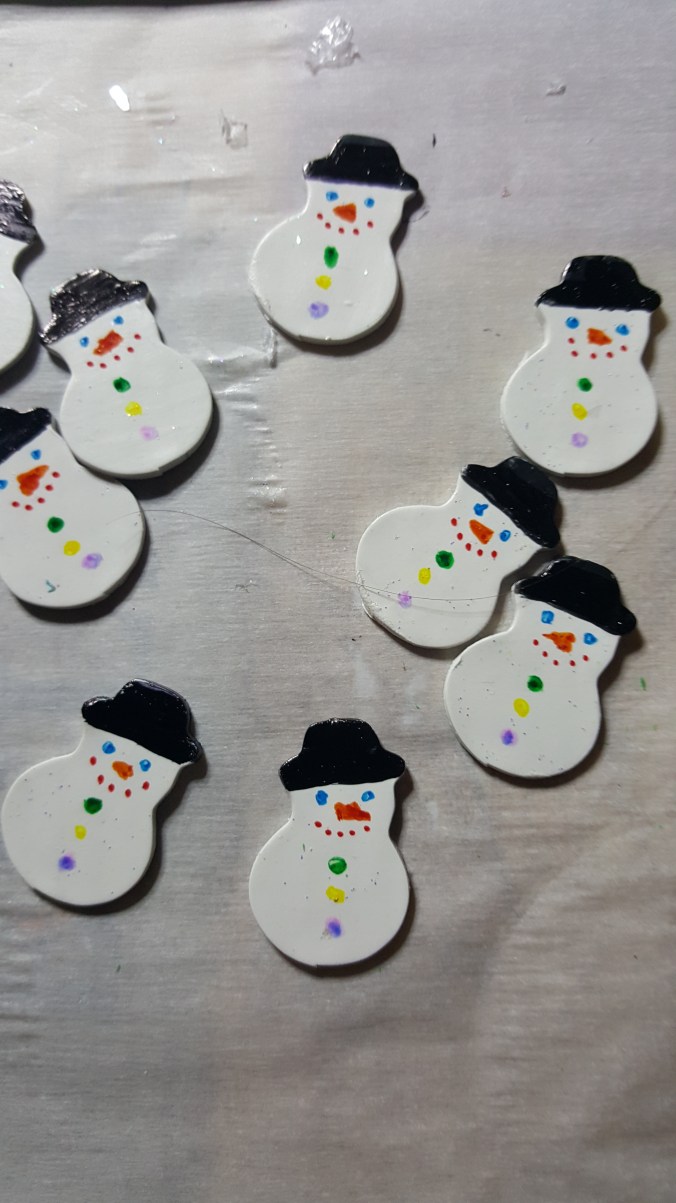
20171102_15362220171102_15362920171102_153709

Since the Snowman were coming together, I could now design the inside of the card.  This was done using Corel Draw.  I probably spend too much time making snowflakes, but I was having so much fun.  I hope the shading on the snowman gives it some dimension.

2017 Card Snowman

At Office Depot, I found dual color cardstock.  It was light blue on one side and white on the other side.  This was perfect for my card.  It would give me the blue sky I wanted behind the snowman scene on the front and white on the inside.  I found the snowflake paper at Hobby Lobby.  I found some nice light blue glitter paper at JoAnn’s and had the silver paper left over from last year.

The Jullibean Soup circle comes with adhesive around the circle, so it was not necessary to stick it through the first layer of paper and glue everything down.  I used Silhouette Studio to design the silver snow globe and the cut for the top paper layer.   Everything was cut using my Silhouette Curio.   I was really dreading gluing it all together.

More research.  I found this wonderful blog that talked about ways to glue paper together.  Did you know you can put cheap plastic wrap between two piece of paper and use a hot iron to fix them together.  I didn’t use plastic wrap.  The blog also talk about Xyron Creative Station for sticking paper together.  This is the best machine I have bought all year.  It did exactly what I expected.  It basically creates stickers when you roll your paper through the machine.  Afterwards, you just peel it off and stick it where you want it.  It even handled the delicate “Merry Christmas”.

To assemble the card:

First step: print the inside of the card on cardstock on the correct side of the paper and cut everything.  Run the snowflake paper, the silver snow globe, and the Merry Christmas through the Xyron Creative Station.

Second step: stick the snowflake paper to the correct side of the card.20171102_153614

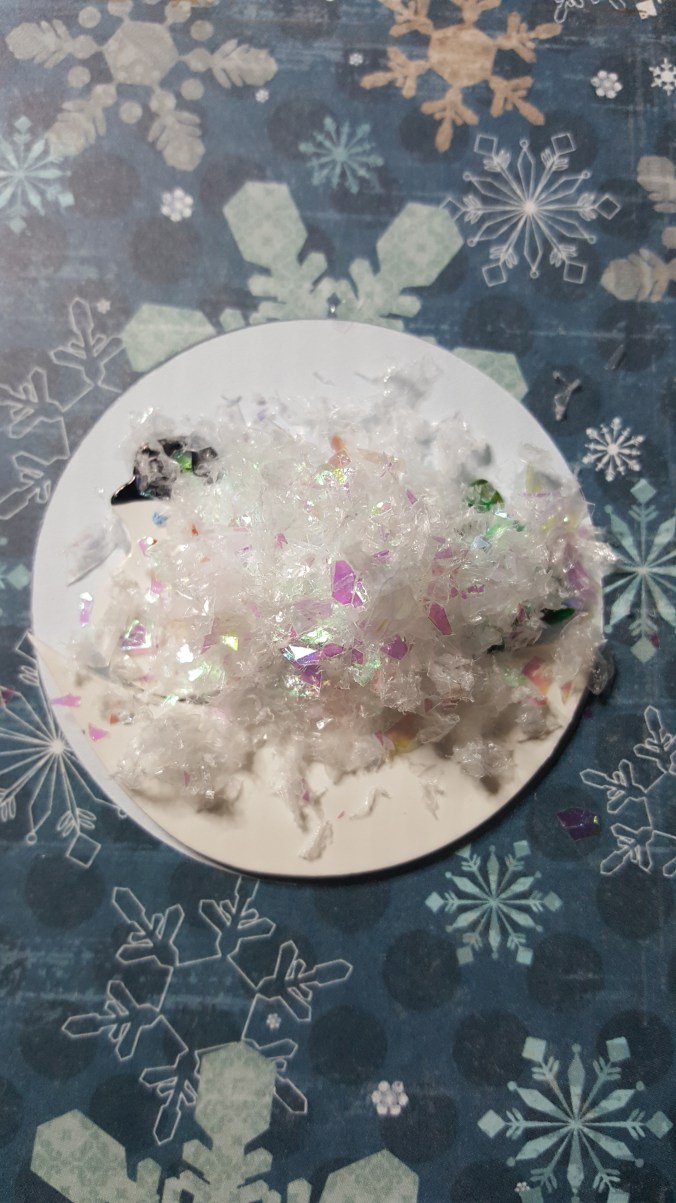
Third step:  Use glue dots to fix the snowman, trees, and snow to the card.  Top with snow.  (Second mistake.)  After sitting in a box for several weeks, the trees and snowman started to come loose.  The problem was I did not use permanent glue dots for those items.  I had to gently open up at least half of the cards and redo the inside.  I am glad I switched glue dots during the assembly.

20171102_15391620171102_153942

Fourth step:  Place plastic circle on tope of snowman and snow.

20171102_154018

Fifth step:  Place silver globe around circle and add Merry Christmas.
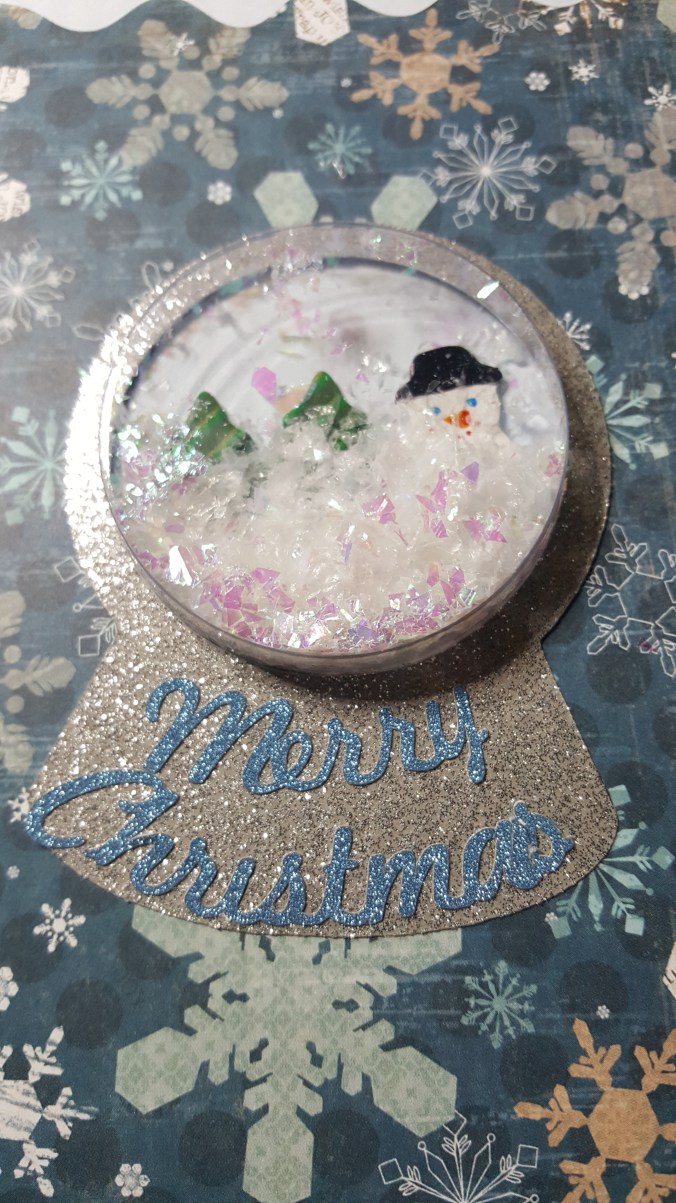
20171102_154833

We have a finished card.  Well, almost.  It needed something else.  I used glitter glue to around the border to give it more sparkle.
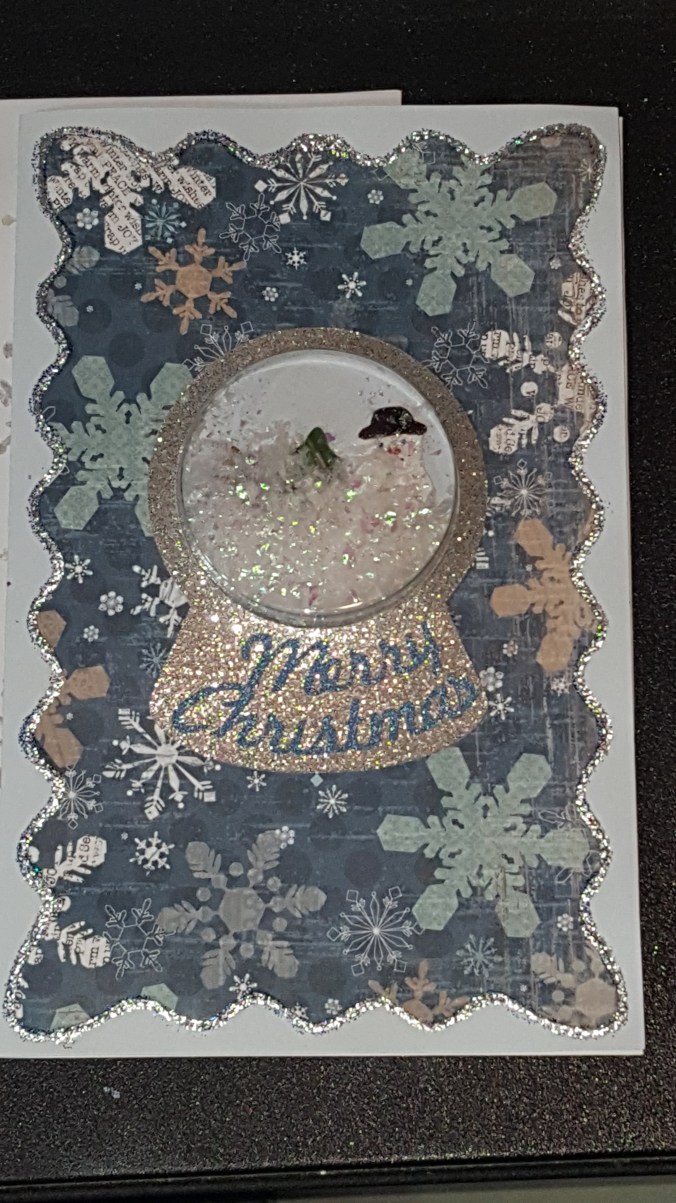
20171215_134056

I put the card in an envelope that I stamped with snowflakes.  Both, envelope and card was mail in a bubble mailer.  Any thicker and the card could not be sent First Class mail.
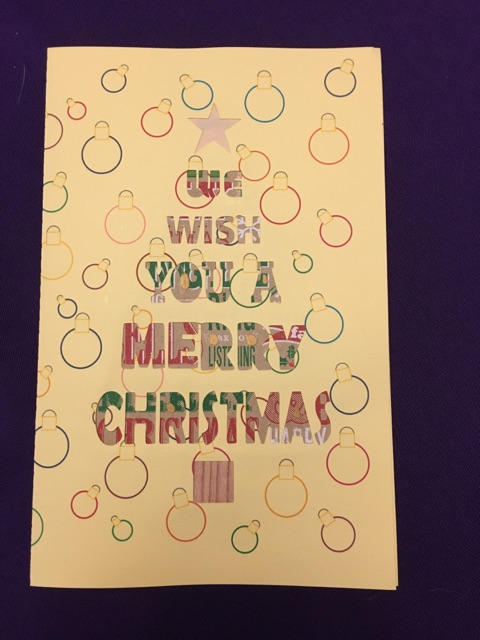
Christmas Card 2016

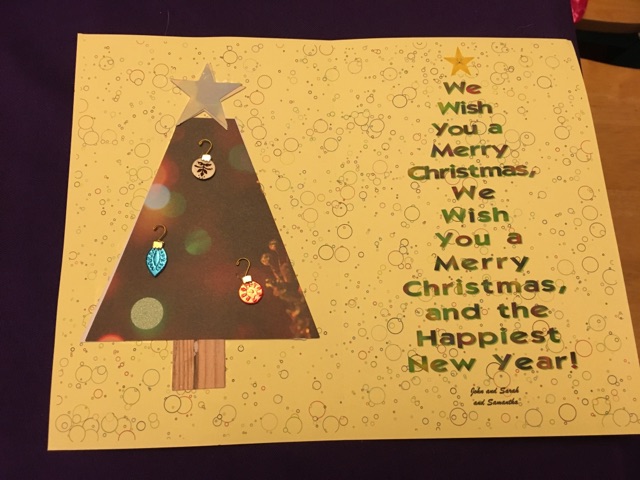
Since I was having so much trouble printing my 3D Christmas Tree card.  I created another card to send out with the card and to the others on my list.  It was designed with Silhouette Studio and cut out using the Silhouette Curio.

5051647661

I used plain cardstock, but the background was lacking.  To spruce up the background I used Corel Draw to create the background for both the card.

5051647751

My niece was excited to be “and Samantha” on the Christmas Card.  She never has been an “and Samantha” before.

Thanks to my sister, she took these picture and display the tree and the card as I imagined.

5051648951

3D Printed Tree

I know Christmas is over and the new year has started, but this was my main adventure for November and December.

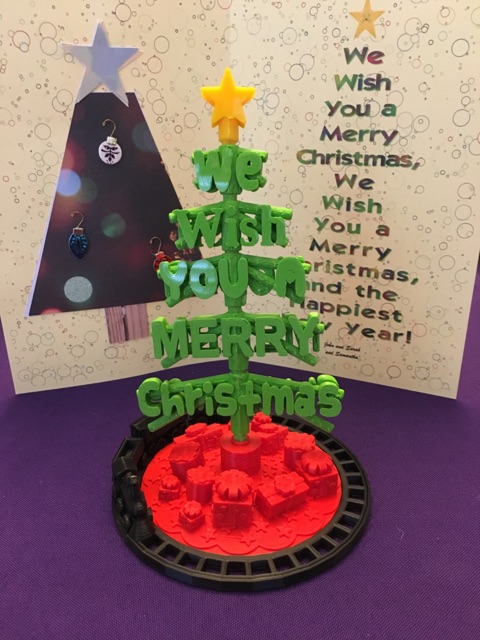
Many months ago, I got the idea that this year’s Christmas card would be 3D printed.  After many rough drafts, I decided on the “We Wish You a Merry Christmas” design.

dscn2819

The initial design phase went smoothly.  And then, I had more ideas.  The words on the tree should turn, so the tree would look like it had stagger branches.  The words on the tree should be readable from any angle.  Oh, it need a tree skirt and the simplest design would have stars on the skirt.

It then occurred to me the tree needed a train going around it.  Well, the train could not literally go around it, because the size of the train.  My printer would not be able to print the tiny detail the train would need to allow it’s wheels to turn.

dscn2820

I still was not entirely happy with the tree skirt.  The tree needed presents.  I designed three unique presents and place them under the tree scaling them to different sizes and placing them under the tree at different angles.

Designing the tree was the easy part.  Printing the tree out, proved to be the most challenging part.  The filament started grinding.  I regularly had be dismantle the extruder box to remove filament.  I also had to dismantle and reassemble the printer head on no  least three occasions to correct issues.  That is why only 6 of these Christmas tree were sent to friends and family.

dscn2828

There were eight .stl files created to print the tree.

The .stl files can be downloaded from youmagine.com.

https://www.youmagine.com/designs/we-wish-you-a-merry-christmas-tree/embed

Tinkercad – the free, online 3D CAD app

Dominoes

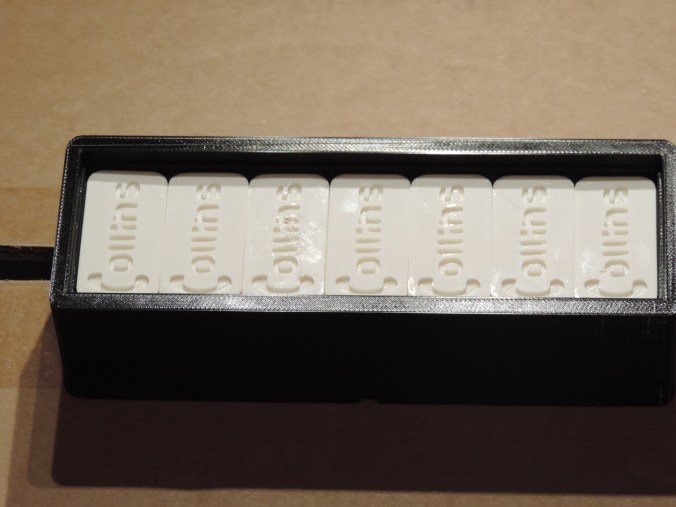
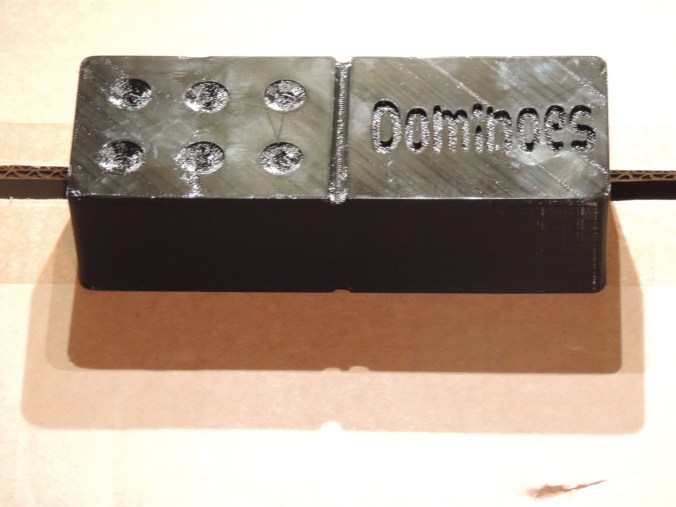
My father-in-law has shown very interested in the 3D printing.  Asking questions about how it works and what can it print.  Before Father’s Day, I sat down in from of the computer and said “What can I print for my father-in-law?  He plays dominoes every Friday!  I can do that!”

I looked up the dimensions for Dominoes; design the dominoes; and created the case to look like a domino.

DSCN8355DSCN8351DSCN8349

His own personalized dominoes.  I also printed a set for my dad for Father’s Day with his last name on them.

The .stl files can be downloaded from youmagine.com.

https://www.youmagine.com/designs/dominoes/embed

Tinkercad – the free, online 3D CAD app

3D Print – Caboose

Even though it is the last car on a train, it is the 3rd car in my train series, the Caboose.  After looking several train cars, I redesign the wheel attachment.  I named the train the “Midnight Express” because the entire train will be print in black.

I place items inside the car.  Table chairs, stove, sink, bench, barrels, crates, and platforms to look out the top windows to view the entire train.

DSCN7343

DSCN7349

The ladders are not fitting together quite right, but these are delicate.

DSCN7356

The next car will be the passenger car.  I believe the train will need a box car and a cattle car.  Do I need a tank car?  Were they in use when trains ran off of coal.  May be a log car and a sleeper car.  There many of choices.

Object Size (W, D, H): 27, 136.43, 62.51 mm

Caboose in Tinkercad

Tinkercad – the free, online 3D CAD app

3d Print – Coal Car

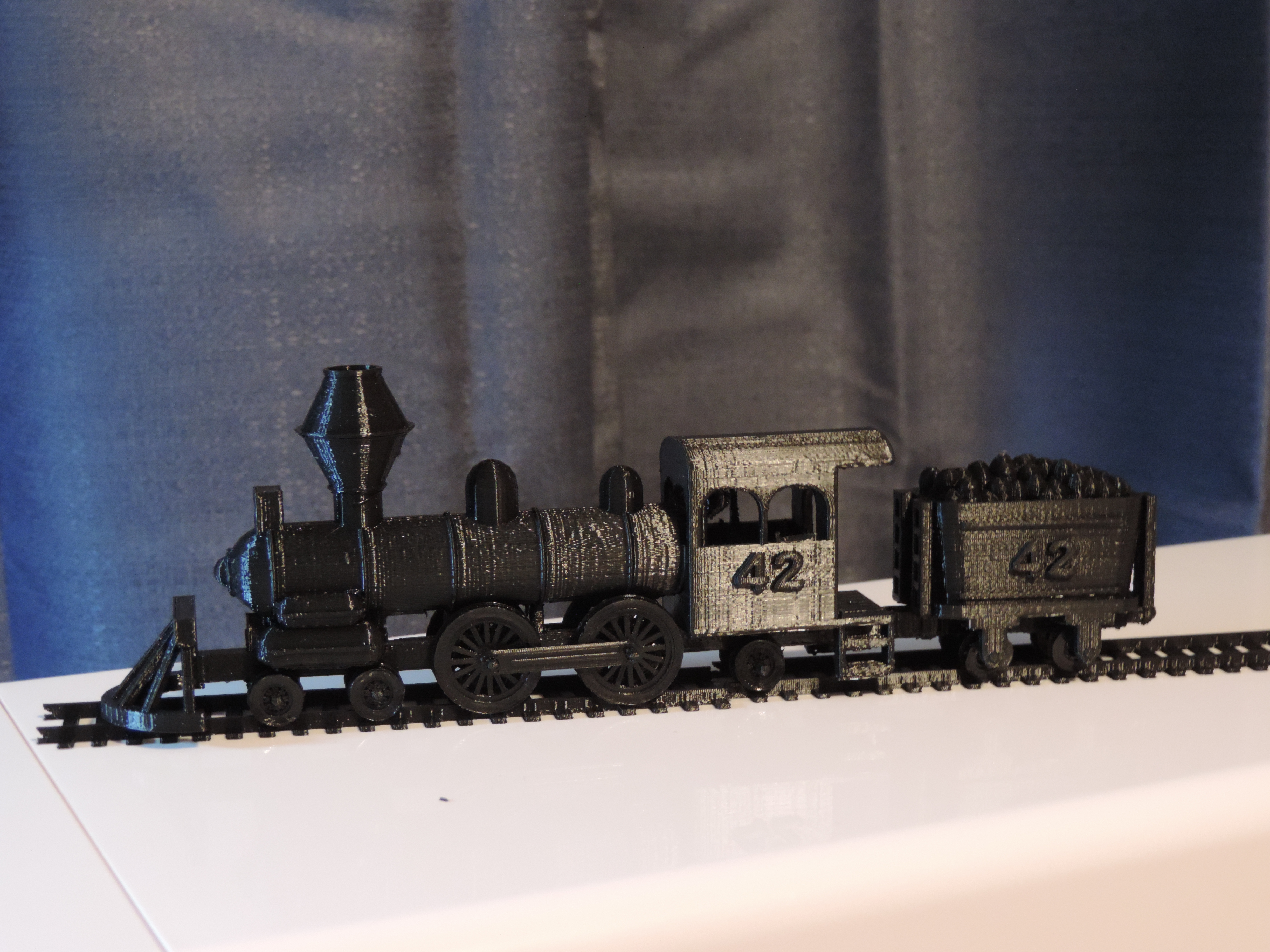
This is the 2nd train car I designed in my effort to print a train.  The first car was the engine. Link: Train Engine

The Coal Car was fun to design.  Instead of spending hours on Tinkercad finding the right shape for the coal container (I didn’t want a box),  I duplicated the same shape and just slightly increase the size until I had the height I wanted.

DSCN7329DSCN7334

The joint to connect the Engine with the Coal Car actually worked.  It was tested previously, but to see it function was amazing.

DSCN7336

Object Size (W, D, H): 25, 55.97, 42 mm


Tinkercad – the free, online 3D CAD app

Coal Car

3D Print – Two Story House

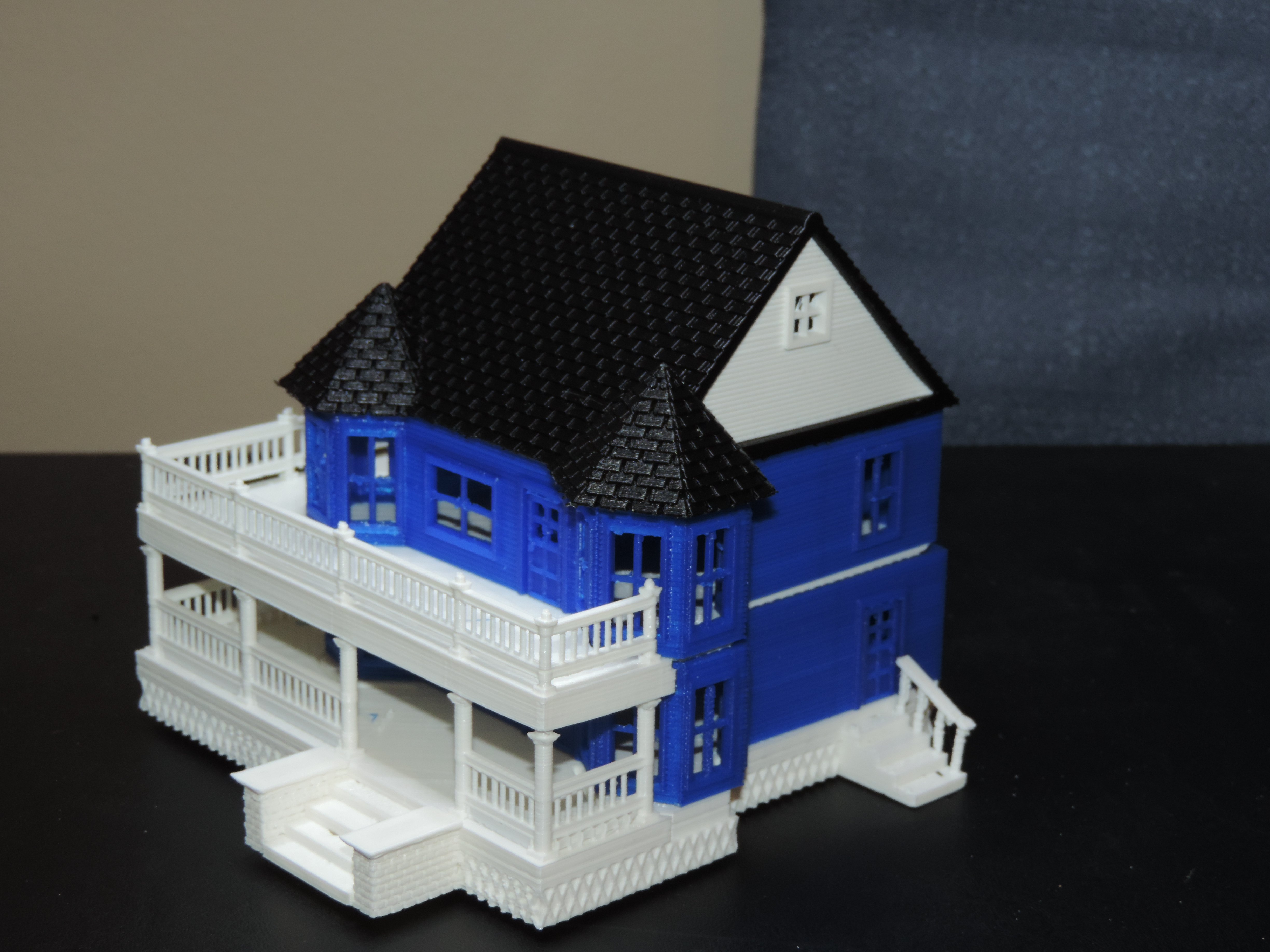
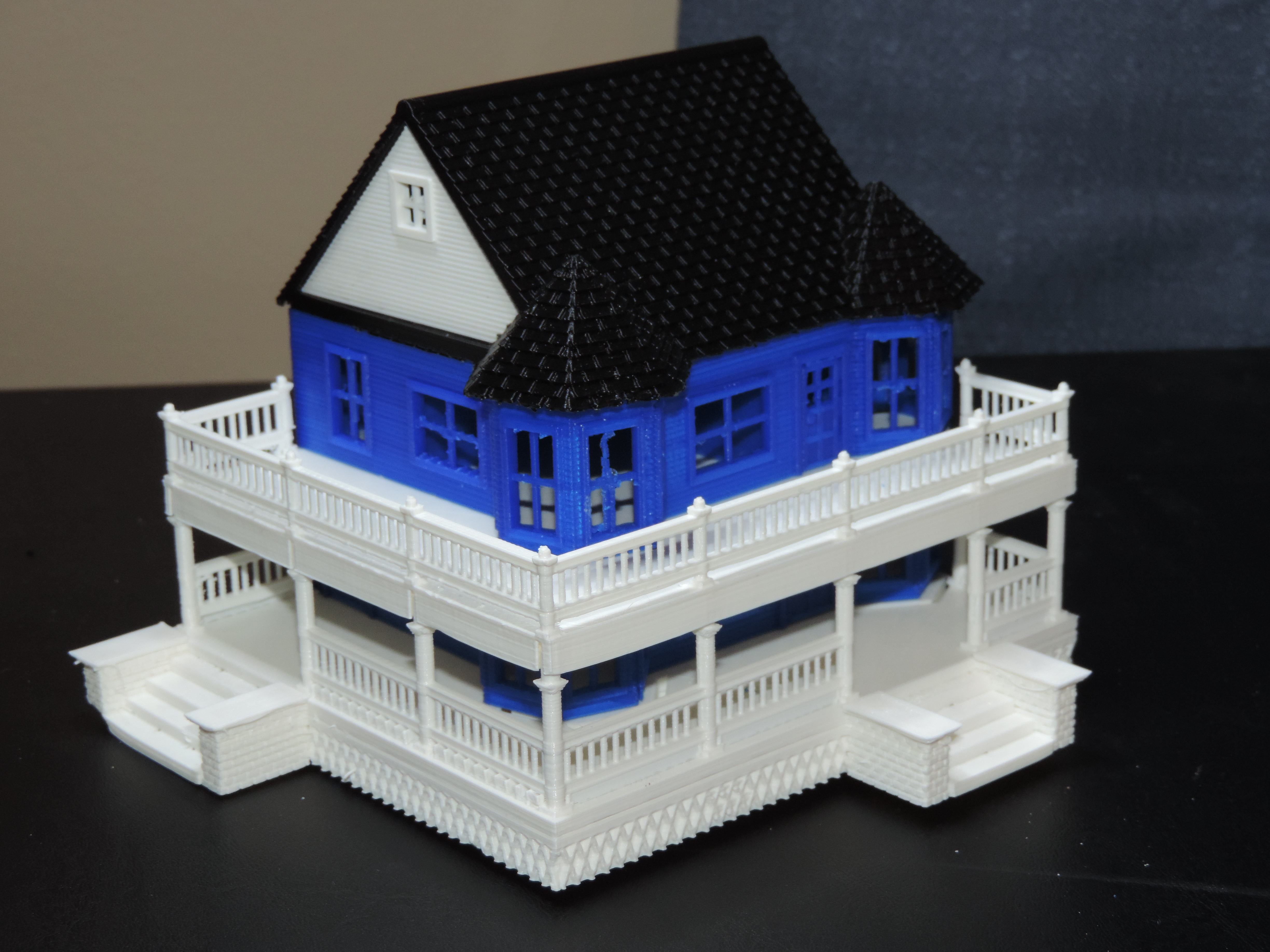
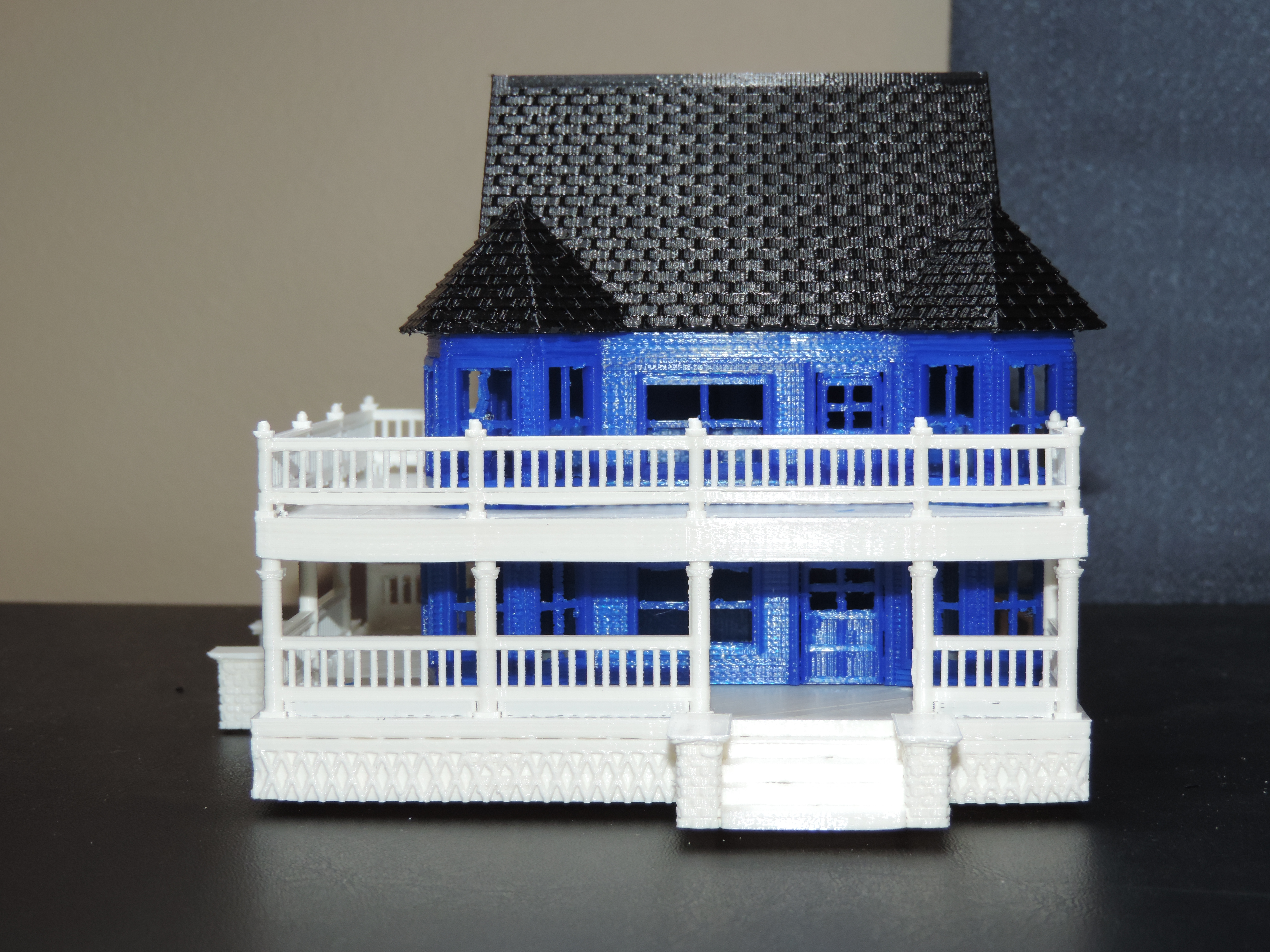
My 3D printed house. It was fun to design and a challenge to print. Instead of printing it in six sections, the next time I believe I will be printing it in four sections and if I want it in multiple colors, I will paint it.. The six sections were; foundation, 1st floor, balcony, 2nd floor, roof, and roof siding.

The roof siding fit into it designed location without much effort.

DSCN7320

The next house I will print on normal print vs. fast print.  Even if the sections take 11 hours each or more to print.  With the details in the house, I believe it is needed.

DSCN7319

I do not know why the corner next to the steps appears to be melted.  Maybe some oils from my fingers were on the build plate that prevented proper adhesion.

DSCN7317

The roof came out great. And, the railing printed nicely.  Whoops, it looks like I didn’t remove some of railing structure before taking the pictures.

DSCN7322

The house was designed using Tinkercad.com; link Two Story House.

Object Size (W, D, H): 161.19, 133.06, 112.14 mm  (approximately)


Tinkercad – the free, online 3D CAD app