Identifying Scams

It seems like there are a billion scammers out there trying to get my personal information or steal my hard-earned money. They already have a few of my email addresses, and one of my former physical addresses appears on a list. There are not a billion scammers, I hope; there are just enough of them to send out 100’s billions of spam emails, texts, and messages every single day.

Recently, I have been watching some scam-baiting videos. Scam baiters pose as victims in an attempt to waste the time and resources of scammers. Some scam baiters even hack the scammers’ operations in an attempt to warn potential victims before they get scammed. The idea is that if the scammer is busy trying to get money from the scam baiter, they are not engaged in scamming other potential victims. Here are a few things I have learned from watching these videos:

Kindly: The use of the word “kindly” in email, text, and messages. Example: Kindly click the link to start the process. Below is an email I got from a scammer. First, it came from someone I never did business with. Second, note they used “kindly’. Third, no punctuation. Fourth, it came from an icloud.com account and not a business account like amazon.com.
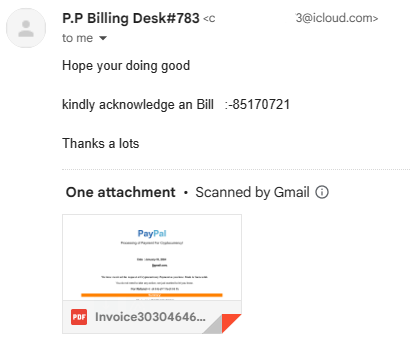
Gmail provided a preview what was in the document. I did not open the document, even though Google said they scanned it for malware. After zooming in by 300% I could see what the scammer claimed I purchased. It was Bitcoins. I reported the scammer to Apple by forwarding the email to reportphishing@apple.com.

Bitcoins and Gift Cards: If a Help Desk Support personnel or another business wants you to pay them in Bitcoins or Gift Cards, it is probably a scam. If you are dealing with a legitimate business, they are not going to ask you to pay them in gift cards. 

Did someone insist you pay them with cryptocurrency?

Why Do Scammers Want Gift Cards?

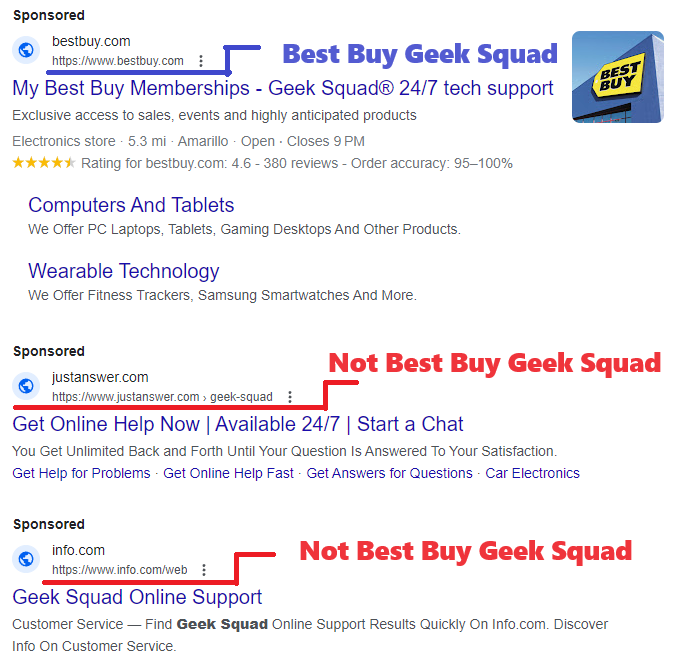
Sponsored Links: Google and Bing are proactive in shutting down scammers, but the scammers are creating fake webpages and are purchasing fake ads faster than these companies can shut them down. Yes, scammer buy ads just like legitimate companies. If I search for “Geek Squad” I will see Sponsored on Google and Ads on Bing. Both return several links that were not Best Buy’s Geek Squad. These non-geek squad links maybe legitimate companies, or they could be scammers.
Mailing Cash: If you are being asked to send a large amount of cash through the mail and are provided instructions on how to hide the cash inside books or other items, it is probably a scam. United States Postal Service and UPS both allows you to send cash as long as it is not for illegal purposes. There are scam warnings all over their websites about sending cash in the mail. FedEx does not accept any form of currency. If you are told to hide the currency, it is probably a scam.

Putting Cash in the Mail

Your Bank Calls: Scammers will ask you for the name of your bank and the bank’s phone number on the back of your card. Why, so their fellow scammer can spoof your bank’s phone number to call you pretending to be your bank. Once you are comfortable with talking with the fake scammer’s bank, they well attempt to get as much information about your bank account as possible; name, account number, passcode, PIN number and password. If this was a legitimate call from your bank or credit card company, they do not need your account information because they would already be looking at it.

Eight Things Your Bank Would Never Ask You

Phone Scams

Checks: It is very easy to forge checks. The scammer will make out a fake check for an amount that is greater than the cost of the item. Then they will ask you to refund the money over the cost of the item. This is all done before you learn that you were given a fake check. Now they have the item and the money.  If you are selling your car for $20,000 and they give you a check for $25,000, BEWARE!

Beware of Fake Checks

Encouraging You: You are on the phone talking with someone who claims you won $1 million. To claim this money, you need pay the lawyer fees of only $500. They are claim these fees can be pay by gift cards, bitcoins, or an online transaction like Venmo and they are willing to walk you through the entire process. If you receive another call or text, they will tell you not to answer the call or read the text, because your phone has been hacked and it is scammers trying to contact you. They will tell you not to talk with anyone, not the store manager, not the bank teller, not a family member. They will not let you off the phone until the money is transferred to them. They will tell you if someone ask what you are doing lie to them and tell them you are trying to help a friend or family member.

Job Opportunity: Scammer will pose as recruiting managers to obtain your personal information or to get money. If recruiter ask you for money, WARNING! it may be a potential scammer. If a recruiter contacts you, check out the company they claim to work for or the company they claim to represent. A scammer will create their own webpage just to scam as many people as possible. If a recruiter contacts you, and claim they work for Big Tech Industries, and give you the URL of iBigTechInd.com but you search the web and find the URL for Big Tech Industries is BigTechInd.com another warning sign of a potential scammer. 

How to Avoid Job Scams

Scammers also recruit individuals to receive money, asking them to send it to someone else or convert the funds into Bitcoin or Gift Cards. Unfortunately, these victims unwittingly become Money Mules. Engaging in such activities is illegal, and participation could lead to imprisonment.

Money Mule Scams

Web Pages: Scammers create deceptive web pages with the sole intention of defrauding as many people as possible. Frequently, they steal pages from legitimate companies and replicate them for their malicious purposes. If you encounter broken links on a company’s website or forms that cannot be submitted, it may be an indication that the website is fake 

How to Identify a Fake Website

Image Search: Google’s and Microsoft’s image search is a great tool for identifying scammers. If you are suspicious of a website, do an image search to see how many websites uses the same pictures. Is the CEO’s picture just a stock photo, or does it appear on another website? Is the image of that puppy which is for sale, or the image of the dog that is in dire need for help, located on multiple websites? Probably a scam.

How to Spot a Puppy Scam

Pictures: Never send your pictures, whether naughty or nice, to someone you’ve met online. Extortionists often invest time in building a connection, pretending to be your friend, before requesting a photo. If you send a compromising picture, they may use it for blackmail. Even if you send a harmless photo, they might manipulate it by placing your head on a compromising image and then use it for extortion. If someone gets upset because you refuse to share a picture, remember that they are not your true friend.

Junk Mail: Currently, one of my email addresses Junk Mailbox has over 1400 emails. Yes, some of them are legitimate, but over half of them are scams. Some of the email claims I purchased something and want me to call them to get a refund. Some actually has threaten to wipe my device if I do not pay them in Bitcoins. Here are a few ways, I easily identify scam emails:

  • Flagged as Important – thank you scammers – you have made it easy for me to identify your emails and report them as phishing.
  • Memberships I Never Had - Scammer like to send emails for streaming services I never had.
  • Wrong Email Address – I have multiple email addresses. One for each aspect of my life; Business, Bills, Financial, Shopping, Friends and Family… each has its own. So, if I get an email from Amazon and it came to the wrong email address. It’s probably a scam.
  • Emails not containing the companies URL. Why would Lowes hire extradegree.co to send out emails for them? They would not!
  • Emails not addressing me by my name. They are using part of my email address. Or, emails address to the wrong person.

Most of these tips came from watching Pleasant Green’s YouTube channel. He has numerous videos on exposing scammers. Check out his videos.  If you would rather read about scams, there are links throughout this post about identifying scams.

Like the scam baiter say, “Being knowledgeable is the best defense against scams.”

Microsoft Bing Image Creator

Over the past few weeks, I have been creating pictures with Microsoft Bing Image Creator. It’s AI created some wonder images. It works by describing the picture you want to see, and the AI creates the picture.

One prompt I used was: “candy manufacturing plant made of gingerbread located in the north pole that is run by Santa’s elves”. Below are the images the AI returned.

To use Bing Image Creator, you must have a Microsoft account. If you are a new user, Microsoft will provide you with 15 boosts. My Microsoft account is many years old, and I was provided 80 boosts.

In the prompt field you type a description of the picture you would like to see, then you press the Create button. After a short period of time, the AI will show you four pictures it created. You then have the option to download the pictures or rework the description. Each time you submit a description, it will use one of the boosts.

Below are more descriptions I used and the pictures the AI created.

Description: a nativity scene with Mary, Joseph, and baby Jesus in a manger with the Bethlehem Star shining down on the stable. In the background show choir of angels in the background.

Description: The garden with variety of trees and flowers. The garden features a fountain sculpted from white marble, resembling an open flower. Within the fountain, 40 water sprouts shoot up into the air, cascading back down like rain into the crystal-clear pool.

Description: A dog playing frisbee and cat riding on the frisbee. They are in a park which has a bluish green field surrounded by a variety of trees.

Description: Need a image that I can use to give credit to Microsoft Bing Image Creator for the wonder images the AI creates.

Microsoft only provides the image in a JPEG format and limits the size to 1024 x 1024 pixels. Which is good enough for posting on a Social Media platform or this blog.

There is no guarantee that you will get that same pictures every time you enter a same description multiple times. Nor, is it guarantee that someone else will not get the same picture created with a description you used.

I tried other AI picture generated programs like PIXLR and FOTOR. Both have more features than Microsoft’s Image Creator. FOTOR I ran out of boost before I finished my research. In the PIXLR Licensing Agreement, it states that no image can be used unless you have a subscription.

In my opinion, Microsoft Image Creator generated better pictures. In the other programs missed sometimes in what I was trying to create. For example, I asked for a yellow bird whispering in a dog ears. It returned a few examples, but one had a dog’s head on a bird’s body.

Broken – Outlook – Needs Emergency Fix

I have multiple email accounts. I use one, Outlook, for shopping. Why, because I can use the safe sender list to block most emails from getting to my inbox. Currently, in my Outlook Junk Mailbox, I had over 3200 emails in the Junk folder. Approximately, every 98 out of 100 emails in this box are from spammers.

This morning I woke up to numerous notifications on my phone. I did not see these notifications over night because I have “Do Not Disturb” active on my phone. But once the Do Not Disturb expired the beeping started. My Junk Mail was being routed to my Inbox.

This is a Microsoft Outlook problem. An update broke the Junk Mail routing. I don’t know what they were trying to fix, but now everyone who uses Outlook should be on guard, because Spammers and Hackers are rejoicing this morning. Their email is no longer being routed to Junk Mail and they are reaching more potential victims.

Now it is time to take precautions:

First, if you are sick of the notifications – Turn them off. On most devices you can find Notification under Settings.

Second, don’t open any email that are not from a friend, colleague, or a business where you signed up to receive emails. My security system blocked an URL this morning, because I opened an email that attempted cause havoc. Here are a few examples of Spam emails:

  • If it has Affiliate in the title.
  • If it has Associate in the title
  • If it has Gift Card in the title
  • Renewable by Anderson
  • Back Pain
  • AARP
  • ADT
  • You Won

Third, if you really want the special offer in an Email. Do not click on any links in the email (ever), go directly to company’s site and get the offer directly from their site. If the offer is not on their site, it is probably not a legit offer. Community Coffee is really good about sending emails about their offers. When I go to their site, the same exact offer is published on the top of their page.

Fourth, report the offending emails as phishing. I really hope the technology companies or working on stopping Spammers. I tracked a spammer down to a mailbox in Las Vegas. If I can do that, why can’t the tech companies?

Windows Update – Argh

If you ever looked at the homepage, you would have noticed it says Technology is one thing that this blog is about.  Well, I haven’t written about technology in a long time, because I have been drawing.

First the Rant!

Microsoft, why do you make my PC starting acting up the day you release a new Windows Update, even though the update hasn’t been installed on the PC?  The web browser start hanging up and sometimes crashing.  The PC gets so slow, I want to pull my hair out!  It was perfect fine the day before you release the new update.  But, on update day – Argh!  I have to stop everything and update my PC just to get it to work like it did the day before.  If it only takes me an hour to get my PC updated, I am lucky.  But, most of the time it takes me days because of an error.

End of Rant!

It start off as a normal day, a nice day, and a quiet day.  I was going to spend time designing and printing things on my computer.  But, the browser was hanging up.  Programs were slow to open.  I did what I always did when my PC is acting up, I checked Windows Update.  Click Settings -> Update & Security -> Windows Update.  There was an update.  No problem.  I will let the update finish and everything would be good again.  Wrong!  An hour later I checked and the update was at 70%.  Two hours later no change, and Adobe was reporting it failed to install.

The first step, do a web search to find out why it is stuck at 70%. Numerous website wants you to download their product to fix this problem.  I don’t know which ones to trust, so that is not the solution for me.  On one of the sites, it recommended downloading the update directly from Microsoft’s Catalog. 

https://www.catalog.update.microsoft.com/home.aspx

All you need is the Update Number to search and download the update.  For Adobe is was KB4467694.  There are multiple updates for each number, just make sure it matches the description as shown on the PC’s Windows Update.

I tried the Adobe Update first, because it had failed.  It opened a Window stating it was checking the system for updates.  So, I let it run.  Hours later, it was still running.   I rebooted the PC while it was still running.  I checked Windows Update again and the Adobe Error was gone.  I started the Windows Update again.  It failed, but this time I go an error message.  Error 0x800f0984.

The web search results said that Error 0x800f0984 was related to .Net Framework.  That did not help.  I booted my PC into Safe Mode.  I learned that you can’t install Windows Update in Safe Mode.  When I tried to run Windows Update again for the 100th time, maybe not the 100th, I got a new error code: 0x80073712.  That was better, It was pointing to a Windows Component.  

In my previous attempts to get my PC working after a Windows Update, one of the recommended actions was to boot the PC with only the Windows Processes running.

  • In the search box, type in MSConfig and open the System Configuration.
  • Click the Service tab and click Hide all Microsoft service
  • Click Disable All to stop all the remaining services

This time, when I opened the System Configuration, I noticed that it had changed.

Instead of going through the process of disabling the services, I selected “Diagnostic startup”, clicked OK and rebooted my PC.

After my PC rebooting, I ran the Command prompt, as Administrator:

  • Type CMD in search window
  • After Command Prompt displays, select Run as Administrator

In the Command Prompt window, I ran these commands:

  • DISM.exe /Online /Cleanup-image /Scanhealth
  • DISM.exe /Online /Cleanup-image /Restorehealth

Both commands gave error messages, but I tried Windows Update again and it successfully updated.  The next time, I may just give in and reinstall Windows.

I do not know if I fixed the problem, or Microsoft fixed the Windows Update.  Now, I off to reboot my PC in the Normal Startup mode.  Yes, I type this blog post in the Diagnostic startup mode.