3D Print – Holy Family Shrine

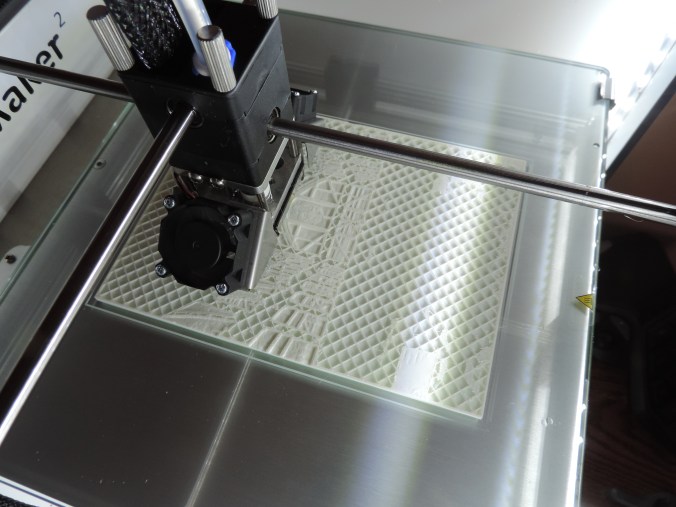
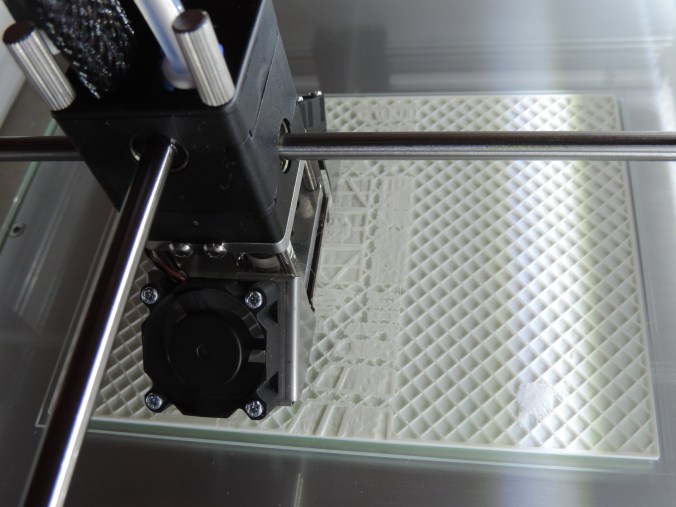
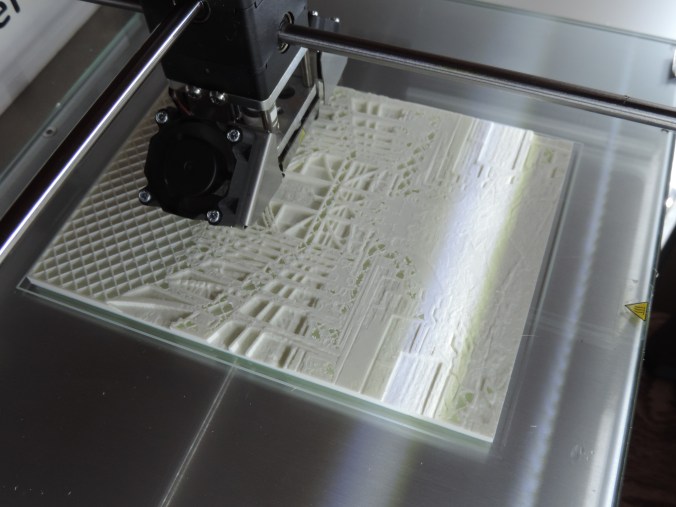
I’ve learned that I could take a .jpeg file and load it into the Cura software that came with the 3d printer (Ultimaker 2) and it would add depth to the picture.    I had the option of letting either the dark or light colors to have depth.

I selected one of my pictures that I took at the Holy Family Shrine.

I had to scale down the image to 4″ x 6″ in the Cura software because 1101.3 x 1468.5 mm (43.35 x 57.81 inches) was too big for the printer.

I believe the results were amazing.

DSCN7037

DSCN7036

DSCN7038

DSCN7039

3D Print – Something Wearable

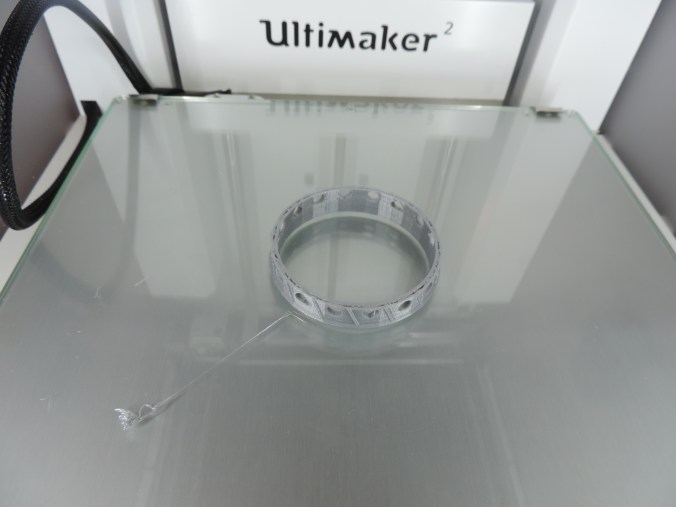
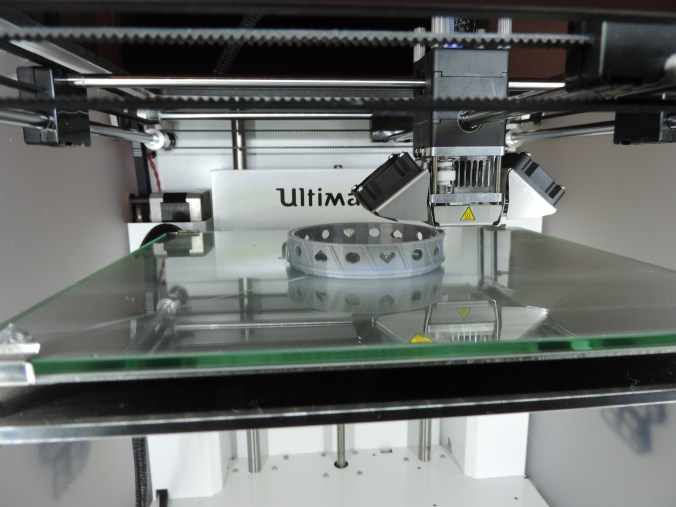
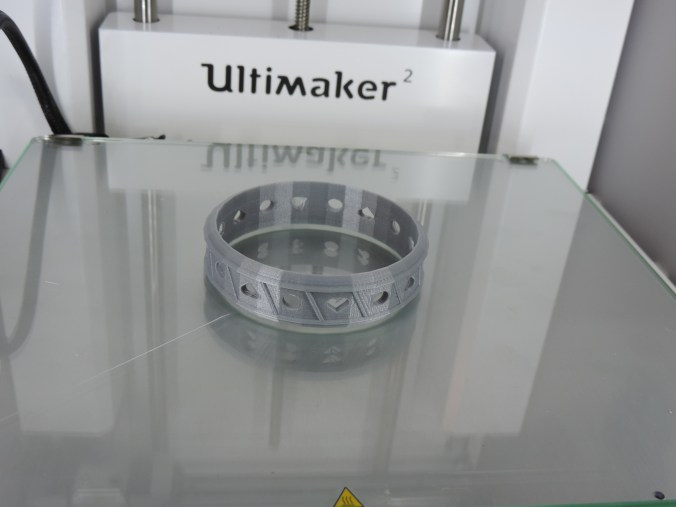
The next item I created with Tinkercad and printed was a 3D bracelet.  The first version was too small for my wrist and quit printing before it was completed.

DSCN6907

So I enlarged the bracelet, and this time I made sure that the gcode file was completed written to the SD card before I tried to print the item.

DSCN6909

DSCN6913

Print Time: 2 hours 12 minutes
Filament: PLA – 1.32 meters 10 grams
Layer height: 0.1 mm
Shell Thickness: 0.8

Object Size (W, D, H): 70.07, 70.07, 18.721 mm

3D Print – Something Tall

After loading several objects into the Cura software, it told me ‘Info:  Print one object at a time disabled. Object too tall.”  During my research of this issue, I learned the object was not too large for the printer, it was just too large for printing multiple objects.  Now, I had to print something tall.

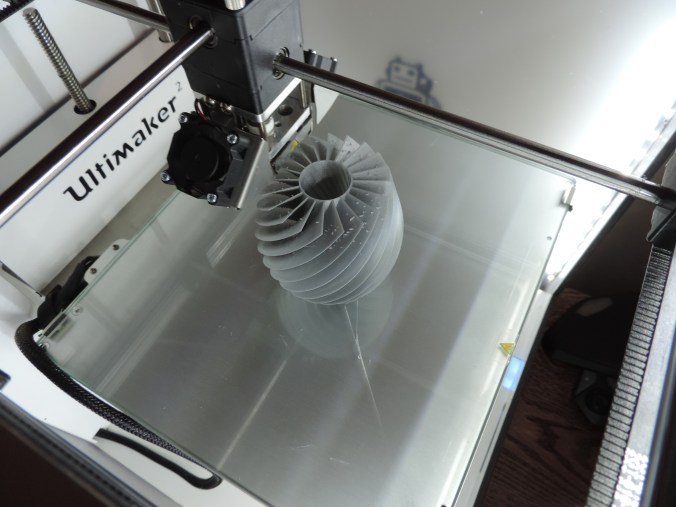
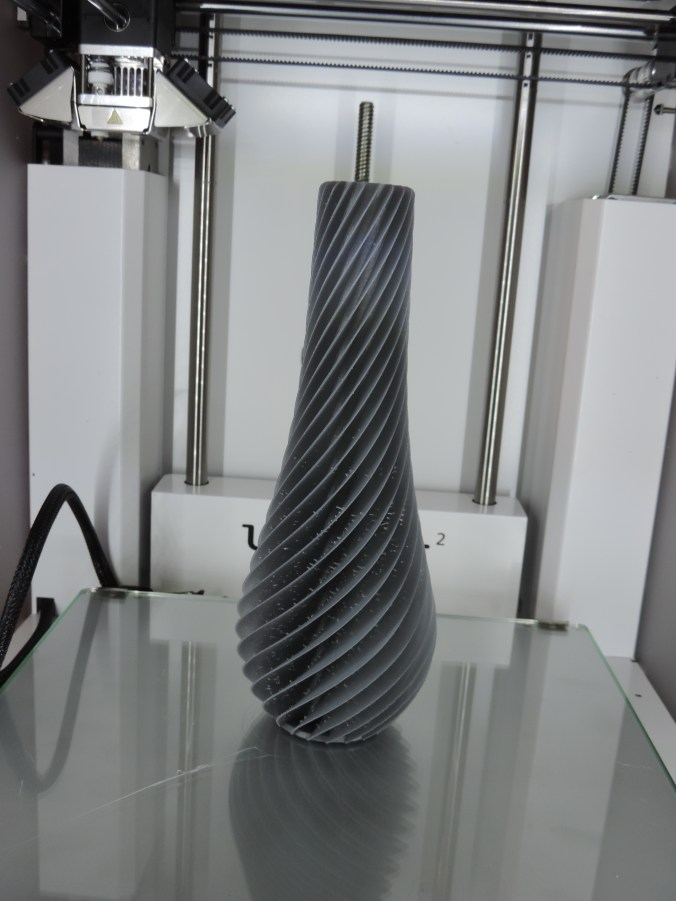
On youmagine.com I found a vase that I just had to print.

Specifications:

Print Time: 12 hours 29 minutes
Filament: PLA – 6.35 meters 50 grams
Layer height: 0.1 mm
Shell Thickness: 0.8

Object Size (W, D, H): 200, 76.3, 76.3 mm

200 mm is almost 8 inches tall.

DSCN6874

Yes, the vase is spiral.

DSCN6882

DSCN6885

DSCN6890

DSCN6892

DSCN6895

DSCN6901

Now I just need to figure out what is causing the strings inside the spirals.

3D Print – My First Failure

I designed a vase in Tinkercad using several of the techniques I learned through the lessons on the website.  I used the workplace feature to place the stars and circles on the vase.  I used the hole feature to hollow out the inside of the vase.

vace2

In the end, I thought I had a good result for my first vase attempt.  I saved the object as an .STL file and loaded into Cura and created the .gcode file.

DSCN6862

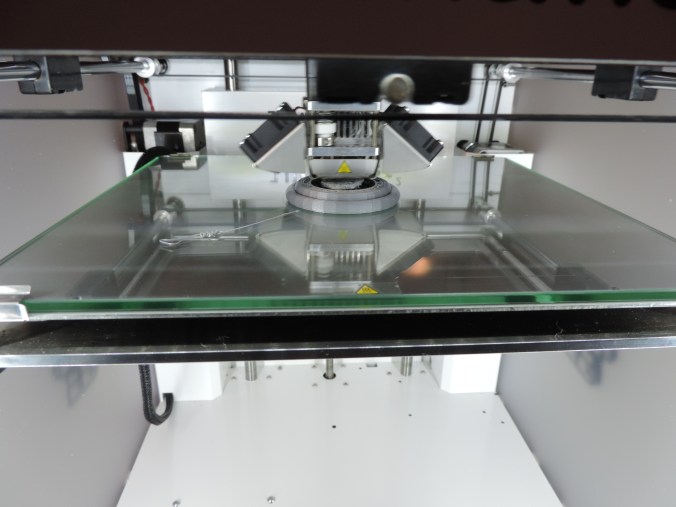
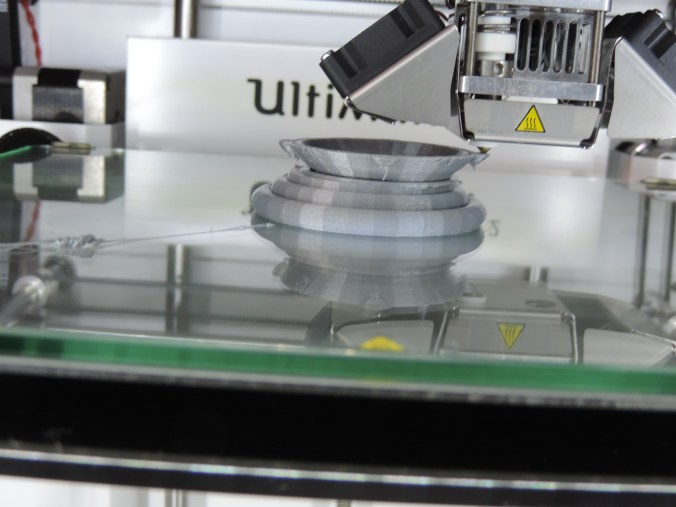
Into the first hour of printing, I noticed that I had a bit of a problem.  One of the holes I had put in the vase had cause the bottom of the base to become unstable.

DSCN6864

Examining it carefully, I determine at this stage, the vase would still hold water, so I let the printer continue.

DSCN6865

Three hours into printing the vase, the printer stopped.

DSCN6867

There were no mechanical problems with the printer, it just though the print was finished.

DSCN6868

Researching this problem, I found out it was not a unique problem.  It happens when the .gcode file is not completely created.  Steps to take to make sure the .gcode is created correctly are: 1) Wait until the object completely loads into the software package (Cura).  2) Do not print through the USB cable this may interfere with the printing.  3) Make sure the .gcode file is saved to the SD Card.  4)  Always eject the SD Card from computer before removing the SD Card.

I did not attempt to reprint the vase.  I need to tweak it first and other design have capture my attention.

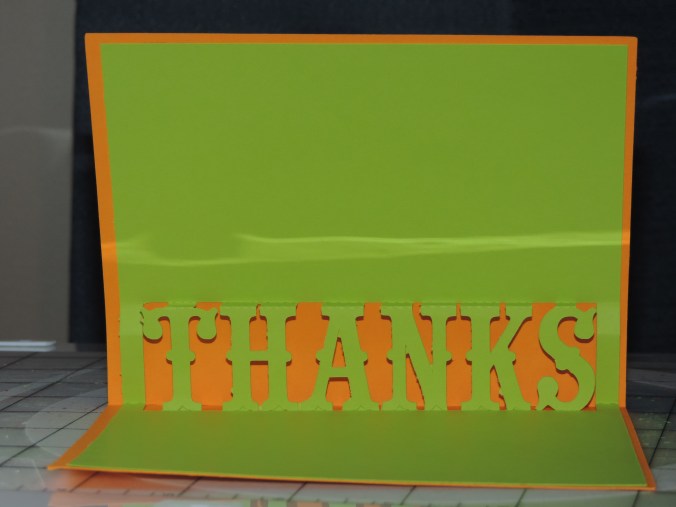
Thanks!!!!

My nephews, ages 10 and 12, did me a favor by cleaning up my yard. It was a favor, so they did not want to be paid. This is how I thanked them.

First, I made them a Thank You card using a template I found in the Silhouette Design Studio.  They are held together with double stick tape.

One for the SuperHero fan…

DSCN6849

Another for the garden lover, orange wearer, fan…

DSCN6852

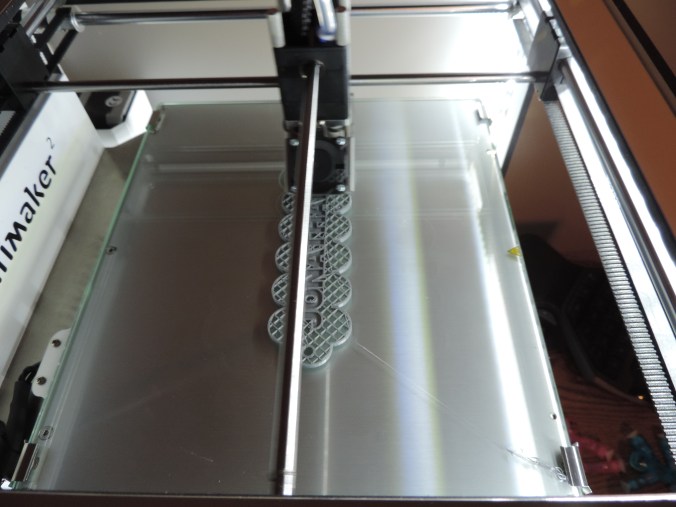
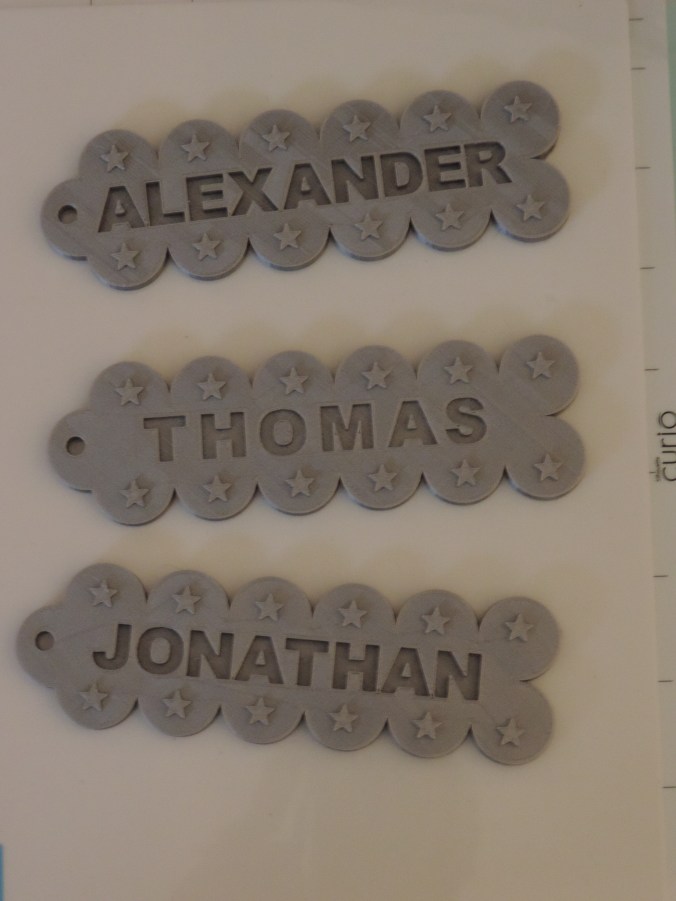
Then using my new 3D design skills that I learned in Tinkercad, I made them both a name tag and printed it on my Ultimaker 2 printer.

DSCN6843

DSCN6846

Print Time: 6 hours 54 minutes – for both
Filament: PLA – 3.52 meters 28 grams
Layer height: 0.1 mm
Shell Thickness: 0.8

Object Size (W, D, H): 130.5, 40.002, 6.0 mm – each

I then realized that their younger brother may feel left out.  So, I made him a name tag too.

DSCN6860

Print Time: 3 hours 28 minutes
Filament: PLA – 1.77 meters 14 grams
Layer height: 0.1 mm
Shell Thickness: 0.8

Object Size (W, D, H): 130.5, 40.002, 6.0 mm

DSCN6870

3D Print – My First Design

The next step for  printing 3D objects was to fine some 3D design software that support .STL or .OBJ files.  There are a lot of free software available for 3D design.  However, I am very warily of “free” software since a lot of “free” software (especially game software) comes with viruses, Trojans, and other nasty things.

I found four that was worth looking into deeper.

  1. Tinkercad (https://www.tinkercad.com/):  It is owned by Autodesk.  Autodesk has been around for a long time.
  2. Google Sketchup (http://www.sketchup.com/): Do I really want to install another Google product.  However, looking at the site, there was not direct indication it was owned by Google.
  3. 3DSlash (https://www.3dslash.net/index.php):  Looked interesting.  Take an object and remove parts.
  4. Blender (https://www.blender.org/): Has promise.  Is part of the Open Source community.

Since I use CorelDraw, I decided to look at their recommendations.  They recommended developing a 2D design in CorelDraw, transferring it to CAD software, like AutoCAD or Autodesk 123D, then fine tuning it with Corel Technical Suite.  Corel Technical Suite is $999.   I think not!

I decided since I was a beginner, I would start and learn with Tinkercad.  I went through several lessons in Tinkercad to learn the basics.  It was very helpful, especially learning to adjust the workspace.

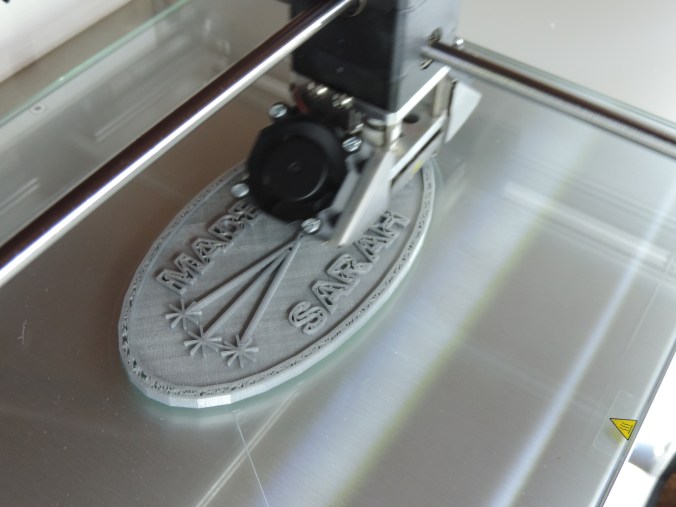
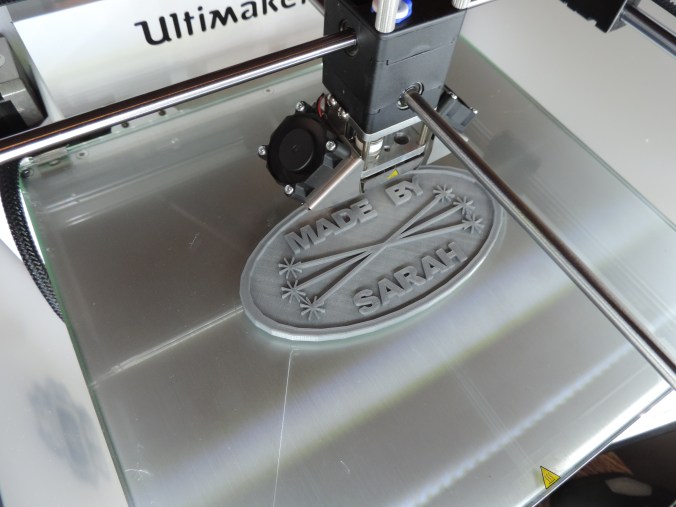
Many years ago, a friend told me I needed to sign all my art works.  Most of my cards, houses, paintings now contains this logo.  That is want I created first.

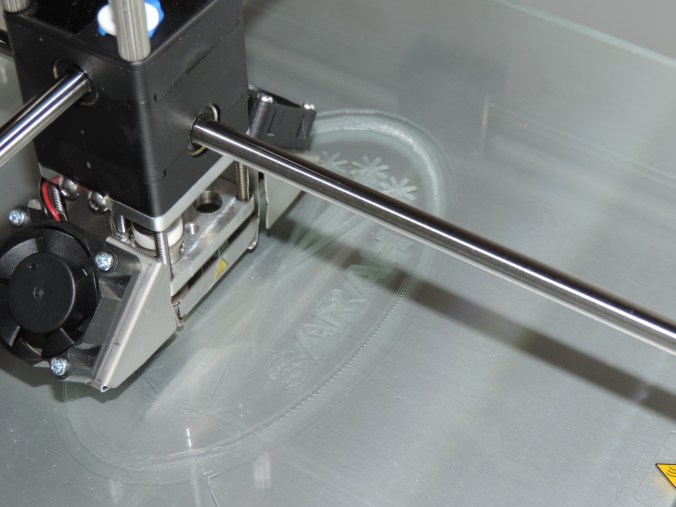
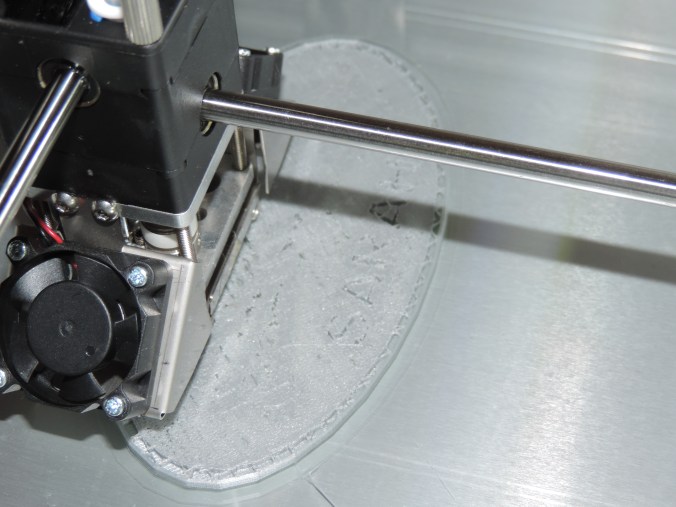
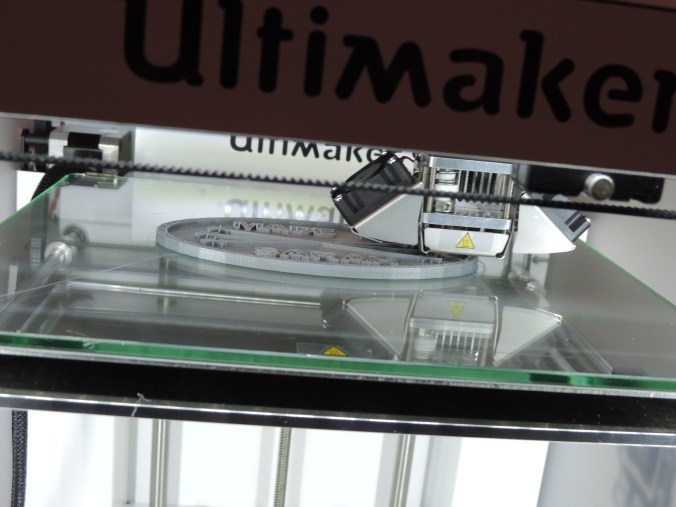
Made By Sarah….

DSCN6826

DSCN6827

DSCN6838

DSCN6839

DSCN6840

DSCN6841

Yes, I did make it double sided.  If I had though about it before, I would have mirror the image on the reverse side.

Print Time: 4 hours 46 minutes
Filament: PLA – 2.14 meters 17 grams
Layer height: 0.1 mm
Shell Thickness: 0.8

Object Size (W, D, H): 127.0, 68.0, 5.0 mm


3D Print – Makey Robot

I have printed everything that was on the SD Card that came with the printer.  The next step is downloading and installing the Cura software.  To my disappointment, the Cura software does not let you design 3D objects.  It does lets you render the object for 3D printing.

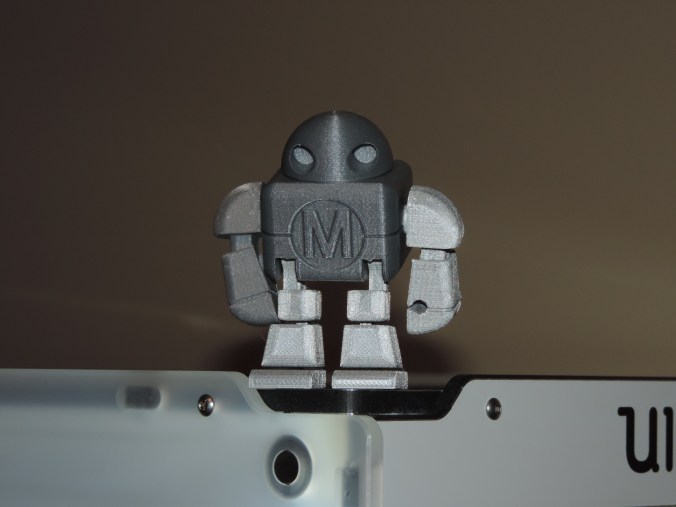
In Cura, there is a link “YM” to Youmagine.com that allows you to share the objects you create.  If also lets you download objects created by other individuals.  That is where I found this robot.  Named Makey Robot by le FabShop.

DSCN6753

DSCN6767

DSCN6767

DSCN6769

DSCN6770

Yes!  He does have movable parts.  There was no assembly required.  After it was printed, I could move most of the parts.  I having problems moving one of it’s ankle and knee parts.  Only the 65 piece model was printed.

DSCN6780

Print Time: 5 hours 42 minutes
Filament: PLA – 3.43 meters 27 grams
Layer height: 0.1 mm
Shell Thickness: 0.8

Object Size (W, D, H): 62.4, 55.4, 40.5 mm

The search is on for 3D design software.  If you have any favorite, let me know.

Birthday Card

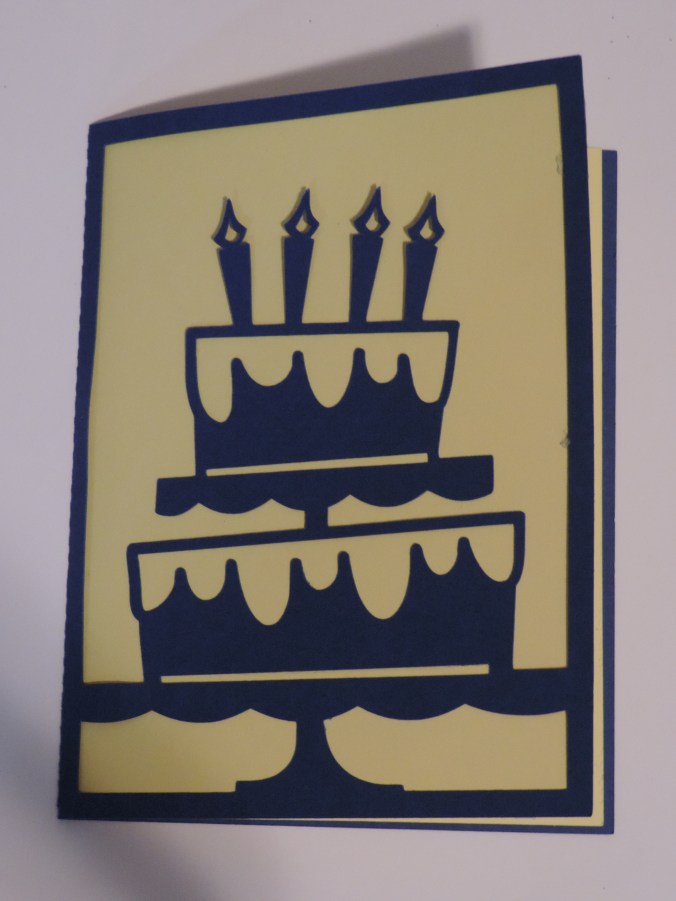
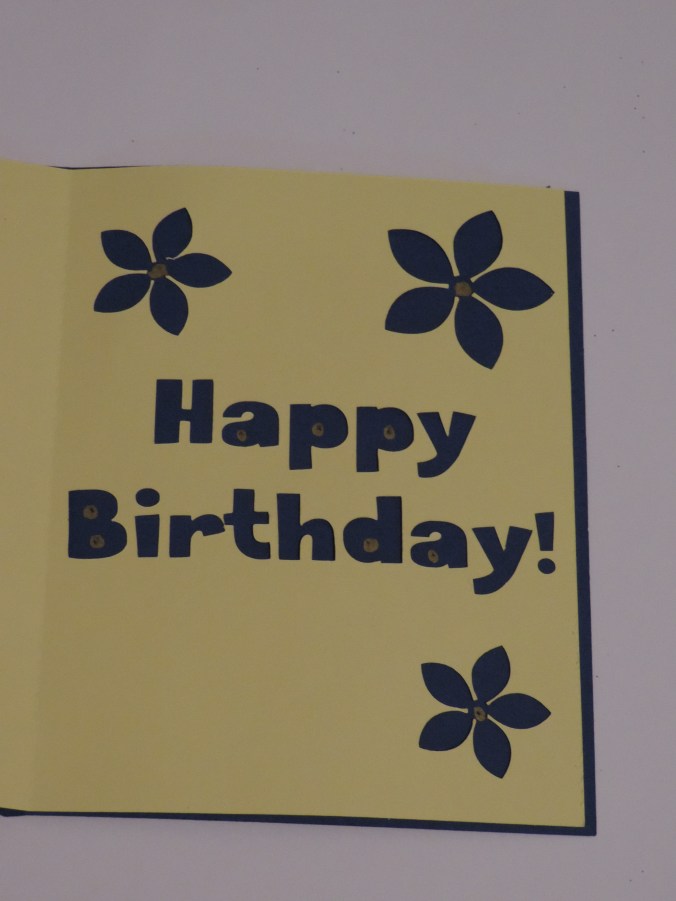
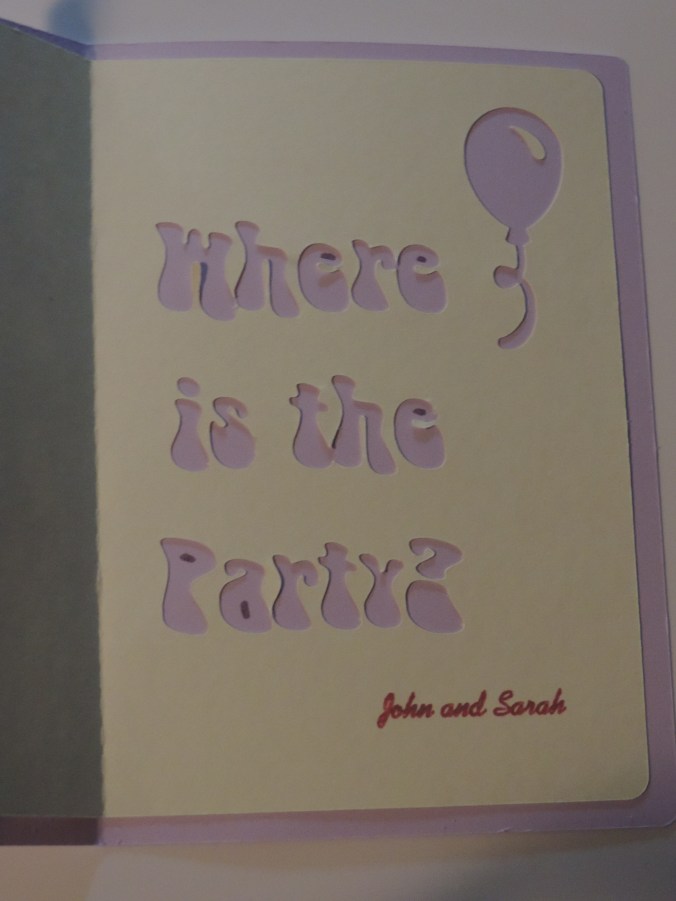
Here are my first two attempts at making Birthday cards.  For the outside I used the templates from the Silhouette Design Studio.  On the inside, I font was used and another template.  Several cards will be made this month, because of the numerous birthdays in January.

I really need to learn how to get the insert correct if the card will have a background.

DSCN6752

Instead of gluing the dots back into the letters, I used my metallic marker to draw the dots.  Lazy? Maybe… but, more likely I am feed up with all forms of glue.

DSCN6750

Note to self – Check the quality of the photo before mailing the card.

DSCN6876

The signature was done with the sketch pen in the Silhouette while before the cutting was performed.

DSCN6878

I did save the cut letters.  I may want to used them in the future for another project.


Silhouette Studio – The First Design

In the last two posts, I talked about setting up the Silhouette Curio and installing the Silhouette Studio software.  Click here to read those posts.  This post covers the my first design.

This is my first design attempt.  Nothing fancy.
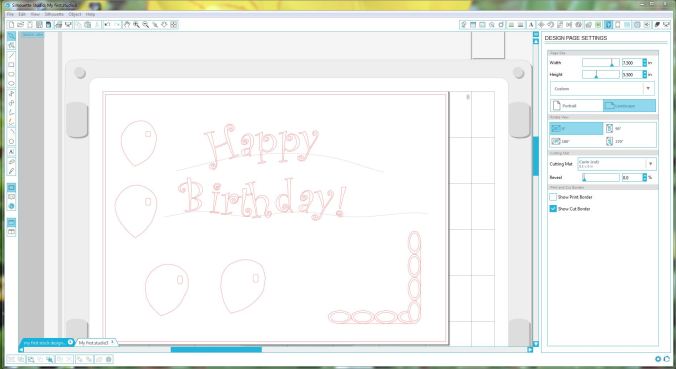
My First Studio Design

My First Studio Design

To start a new design in Silhouette Studio double-click on the icon and click Design.   The design window opens with a clean working area.

I clicked the Text text icon icon to begin to place text in the design area.  On the right-side of the screen, a Text Style menu appeared.  The menu let me define my text attributes before or after I put the text in the design area.  Scrolling through the fonts, I noticed that it allows me to use any font that is saved on my computer.  Yay!  No, limits there.

I noticed the little circle fit to path to the bottom right of my text.  Looking through the manual, I discovered this allows you to fit the text to a path.  I drew a couple of wavy lines on the screen using the curve curve tool.  I doubled clicked on the first line of text, to select it, and dragged the text to the first wavy line and than I repeated the process with the second line of text.  Easy enough, my text was now wavy.

Selecting the text that was fit to path, I was no longer able to rotate it or change it size by dragging a corner.  I was able to adjust the rotation Rotate by selecting it’s line.  There was also a slide bar that allowed me to change the text position on the line.

If I am doing a birthday theme design, some balloons are needed.  I knew the oval oval would not work for me because balloons are bigger on the top than the bottom.  I selected the curve curve tool to draw my balloon.  I put multiple points around the balloon to get the general shape I wanted.  The bottom point, where the balloon ties, is still too round.  I clicked the Edit Points Edit Points

Just for fun I drew a few more balloons.  Balloons usually have a shiny spot on them that is reflecting the light.  I use the rectangle rectangle tool to draw this area on a couple of balloons.  It didn’t look quite right, so I selected the rounded rectangle rounded rectangle tool to draw the shiny spot on the other balloons.

If I move the balloons around the canvas, I wanted the balloon and shiny area to move together.  I dragged my curser over both objects and selected the grouping grouping icon to keep them together.  To separate items after they are group, select the Ungroup icon next to the Group icon.

A border for my birthday theme design would be nice.  I drew a couple of rectangles rectangle and I drew numerous ovals oval.  First I drew one oval, then I used the copy/paste feature so all the ovals would be the same size.  I tried rotating a oval from the design area, but I found for a precise rotation the Rotate option for the Object menu worked better.   I used the Align option under the Object menu to align, center, and space the ovals on around the rectangles.

I didn’t like how some of the lines in the design.  The Erase and Knife cut and erase was a nice feature for removing unwanted lines.  I was able to adjust the settings in the right menu as each tool was being used.

A feature that the Silhouette Studio software is missing, is the ability for me to zoom in and out using the scroll button on my mouse.  Zoom in and Zoom out is available from the top icon bar.

The manual that came with the Curio did not cover all of these functions.  But, the manual that is available from the Help Menu in the software does provide detail information about all tools, menus, and functions.  I like to play around with any software before reading manuals.  However, this manual is beneficial for using the software and Curio.

The next blog will cover my experience with cutting and embossing.  For now, I will save my work.  This isn’t the first time I have saved my work.  One of my saying is “Save Often! Save Regularly!”  You can’t press save too often.

Silhouette Studio – Opening the Box

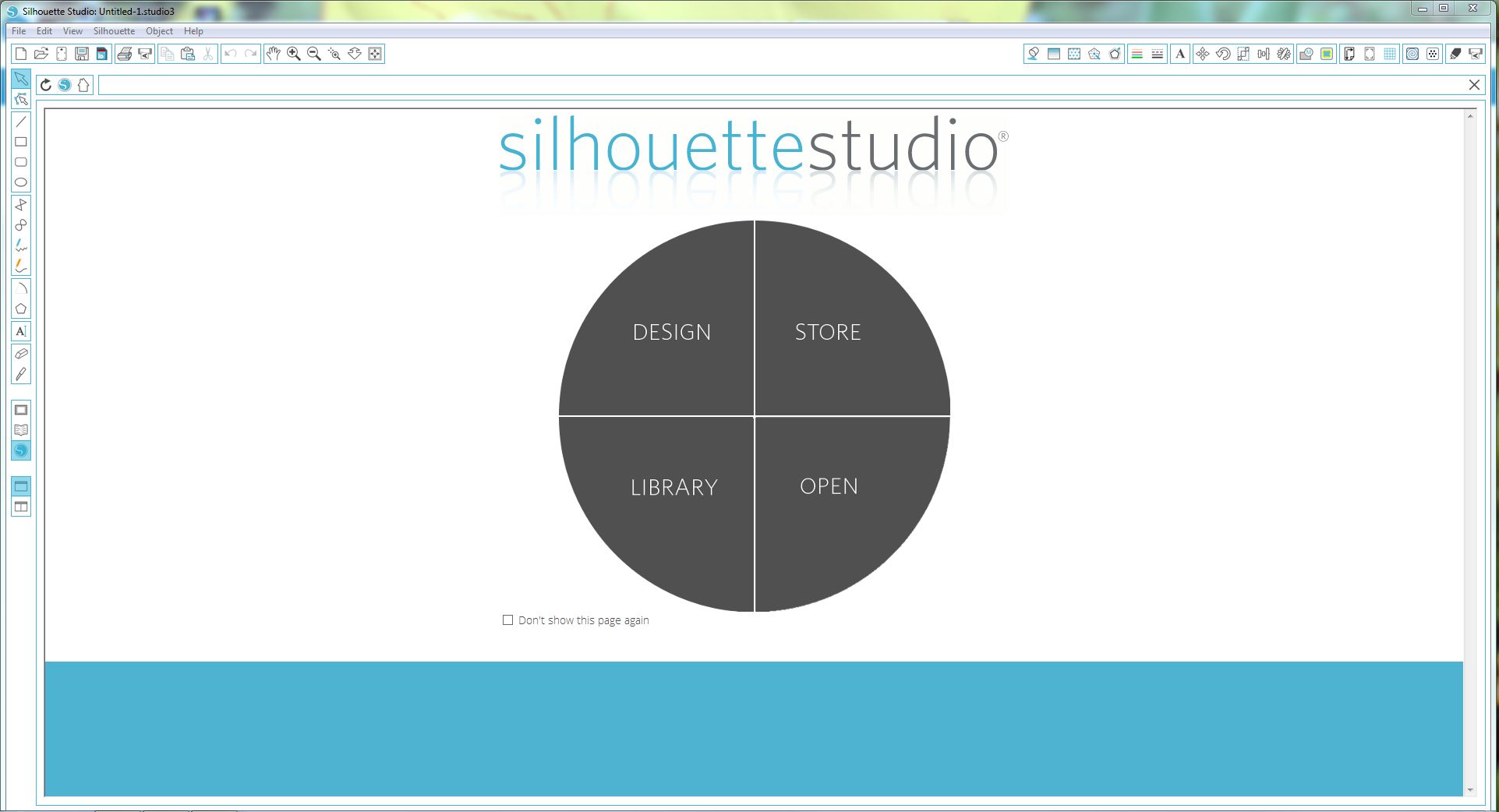
The Silhouette Studio software comes with the Silhouette cutting machines (Cameo and Curio).  Since I purchased the machine, the software installation was a simple process.  Place the CD in drive and follow the prompts.  After the installation was complete, the Silhouette Studio software launched.

Silhouette Studio Start Screen

Silhouette Studio Start Screen

I wasn’t expecting this screen.  To be honest, I am not sure what I was expecting.  I knew if I clicked Design it would let me design a graphic for cutting.  Also, if I clicked Open it would prompt me to open a previous saved design.  I assumed that if I clicked Library, I would see some graphics.  That was the second surprise.  There wasn’t any graphics in the Library.   I thought that was odd, maybe it was something that you could download.  I clicked on the Store.
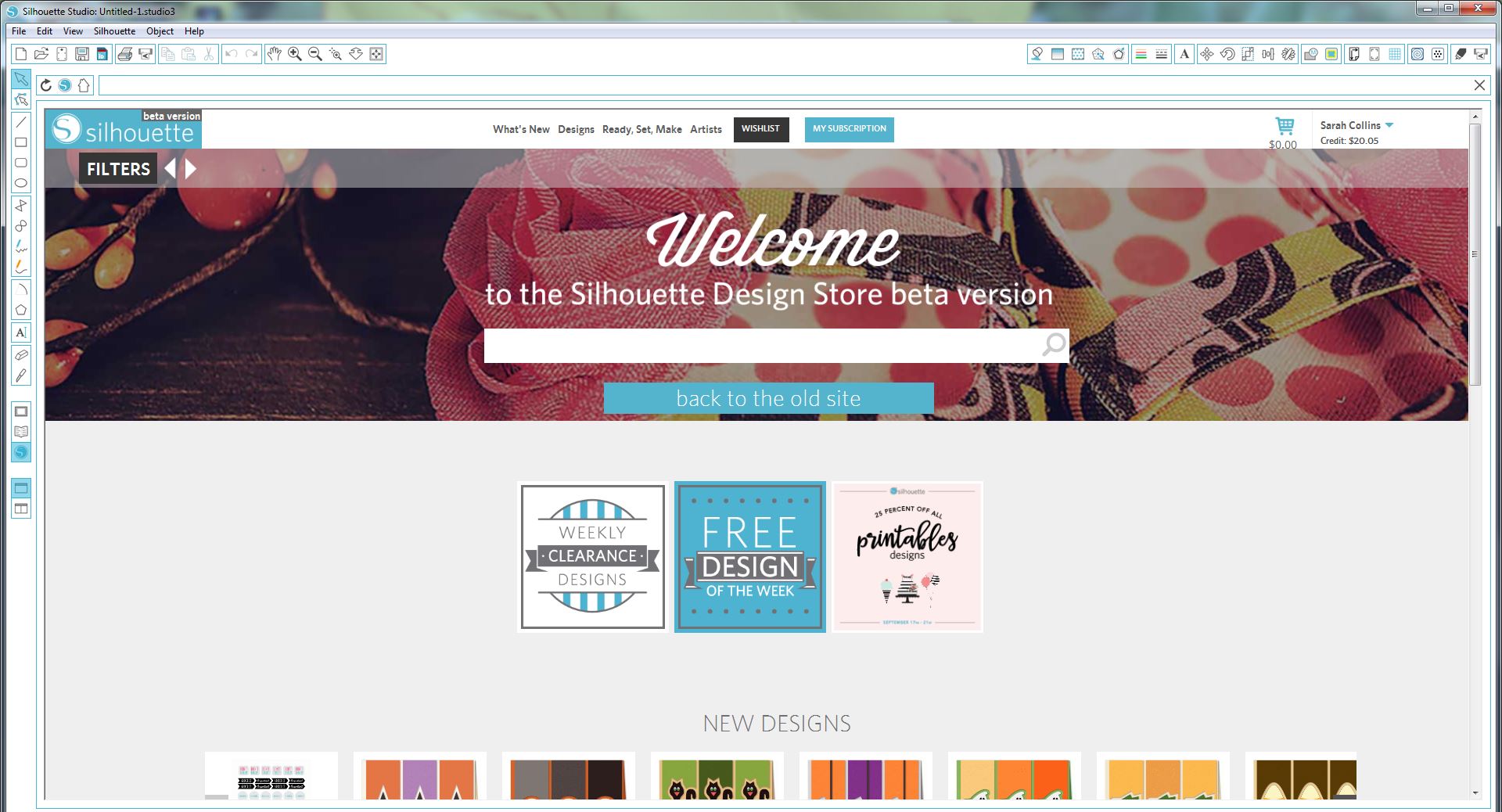
TheStore

The Silhouette Design Store wanted me to sign in, or create an account.  So, I signed in with the account I created when I registered the Curio.

TheStore2JPG

It appears that the store wants to charge you for everything.  After looking over the store, I remembered the cards that came with the Curio title “1 month free.”  I followed the instruction on the card and it provided a month subscription and $25 credit.  I am not sure yet of the benefits of a subscription, but I will figure that out as I explore more.

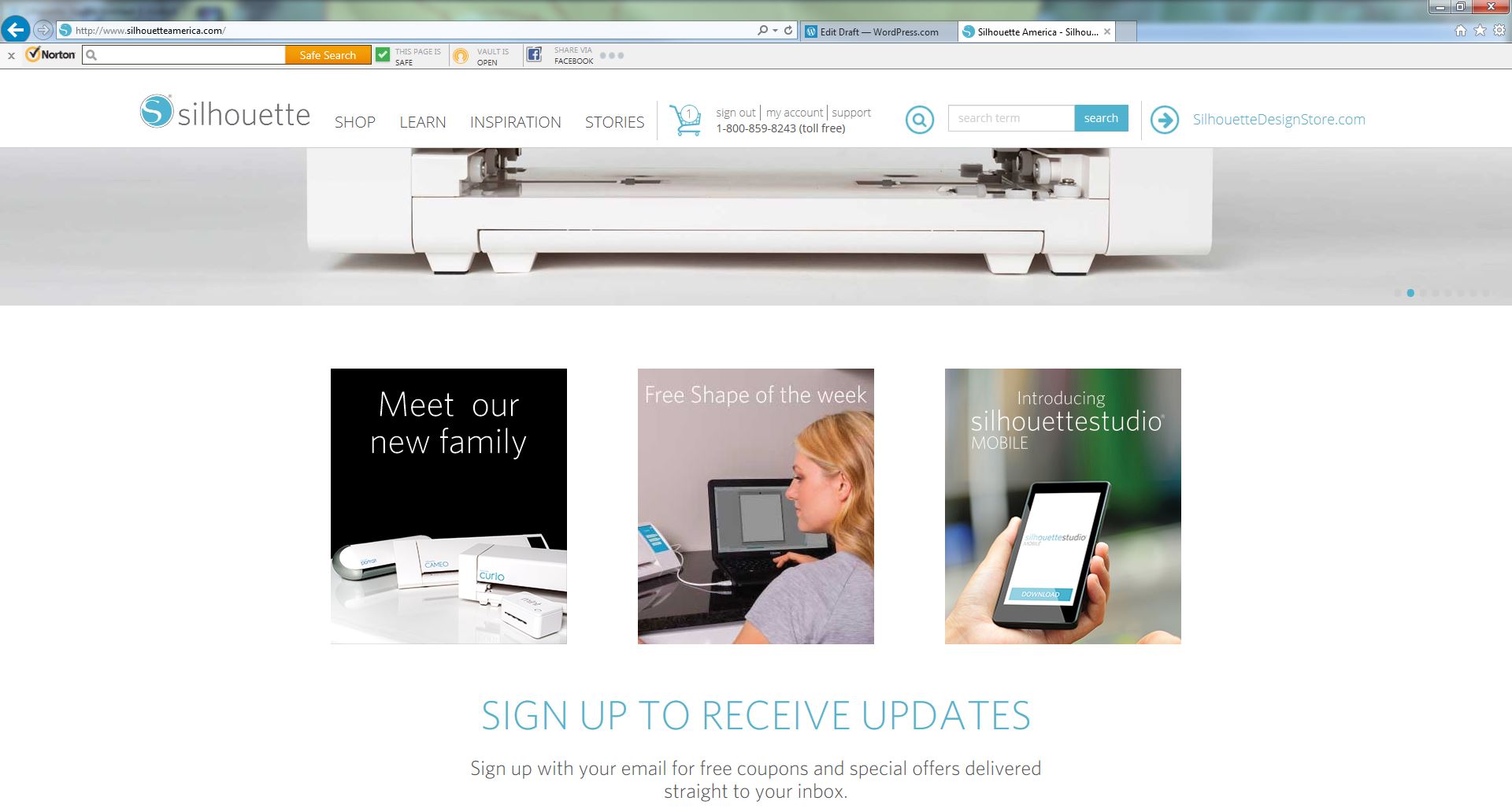
After looking over the store, the problem still remained.  The Library was empty.  Being the Techie I am, I decided maybe the software needed to be update.  Off to http://www.silhouetteamerica.com I went.  You don’t need to remember that URL or save it as a favorite.  If you are into the Silhouette Studio software, it has the link listed under Help.

silhouettewebsite

It took me a while to find where the Software Update was located on the site.

  1. Sign into your account; it is the same one you created when you registered the machine.
  2. Click Support, it is listed next to the Sign in.
  3. Click Silhouette Studio then scroll all the way to the bottom of the page.  There you will find the update and download.
  4. Select one to download.  You do not have to run both the update and the download, because they are the same file.
  5. After the software downloads, run it.

After I went through all these steps below, I realized you can check for software updates from the Silhouette Studio software.  Look under Help > Check for Updates.

I went through the process of updating the software to see if any graphics would appear in the library, it was still empty.  I occurred to me “Maybe the $25 created was so you could select your own graphics.”

Back to the Silhouette Design Store to get some graphics with my credit.  The store had some very impressive designs. I selected a few for testing but adding them to the shopping cart.  When I went to check-out, it told me that these designs were for personal use only.  What I liked about the entire store, since I have credit it did not ask for my credit card.

My adventure with Silhouette Studio will continue…