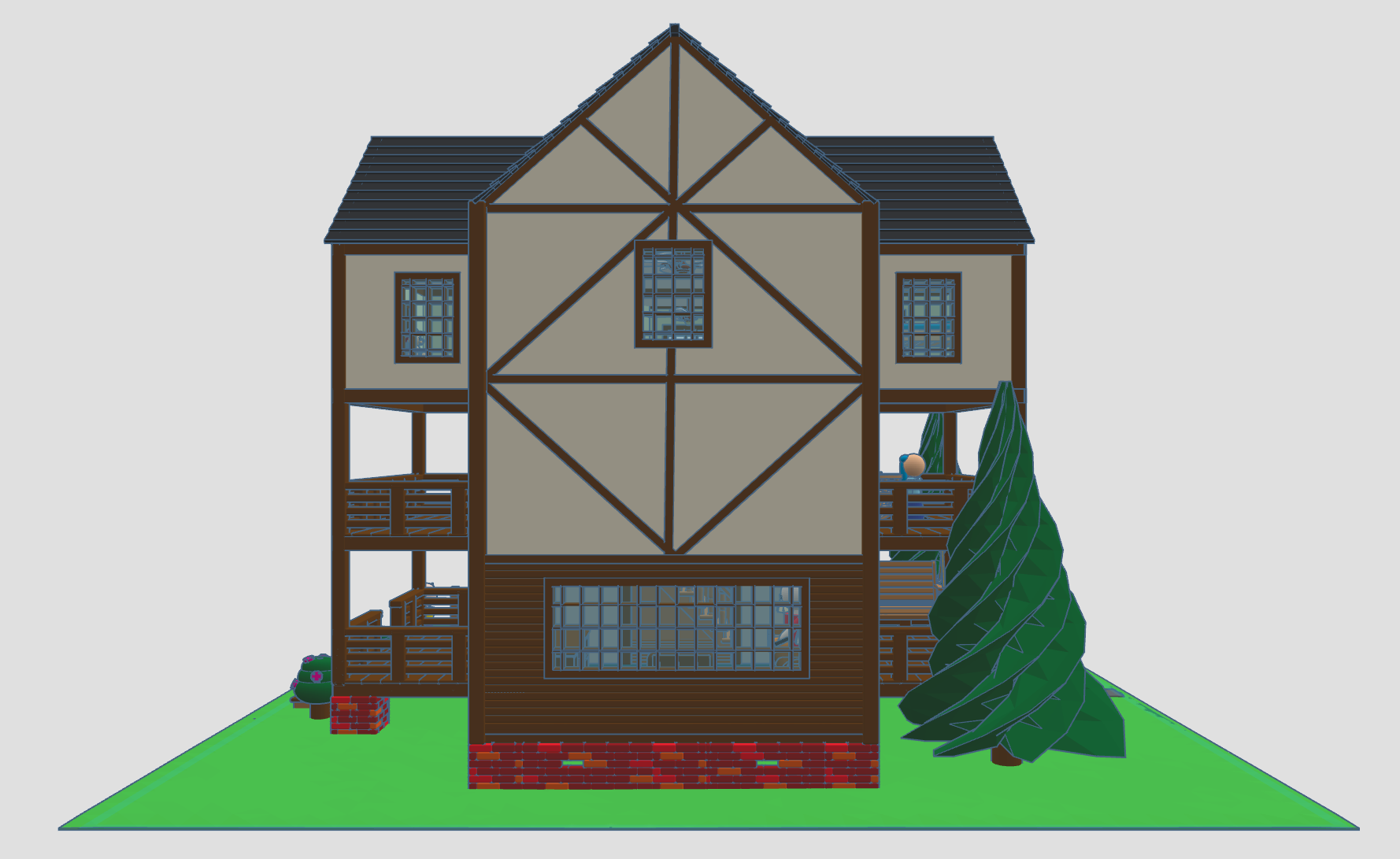
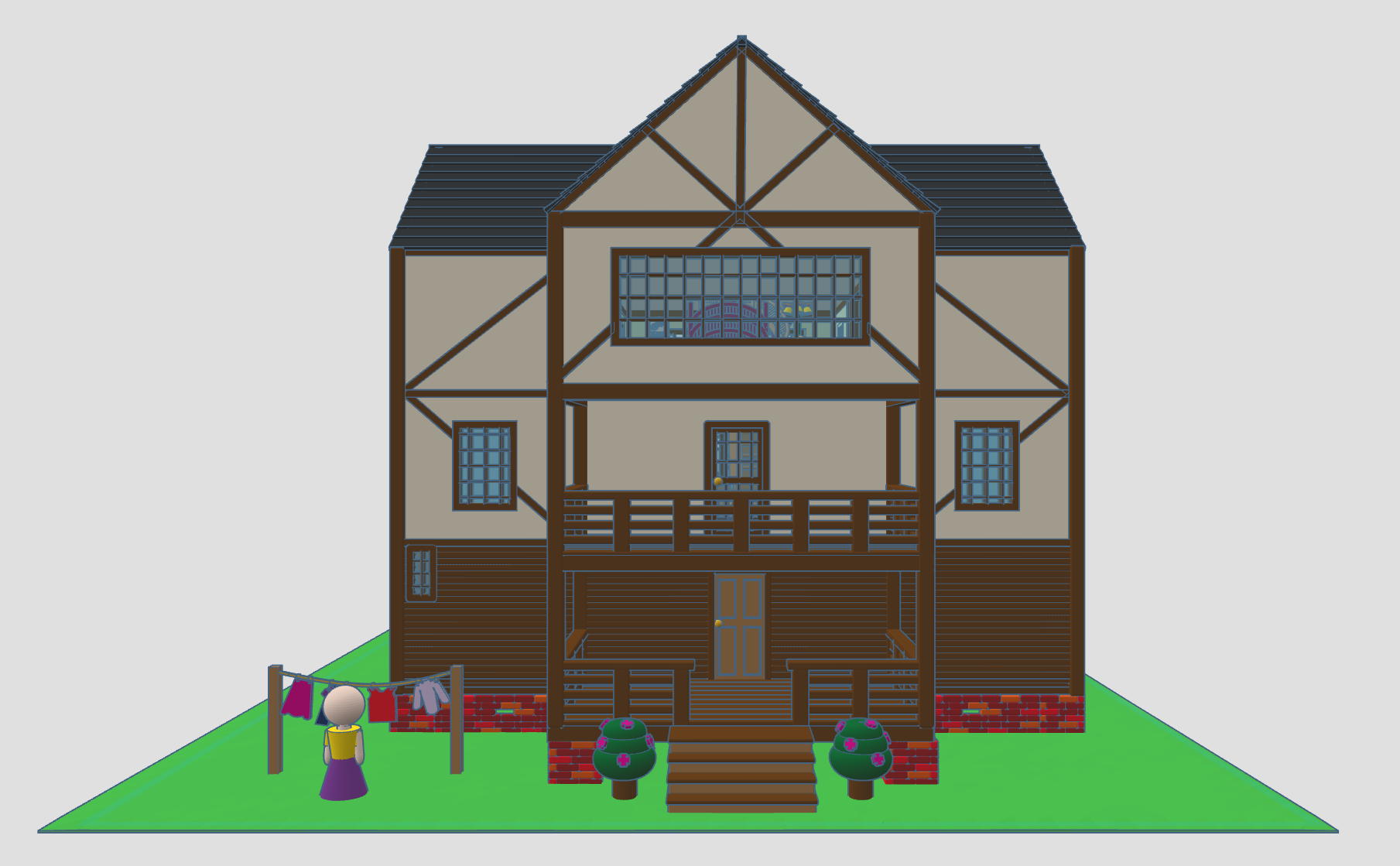
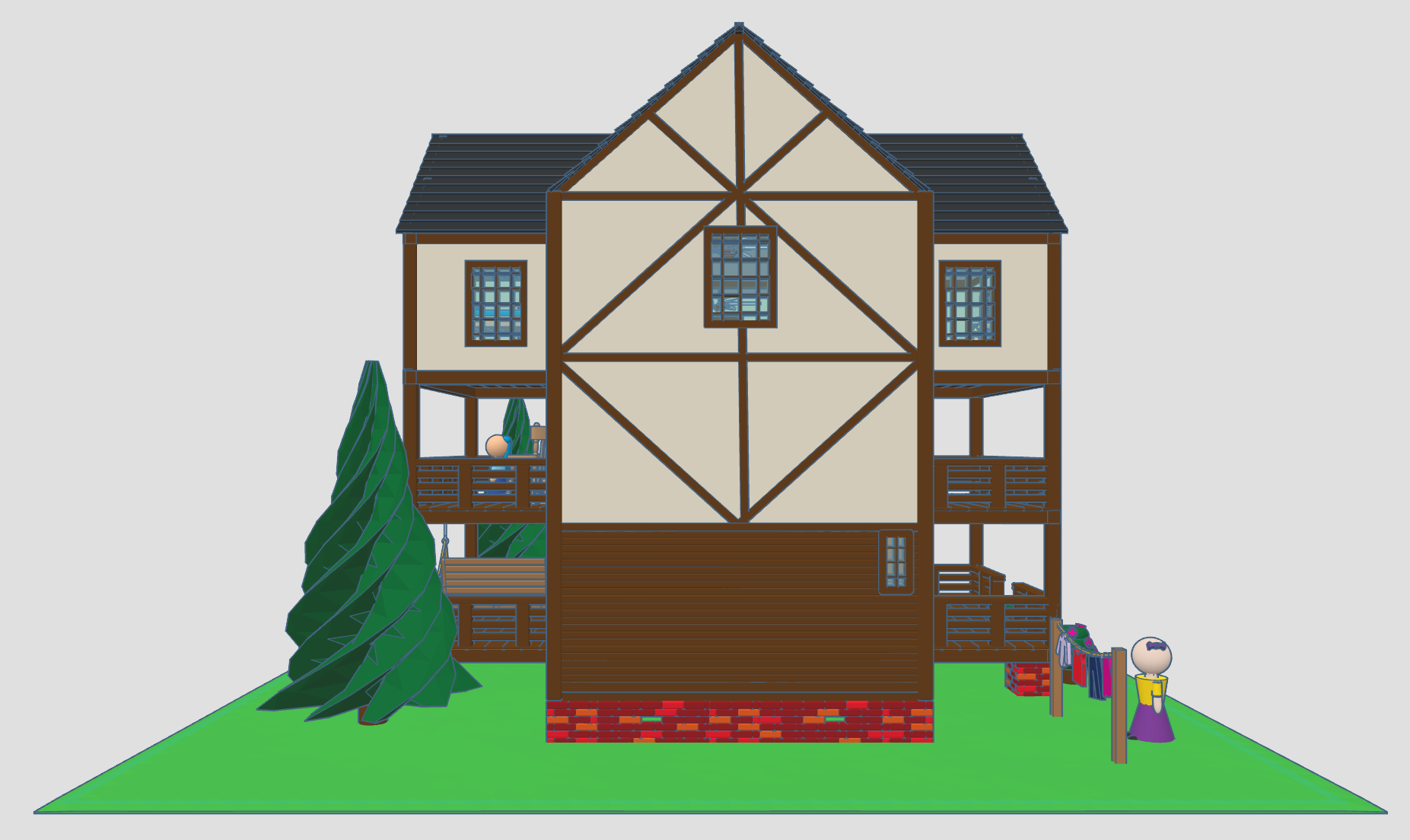
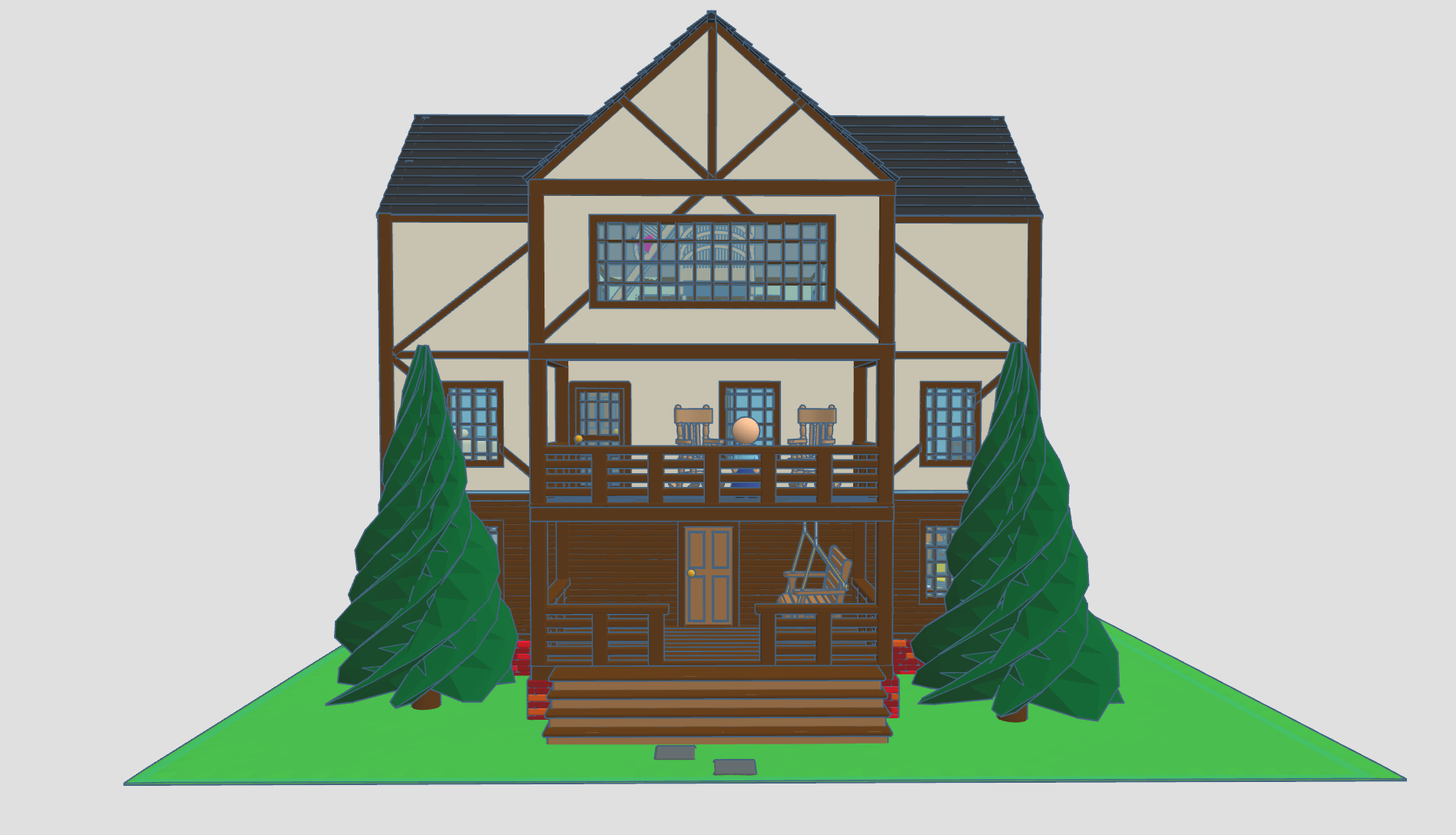
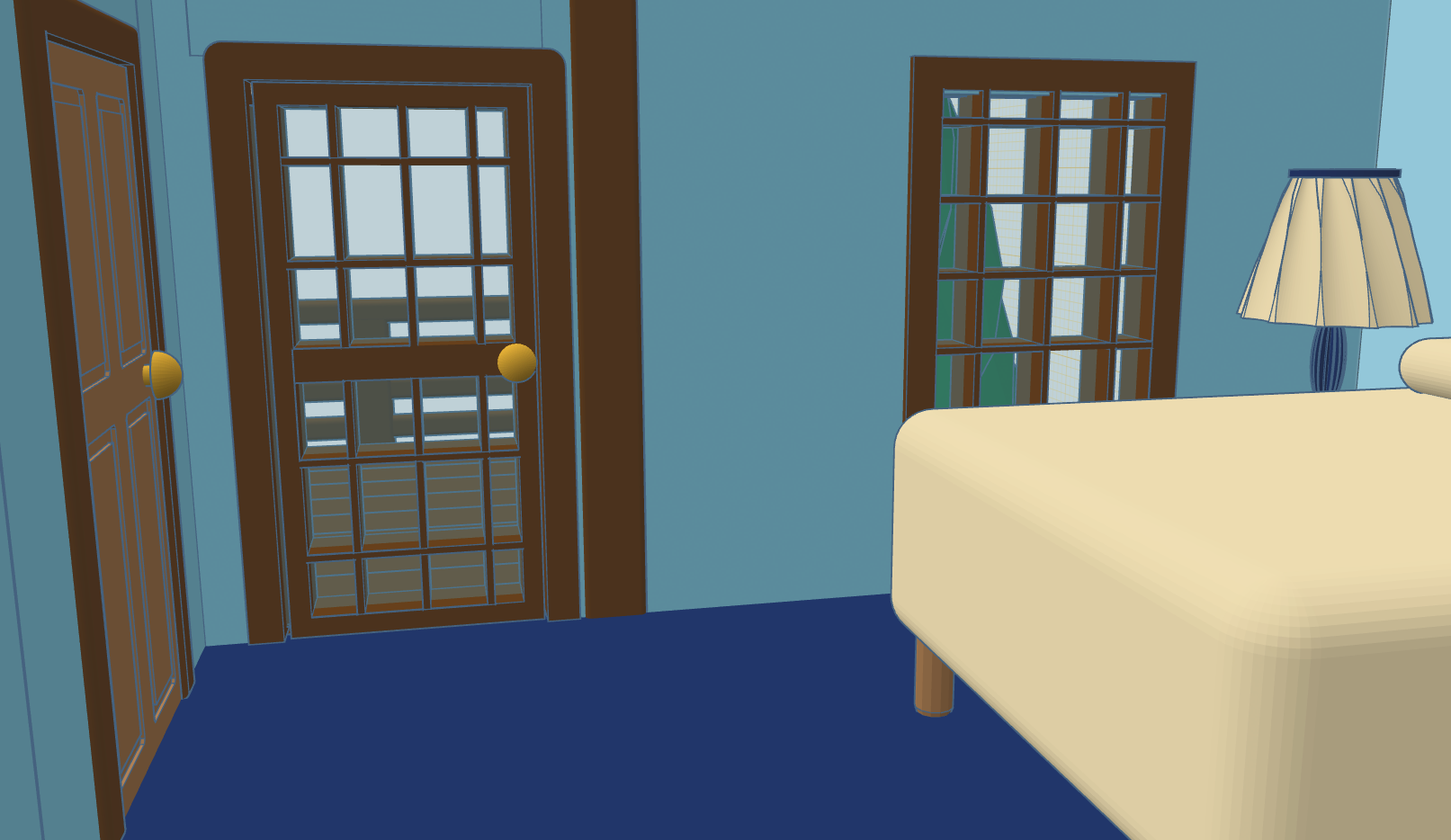
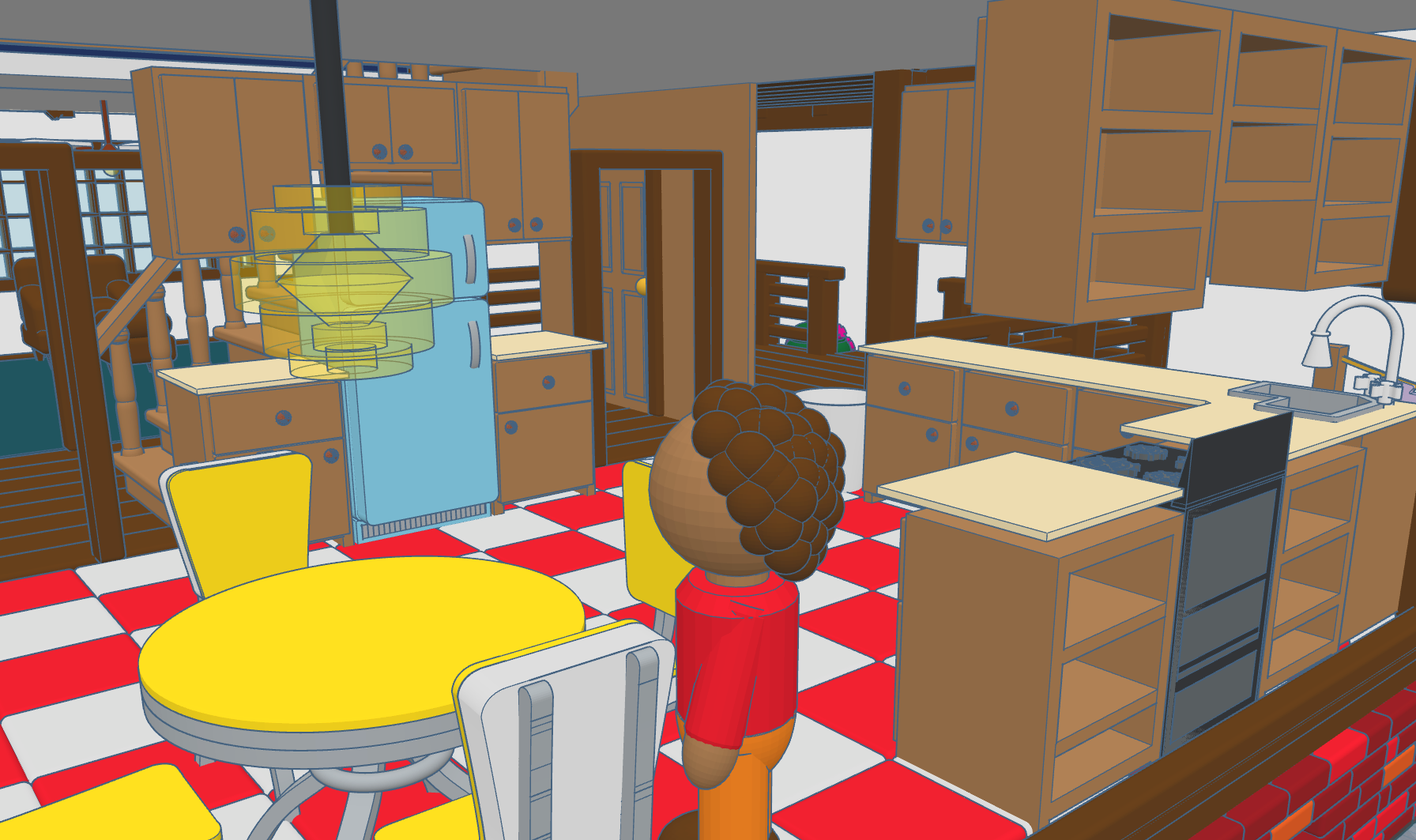
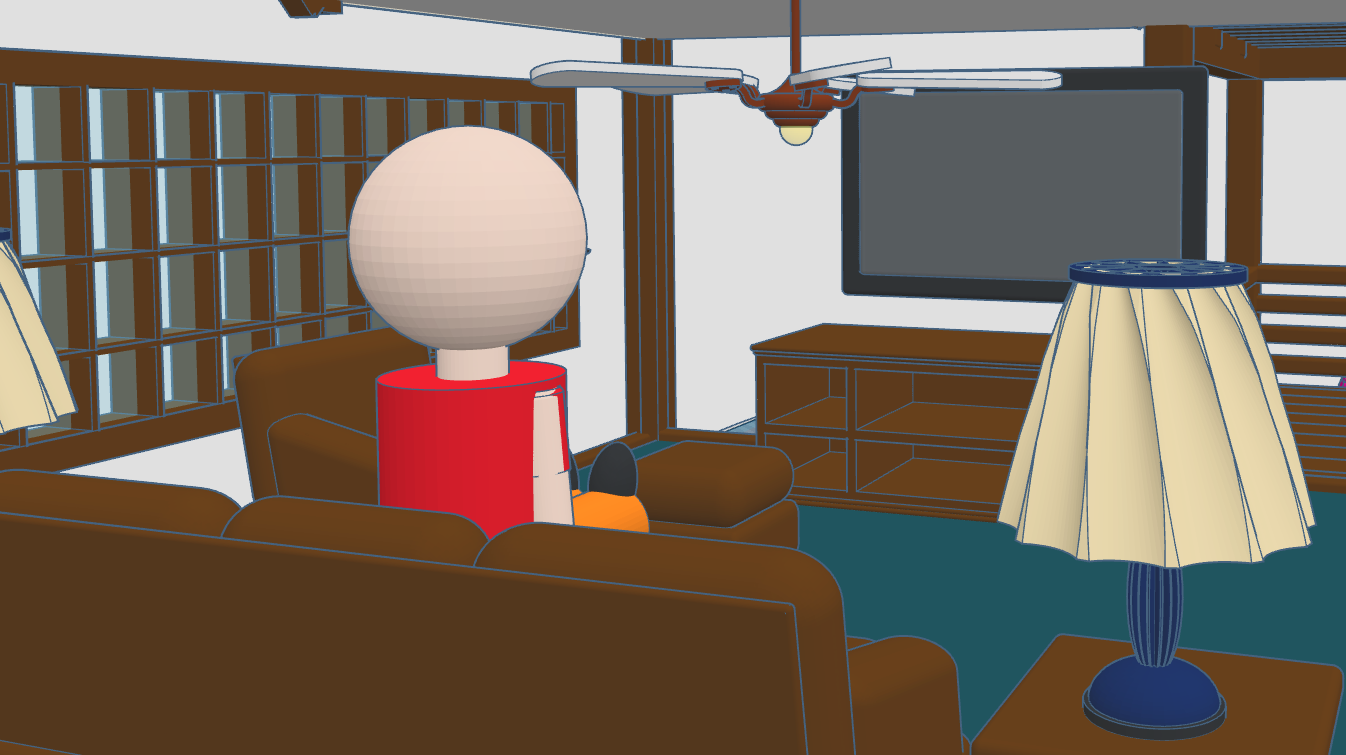
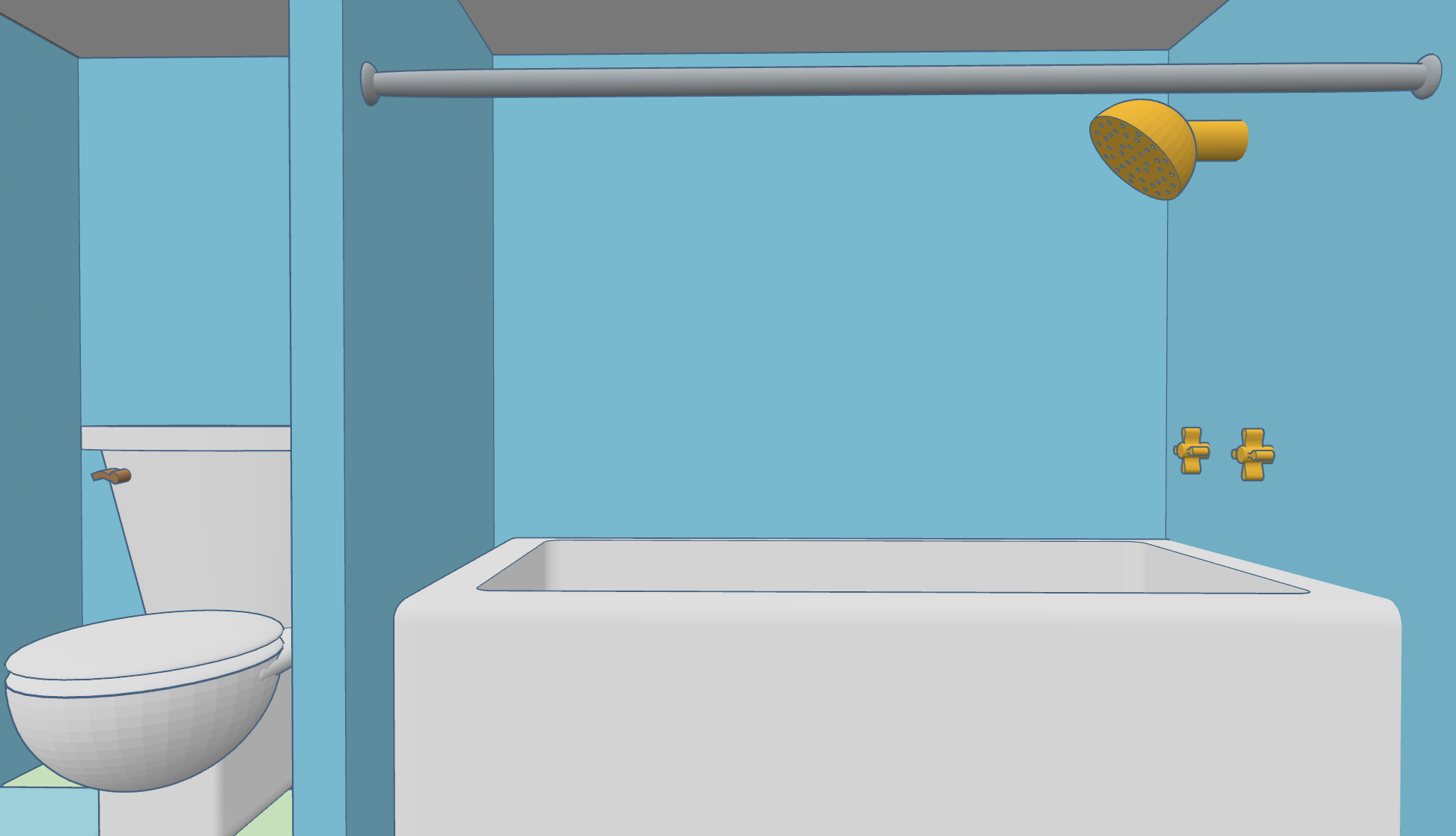
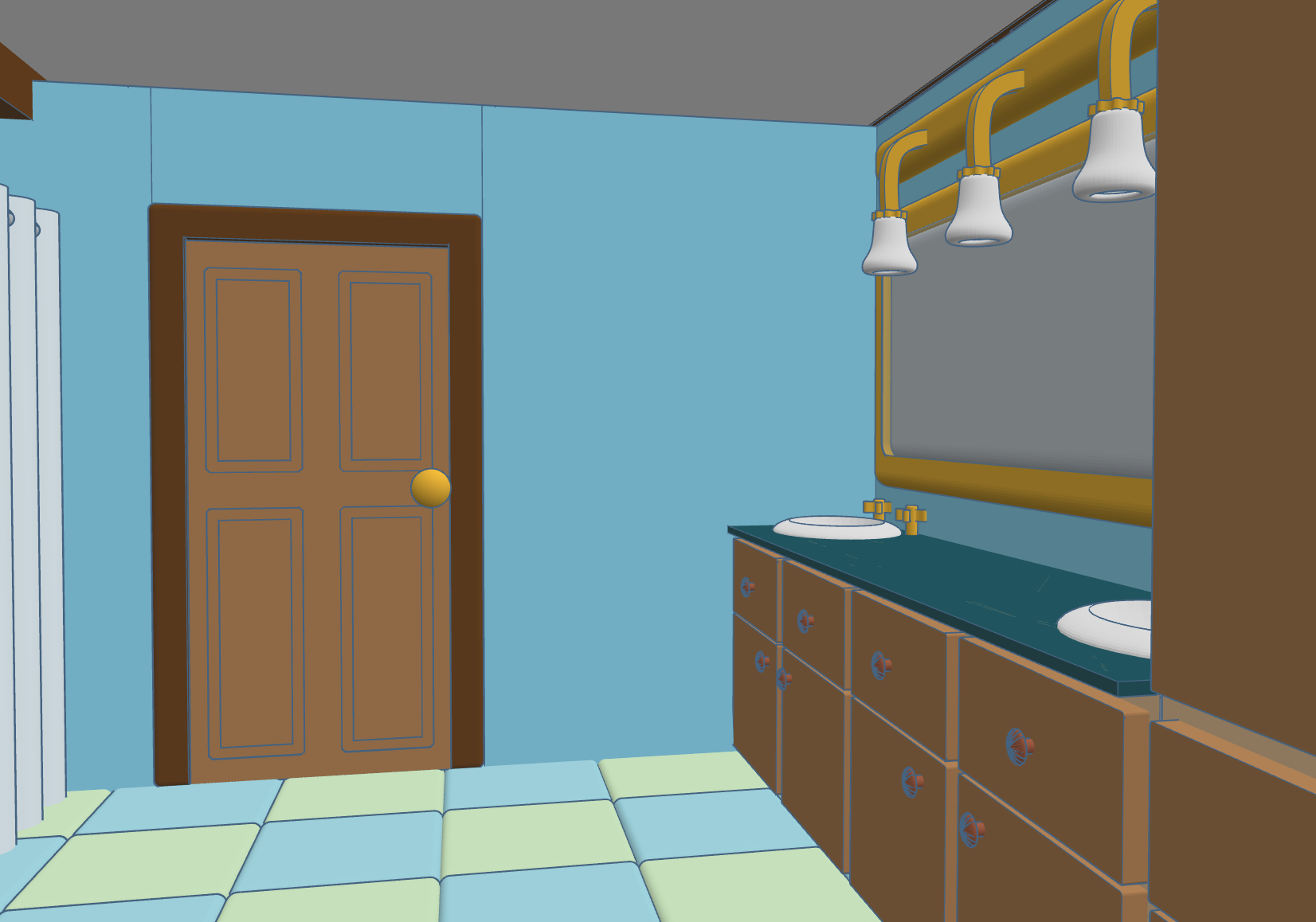
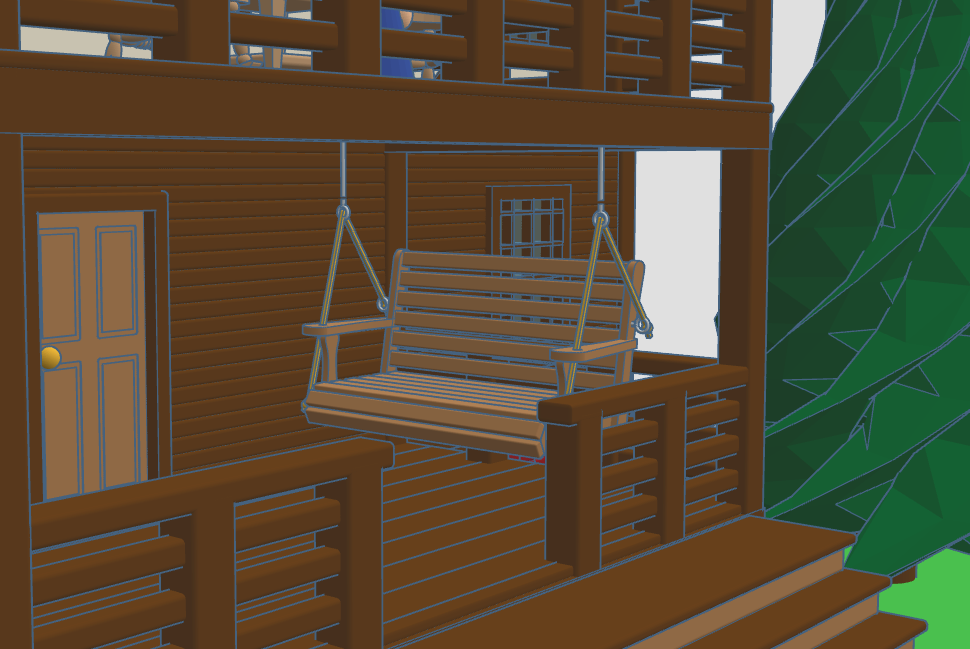
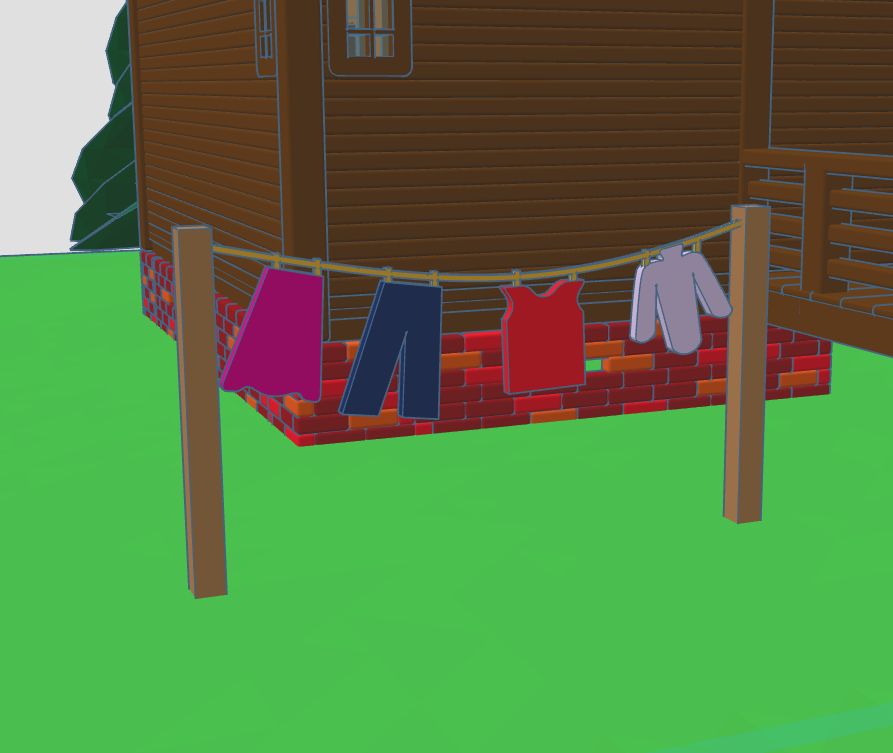
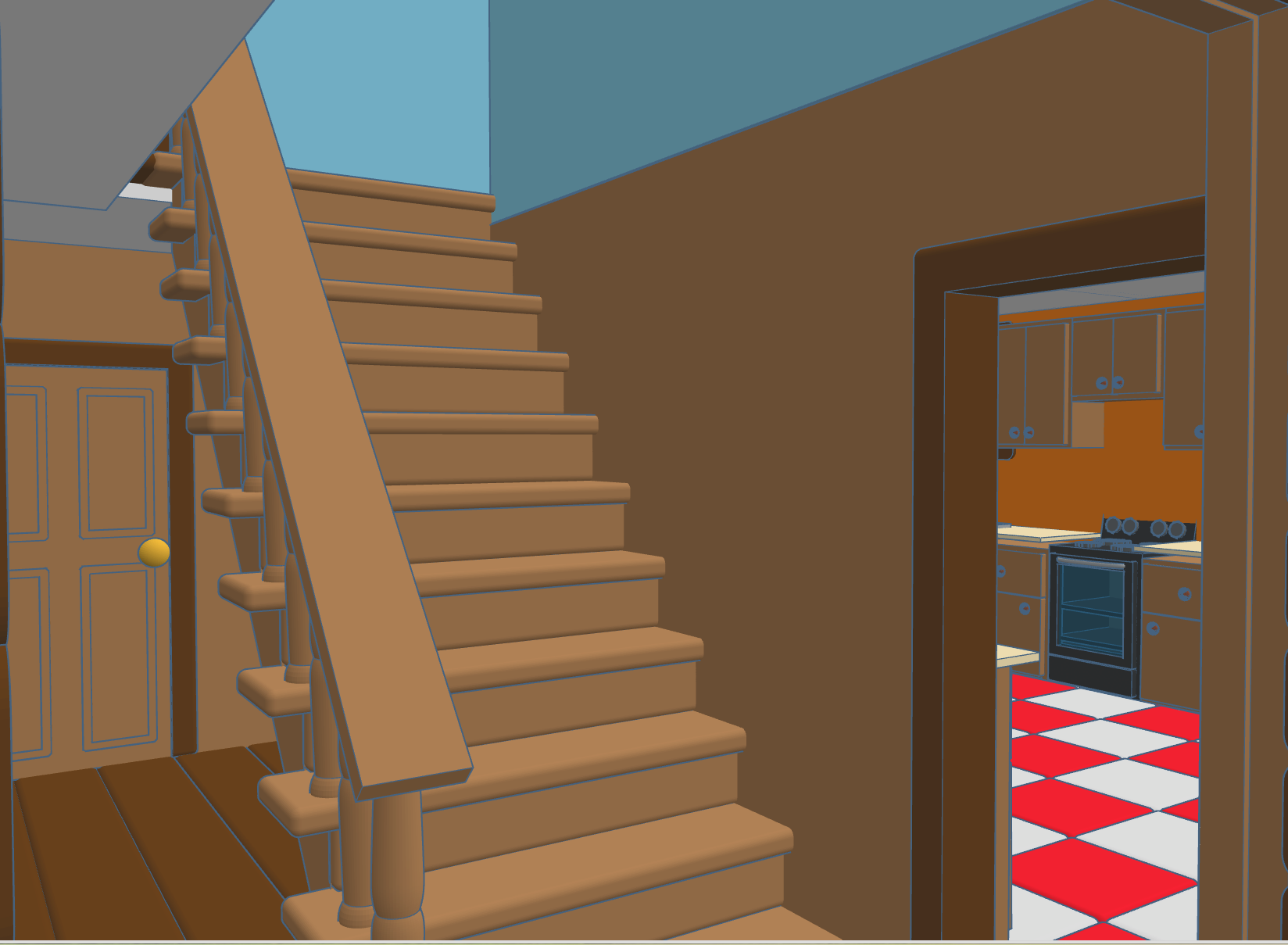
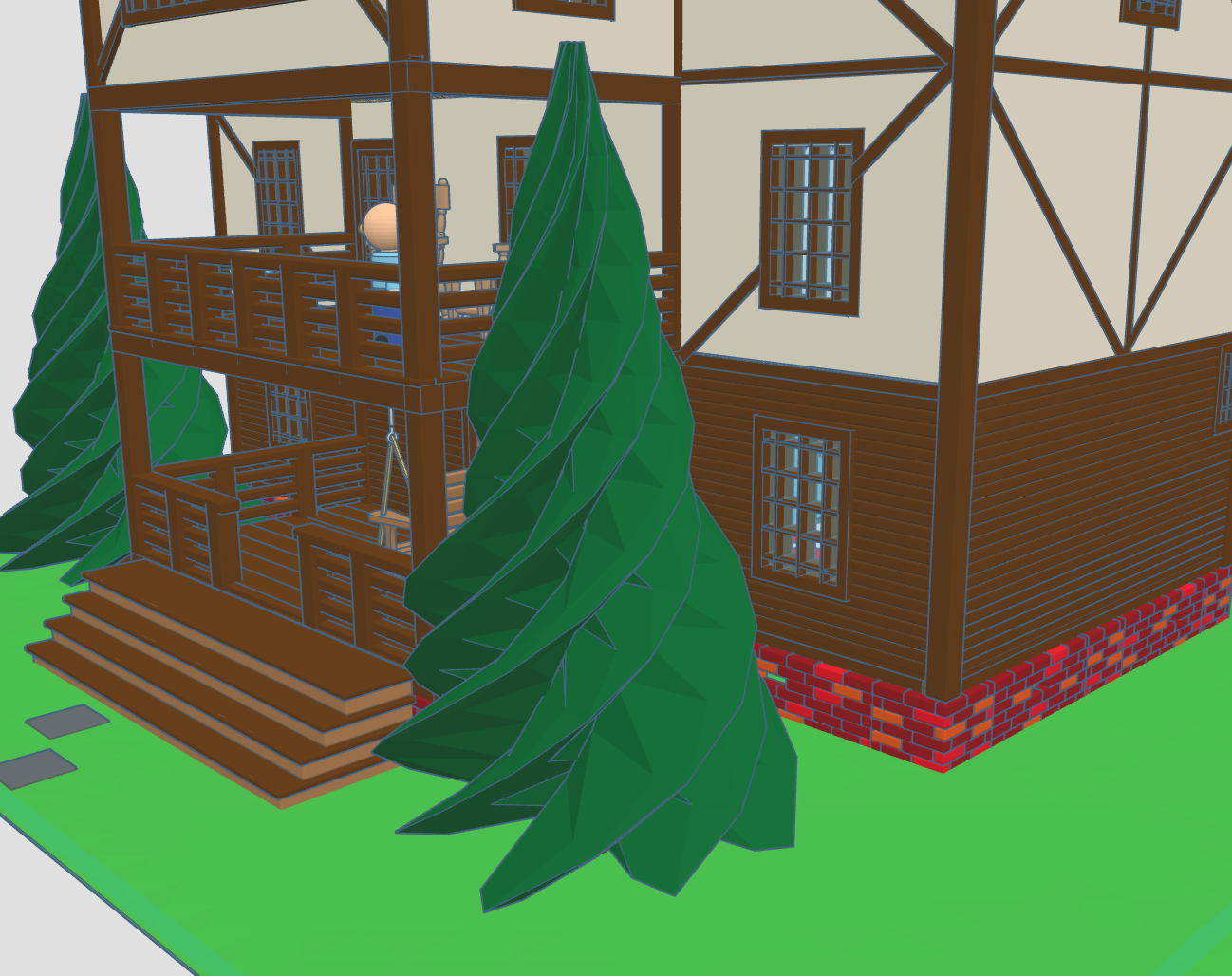
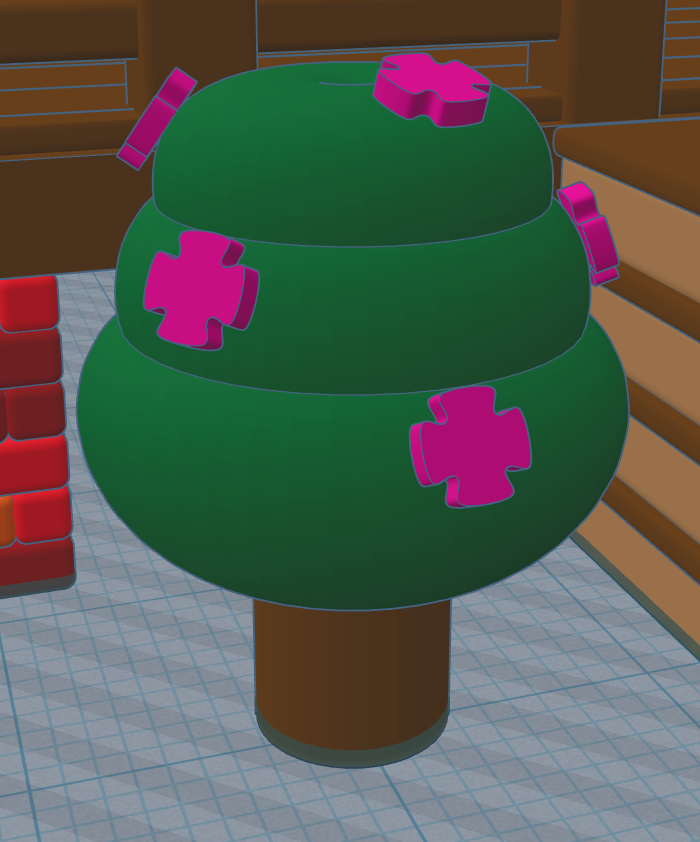
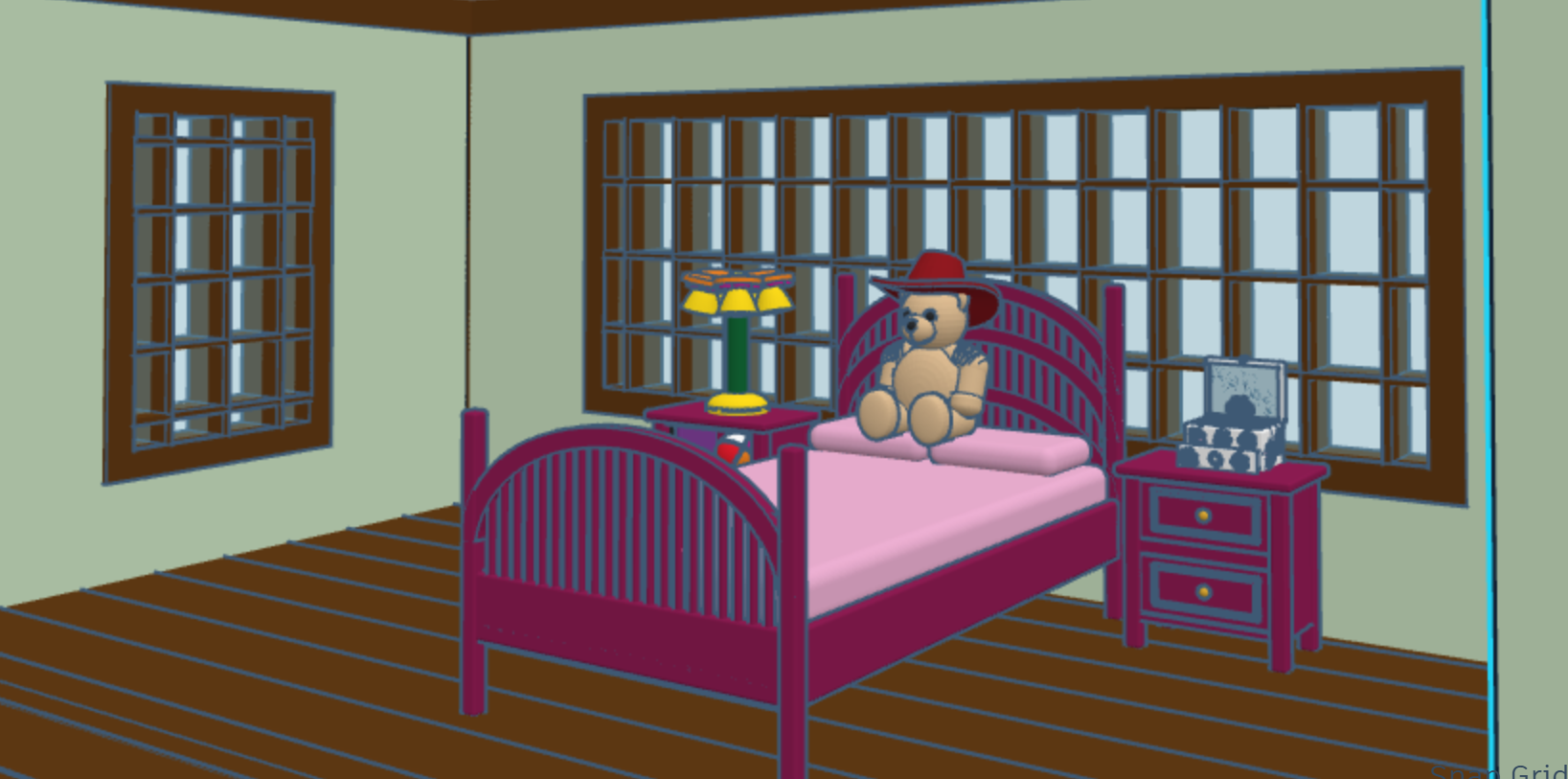
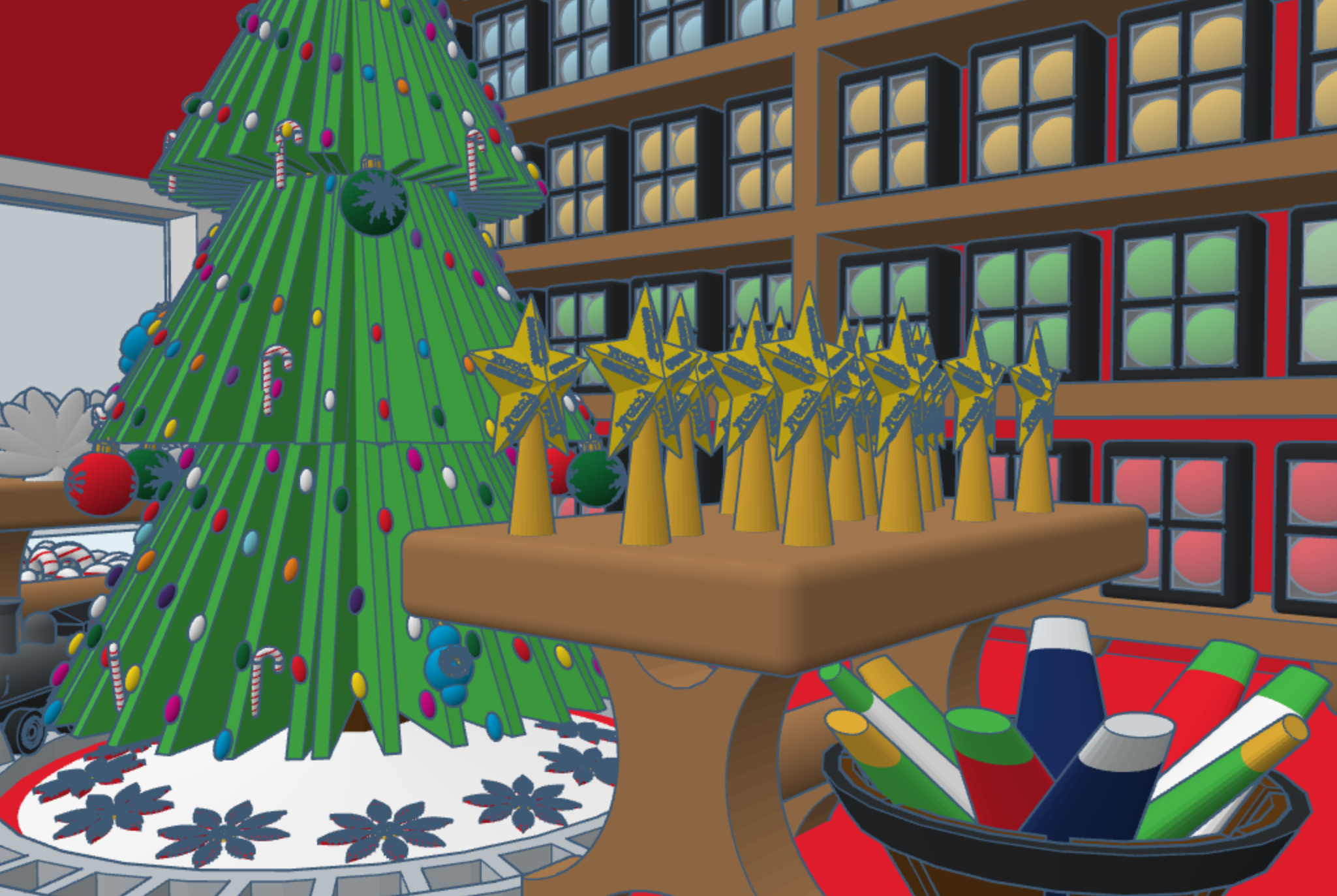
In 2020, I created Santa’s Workshop using Tinkercad. This year, 2025, I decorated one of the trees. Maybe next year, I will decorate the other tree. This is how the Santa’s Workshop looks 5 years later.
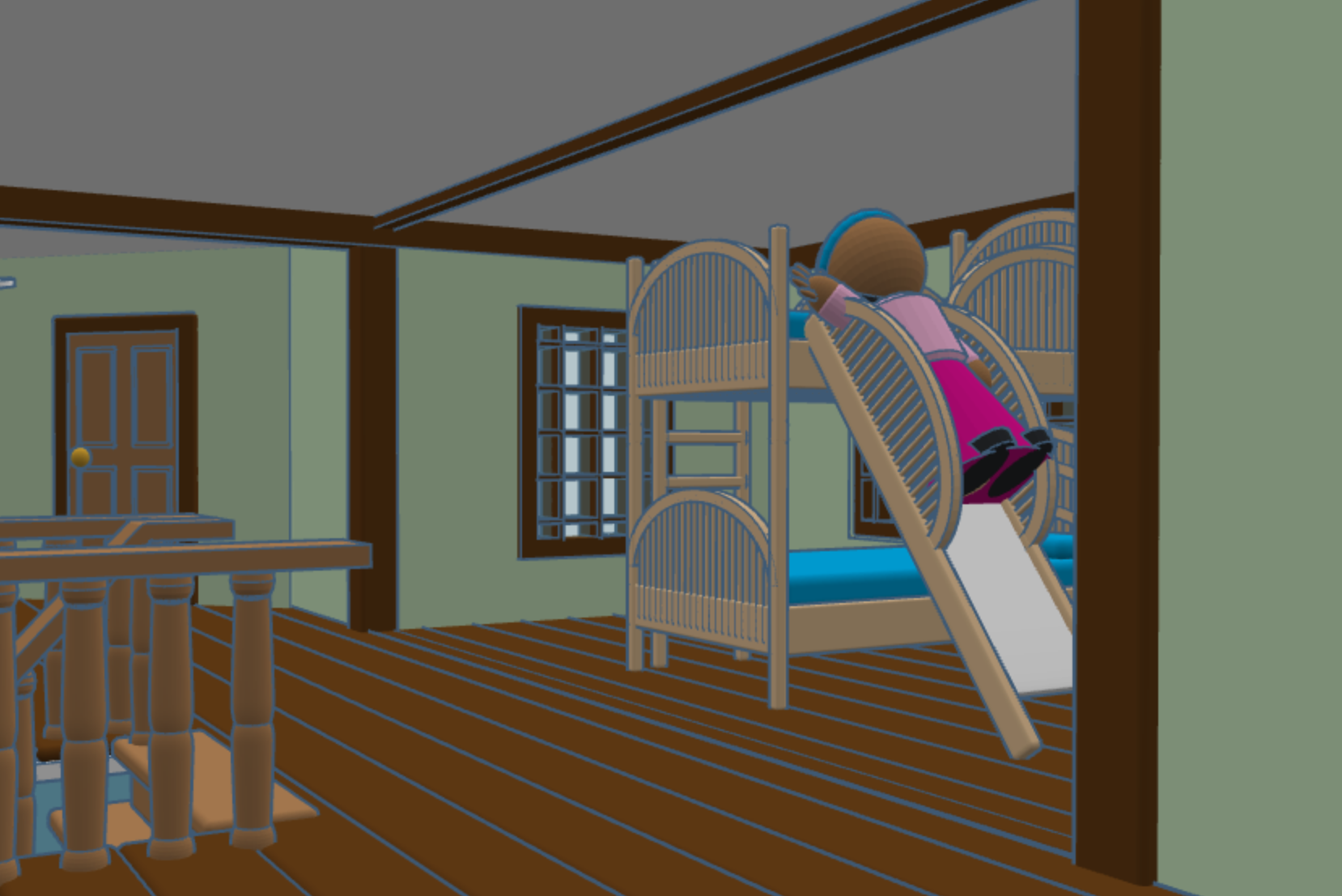
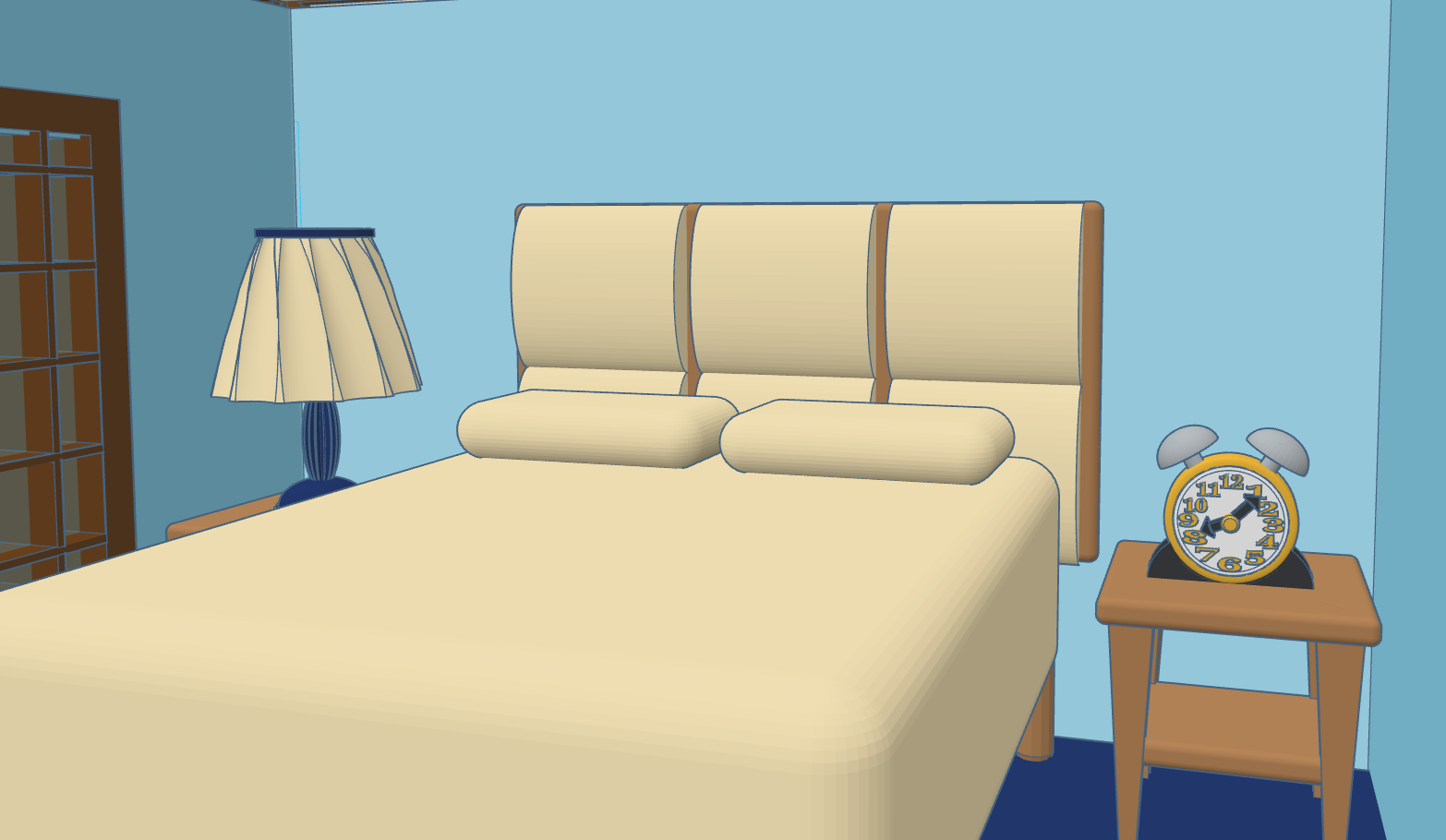
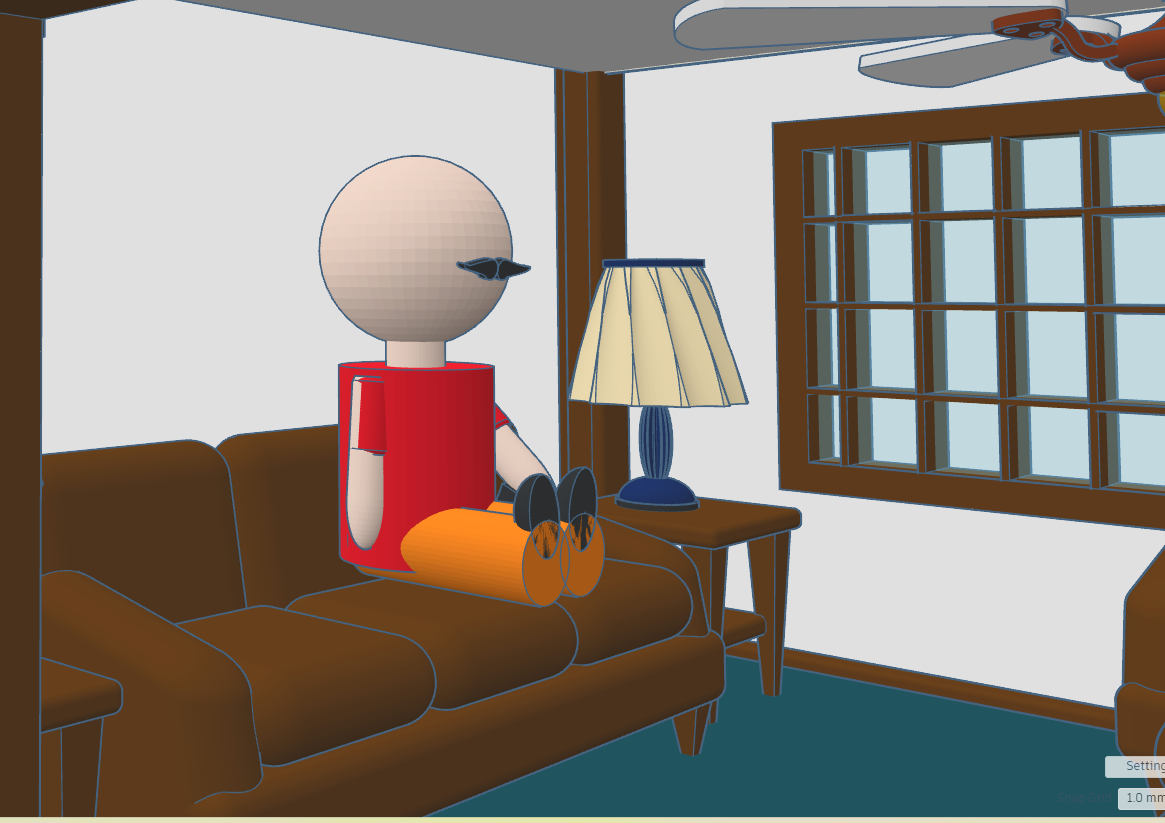
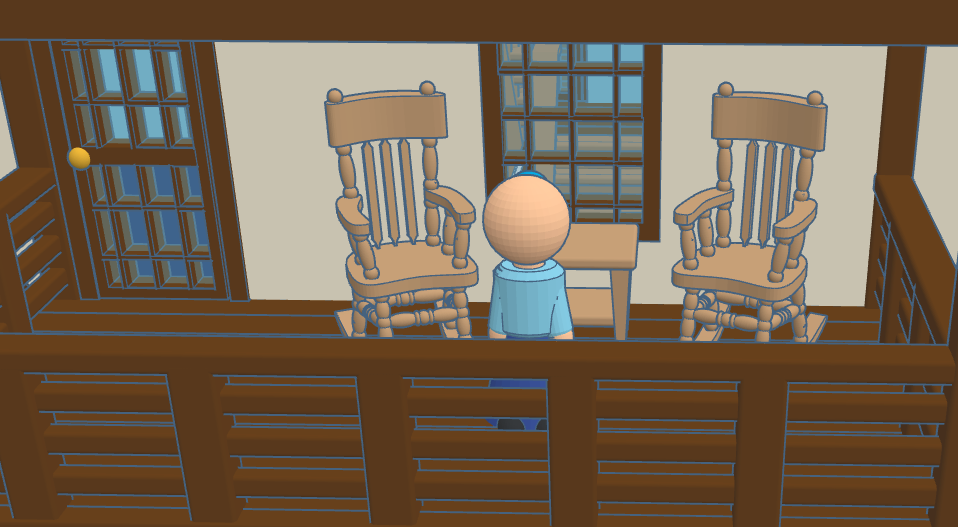
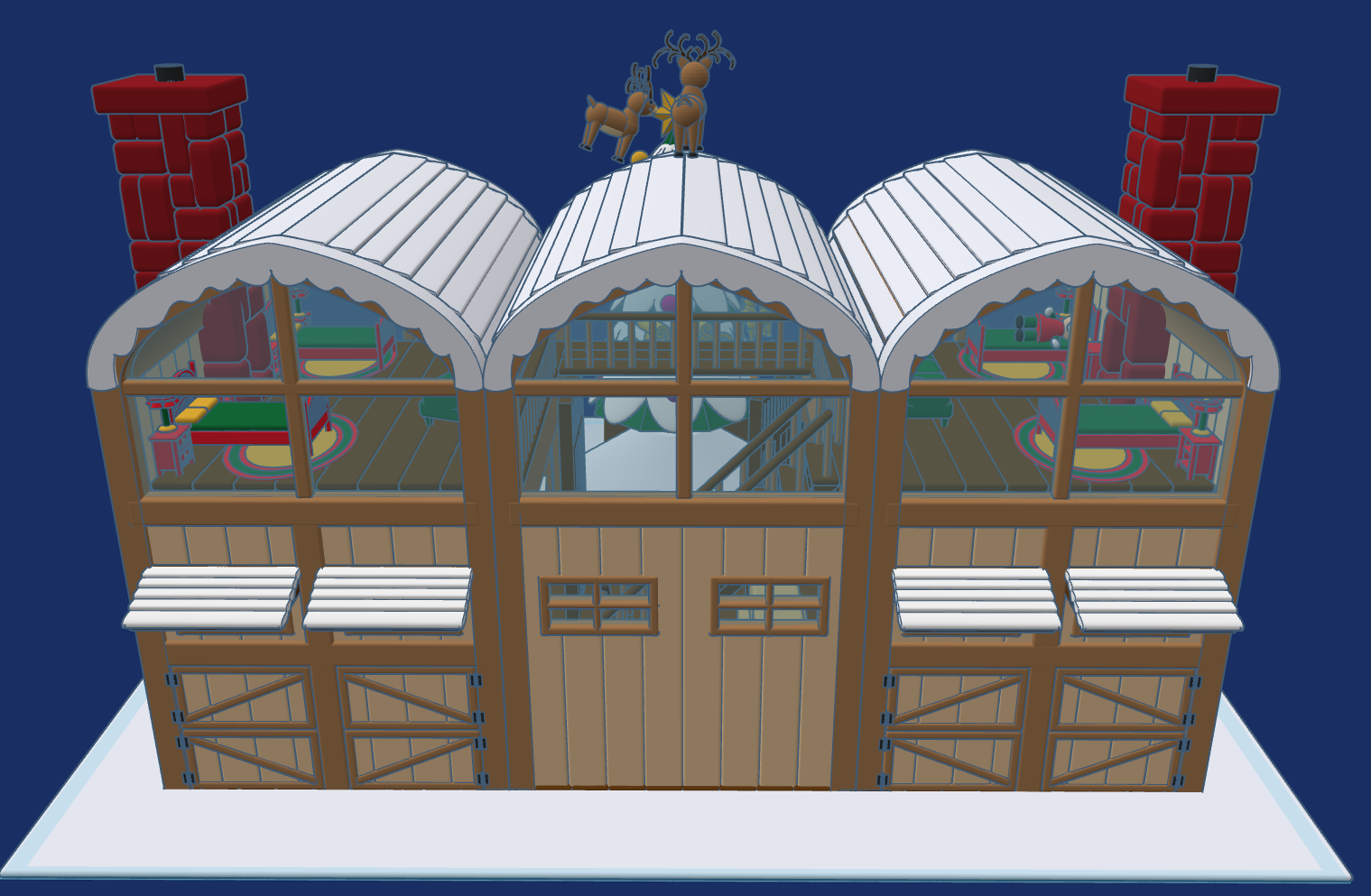
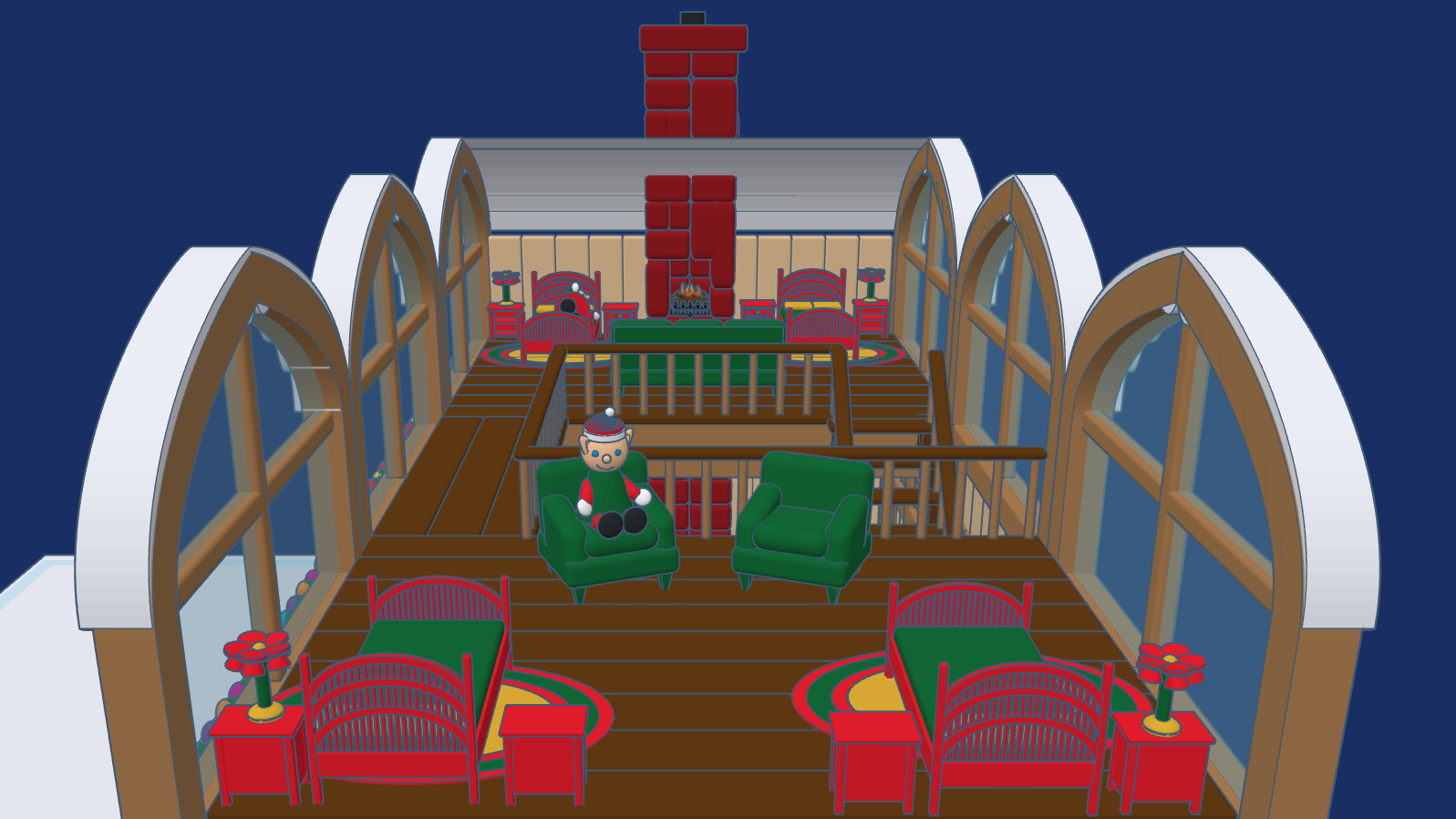
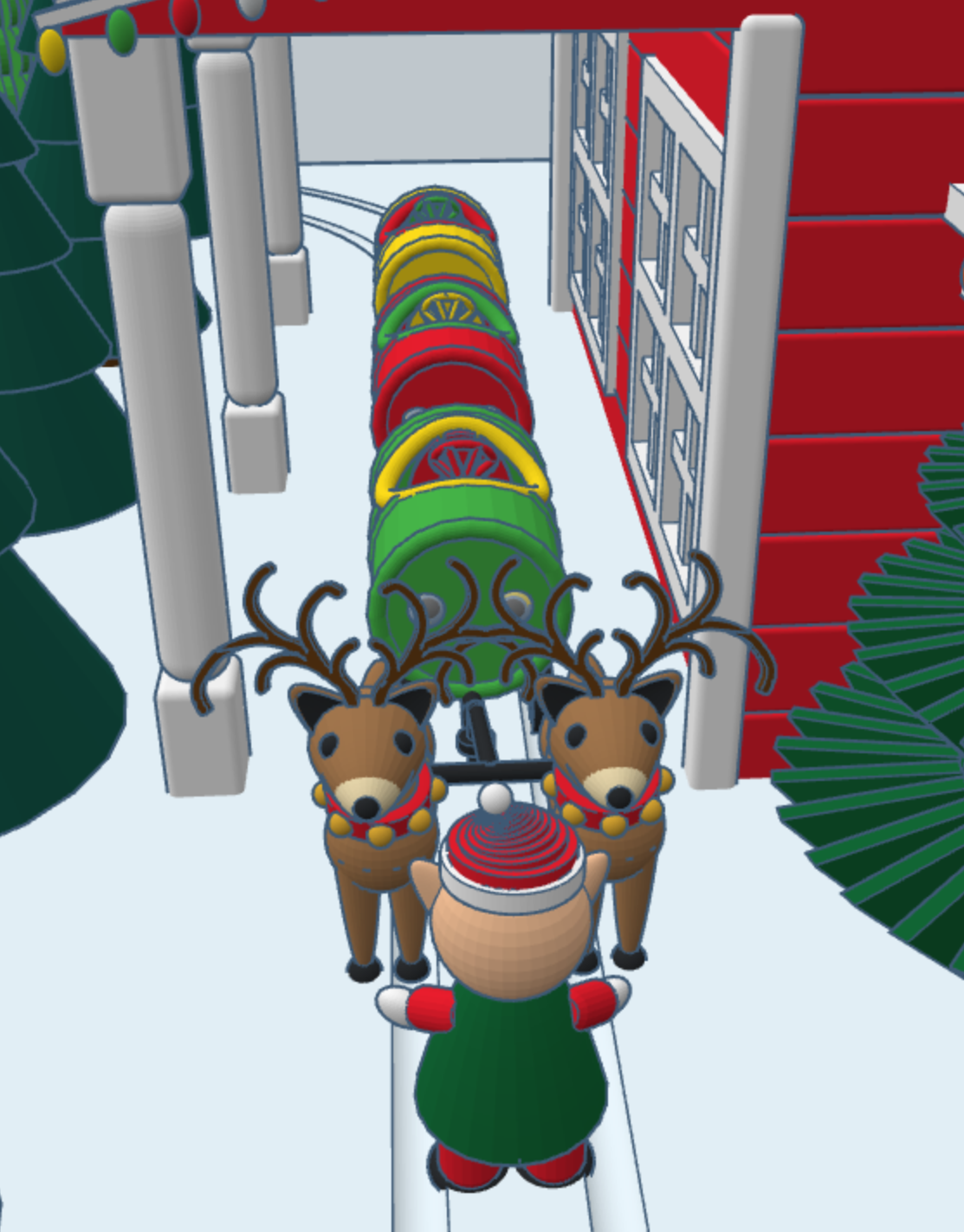
This year, 2025, after much thought I created Reindeer Stables. Every reindeer needs a place to rest. It has been a busy year for Tinkercad, they introduce the Extrude Sketch shape. Several of the objects you will see in the design was created using this feature.
The Stables are designed for the reindeer to freely come and go. Above the stables, is where some of the elves, who take care of the reindeer rest. The loft has large windows to so the elves can watch the reindeer play their games.
This design, Reindeer Stables, is available to the public to copy and tinker with.
Don’t forget while are in Tiwww.tinkercad.comnkercad to check out my other Christmas related designs.
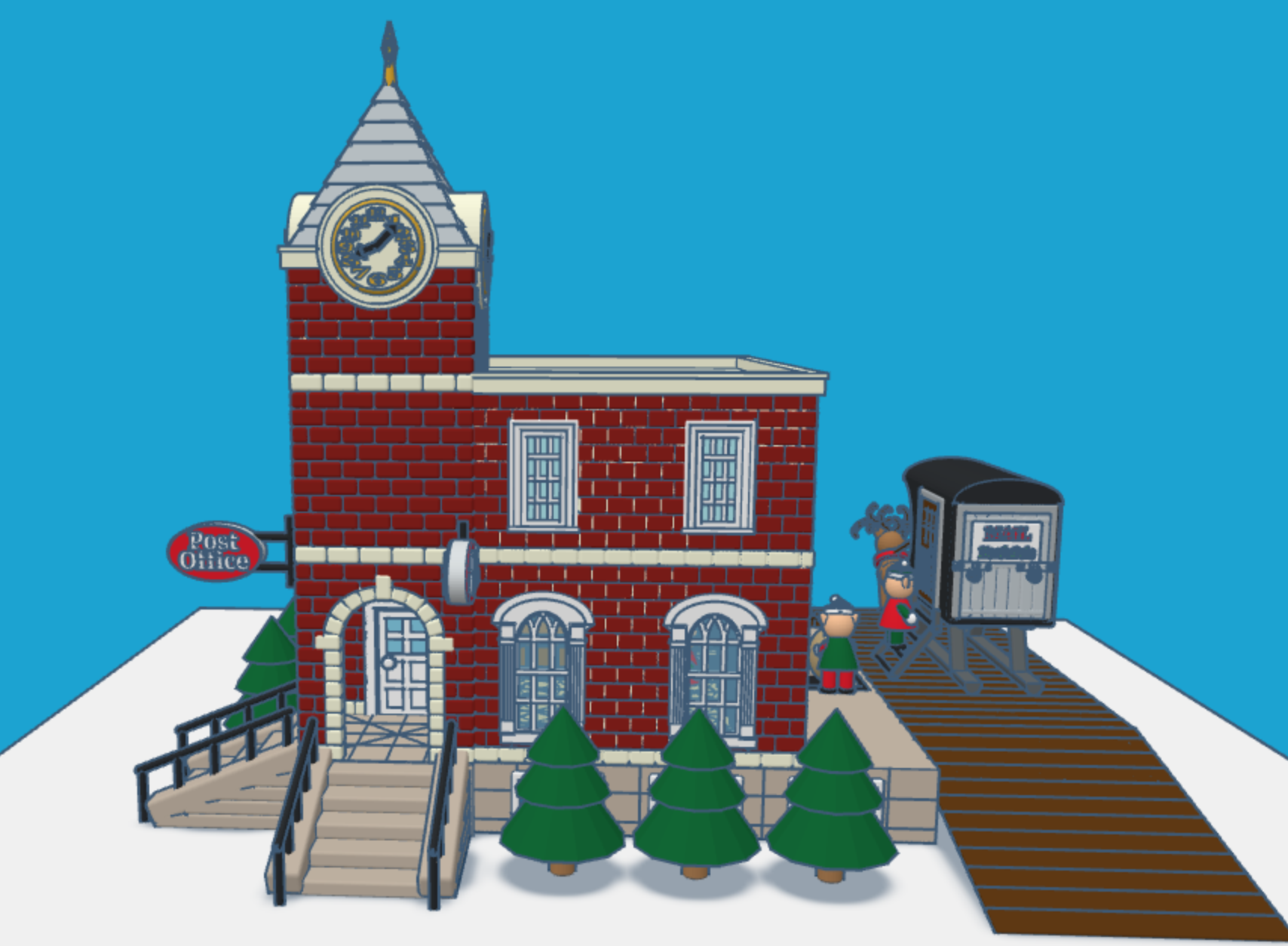
It is that time of the year again. Children all over the world are putting pencil, pen, or crayon to paper and writing a letter to Santa. This year I envisioned what Santa’s North Pole Post Office would look like. Looking at pictures of old-fashioned post offices I decided on the design and used Tinkercad to create a Post Office.
You can get a 3D view of the North Pole Post Office at this link: North Pole Post Office.
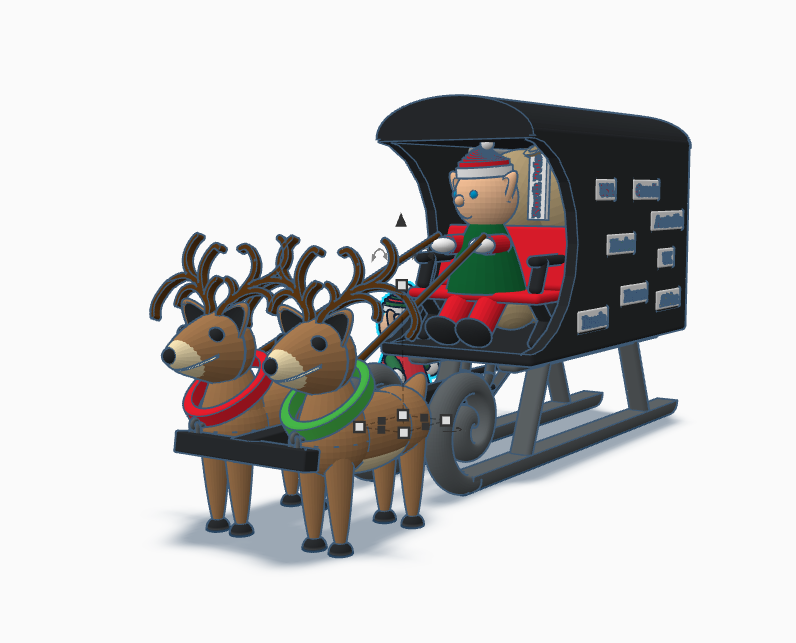
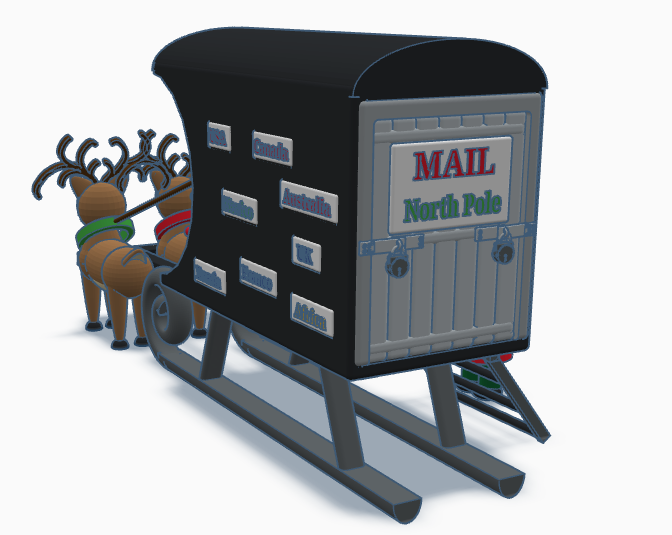
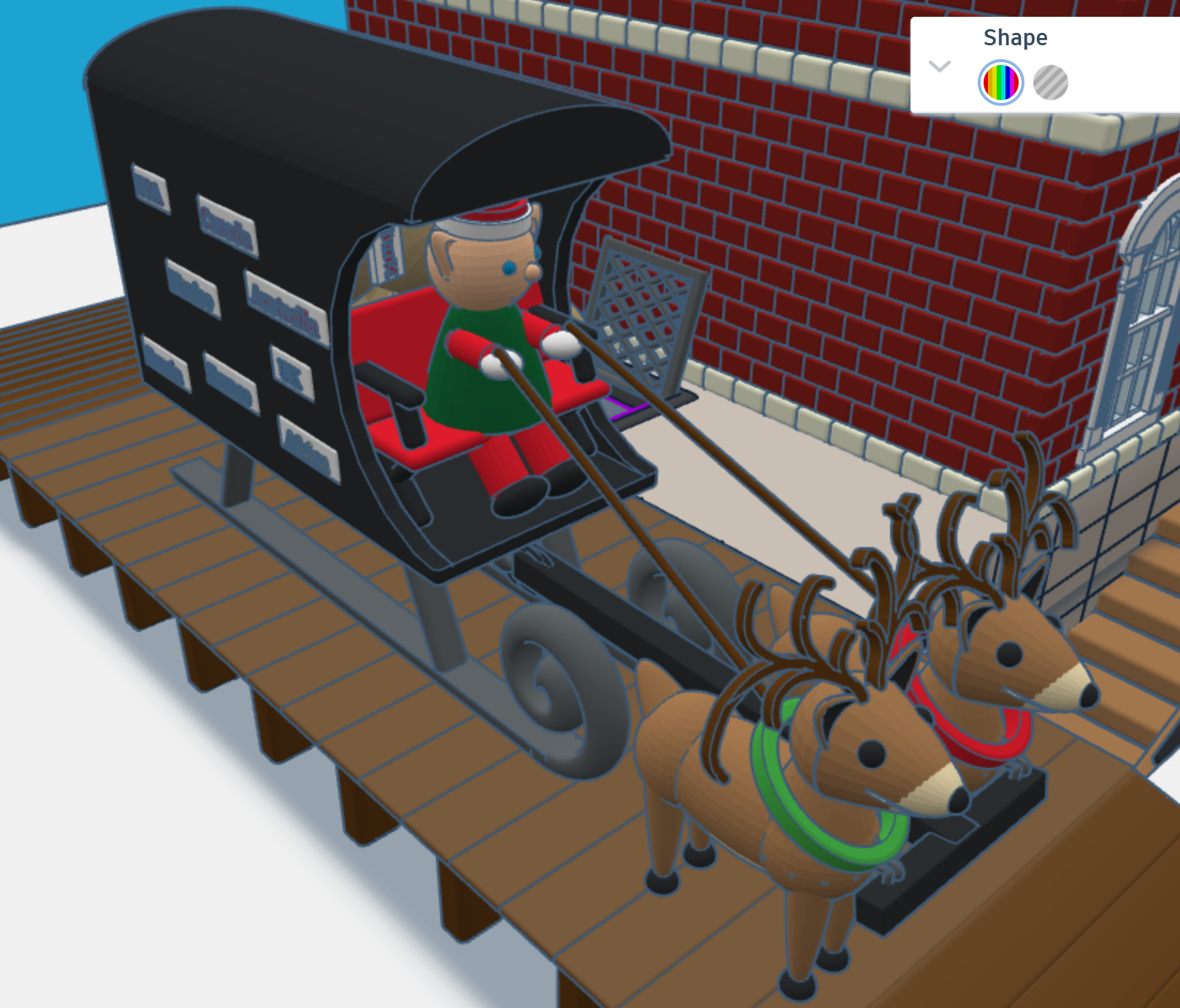
First, I needed a mail truck to deliver mail to the North Pole. A truck with wheels would have trouble delivering mail in the snow. I needed some reindeer and a converted sled to deliver the mail. One the side of the mail carrier, you will see signs from different countries. If you create a sign for your country, just make your sign design public/copyable and tag #sarahcath. I will put the sign on the mail carrier and give you credit. You can get a 3D view of the mail carrier at this link: North Pole Mail Carrier
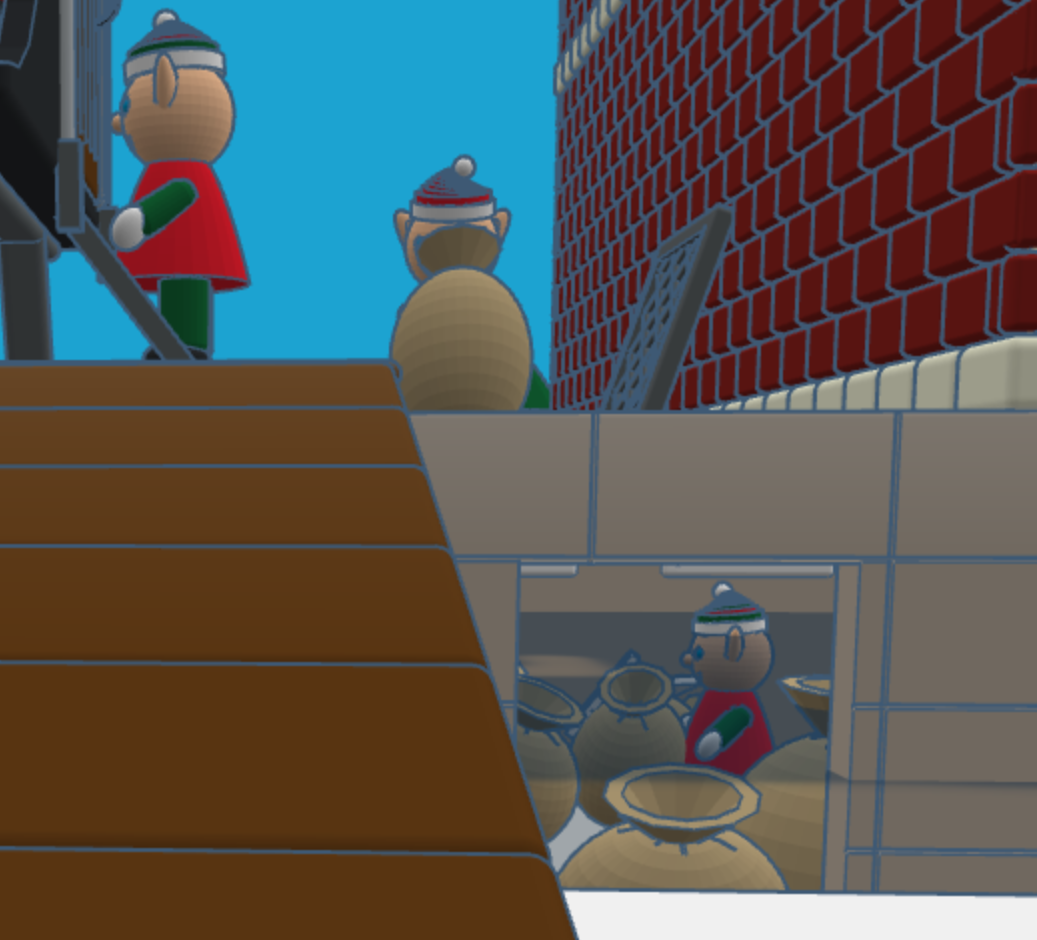
For the design of the post office I decided on a corner building, with two entrances/exits and a clock tower. Plus, I wanted the post office to have a basement, where the elves would place the sacks of mail.
After the mail is delivered, a sack is sent upstairs for sorting by country. Santa typically delivers mail by country. The first floor also allows the elves to ship letters and packages.
After the mail is sorted, it is sent to the second floor to be opened and read by Santa. The second floor also has mailboxes for the elves. Yes, elves do get mail.
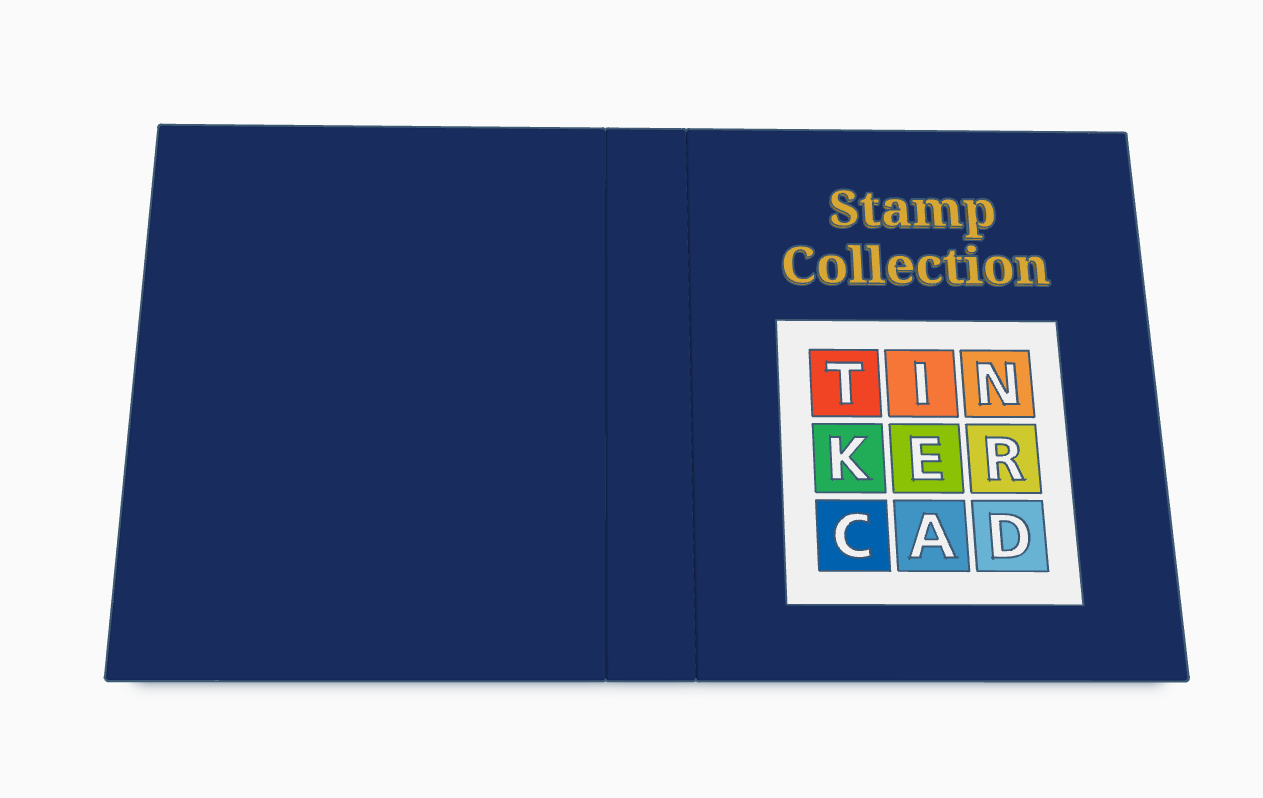
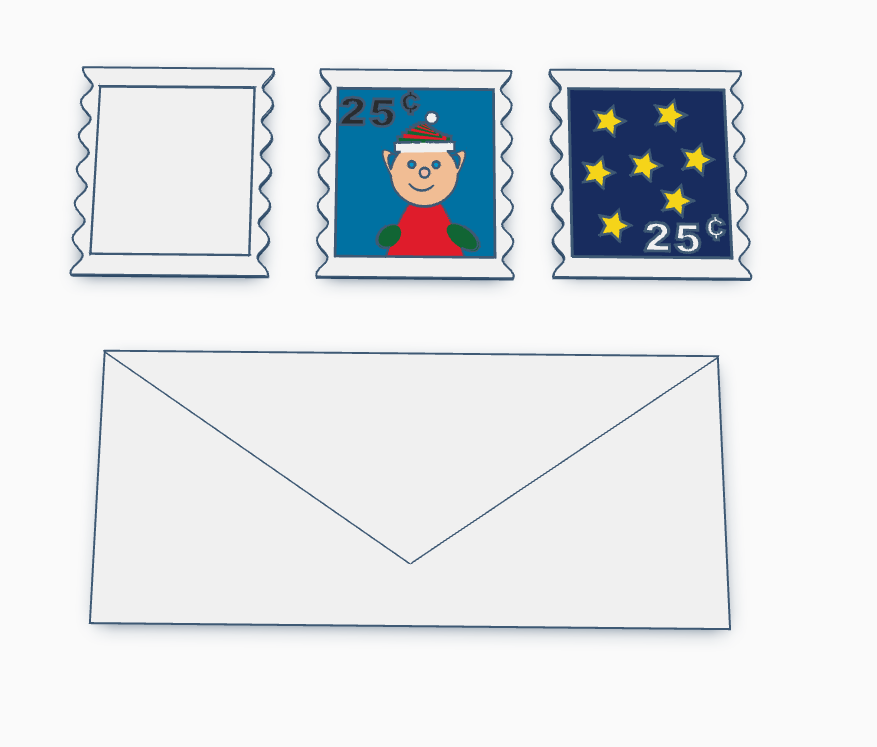
Santa’s Elves are collecting stamps. If you create a stamp, using Tinkercad, and I will paste it into the Stamp Collecting Book and give you credit for your stamp. You can either create the stamp from scratch or use my stamp template. Just make the stamp design copyable/public and tag #sarahcath when you are done. The scribble shape in Tinkercad maybe great for making a stamp.
When I am designing in Tinkercad, I mainly design using millimeters (mm), because most of the time I am using a .04 mm nozzle on my 3D Printer. If I want to make a cover for something, like my Alexa Device, I will measure it in millimeters.
I made this ruler in Tinkercad so it would be easier to measure items in millimeters.
First, I can place the ruler on top of an object and see the object through the ruler.
Second, I can place an object on top of the ruler and against the left side and get a measurement.
I printed three rulers in different colors, because every time I changed the filament in the printer for another project, I used the ruler to make sure the printer was calibrated correctly. If I got a good print on the ruler, there was a high chance that the next print would come out good.
The ruler is available for copying and tinkering in Tinkercad.
This tutorial, Creating a Snowflake Using Tinkercad, focuses on using a Star shape to create a snowflake and using other shapes to put holes in the star.
I got the inspiration seeing an office that was decorated with paper snowflakes. Each one was unique because they were created by hand. If you are interested in learning how to create a paper snowflake, check out CYNICALifornia’s Paper Snowflake instructions. The first thing I did was create a paper snowflake.
The next step was creating one in Tinkercad. But I did not stop at one, I created seven snowflakes.
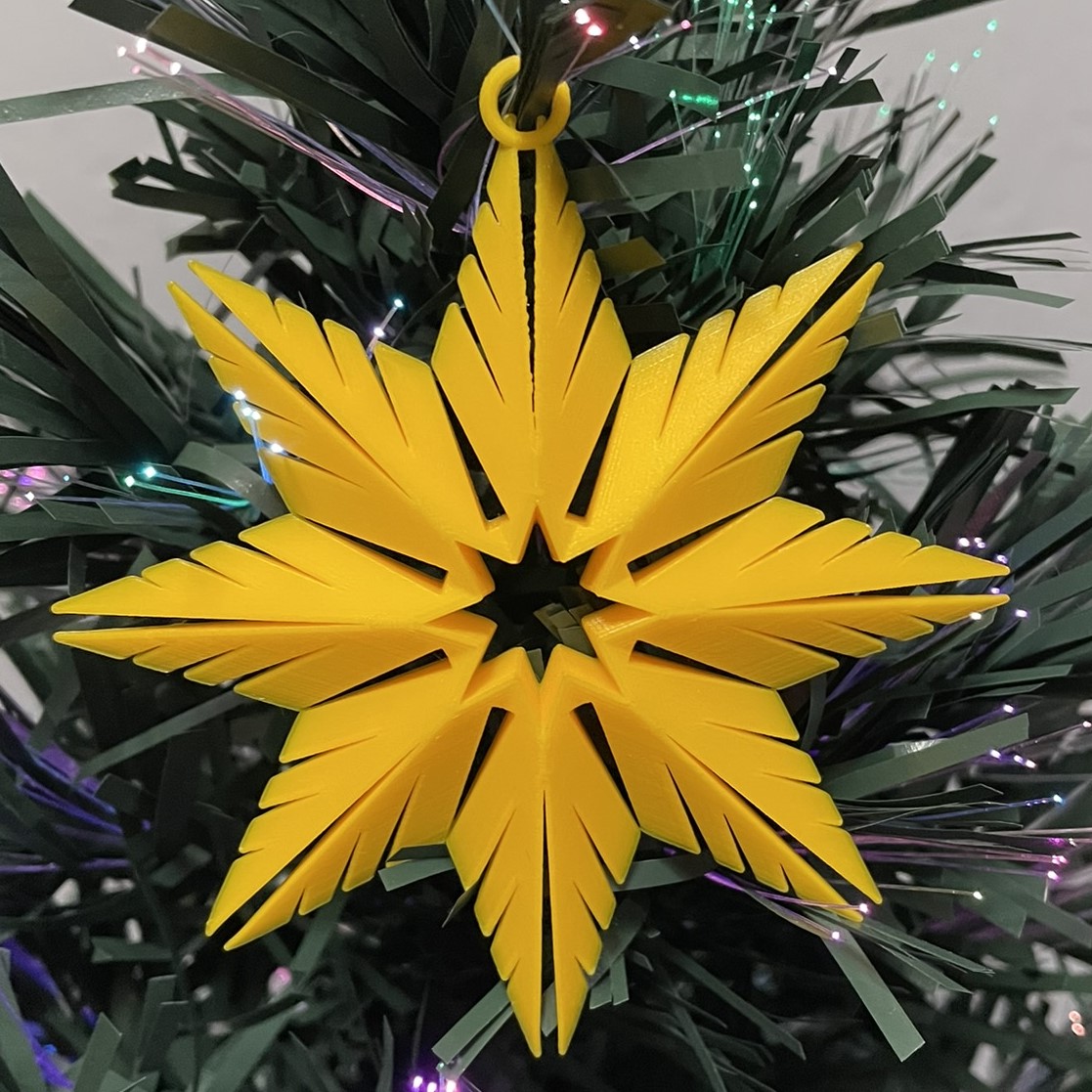
Below is the first one I created. It uses the only the Star shape and the Roof Shape. Even the back looks good.
This is the link (Snowflakes) to the seven snowflakes I created in Tinkercad. I encourage you to copy the design and deconstruct the snowflakes to see how they were designed. Then create your own snowflake using the tutorial and information you learned by viewing my design.
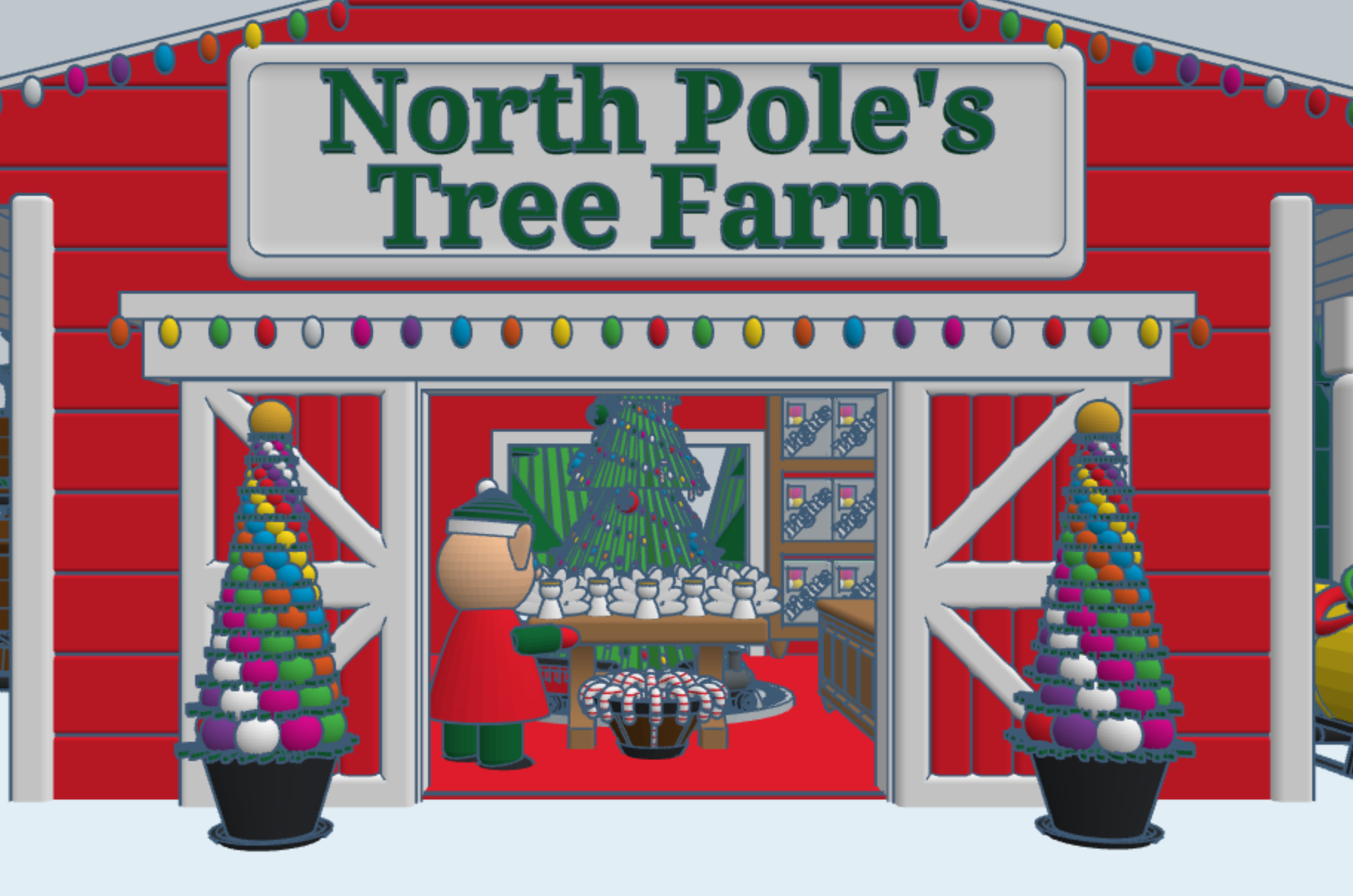
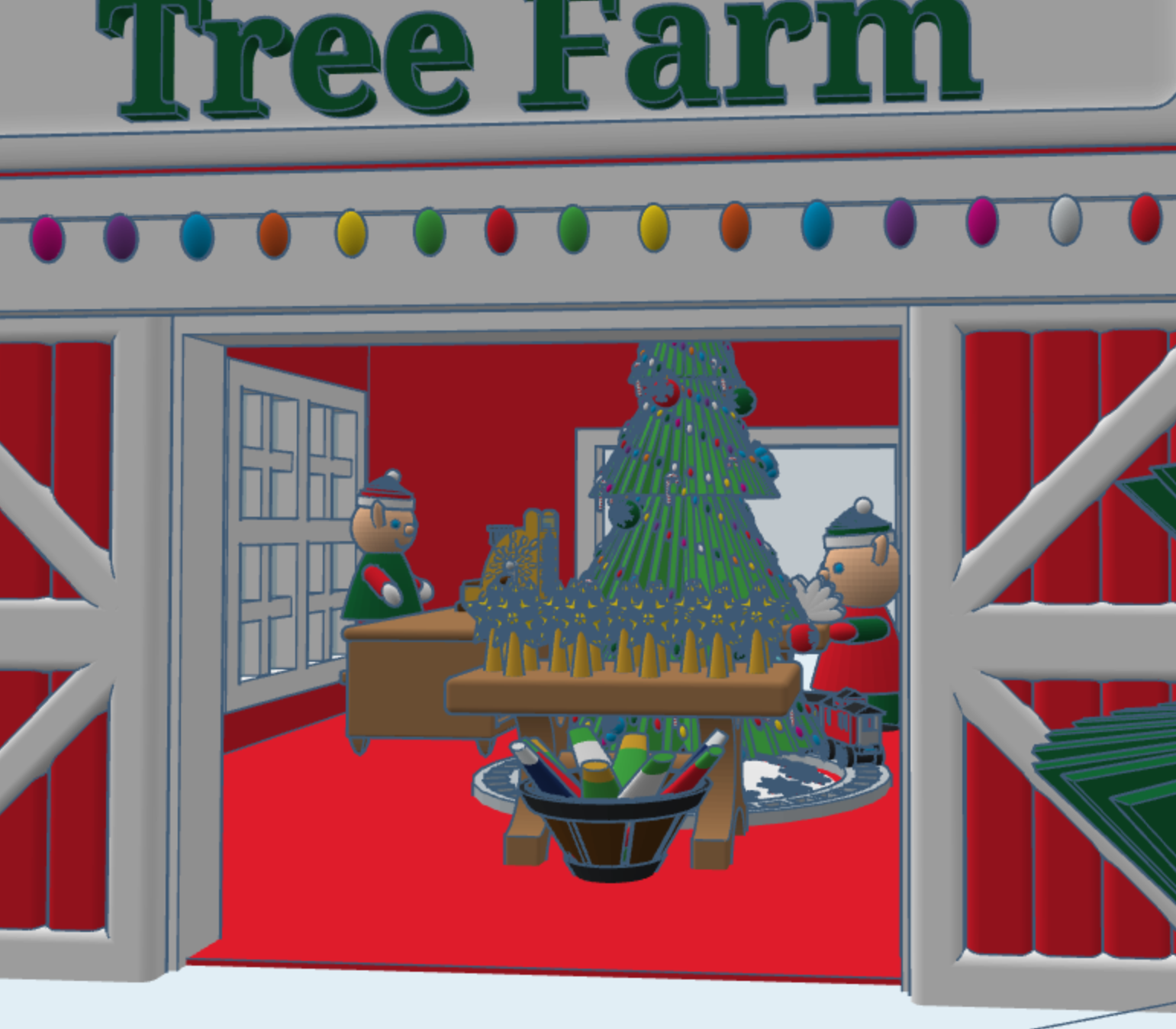
This year, for Christmas, I decided to design a North Pole Christmas Tree Farm in Tinkercad, with a barrel train to take visitors around the farm. I placed the shop inside the barn, I guess some of the reindeer gave up their lodging for the season. The shop sells tree decorations. You can copy this design and add your own objects to Tree Farms.
The barrel train was created in a different design. One train set has skids for use on snow, and another train set has wheels for use on the ground. You can copy the train, but you will have to design your own form of propulsion.
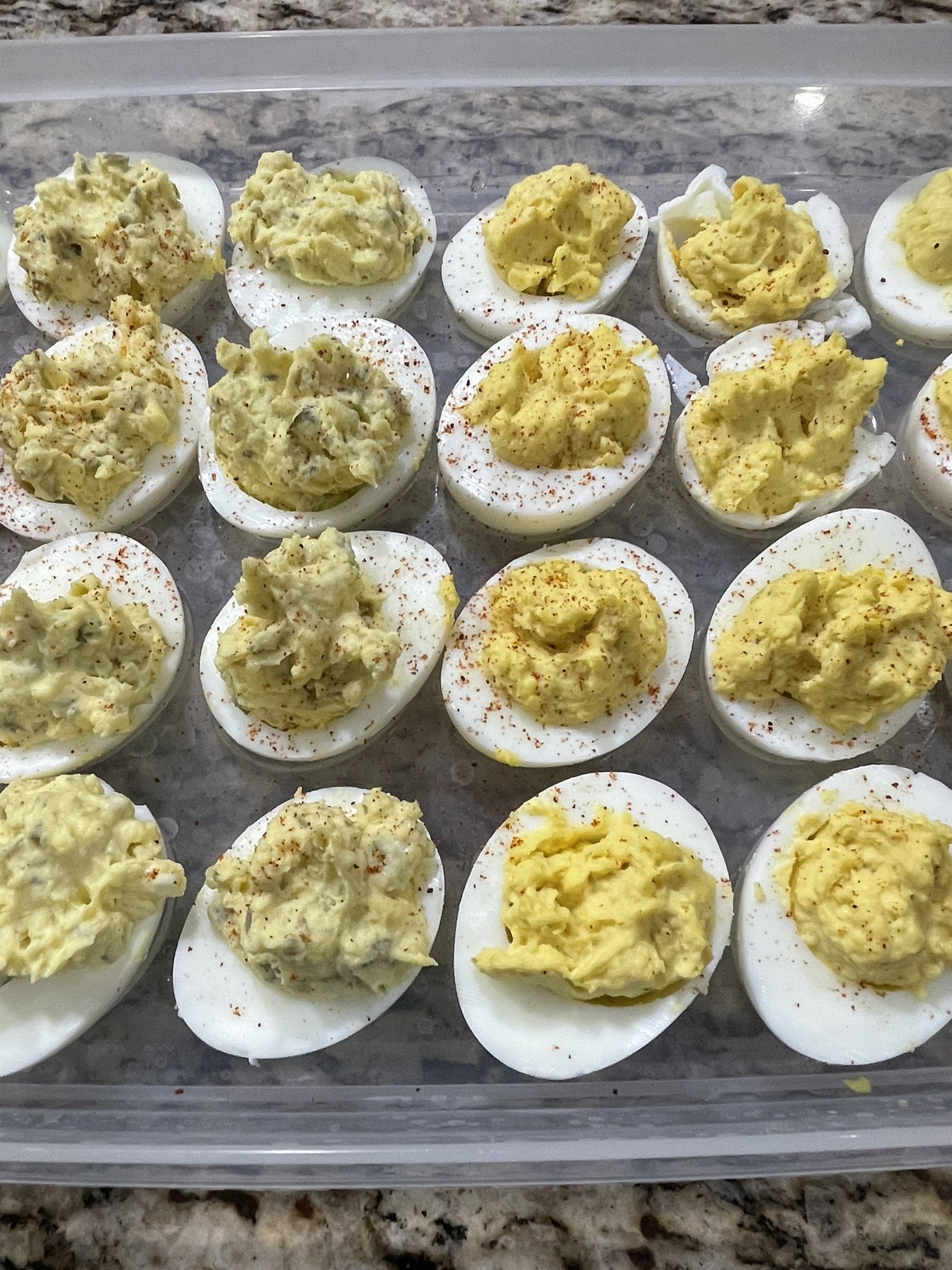
After October was spent making Fall and Halloween items in Tinkercad, I wanted to make a few items that had a Thanksgiving theme. So, I decided it was time again to get out that deviled egg platter and start making those delicious eggs again. Why are they called “deviled” eggs? Deviled is a term that means spicy. My deviled eggs are not too spicy, they are delicious. The recipe is below.
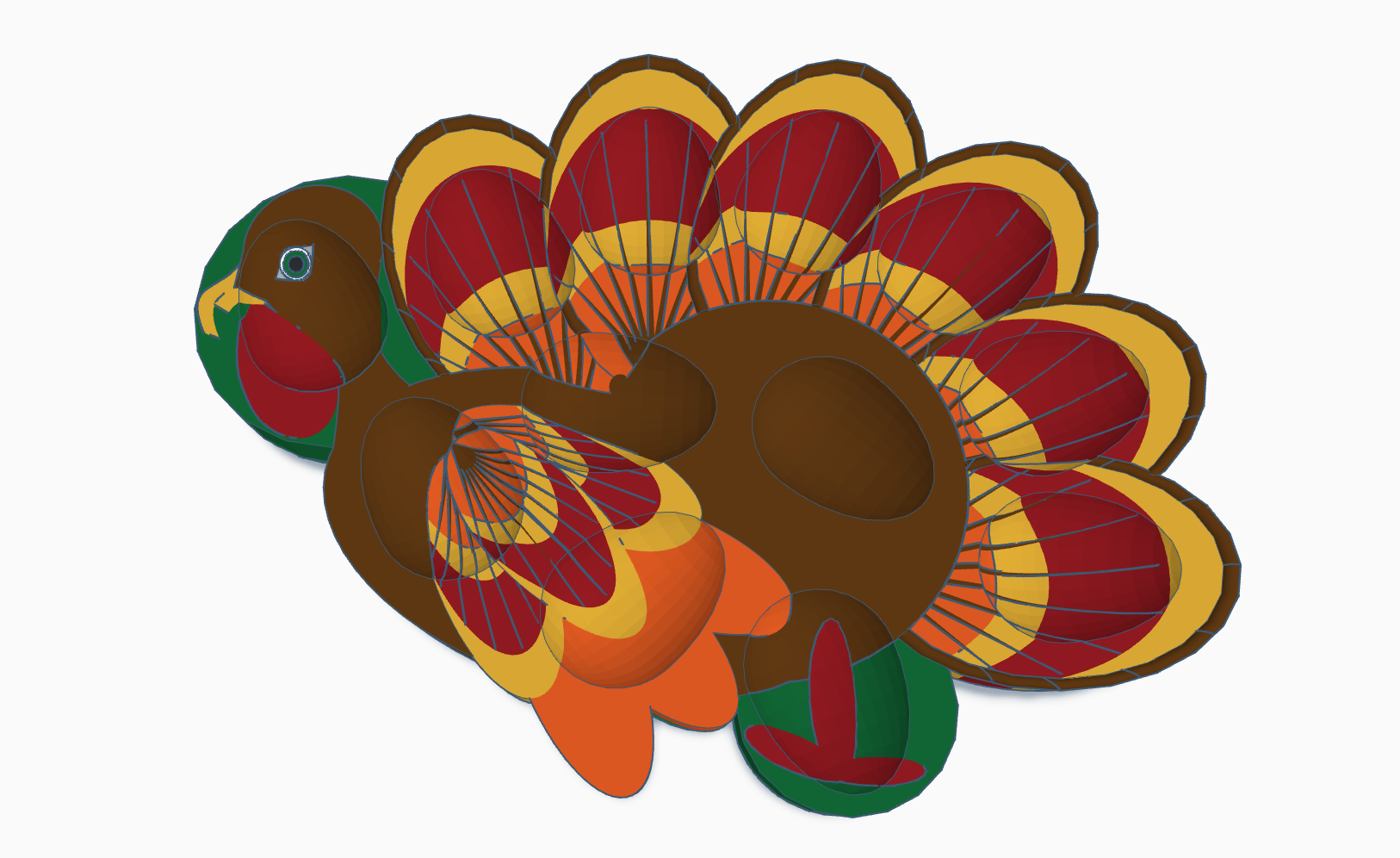
Using Tinkercad, I first had to make the deviled egg platter, then I had to make the eggs. The platter, since I wanted a Thanksgiving theme, I made it in the shape of a turkey.
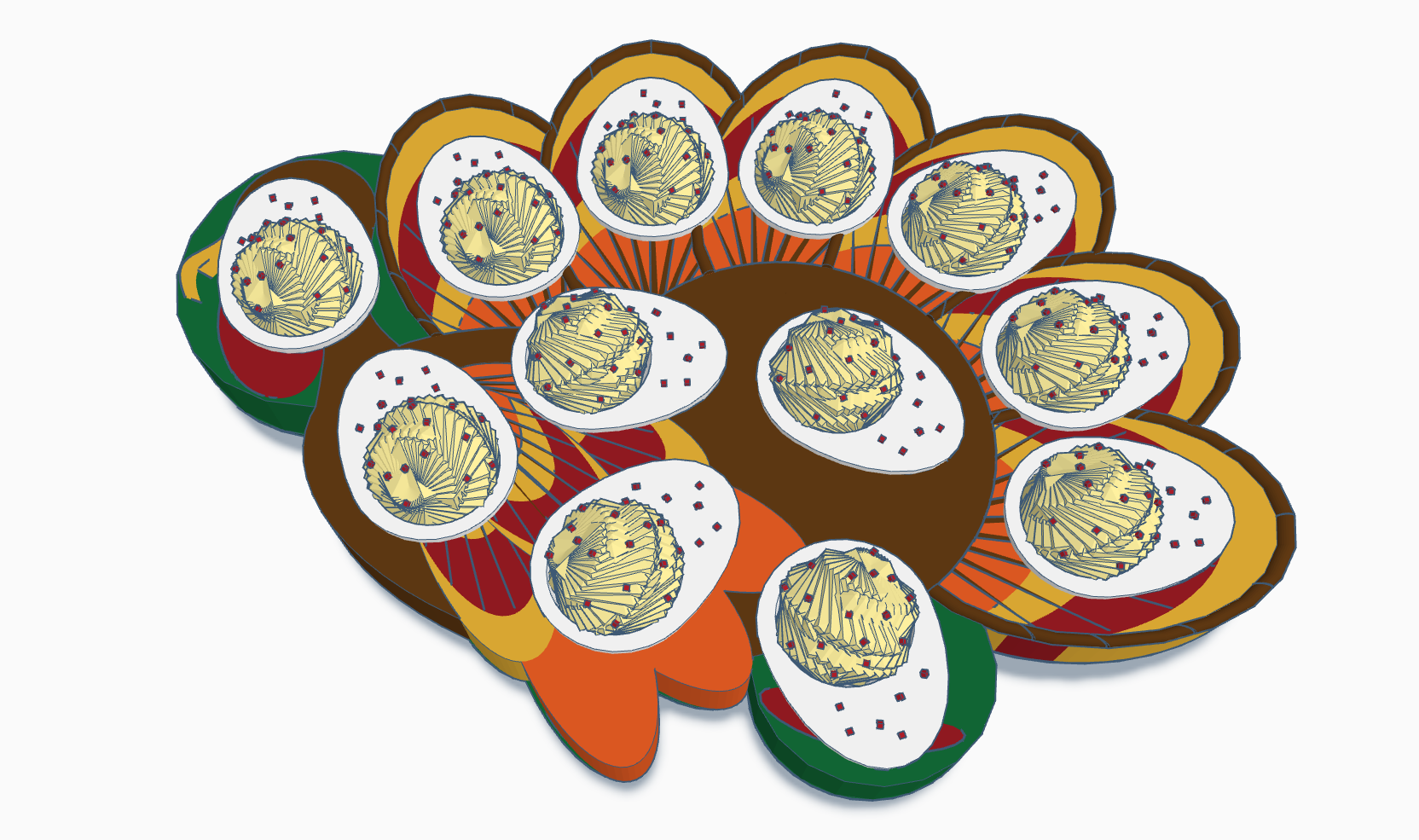
For the eggs, there is an egg shape in the shape’s library. I just cut it in half, made a hole and filled the hole. To create the filling, I used a sphere and set the steps to 3. Then I duplicated the sphere and rotated it by 6 degrees in all three directions and continue to duplicate the sphere until I got the shape I wanted.
The Platter:
The Eggs:
The Deviled Eggs I created in Tinkercad took me hours over a few days to create. If you want real deviled eggs, not virtual deviled eggs here is my recipe.
Hard-Boiled Eggs: Large, Extra Large or Jumbo Eggs
How many deviled eggs do you want to make? Count the number of spots on the platter and divided by two. Add an egg or two to the number, so you can “taste test” before serving.
Salt
Black Pepper
Dry Mustard/Ground Mustard: Not the mustard that comes in the yellow bottle, but the mustard that is on the spice rack.
Mayonnaise: You can use any mayonnaise, but if it is not Blue Plate mayonnaise, I cannot guarantee the quality of the deviled eggs.
Sweet Pickles: Do not use sweet pickle relish. Do not use name brand sweet pickles. The name brand puts added ingredients in their pickles which gives it a weird taste. Buy the store brand sweet pickles. Preferable the minis but the gherkins will work too.
Cayenne Pepper or Paprika:
Instructions:
Hard Boil the Eggs
Place the eggs in a pot and cover the eggs with cold water. Add a dash or two of salt.
Place pot with eggs on the stove over a high heat.
Bring the eggs to a rolling boil and let the eggs boil for 15 minutes.
Peel the shell from the eggs and set the eggs aside.
There are many ways to peel the eggs, but I prefer to drain all the hot water off the eggs and peel the eggs under running cold water. Yes, the eggs are hot to the touch. If you prefer not to handle hot eggs, search the internet for other methods.
Cut the eggs in half lengthwise and remove the egg yolks and place in a mixing bowl. Most of the time, by pressing gently on the back of the egg, the eggs yolk will easily slip out. Lay the egg whites on the egg dish.
Use a fork to break up the egg yolks until there are not any large lumps.
Add a dash of salt, a couple of dashes of black pepper, and 1/4 of a teaspoon of dry mustard for every 6 whole eggs (12 halves) to the egg yolks.
Stir all the ingredients together until they are mixed well.
Finely chopped 2 mini or 6 gherkins sweet pickles (for every 6 whole eggs) and stir into the egg yolk mixture.
Stir in one heaping tablespoon of mayonnaise into the egg yolk mixture. Keep stirring in additional mayonnaise, one tablespoon at a time, until the egg yolk mixture appears creamy.
Spoon a heaping teaspoon of egg yolk mixture into hole of the egg white, attempting to distribute mixture evenly between eggs.
Sprinkle a fine mist of Cayenne Pepper or Paprika over the filled eggs.
Cover and refrigerate. Don’t forget to taste test the extra eggs you made. They are good warm or cold.
If there is a member of you household that does not want sweet pickles in the deviled eggs and would prefer mustard eggs. Leave the sweet pickles out of the recipe and add a couple of squirts of the mustard that comes in that yellow bottle instead.
I decided to use some of the other features in Tinkercad for the last 11 days of Tinktober. For all the designs I used Tinkercad Codeblocks, except for Trick or Treat and Fall Leaves designs. Codeblocks allows users to program shapes to create a design. After the design is completed in Codeblocks, users can save the design as a shape and use it in Tinkercad 3D
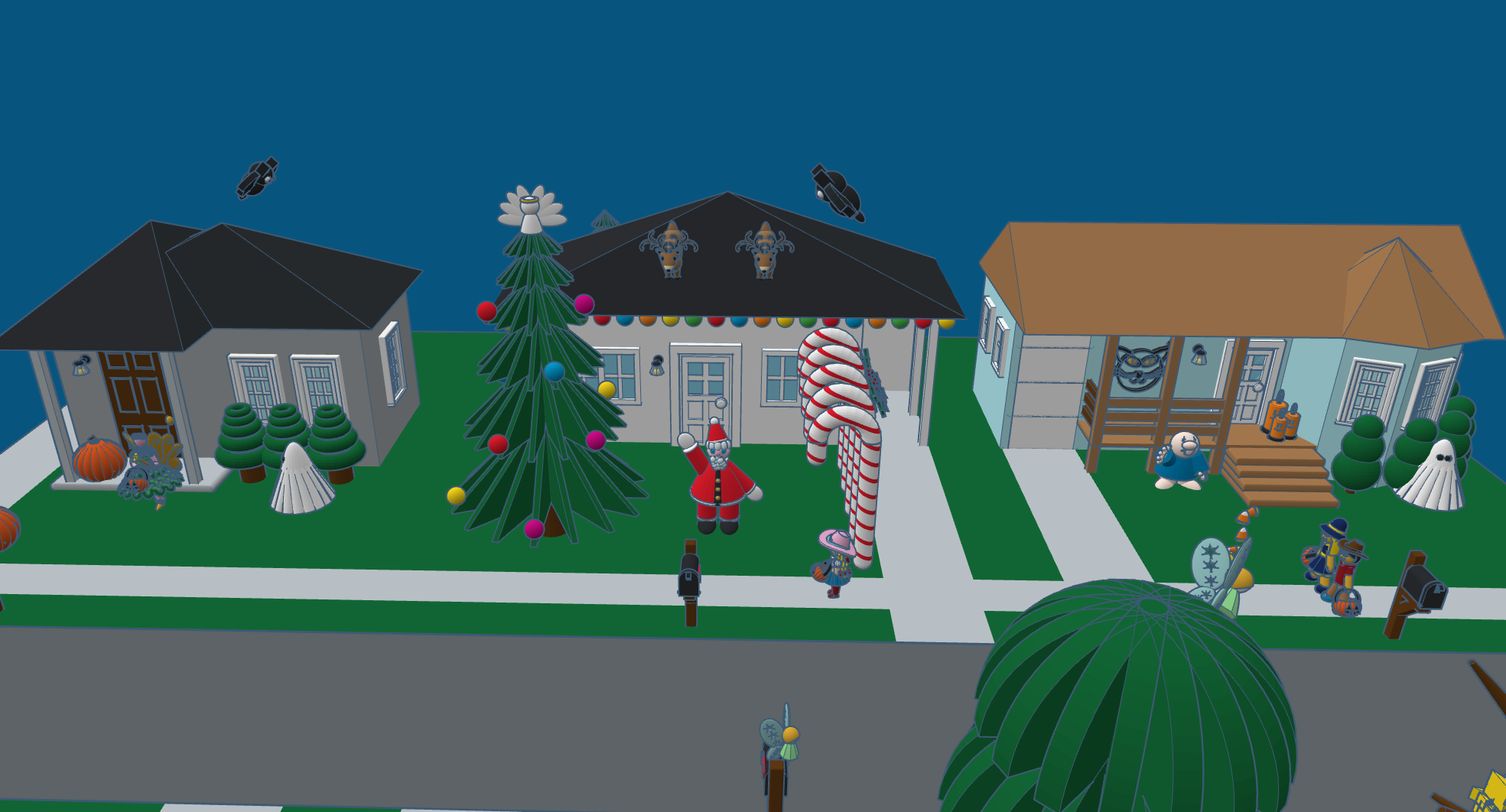
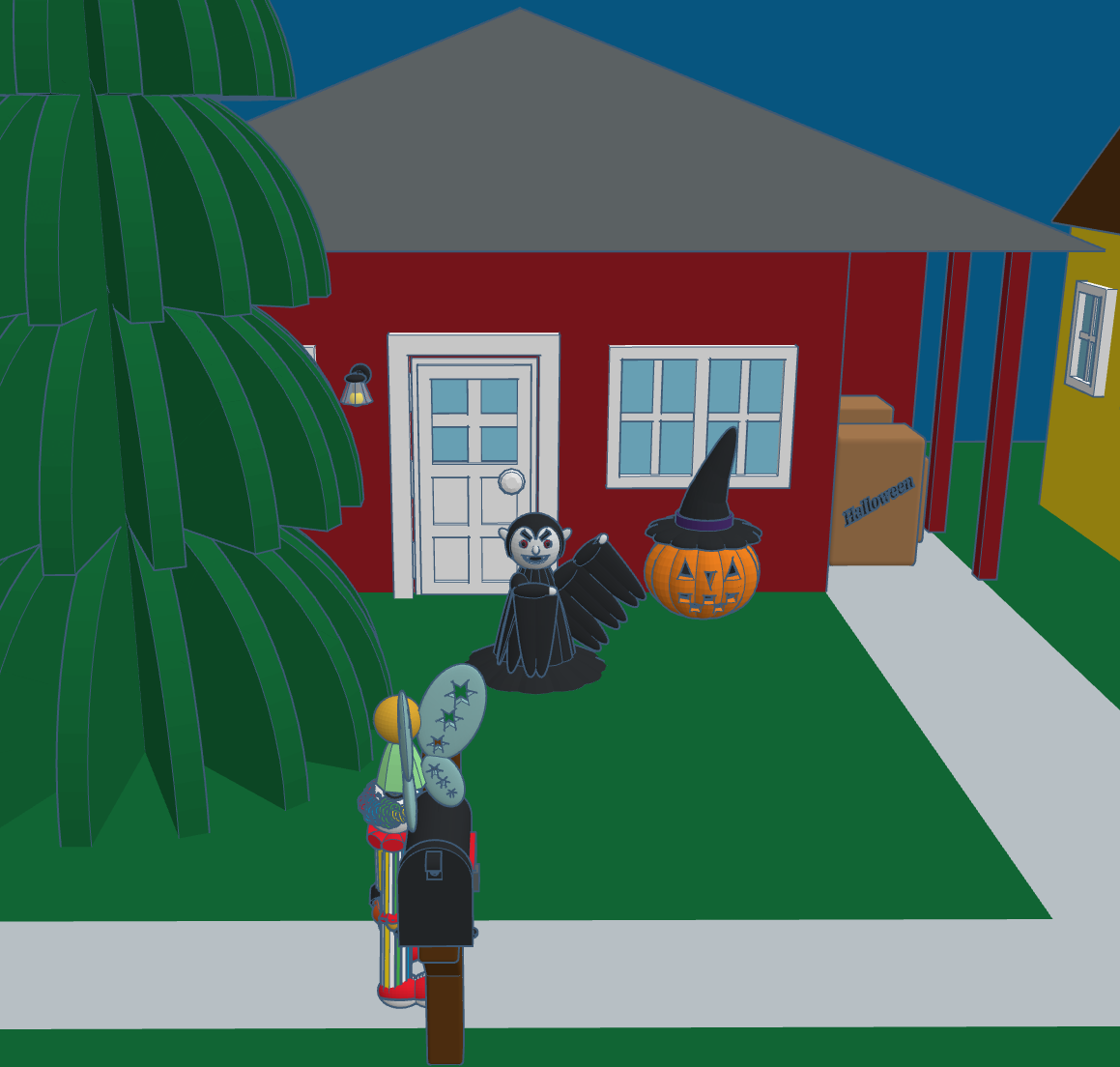
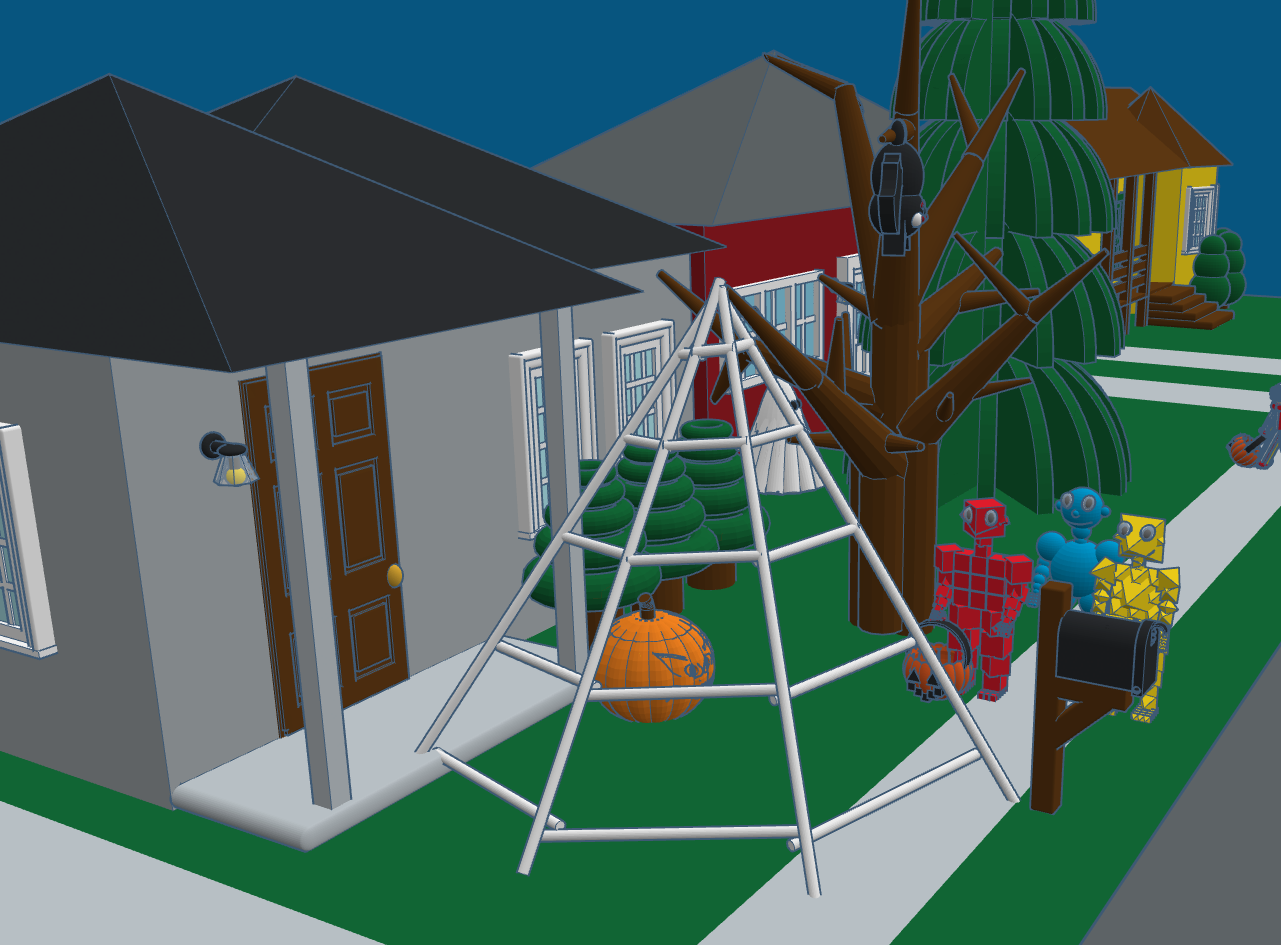
Day 31: Trick or Treat – There is always at least one house on the block that is different than all the other houses. On this block, were they just excited that Christmas was less than 60 days away, or did they leave decorations up all year long? This scene shows many of the designs that I created during #tinktober and other designs created over the past years.
Day 30: Halloween Candles – One of the recently announced features in Codeblocks was the control of size, position, and scaling. The candles design uses the position code to keep the wick on top of the candles no matter the height of the candle. Read about Size, Position, and Scaling in the Tinkercad blog.
Day 29: Fairies – The Fairy design uses some of the same features available in Tinkercad Codeblock that I used in other designs. However, this fairy’s outfit and wings changes colors every time the design is run. This was accomplished by creating variables for the colors and using the random function to change the colors. The fairy also flutters around the screen and changes orientation.
Fairy
Day 28: Broomstick – The broomstick is not fancy. Being able to adjust the pivot point of the rotation, I was able to create the bristles on the broomstick with very little coding.
Broomstick
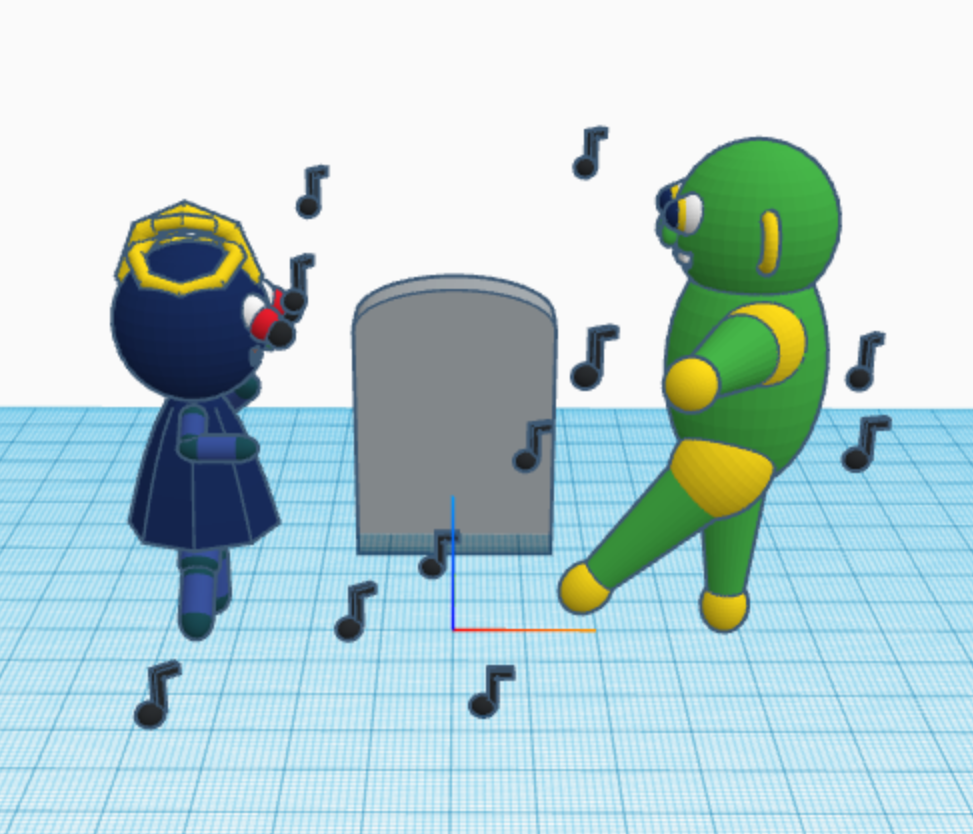
Day 27: Monster Mash – I wonder how many people actually know that Monster Mash was as actually song released in 1962 by Bobby “Boris” Pickett. This is the design I created to represent Monster Mash, because it was a graveyard smash. With Codeblock, each time you run the program the music notes will appear in a different location.
Day 26: Vampire: I am most proud of the hair on the Vampire design. For the head, I kept the default sphere radius of 10. I made the hair’s sphere radius one point large, 11. Then I created four spheres and made them holes; one center, one oblong to the left, one oblong to the right, and the last one center toward the bottom. See below for the code.
Day 25: Magic – The hat, the wand, and the stars were created by defining a template for each. The rabbit was created using three templates: one for the head, one for the body, and another for the ears. The entire design was put together in a template I named tempRabbit. If you watch the video, you will notice that once the wand touches the side of the hat, the stars appear than the rabbit.
Magic
Day 24: Spooky Pumpkin Head Witch – uses the new template feature of Codeblocks to create the hat and the pumpkin. It also use of the rotation function.
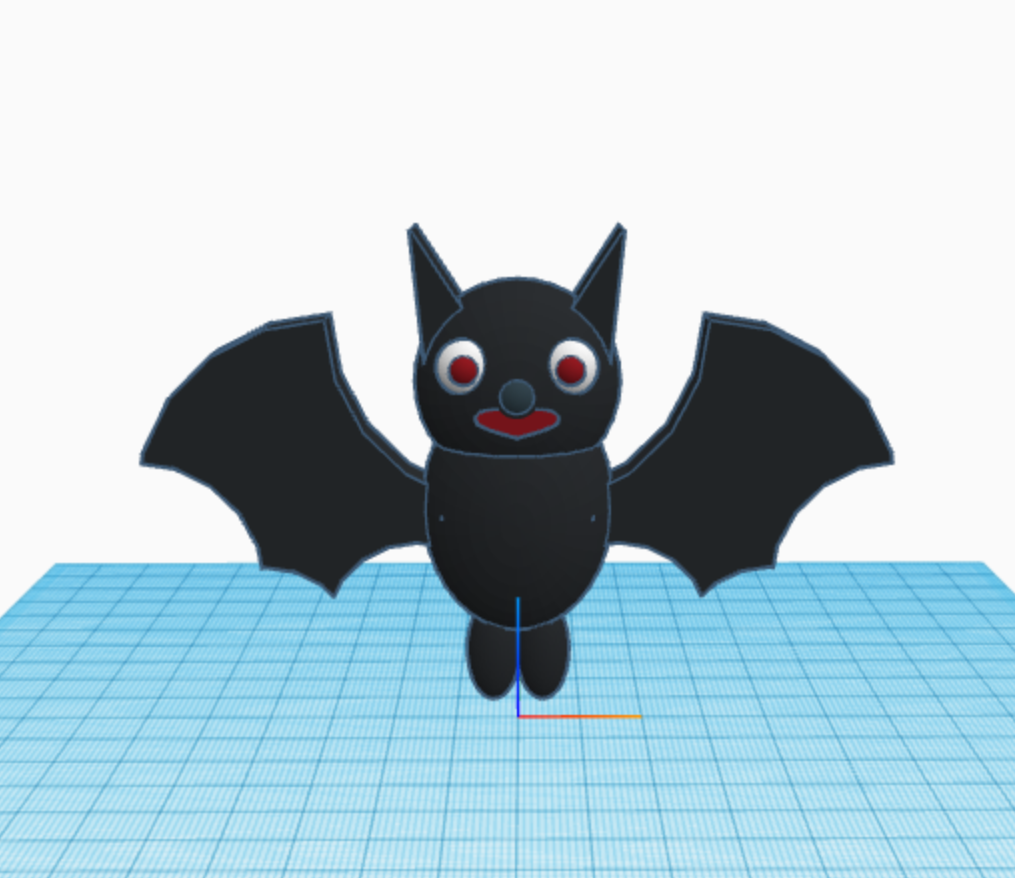
Day 23: Bats – I used the new feature in Codeblocks named Templates. The bat consisted of two templates: the wings and the body. Check out Tinkercad’s blog for information on Templates.
Day 22: Fall Leaves – Watch the leaves fall. This was made with Tinkercad and animated using the sim lab feature. Different leaves have different material weights. I was hoping the various leaves would respond differently.
Fall Leaves
Day 21: Ghost – is a simple design which uses the “Count with…” and the rotation functions.
To fully enjoy these designs, they are best viewed in Tinkercad. I encourage everyone to copy the designs and edit them. Sometimes the best way to learn it to see how it was built; take it apart, put it back together, and improve the design by making changes.
If you do not have a Tinkercad account, they are free. Just sign up.
This year Tinkercad is hosting a #tinktober event to provide design prompts to their tinkers. Here are the designs I have created for days 11 through 20. Not all days have designs.
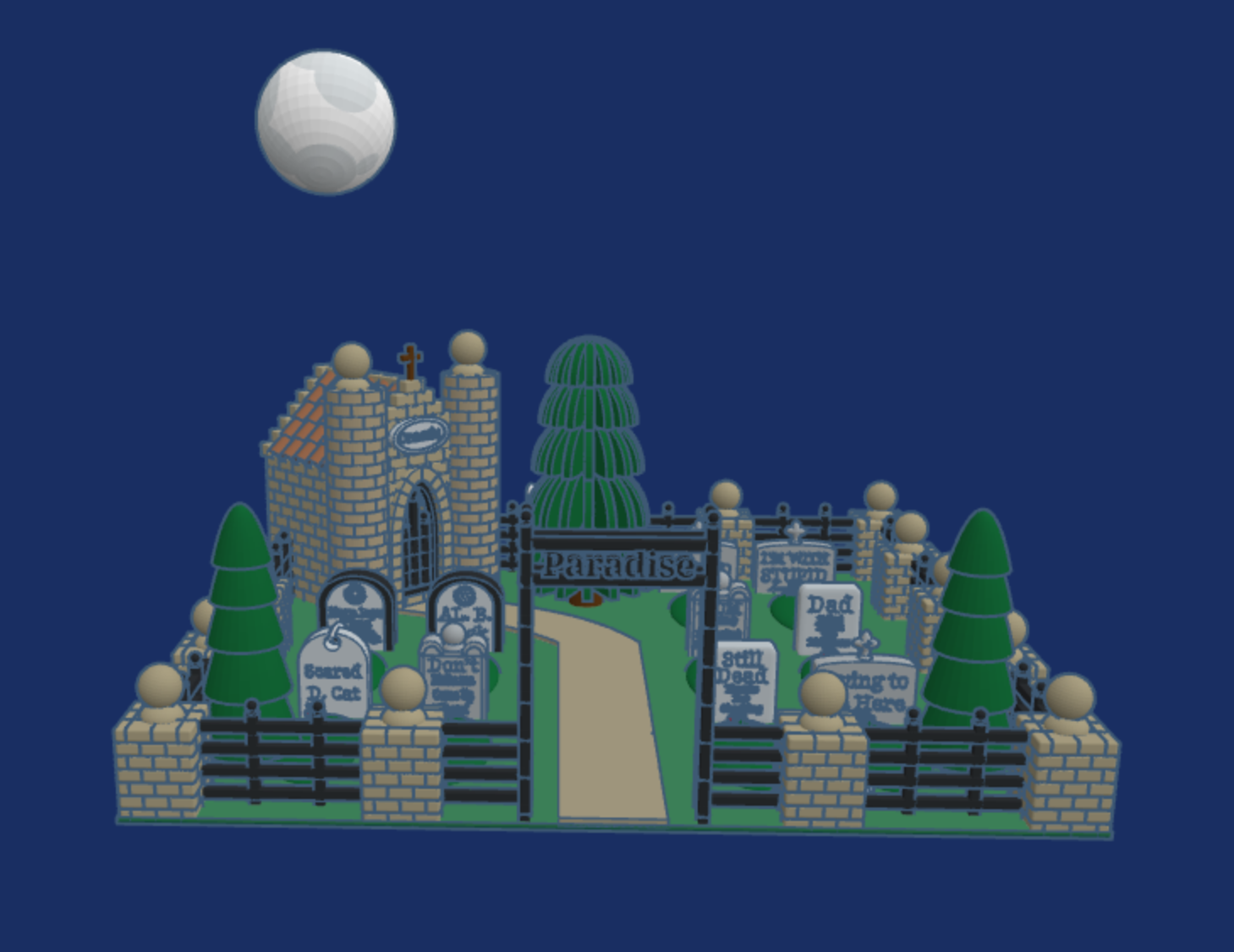
Day 17: Cemetary – Click the link to read the tombstones.
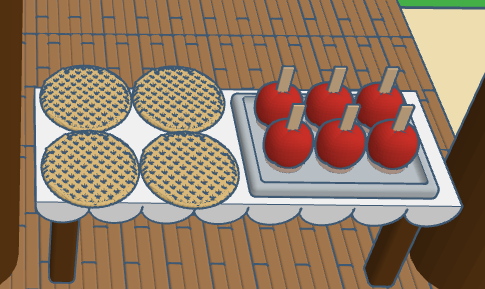
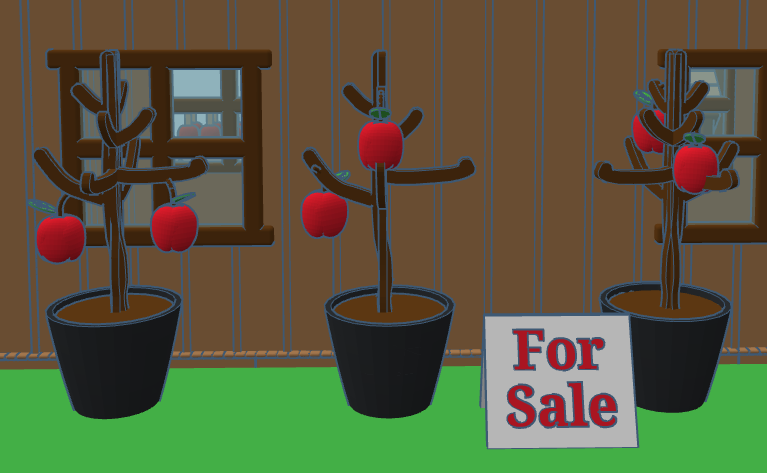
Day 15: Apples – The Apple Store sells all things apple.
Day 14: Skeleton – The skeleton come up from out of the grave to witness the solar eclipse on October 14. He protected his eye sockets by wearing appropriate black out glasses.
Day 13: Friday the 13th – When I think of Friday the 13th, I do not think of the scary movie, I think of my sister who was born on Friday the 13th.
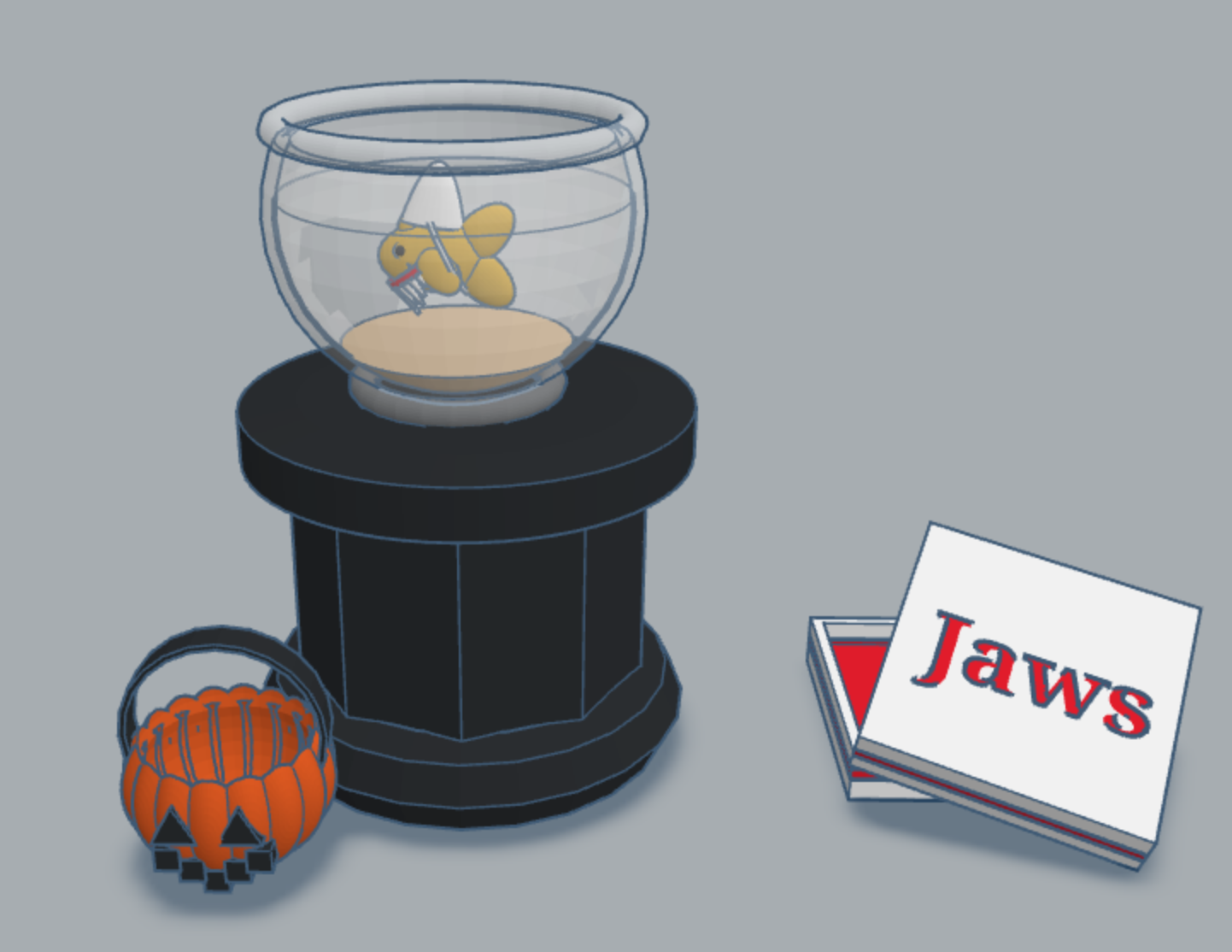
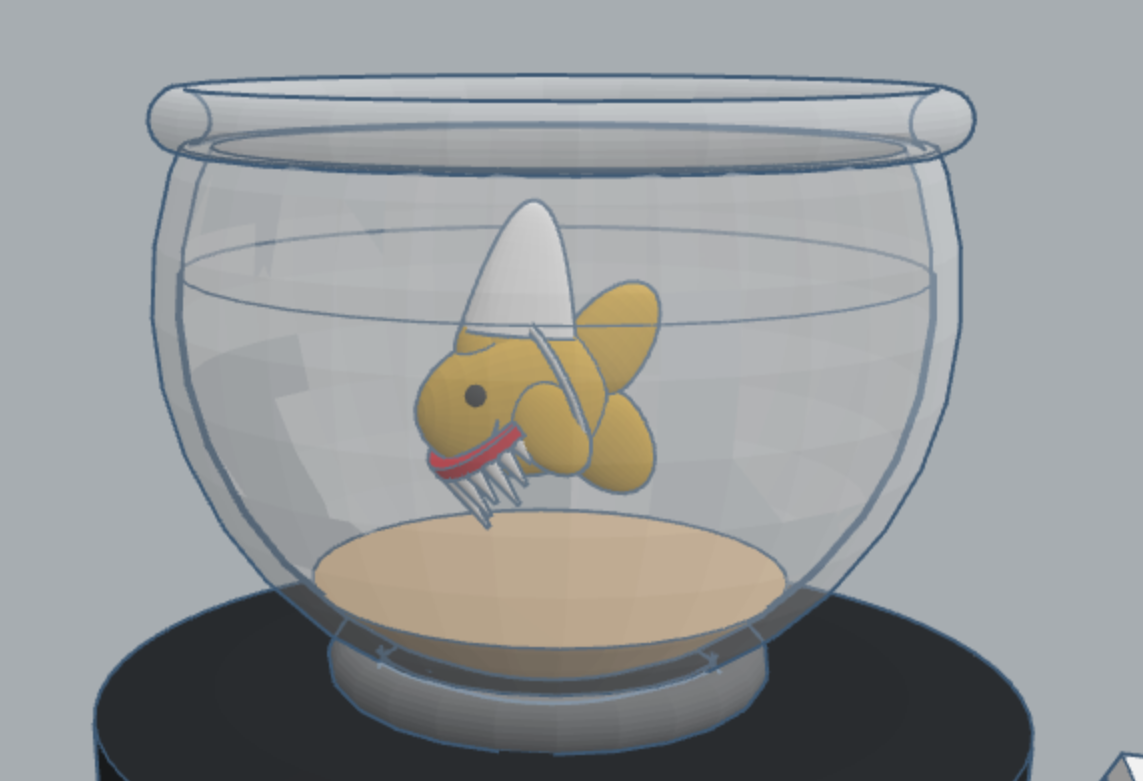
Day 11: Pet Costume – last year I created a fish in Tinkercad. This year I created a pet costume for the fish.
This year Tinkercad is hosting a #tinktober event to provide design prompts to their tinkers. Here are the designs I have created in the first ten days.
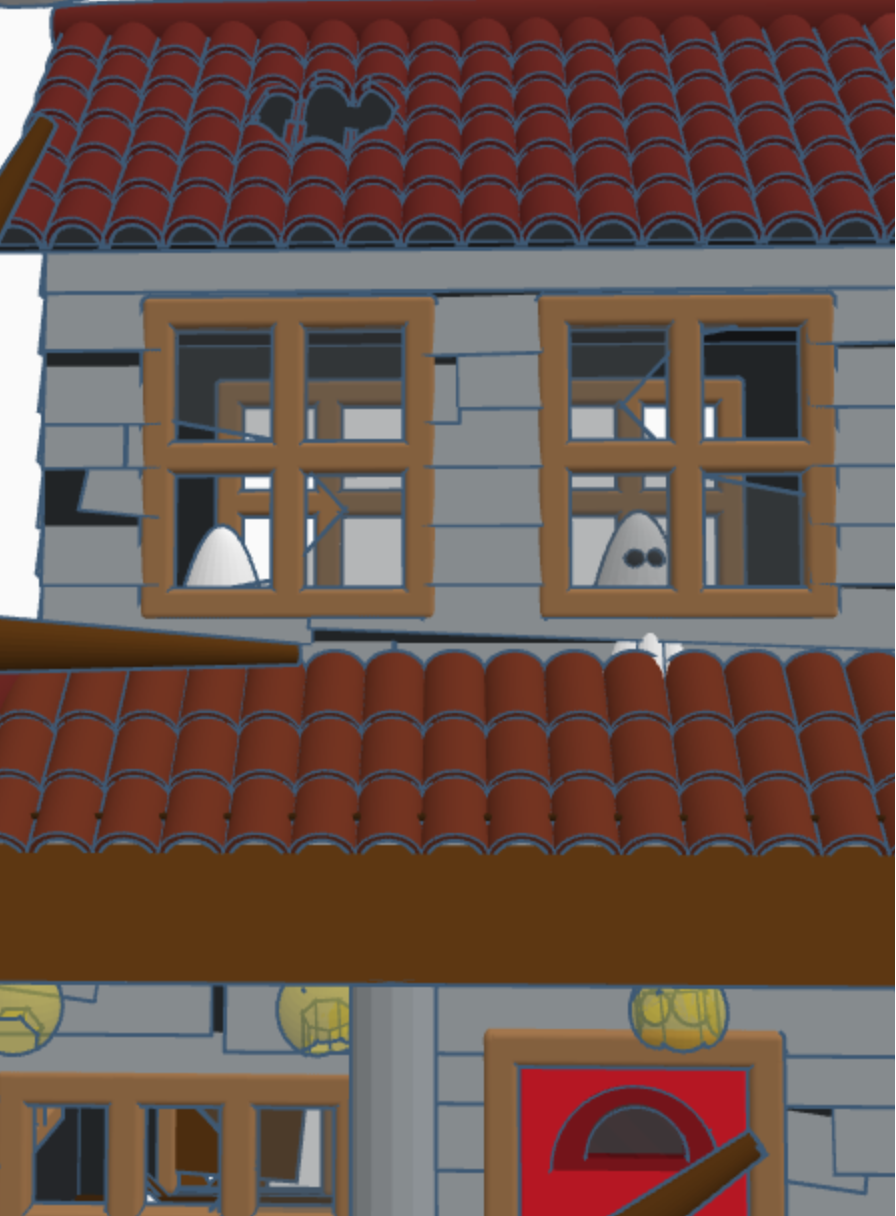
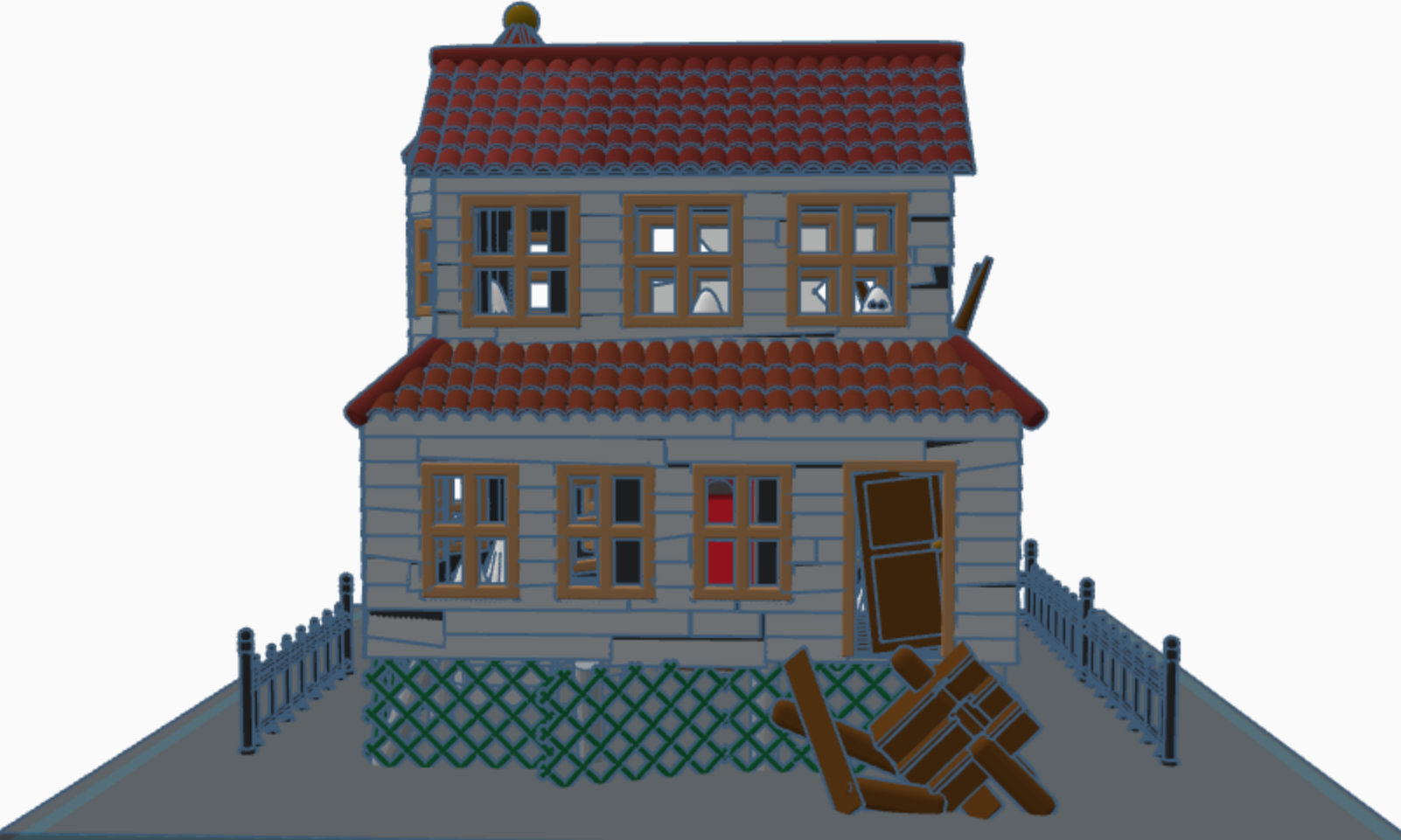
Haunted House – Day 10: Notice the ghosts in the windows. If someone really wanted to, they could fix up the house and rid it of the ghosts. Or, they could make it scarier.
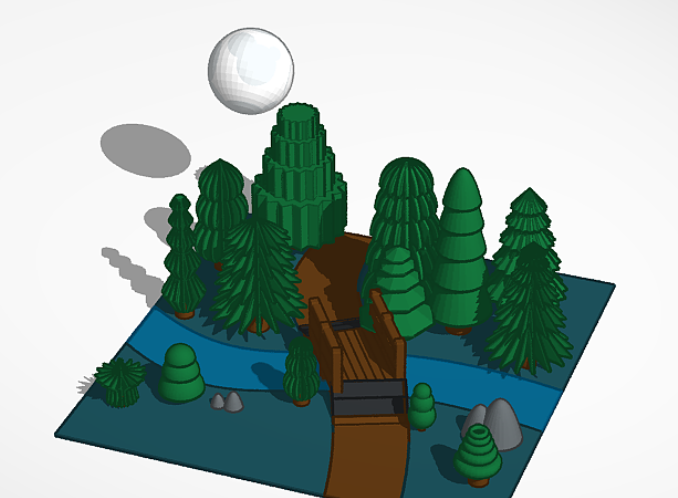
Full Moon – Day 6: Each of the trees are made with at different basic Tinkercad shapes.
Pumpkin Carving – Day 4: Check out Day 2 to see where I got the idea for the carving. I also placed a candle on the inside of the pumpkin.
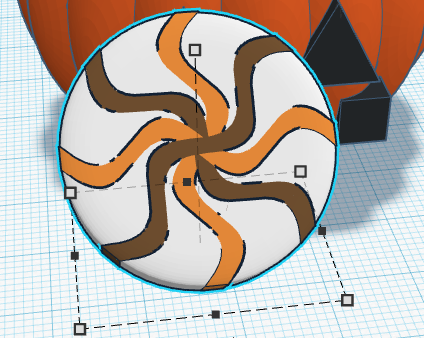
Candy – Day 3: Don’t forget to dump out the candy so you can see what types are inside.
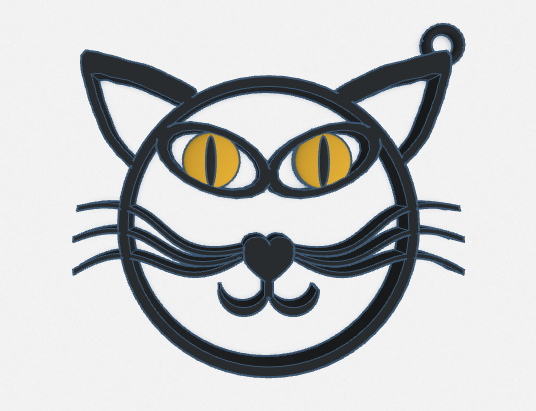
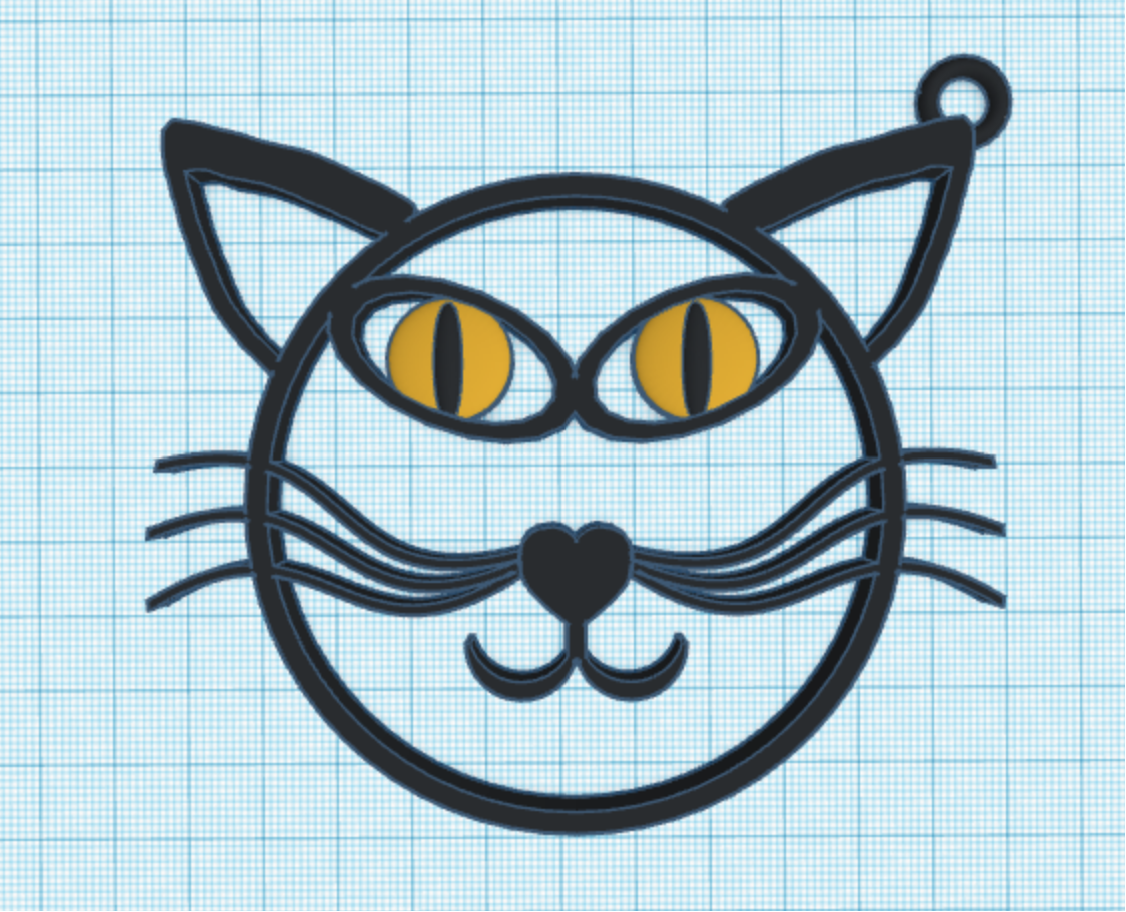
Black Cat – Day 2: Okay, it is just an outline of a black cat, but I added a loop so it can be used as a keychain or a charm. You can easily print this design. The others would be a little bit tricky.
Costume – Day 1: I decided to design a fairy costume. Since my fairy lives in a forest, the costume was made out of leaves.
I did not participate in all 10 days, because there were some prompts that I wasn’t interested in recreating, like bugs.
Summer is dwindling down. All the kids are headed back to school. Let’s enjoy summer a little longer and head to the beach without leaving our rooms. Below is a beach scene I made in Tinkercad. It has a house, lifeguard station, pier, changing rooms and a sandcastle, with a moat. There is so much more that this beach needs. Where are the boats, the people, the beach chairs? Looking inside the beach house, there is no furniture. Looking at the lifeguard station, the first aid kit is missing. There are no chairs on pier and nor fish in the water. How are the missing people supposed to catch fish?
Solution: I have made this design available so anyone that has a Tinkercad account can go an edit this design. For instructions on how to edit this design, check out my posting on Instructables – Let’s Go to the Beach.
For those experienced with Tinkercad, here are the links your will need.
To edit the design: Let’s Go to the Beach – Please add a note to any changes you make. I would like to give you the credit.
To copy the design for personnel or classroom use: Beach Scene