3d Print – Flowers

In an earlier post, I talked about printing a vase.  Once I had the vase, I decided it needed some flowers.  Instead of putting real flowers in the vase, I decided to design and print 3d flowers.

The first flower’s petals had the shape of a sunflower.

DSCN6959

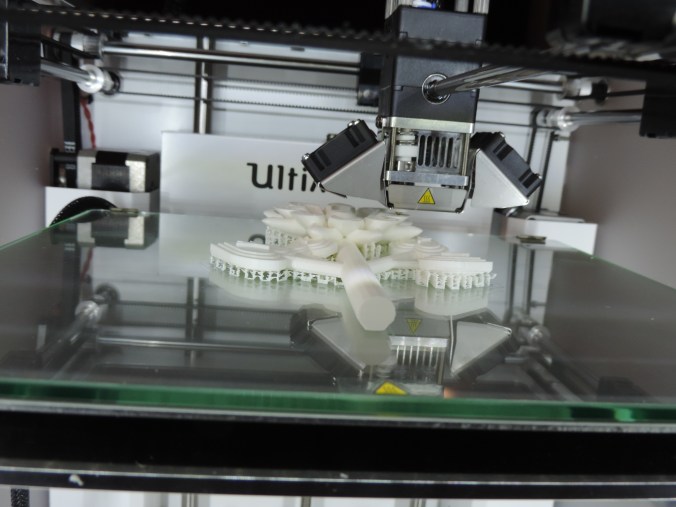
It was necessary to print the flowers with the supports or the petals and leaves would have collapse while printing.  Yes, I learned this from trail and error.

DSCN6967

Print Time:2 hours 35 minutes
Filament: PLA – 3.93 meters 31 grams
Layer height: 0.1 mm
Shell Thickness: 0.8

Object Size (W, D, H): 77.728, 122.481, 24.834 mm

The second flower.  Not really sure what it is modeled after.  But, I did put more detail into the leaves.  They are in the shape of hearts.

DSCN6981

DSCN6982

Print Time:3 hours 53 minutes
Filament: PLA – 6.05 meters 48 grams
Layer height: 0.1 mm
Shell Thickness: 0.8

Object Size (W, D, H): 101.001, 137.788, 24.86 mm

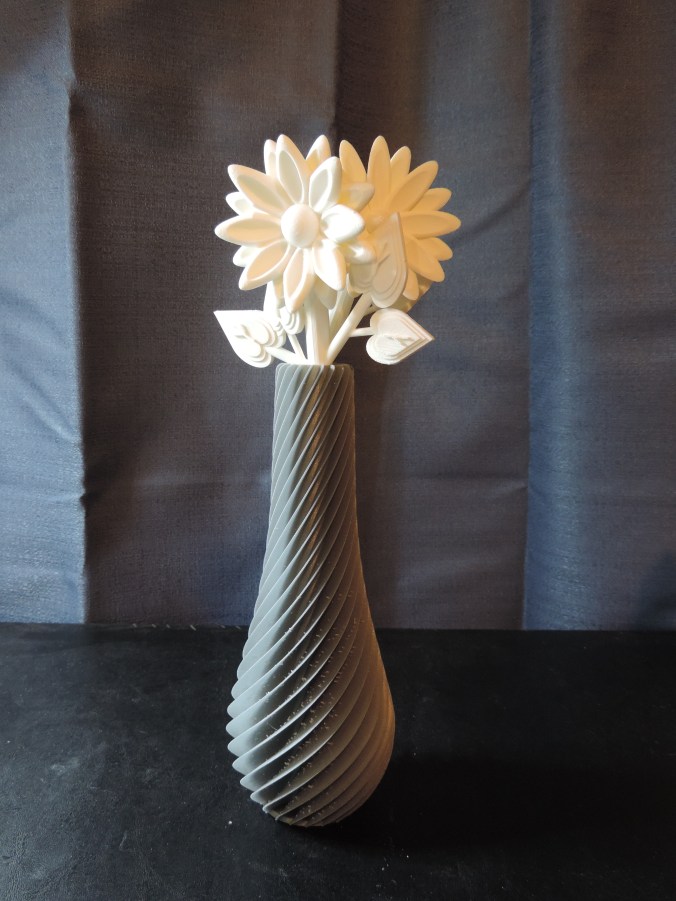
3d printed flowers in vase.

DSCN7093

3D Print – Something Wearable

The next item I created with Tinkercad and printed was a 3D bracelet.  The first version was too small for my wrist and quit printing before it was completed.

DSCN6907

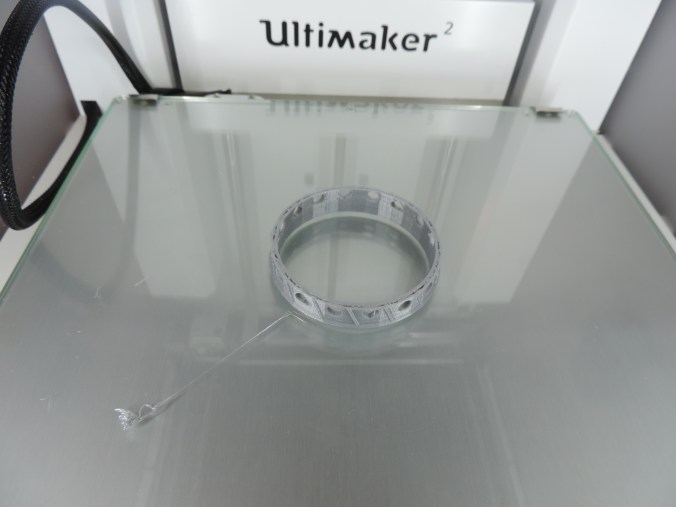
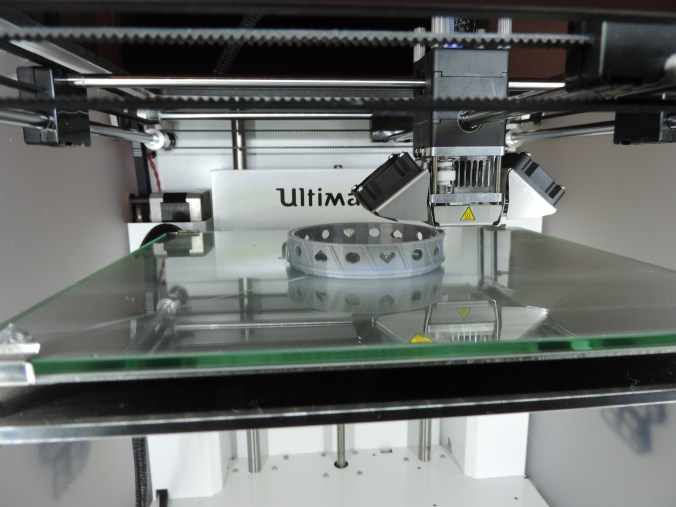
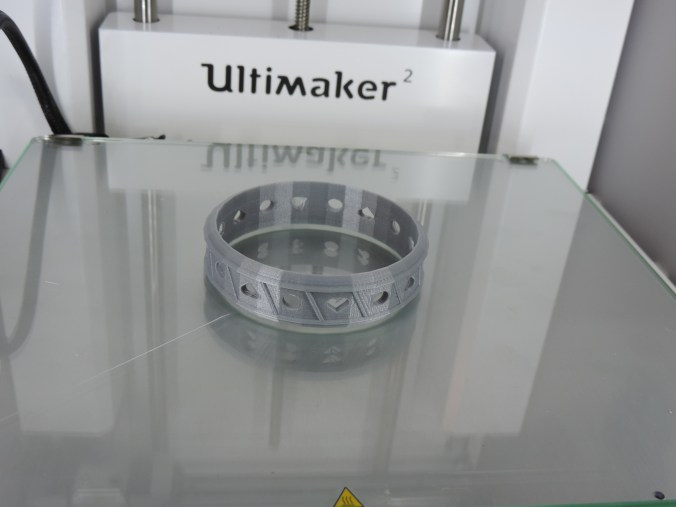
So I enlarged the bracelet, and this time I made sure that the gcode file was completed written to the SD card before I tried to print the item.

DSCN6909

DSCN6913

Print Time: 2 hours 12 minutes
Filament: PLA – 1.32 meters 10 grams
Layer height: 0.1 mm
Shell Thickness: 0.8

Object Size (W, D, H): 70.07, 70.07, 18.721 mm

3D Print – My First Failure

I designed a vase in Tinkercad using several of the techniques I learned through the lessons on the website.  I used the workplace feature to place the stars and circles on the vase.  I used the hole feature to hollow out the inside of the vase.

vace2

In the end, I thought I had a good result for my first vase attempt.  I saved the object as an .STL file and loaded into Cura and created the .gcode file.

DSCN6862

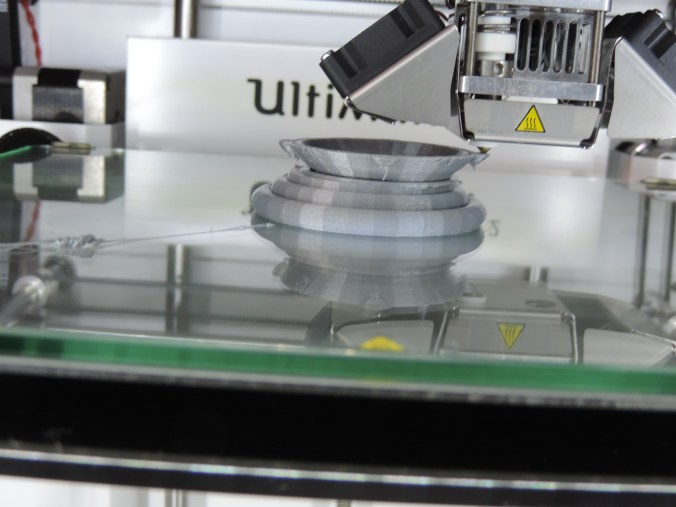
Into the first hour of printing, I noticed that I had a bit of a problem.  One of the holes I had put in the vase had cause the bottom of the base to become unstable.

DSCN6864

Examining it carefully, I determine at this stage, the vase would still hold water, so I let the printer continue.

DSCN6865

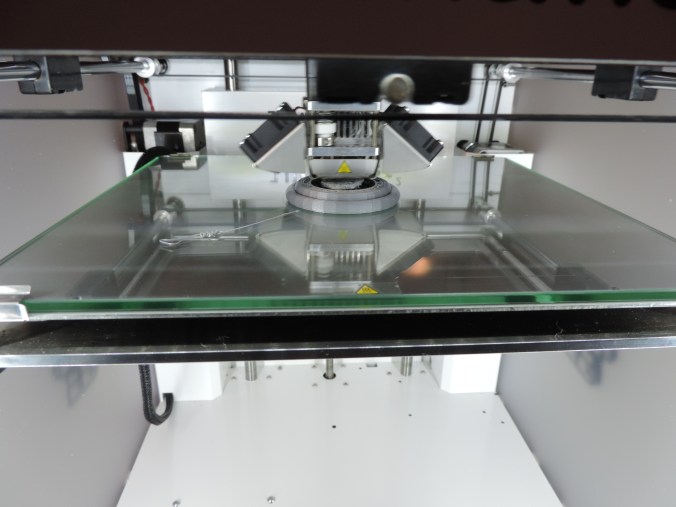
Three hours into printing the vase, the printer stopped.

DSCN6867

There were no mechanical problems with the printer, it just though the print was finished.

DSCN6868

Researching this problem, I found out it was not a unique problem.  It happens when the .gcode file is not completely created.  Steps to take to make sure the .gcode is created correctly are: 1) Wait until the object completely loads into the software package (Cura).  2) Do not print through the USB cable this may interfere with the printing.  3) Make sure the .gcode file is saved to the SD Card.  4)  Always eject the SD Card from computer before removing the SD Card.

I did not attempt to reprint the vase.  I need to tweak it first and other design have capture my attention.

Thanks!!!!

My nephews, ages 10 and 12, did me a favor by cleaning up my yard. It was a favor, so they did not want to be paid. This is how I thanked them.

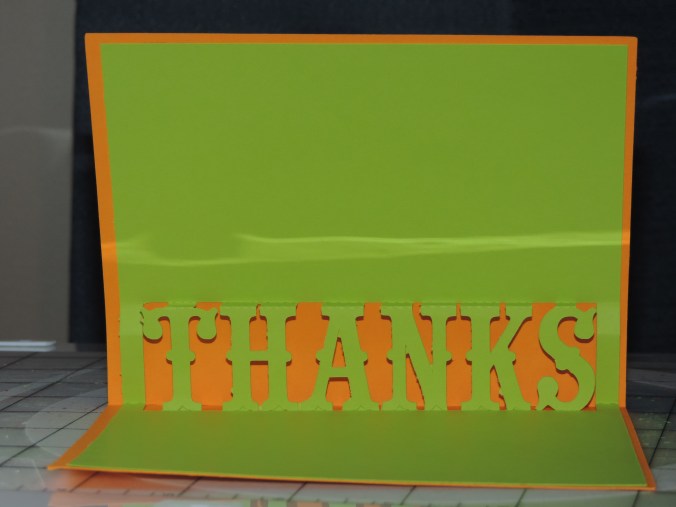
First, I made them a Thank You card using a template I found in the Silhouette Design Studio.  They are held together with double stick tape.

One for the SuperHero fan…

DSCN6849

Another for the garden lover, orange wearer, fan…

DSCN6852

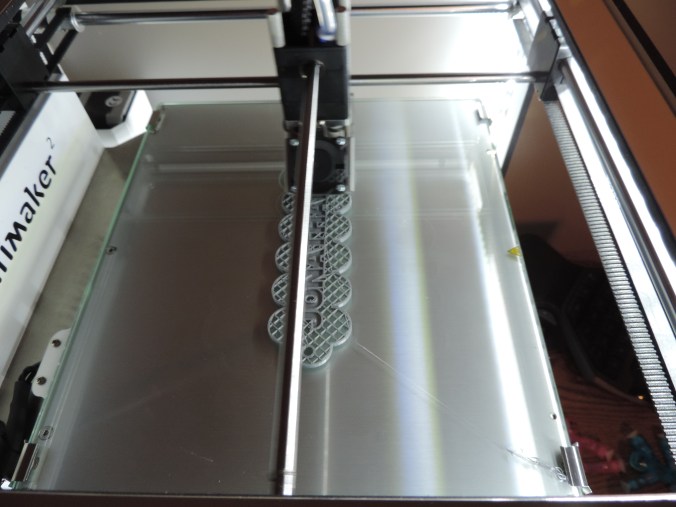
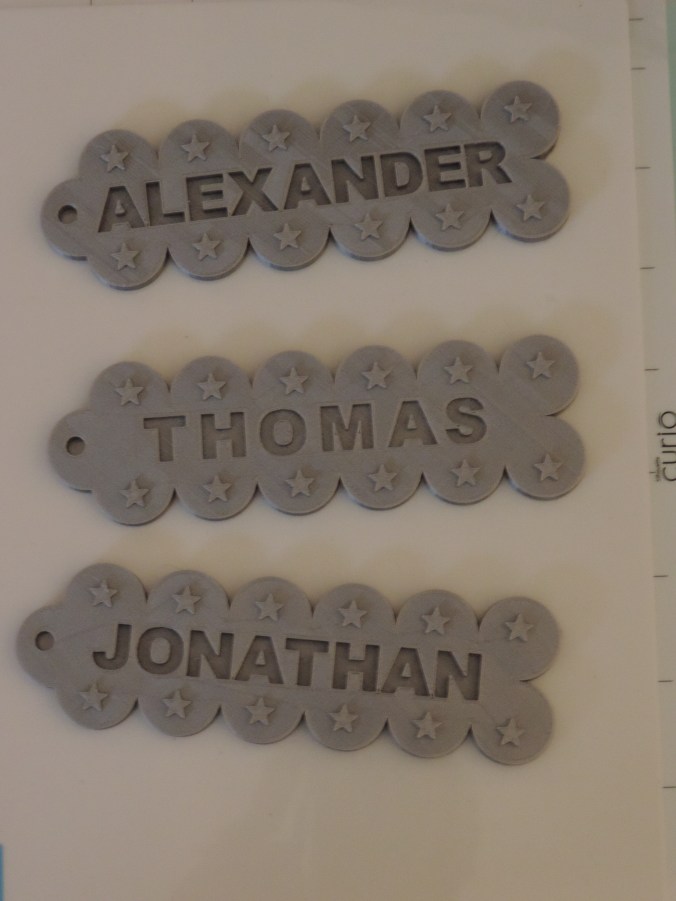
Then using my new 3D design skills that I learned in Tinkercad, I made them both a name tag and printed it on my Ultimaker 2 printer.

DSCN6843

DSCN6846

Print Time: 6 hours 54 minutes – for both
Filament: PLA – 3.52 meters 28 grams
Layer height: 0.1 mm
Shell Thickness: 0.8

Object Size (W, D, H): 130.5, 40.002, 6.0 mm – each

I then realized that their younger brother may feel left out.  So, I made him a name tag too.

DSCN6860

Print Time: 3 hours 28 minutes
Filament: PLA – 1.77 meters 14 grams
Layer height: 0.1 mm
Shell Thickness: 0.8

Object Size (W, D, H): 130.5, 40.002, 6.0 mm

DSCN6870

3D Print – My First Design

The next step for  printing 3D objects was to fine some 3D design software that support .STL or .OBJ files.  There are a lot of free software available for 3D design.  However, I am very warily of “free” software since a lot of “free” software (especially game software) comes with viruses, Trojans, and other nasty things.

I found four that was worth looking into deeper.

  1. Tinkercad (https://www.tinkercad.com/):  It is owned by Autodesk.  Autodesk has been around for a long time.
  2. Google Sketchup (http://www.sketchup.com/): Do I really want to install another Google product.  However, looking at the site, there was not direct indication it was owned by Google.
  3. 3DSlash (https://www.3dslash.net/index.php):  Looked interesting.  Take an object and remove parts.
  4. Blender (https://www.blender.org/): Has promise.  Is part of the Open Source community.

Since I use CorelDraw, I decided to look at their recommendations.  They recommended developing a 2D design in CorelDraw, transferring it to CAD software, like AutoCAD or Autodesk 123D, then fine tuning it with Corel Technical Suite.  Corel Technical Suite is $999.   I think not!

I decided since I was a beginner, I would start and learn with Tinkercad.  I went through several lessons in Tinkercad to learn the basics.  It was very helpful, especially learning to adjust the workspace.

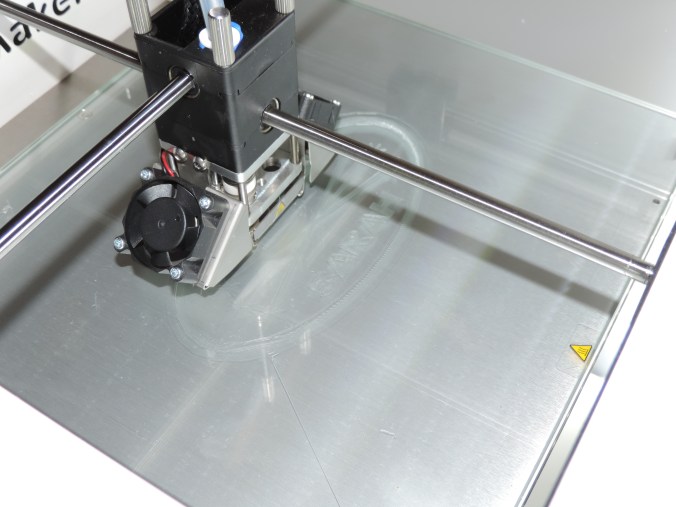
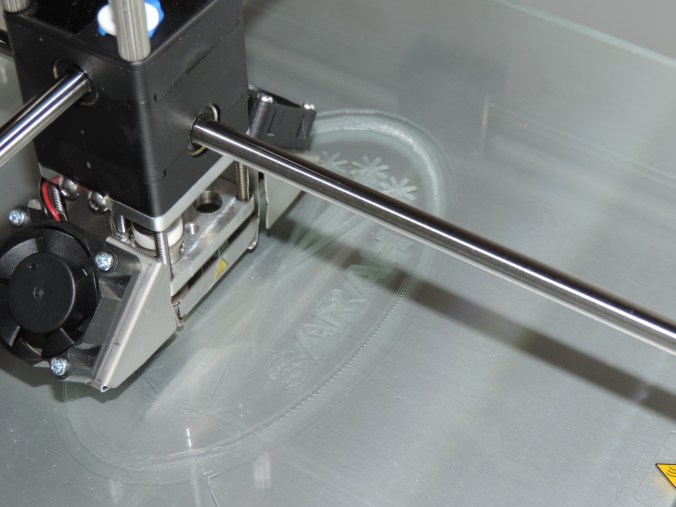
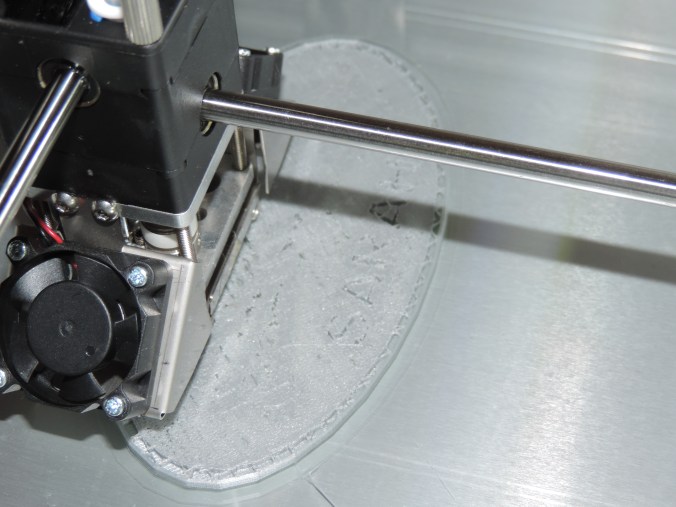
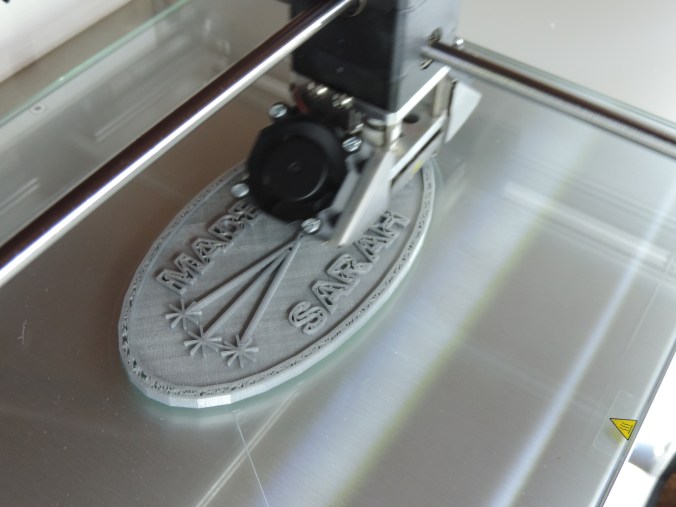
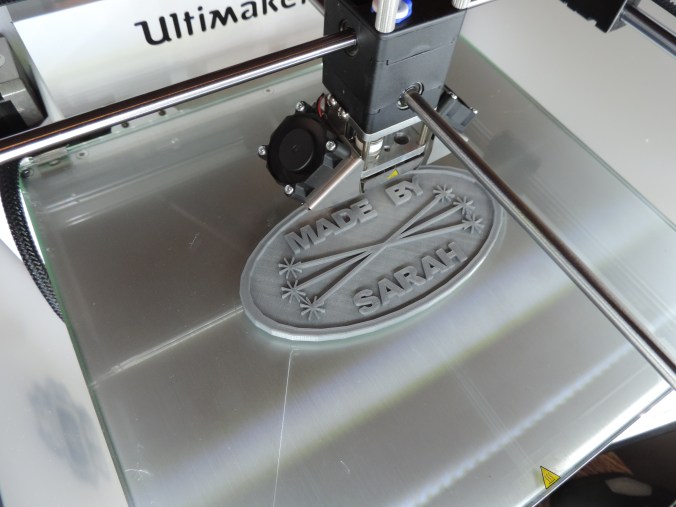
Many years ago, a friend told me I needed to sign all my art works.  Most of my cards, houses, paintings now contains this logo.  That is want I created first.

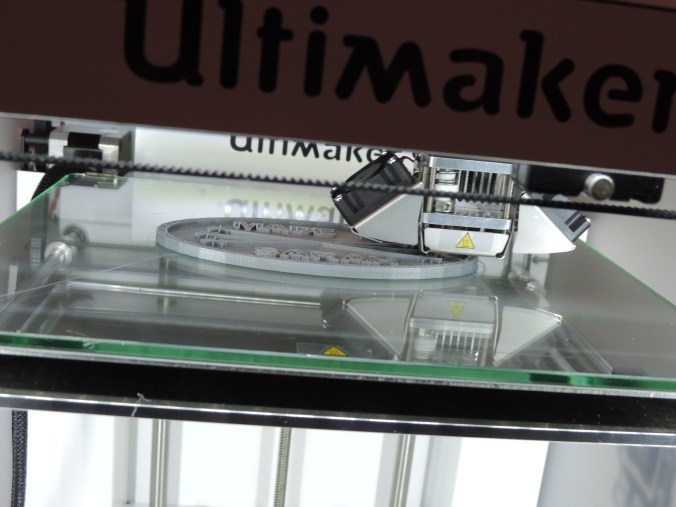
Made By Sarah….

DSCN6826

DSCN6827

DSCN6838

DSCN6839

DSCN6840

DSCN6841

Yes, I did make it double sided.  If I had though about it before, I would have mirror the image on the reverse side.

Print Time: 4 hours 46 minutes
Filament: PLA – 2.14 meters 17 grams
Layer height: 0.1 mm
Shell Thickness: 0.8

Object Size (W, D, H): 127.0, 68.0, 5.0 mm