Yes, for Christmas I was given a 3D Printer. It is an Ultimaker 2. It one thing that I have been wanting, but I would never asked for one. If you listen to the TV, it says that most women want jewelry. For me, I do love my computer and gadgets.
The first challenge I experienced with my new printer was find a sturdy table to place it on. I knew the printer would have a lot of movement during printing, so I wanted a table to set it on that would have very little movement. My computer desk is already full with two monitors, a key board, a mouse, a camera, a speakers, 4 pair of reading glasses, etc.
The Ultimaker web site contains step by step instructions for unboxing the printer and setting it up. They also has an app. But, the apps basically only provide tutorials and access to their community sites.

One thing to remember as you are removing it from the box, only lift my it’s frame. Do not pull on it cables, cords, or moving parts. After looking at the troubleshooting guide, you may be doing this a lot in the future.

Install the filament spool holder. Simple enough.

Insert the glass plate. Careful, be very careful. Those metal glass holder are a little difficult to open and are very sharp.
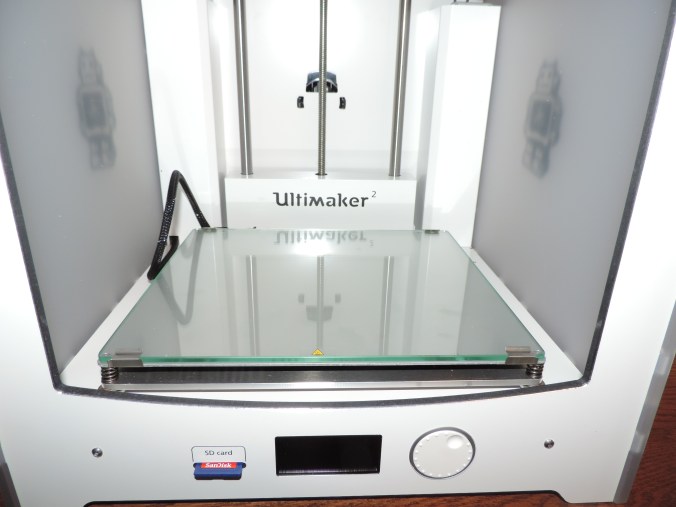
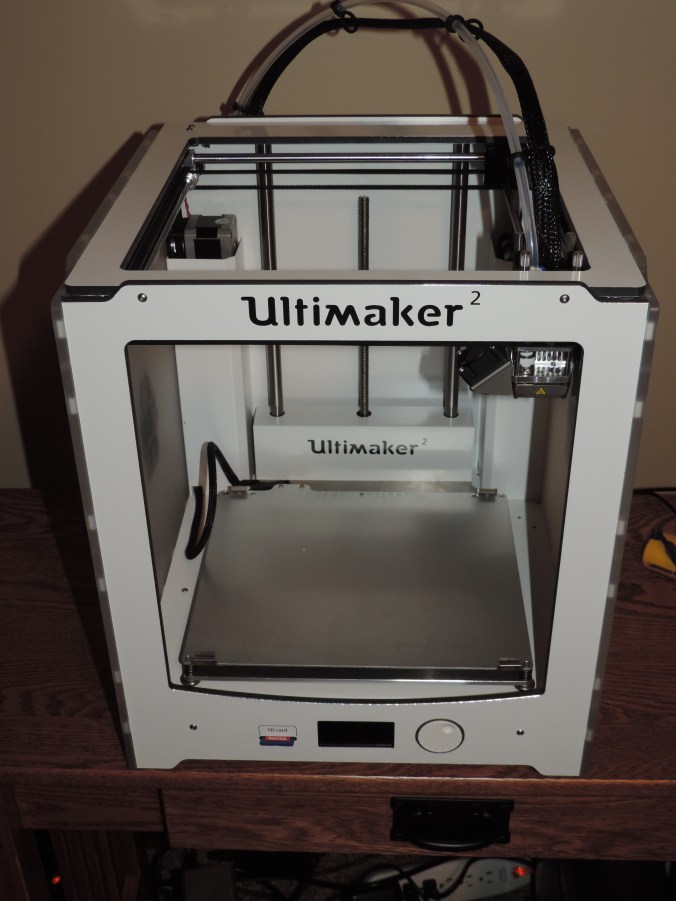
Let the set up begin. Even though, the printer comes with a USB cable you do not need to attach it to your computer to do the prints from the SD Card.

Challenge number 2. How big is a millimeter? Off, to find the ruler. After I found the ruler, I saw in the set up guide that this measurement does not have to be precise.
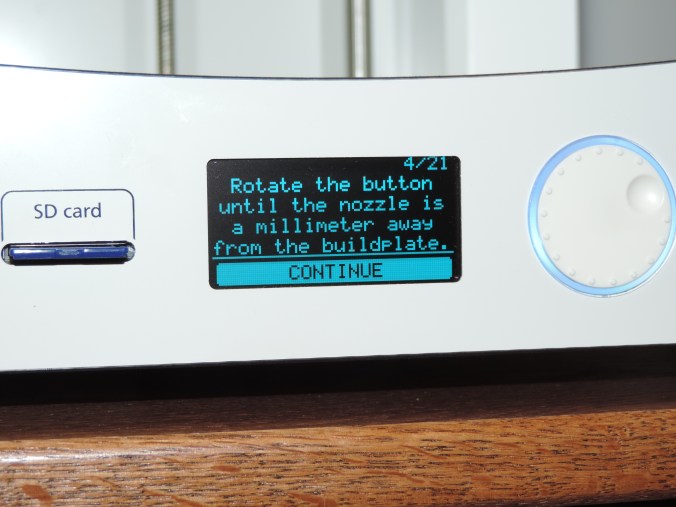
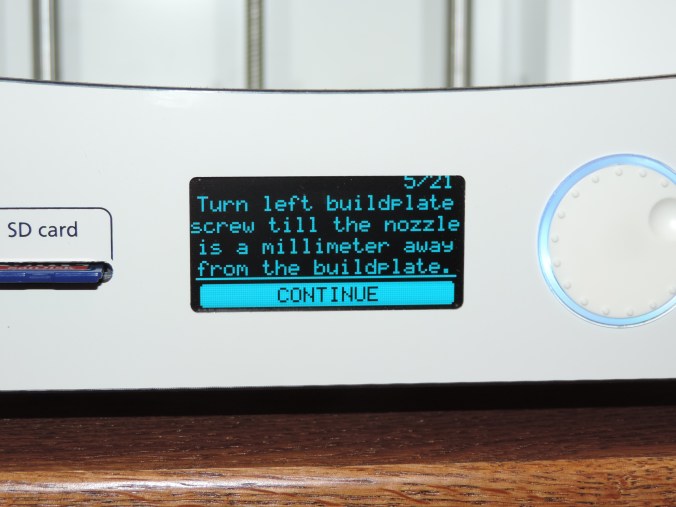

For the next step, you do not need an entire sheet of paper.

Time to insert the filament. There is a hole in the small gear box on the back of the printer that is used to feed the filament through. First you insert it through the gear box, and second you allow the printer to feed it to the print head.
Let’s print!!!
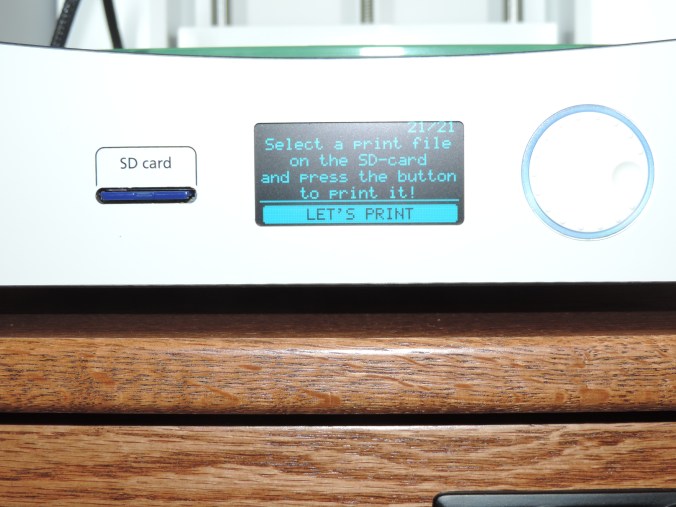
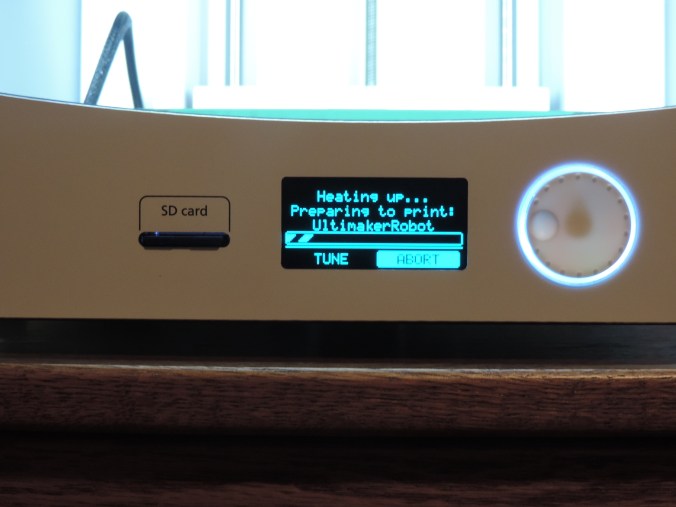
Here is where the major challenge began. After printing the base of the object, the printer stopped feeding filament through the print head. It took me several days to figure out the problem. Keeping in mind some great advice I received “If you have a problem, take a break and work on it later.”
The problem was grinding of the filament at the gear box feeder. I removed the filament from the printer and trimmed off the grinded part.
I installed Ultimaker Cura software on my PC and attached the printer. I then updated the firmware on the printer. This did not fix the problem.
The tension in the gear box was either not enough or too much. There is a screw on top to the gear box to control the tension. Keeping in mind that clockwise rotation tightens and counter clockwise rotation loosens, in America, I gentle tighten the gear box to it’s max. Then I took some can air and blew out the gear box to remove all the filament fragments. Afterwards, I loosen the screw on the gear box with a couple of rotation of the hex wrench. I feed the filament back through the gear box and allowed the printer to feed it to the print head.
Success!!!! The printer is printing the first object.
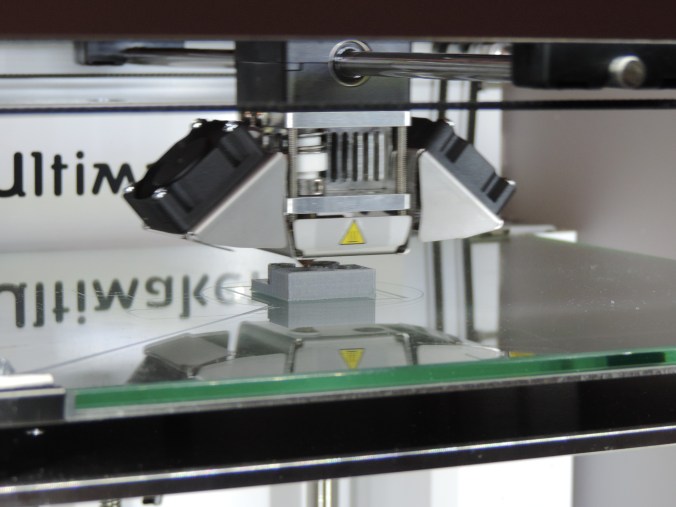
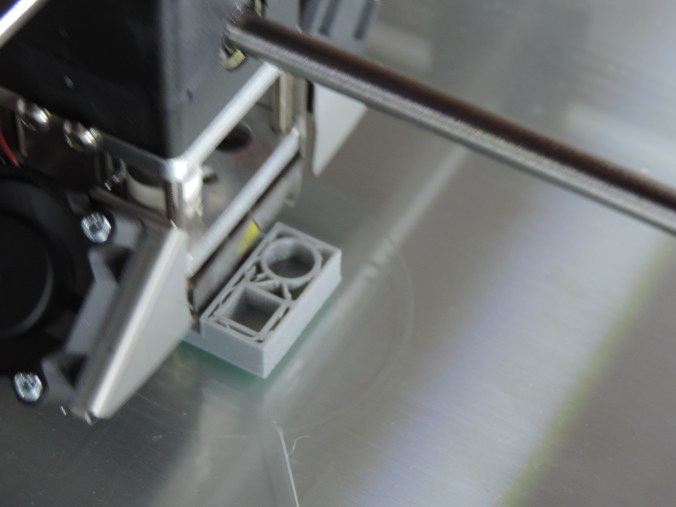
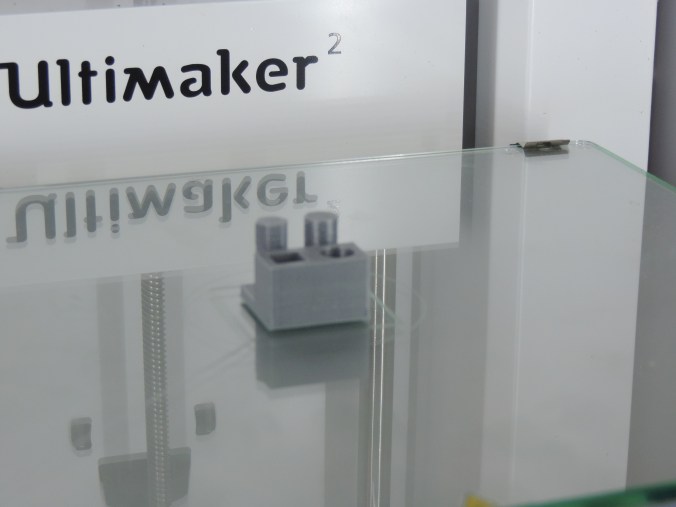
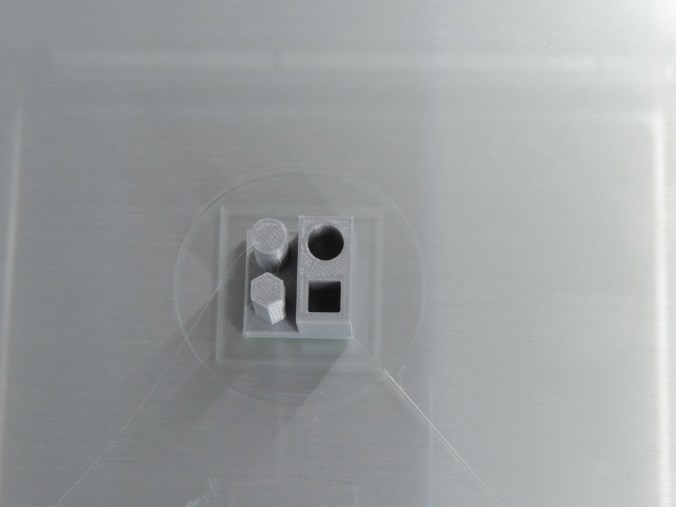
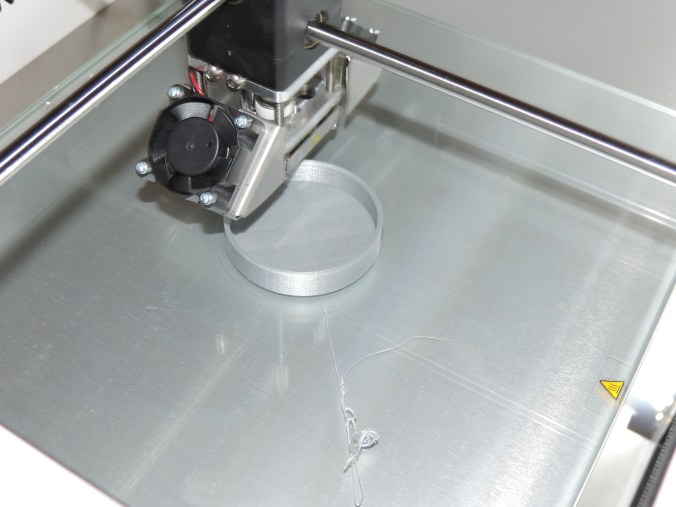
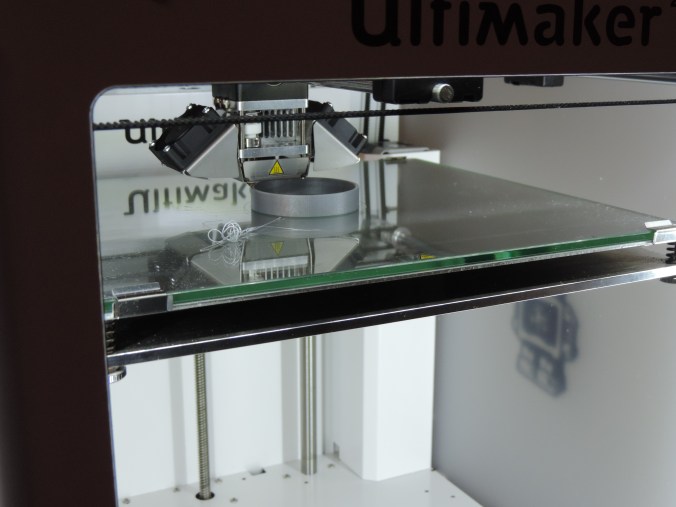


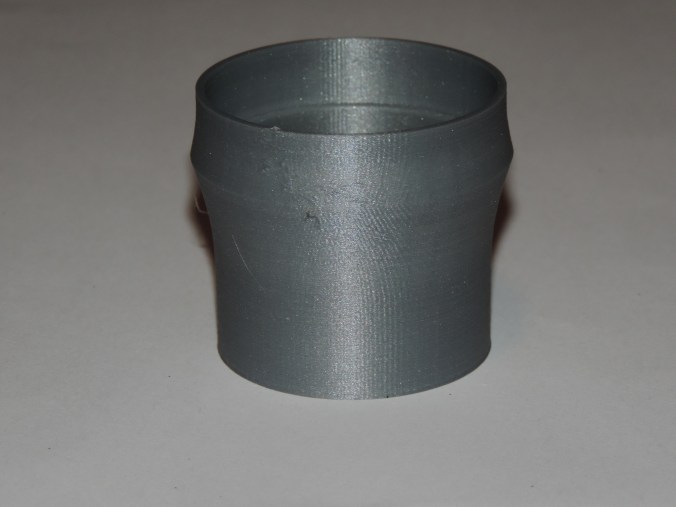
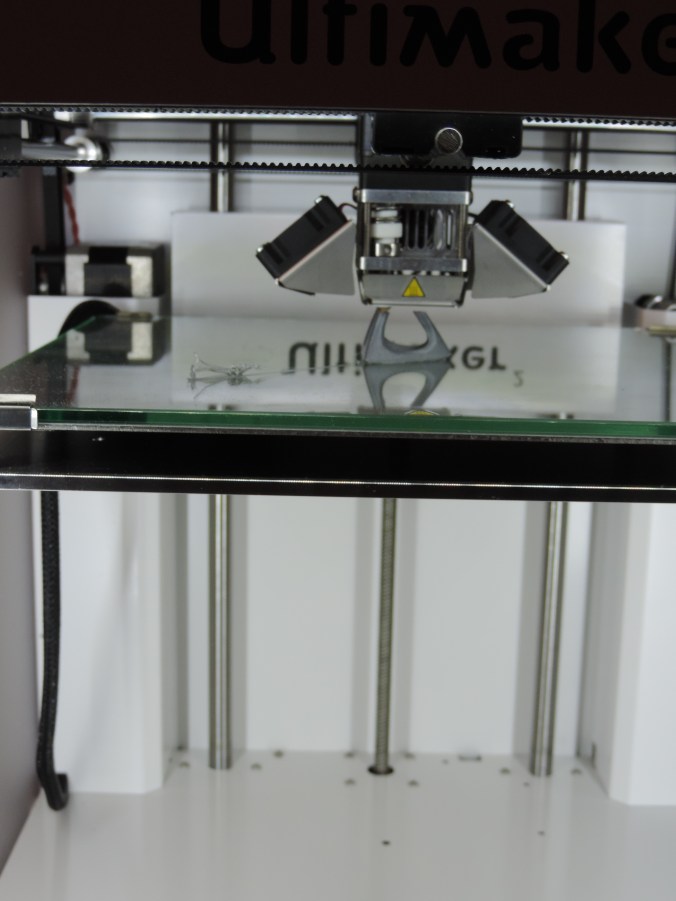


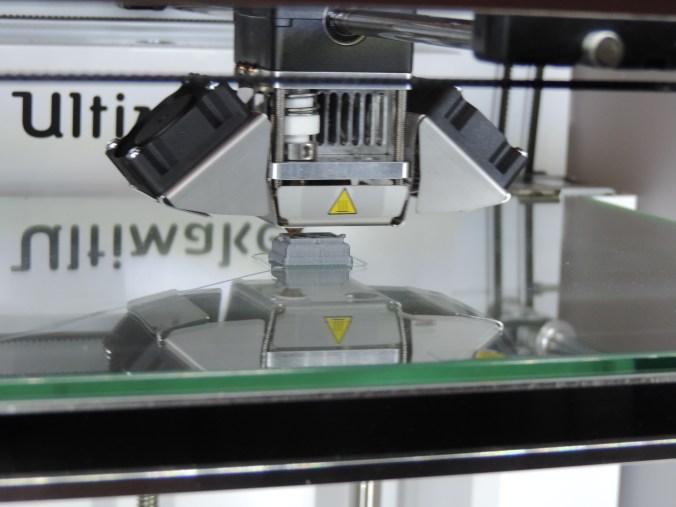

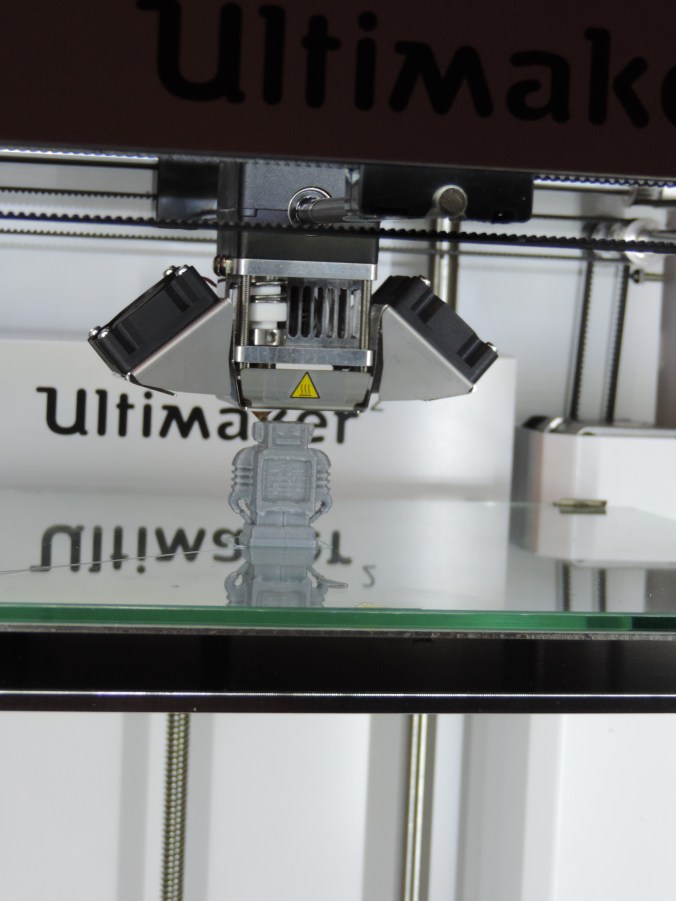 After the print is done, it is necessary for the printer to cool. I have learned that even after the printer has indicated it has cooled down, if you let the object sit there longer, it is easier to remove.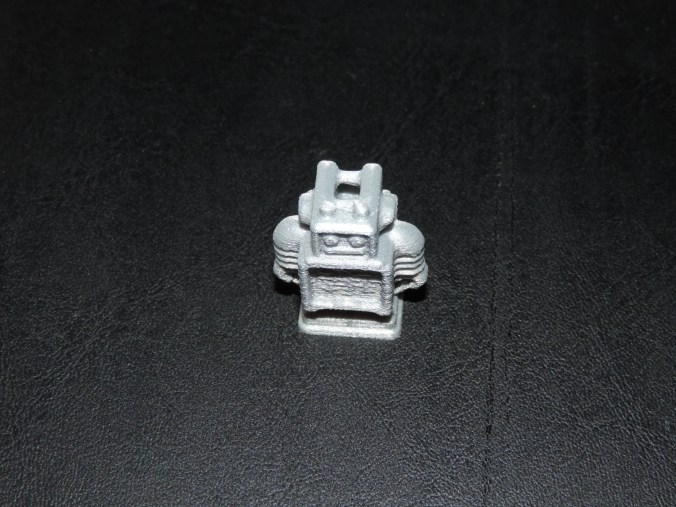






 Sarah Cath's Adventures