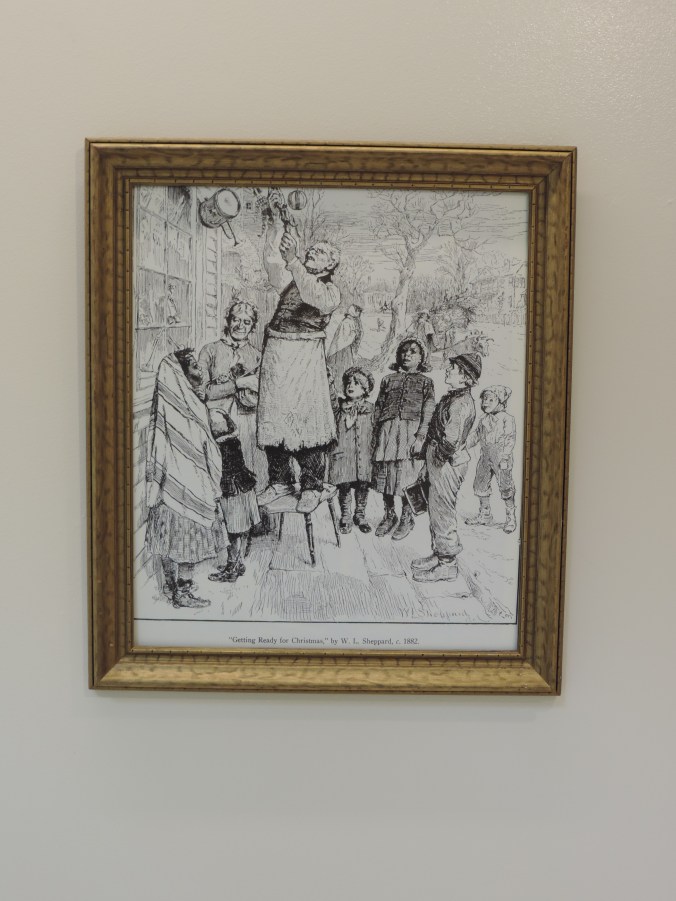
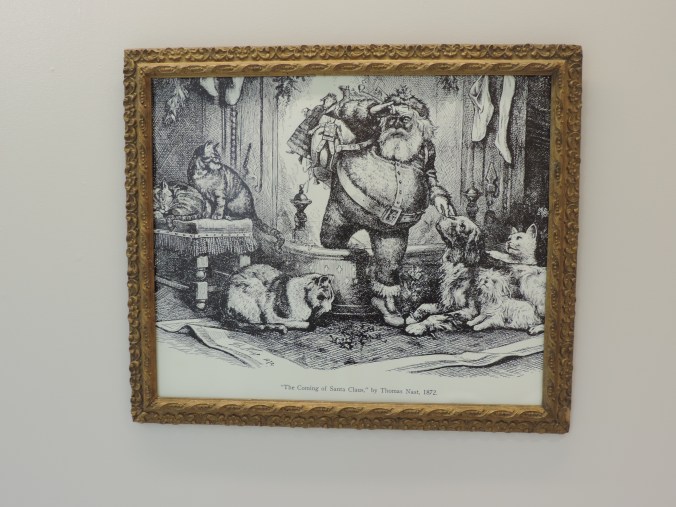
I visited the local museum to view their Christmas displays. On the wall were hanging copies of various artwork from 100+ years ago. Most visitors probably ignored these pieces, but the detail the artists put into these drawings are amazing. Artwork like this probably helped shape how we currently view the Holiday season.
I have added another drawing to my coloring page. The original line drawing was done in 2015 using Corel Draw. I just added color to it over the weekend.
Many years ago, I had an HP Printer and it worked great. It sat there quietly just waiting for someone to send it a print job. Once it received an order, it printed the document with no issues. The only things I had to check were; did the printer have paper in it, was the correct paper in the printer, and was printer turned on. HP made this printer so well it lasted for more than a dozen years. I had to stop using the printer and purchase a new one because HP tried to encourage the owners to buy a new printer by no longer making a printer driver for it.
My current printer is a Epson Photo Printer. The more the industry makes printers easier for the general public to use, the more complicated they make it for us who want to print impressive items.
There were two projects that I was trying to print. One was a photo I edited with Corel Photo-Paint and the other was my Christmas Cards. Challenge one: Printing the photo on metallic paper. Challenge two: Printing the cards on high quality paper.
Color Management
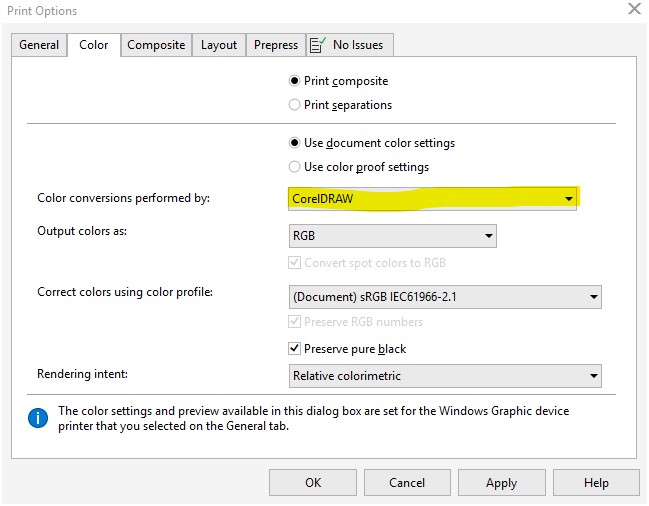
Make sure the color conversion is being done by the program, not the printer nor the default computer driver. The printed colors may be different from what you intended.
2. For a better print, you may need to designate a color profile. I used the Premium Luster for the Metallic Paper.
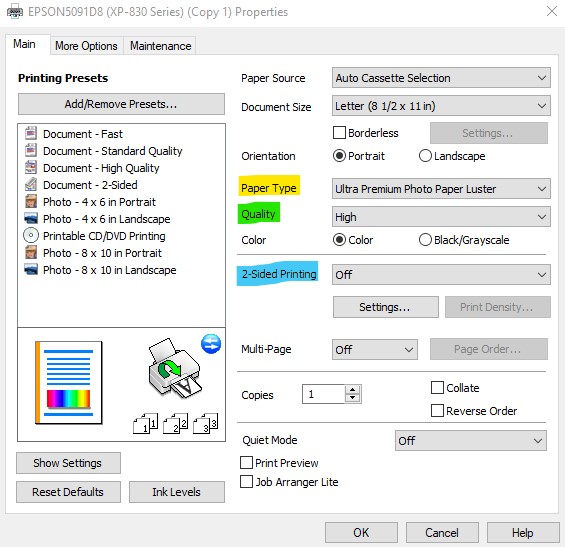
3. Select the correct paper type. Select “High” Quality for detailed work. And, turn 2-sided Printing “Off” because we want to give the front side time to dry completely before printing the reverse side.
Thick Paper
Yes, I was dealing with thick paper. I learned after my prints were smearing, that envelopes are considered “thick”. If an envelope is thick, maybe I should consider most paper, such as card stock, photo paper, and envelopes as thick. There is a setting on the computer to tell the printer you are using thick paper. Basically, it slows the printing down to allow the ink to dry.
I did a web search to find the “Thick Paper” setting. It was little help. I found it by looking at all the settings. It is located under the “Maintenance” tab under “Extended Settings”.
Select the check box next Thick Paper and Envelopes. Epson only recommends turning it on if the prints are smearing, because it slows the printing down.
Smearing Prints
If your prints have smeared, you probably need to clean the inside of the printer. Yes, the printer is designed where you can not take it apart and use a cloth to clean the inside.
To clean the inside: Do not place any document on the scanner part of the printer. Press Copy on the printer and make blank copies until the paper comes out clean. For me, this was about 10 copies.
For smeared prints, you may want to slow down the printing speed to give the ink time to dry to produce a higher quality. To do this, turn off “High Speed” by removing the check.
After all the smearing of ink, I decided it was best to clean the print nozzle before I attempted to print anything else. This is done directly on the printer.
If you ever looked at the homepage, you would have noticed it says Technology is one thing that this blog is about. Well, I haven’t written about technology in a long time, because I have been drawing.
First the Rant!
Microsoft, why do you make my PC starting acting up the day you release a new Windows Update, even though the update hasn’t been installed on the PC? The web browser start hanging up and sometimes crashing. The PC gets so slow, I want to pull my hair out! It was perfect fine the day before you release the new update. But, on update day – Argh! I have to stop everything and update my PC just to get it to work like it did the day before. If it only takes me an hour to get my PC updated, I am lucky. But, most of the time it takes me days because of an error.
End of Rant!
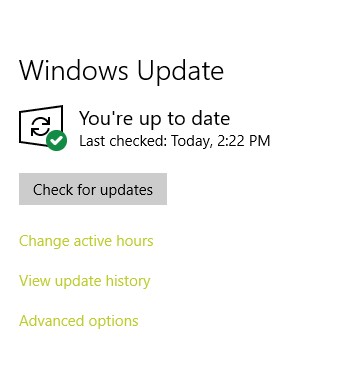
It start off as a normal day, a nice day, and a quiet day. I was going to spend time designing and printing things on my computer. But, the browser was hanging up. Programs were slow to open. I did what I always did when my PC is acting up, I checked Windows Update. Click Settings -> Update & Security -> Windows Update. There was an update. No problem. I will let the update finish and everything would be good again. Wrong! An hour later I checked and the update was at 70%. Two hours later no change, and Adobe was reporting it failed to install.
The first step, do a web search to find out why it is stuck at 70%. Numerous website wants you to download their product to fix this problem. I don’t know which ones to trust, so that is not the solution for me. On one of the sites, it recommended downloading the update directly from Microsoft’s Catalog.
All you need is the Update Number to search and download the update. For Adobe is was KB4467694. There are multiple updates for each number, just make sure it matches the description as shown on the PC’s Windows Update.
I tried the Adobe Update first, because it had failed. It opened a Window stating it was checking the system for updates. So, I let it run. Hours later, it was still running. I rebooted the PC while it was still running. I checked Windows Update again and the Adobe Error was gone. I started the Windows Update again. It failed, but this time I go an error message. Error 0x800f0984.
The web search results said that Error 0x800f0984 was related to .Net Framework. That did not help. I booted my PC into Safe Mode. I learned that you can’t install Windows Update in Safe Mode. When I tried to run Windows Update again for the 100th time, maybe not the 100th, I got a new error code: 0x80073712. That was better, It was pointing to a Windows Component.
In my previous attempts to get my PC working after a Windows Update, one of the recommended actions was to boot the PC with only the Windows Processes running.
In the search box, type in MSConfig and open the System Configuration.
Click the Service tab and click Hide all Microsoft service
Click Disable All to stop all the remaining services
This time, when I opened the System Configuration, I noticed that it had changed.
Instead of going through the process of disabling the services, I selected “Diagnostic startup”, clicked OK and rebooted my PC.
After my PC rebooting, I ran the Command prompt, as Administrator:
Type CMD in search window
After Command Prompt displays, select Run as Administrator
In the Command Prompt window, I ran these commands:
DISM.exe /Online /Cleanup-image /Scanhealth
DISM.exe /Online /Cleanup-image /Restorehealth
Both commands gave error messages, but I tried Windows Update again and it successfully updated. The next time, I may just give in and reinstall Windows.
I do not know if I fixed the problem, or Microsoft fixed the Windows Update. Now, I off to reboot my PC in the Normal Startup mode. Yes, I type this blog post in the Diagnostic startup mode.
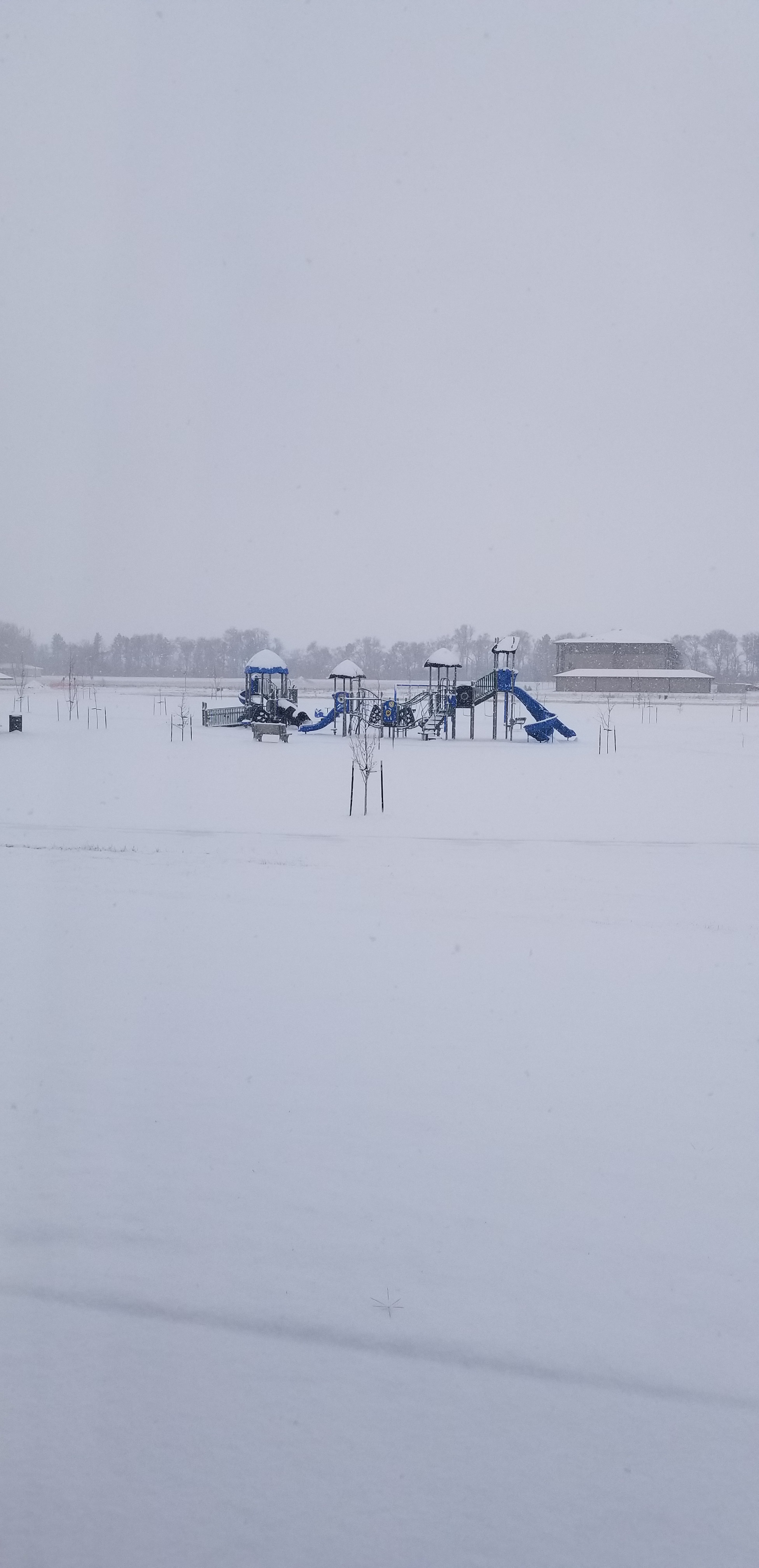
Well that is a lot of snow for November, in Nebraska. I will not be going and swinging on the swing set today. Why? Because it will mess up the beautiful snow.
If you are already sick of the cold and ready for the Spring, go check out my flower blog, Up Close to Flowers.
Just a couple days before the first freeze the temperature was in the 80s. When it snowed a couple of inches and the temperature dropped to 23 degrees over night, the trees goes “Yipes! We are suppose to be hibernating for the winter.” So, the leaves on the trees start turning colors and dropping to the ground quickly. Yes, Fall is here!
It is time for me to update my list of Audio Book Recommendation. I haven’t update my list since May 8, 2018. Since then I have driven over 10,000 miles and listened to over 20 books.
Below is my updated list of book recommendations.
The Ocean at the End of the Lane: A Novel – Neil Gaiman
We Are Legion (We Are Bob), Bobiverse, Book 1 – Dennis Taylor
For We Are Many, Bobiverse, Book 2 – Dennis Taylor
All These Worlds, Bobiverse, Book 3 – Dennis Taylor
Mogworld – Yahtzee Croshaw
14 – Peter Clines
The Fold – Peter Clines
Paradox Bound – Peter Clines
Differently Morphous – Yahtzee Croshaw
The Authorities – Scott Meyer
Run Program – Scott Meyer
Off To Be a Wizard: Magic 2.0 – Scott Meyer
Hacker, The Outlaw Chronicles – Ted Dekker
Spell or High Water: Magic 2.0, Book 2 – Scott Meyer
An Unwelcome Quest: Magic 2.0, Book 3 – Scott Meyer
Fight and Flight: Magic 2.0, Book 4 – Scott Meyer
Out of Spite, Out of Mind: Magic 2.0, Book 5 – Scott Meyer
Dungeon Born: Divine Dungeon Series, Book 1 – Dakota Krout
The Passage, Book 1 – Justin Cronin
The Twelve (The Passage Trilogy), Book 2 – Justin Cronin
The City of Mirrors (The Passage Trilogy), Book 3 – Justin Cronin
Master of Formalities – Scott Meyer
The Graveyard – Neil Gaiman
Will Save the Galaxy for Food – Yahtzee Croshaw
The Time Keeper – Mitch Albom
Forbidden, The Book of Mortal, Book 1 – Ted Dekker and Tosca Lee
Mortal, The Book of Mortal, Book 2 – Ted Dekker and Tosca Lee
Sovereign, The Book of Mortal, Book 3 – Ted Dekker and Tosca Lee
Run Program – Scott Meyer
Black: Book One, The Birth of Evil – Ted Dekker
Red: Book Two, The Heroic Rescue – Ted Dekker
White: Book Three, The Great Pursuit – Ted Dekker
The Junkie Quatrain – Peter Clines
Dead Men Can’t Complain and Other Stories – Peter Clines
I Can Only Imagine: A Memior – Bart Millard
This book did not make the list because of the way it ended, really Ted really! I am giving up Ted Dekker books for a while because of the way it ended. Really Ted really!
Green: The Circle, Book 0: The Beginning and the End – Ted Dekker
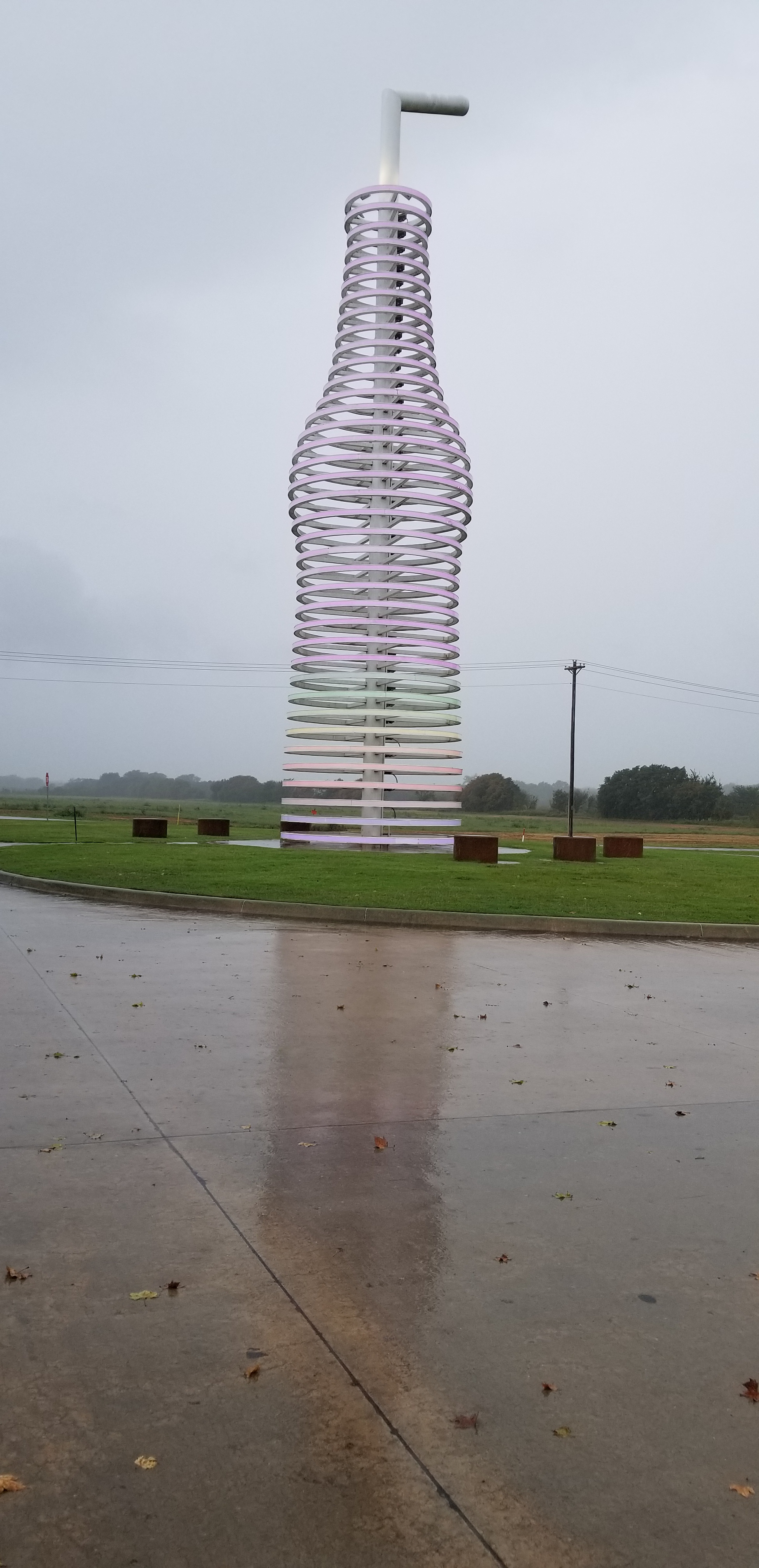
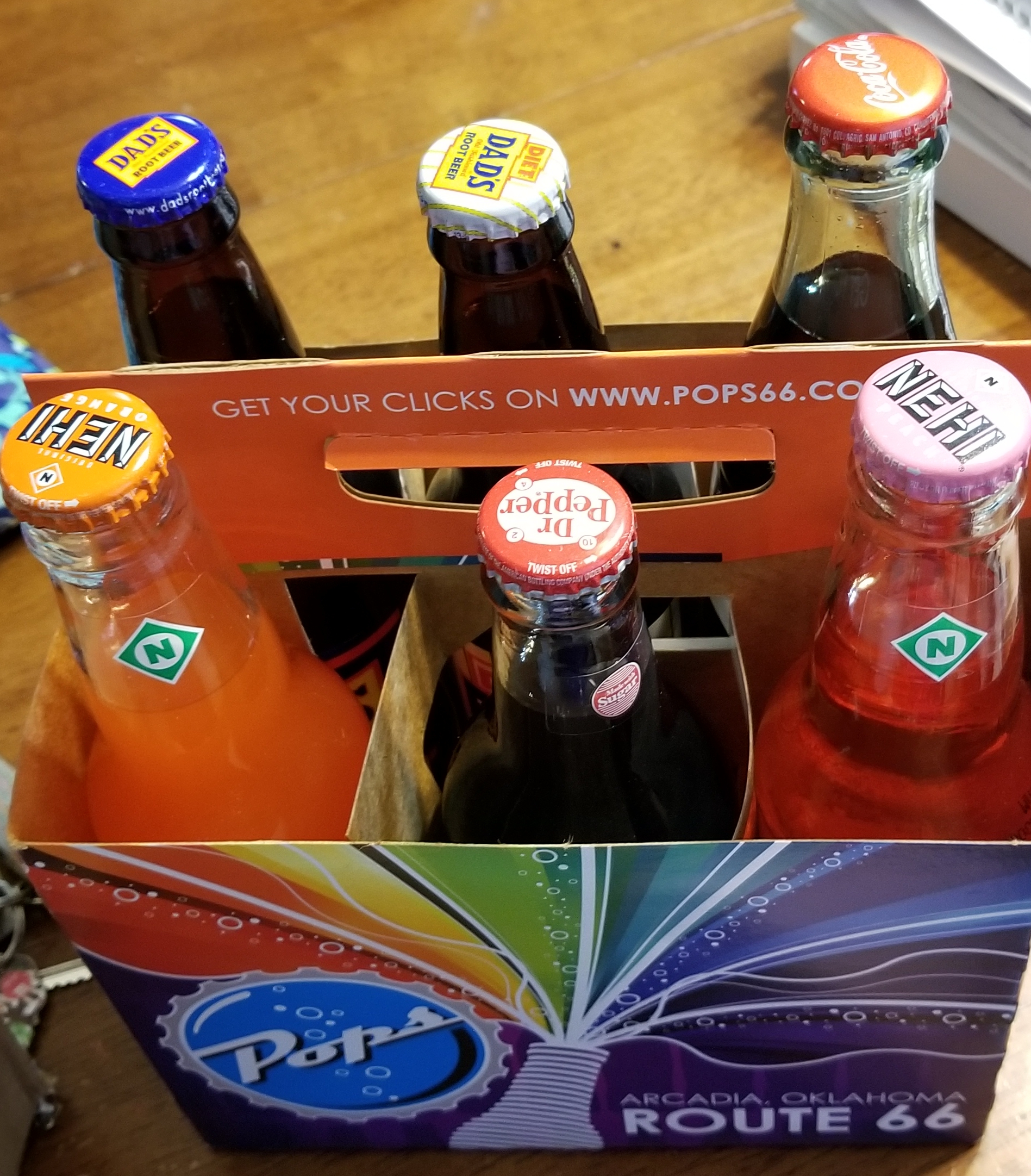
It rained and rained, and heavily rained during all of my drive through Oklahoma. Sometimes, you just need to make a stop. I turned off the interstate and drove east about five miles and found Pops.
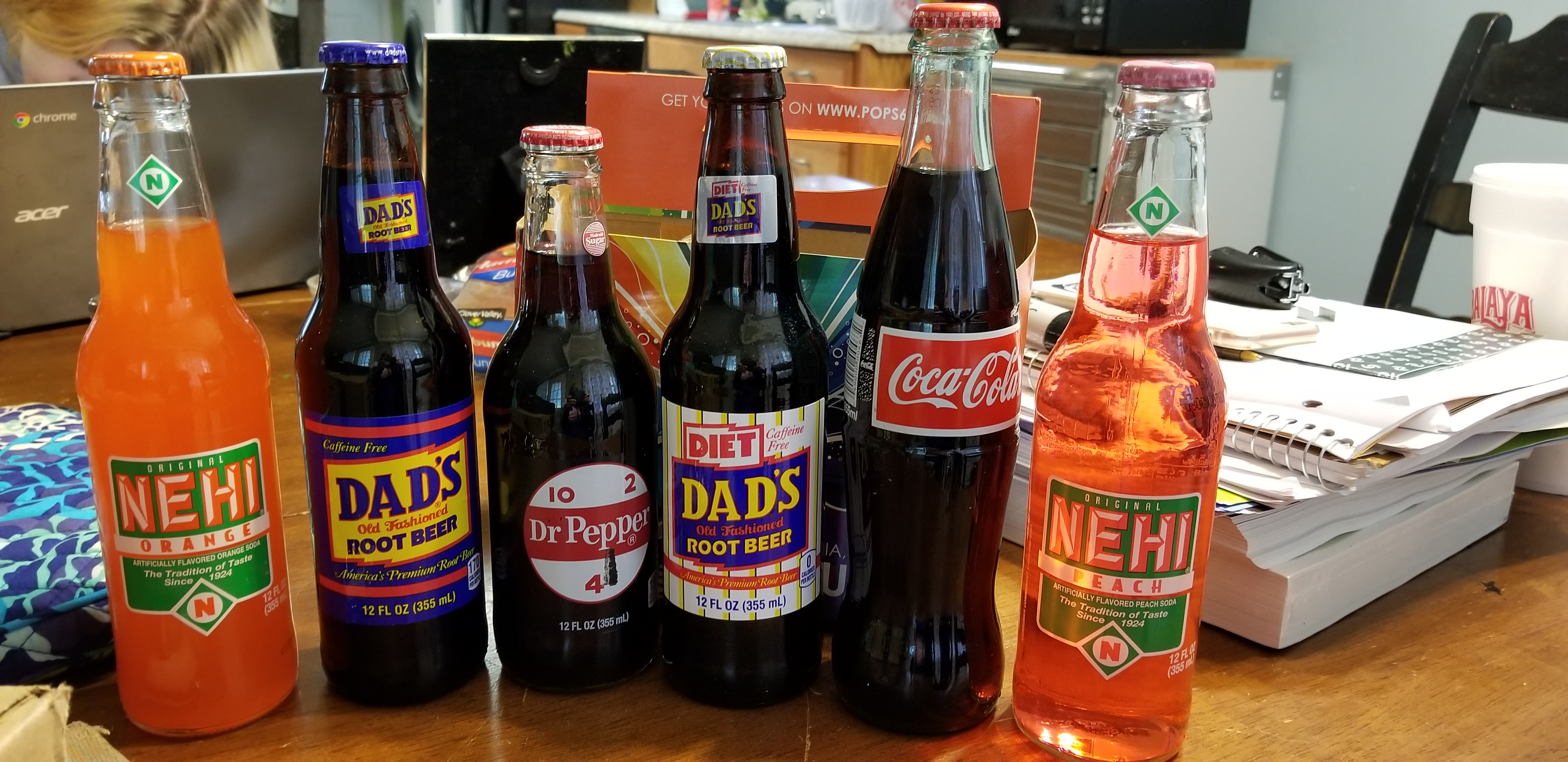
Guess what Pops sells besides gas and souvenirs. At Pops I purchased some Coke.
Okay, they are not all Coca-cola, but in the Southern United States all soft drinks are referred to as cokes.
I also learned while looking at the souvenirs that I was on Route 66. If it was later, I could have a lunch at their diner.