Silhoutte Curio – My First Card Atempt

I would like to say the failure of this card resides in total, utter, and shear laziness.  My laziness.  I should have taken more time with the card.  But, this is what I learned in making of this card.

DSCN6357

The background of the card was done in Corel Draw.  It is just a rectangle with a fill image I found searching for “cupcake.”  It was printed on photo paper.  Everything else done with Silhouette Studio and the Curio Cutting Machine.

The “Happy Birthday” part was designed in the Silhouette Studio.  I was able to place the text in the design, then I drew a copy of rectangles.  I used the Curio to cut the rectangles from cardstock and the Curio Sketch pens to write-out “Happy Birthday!”  I do like the sketch pens and I am impressed with their colors.

What I should have done for the “Happy Birthday” banner was to either have the Curio cut each letter or created a different type of banner.  Maybe one that outlined the “Happy Birthday!”  Why didn’t I?  At that time, I didn’t want to have to glue each letter onto the card.

The cupcake turned out nice.  However, this was an image I got from Silhouette for free.  It should had some sparkles.

The inside part.  Again laziness.

DSCN6359

The text was another image from Silhouette.  I failed in putting the image on paper and creating the border.  I probably could have done a better job in cutting out the text by hand.  The text should have been printed directly on the card using the sketch pens.  And, if I would have added a few cupcakes to the inside of the card it would have been a nice touch.

After I glued everything onto the card, the card warped.  The card is now in the garbage can where it belongs.  Don’t use photo paper for the base of card. I am now working on another card.  No laziness allowed.

Praise in the Park (2015)

DSCN6205

George County, MS population is around 23,000.  Lucedale, MS population is approximately 3,000.  Residence of Lucedale, MS, for twelve years, have been putting on the event Praise in the Park.  This year I attended this event.

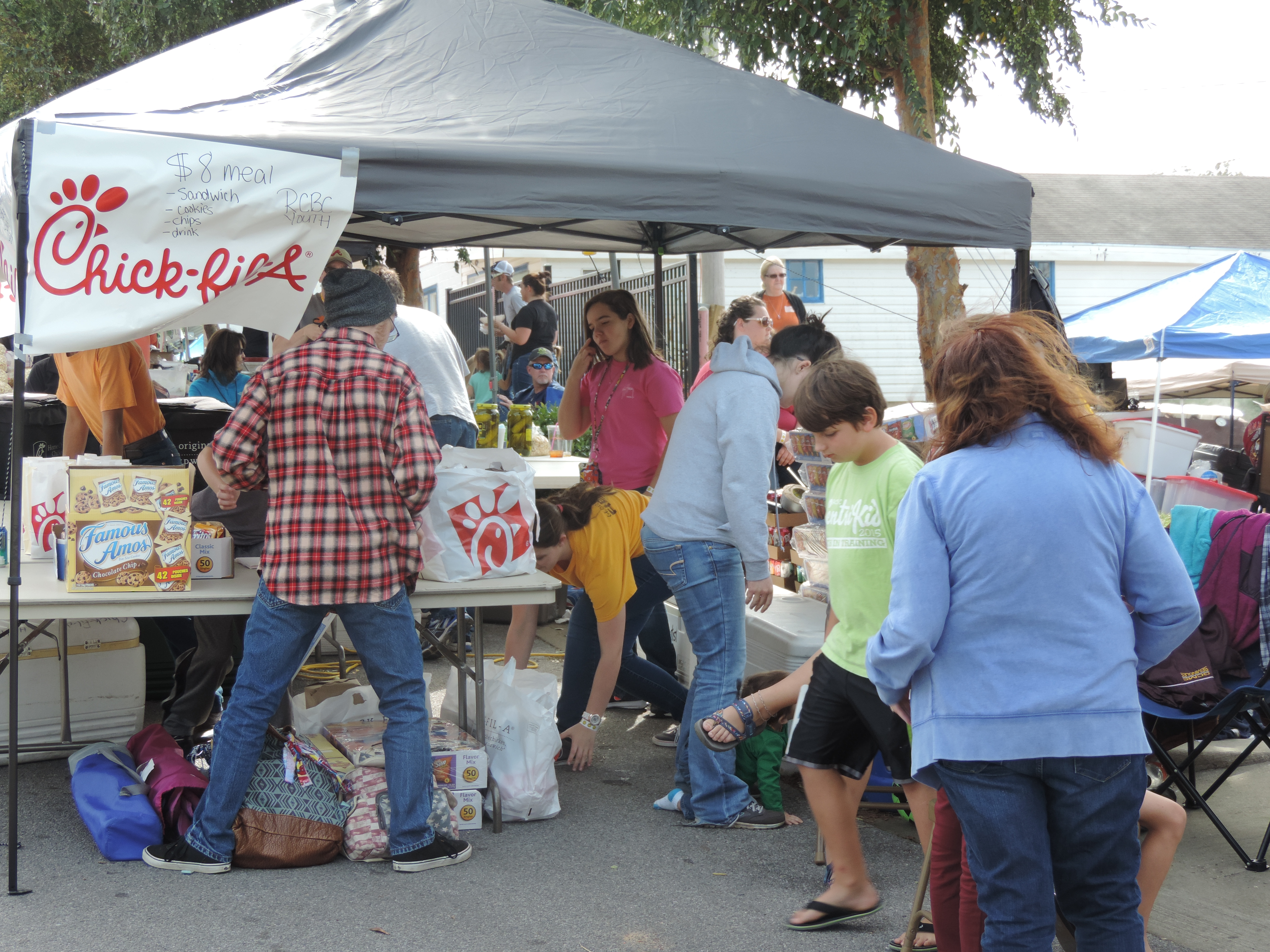
The festivities started at 11 a.m.  However, the gates to the park did not open until 3 p.m.  Outside the park, along the city’s street were vendor’s booths.  Over half of the booths were selling food, with the other booths selling a variety of merchandise.  What is unique about these vendors booths were most of them are church groups raising money for their youth programs.  One youth group came from Livingston, Louisiana to sell Jambalaya.

Rocky Creek Baptist Church from Lucedale, sold Chick-fil-a sandwiches and housed the group from Livingston.

DSCN6191

People started lining up before 11 a.m. to enter the park.  It was a beautiful day to sit outside or walk around the City of Lucedale.  Just a little note, if you want a Blooming Onion, get it early or else be prepare to stand in line with a hundred people.

DSCN6189

When the gates opened, the crowd that waited so patiently, entered the park orderly; with no pushing, no screaming, and no running, and found them a place to sit in the park.  Since it is a park, you saw kids playing on the playground and throwing footballs.

DSCN6207

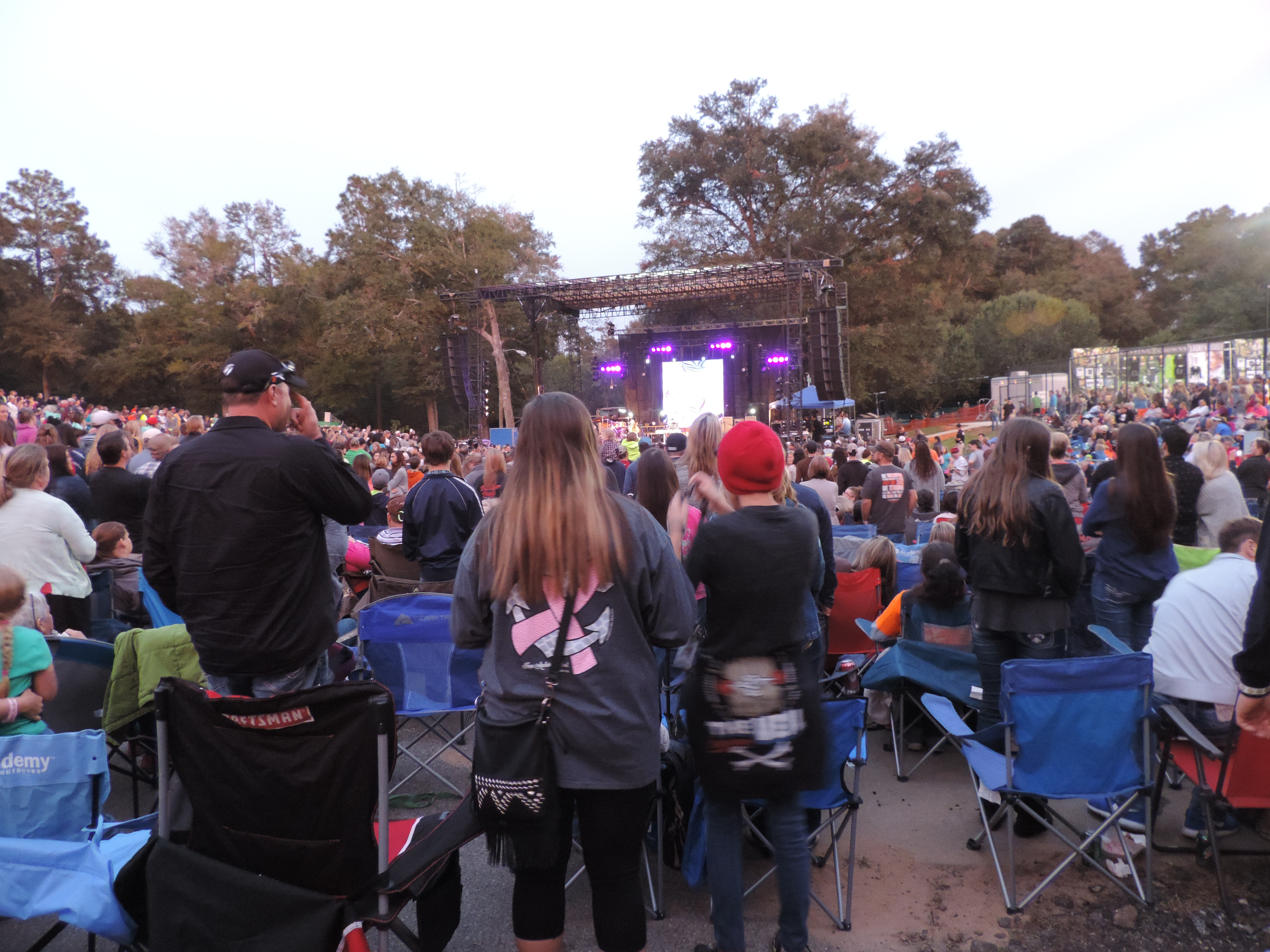
Musical groups One Step Closer, John Gees, and Carrollton were first to take the stage.  As the sun began to set, Lauren Daigle took the stage.

DSCN6209

DSCN6221

The headlining group for this year’s Praise in the Park was Casting Crowns.  They performed some of their most popular songs and shared with the crowd that each of their songs has a story behind it.

DSCN6253

DSCN6232

The best quote of the day was: “Adults are just teenagers with bills.”  Mark Hall, Casting Crowns.

It is amazing what happens when 1,000s of believers get together.

Homecoming – 2015

I haven’t been to a Homecoming since I was in High School. They do things differently in a small southern town. Yes, Homecoming is still a big deal! And, like most schools a week long event, at least.

To start the Homecoming festivities, I attended the pep rally, but only to support the little clarinet player shown in the bottom right. Yes, every picture I have seen her playing in, she is standing in that exact position.

DSCN6125

DSCN6126

About half a dozen of the Cheerleaders were in the Homecoming court. Even though the cheerleaders was not very impressive during the pep rally, they stood out during the game. They cheered constantly with big smiles on their faces. I am disappointed I did not get a picture of them during the game.

DSCN6131

It surprised me, during the pep rally, that all the girls is the court were not wearing a dress. But, things change over time. When I was in High School, the Homecoming Court was just a popularity contest. But, ever single girl on this court earn their spot. They had a long list of accomplishments including serving in clubs and doing charity work. The court include a girl with down syndrome, but she also earn her spot by being a member of the dance team and serving in several clubs.

DSCN6135

I didn’t take any pictures of the football game. I was there to support the band. Who did a awesome job at half time.

DSCN6161

Texas Renaissance Festival – 2015

The Texas Renaissance Festival kicked off it’s 41st year and I was there on opening day with thousands of other attendees and performers.

The gates to the festivities.

The gates to the festivities.

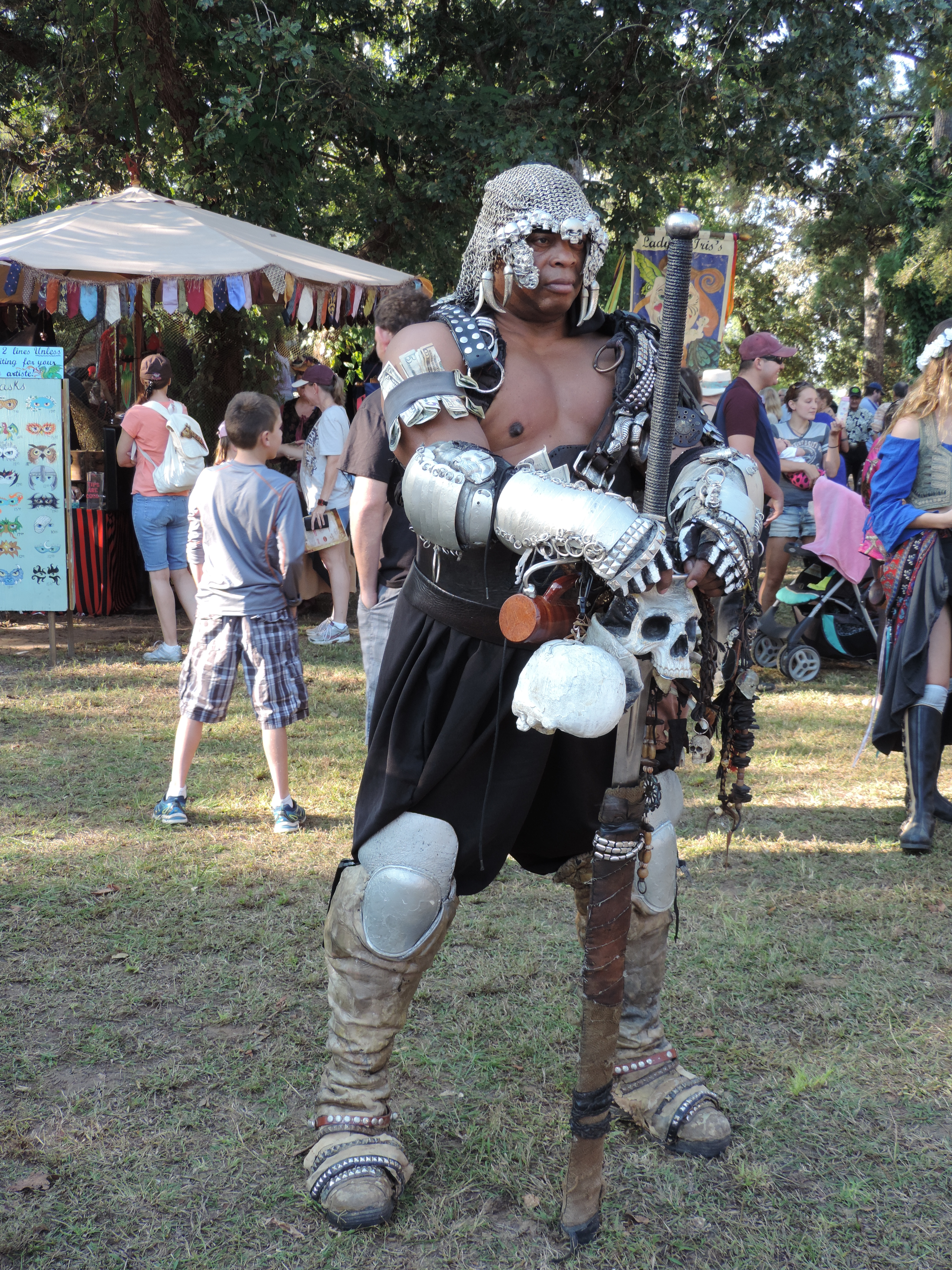
Note: If you enter the Festival by yourself, you are not accosted to by the Festival photographers to have your picture taken. But, if you are dressed in costume you are asked politely by attendees to have your photo taken.

DSCN5984

All the shows I attended was very entertaining.  The performance by the Queen’s Guards was one of the best.

We must protect the Queen!

We must protect the Queen!

DSCN6004

The Joisting show was entertaining, but the funniest part was at the end of the show where the ring leader’s horse threw him and after a short attempt to calm the horse, the horse ran out of the ring following the other horses.

DSCN6018

DSCN6017

We cheered for England!

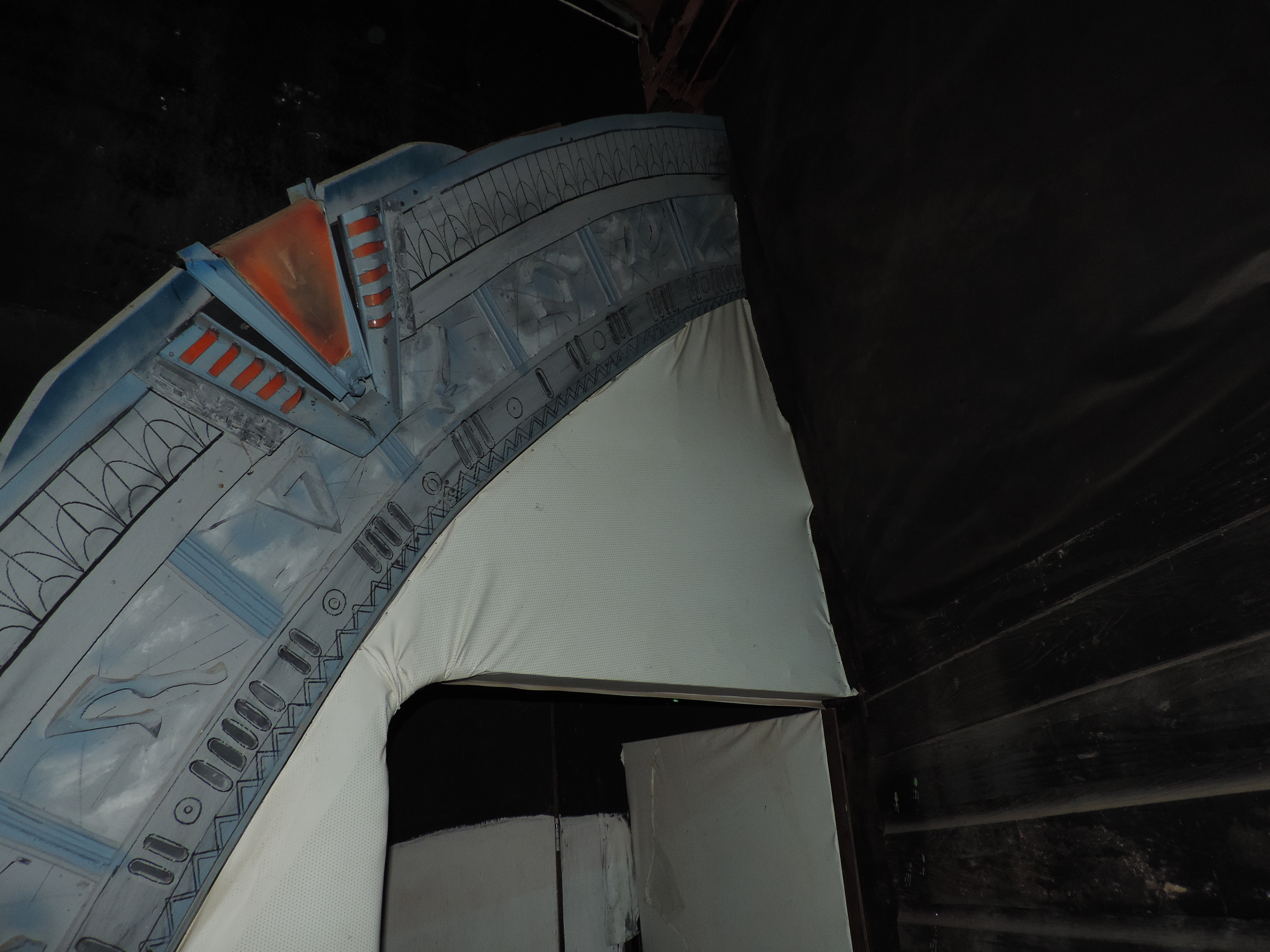
When there is a Doctor Who reference on the side of the haunted house, it is a must see.

DSCN6049

DSCN6050

DSCN6054

DSCN6059

Stuhr Museum of the Prairie Pioneer

The Stuhr Museum, located in Grand Island, NE, was established in 1961.  Since then it has been collecting and restoring objects and information related to the Nebraska prairie life between the time period of 1840 – 1920.  I have been to other living history museums and this one is one of the best.

In their main building they have objects which takes you through the history of prairie life in Nebraska.

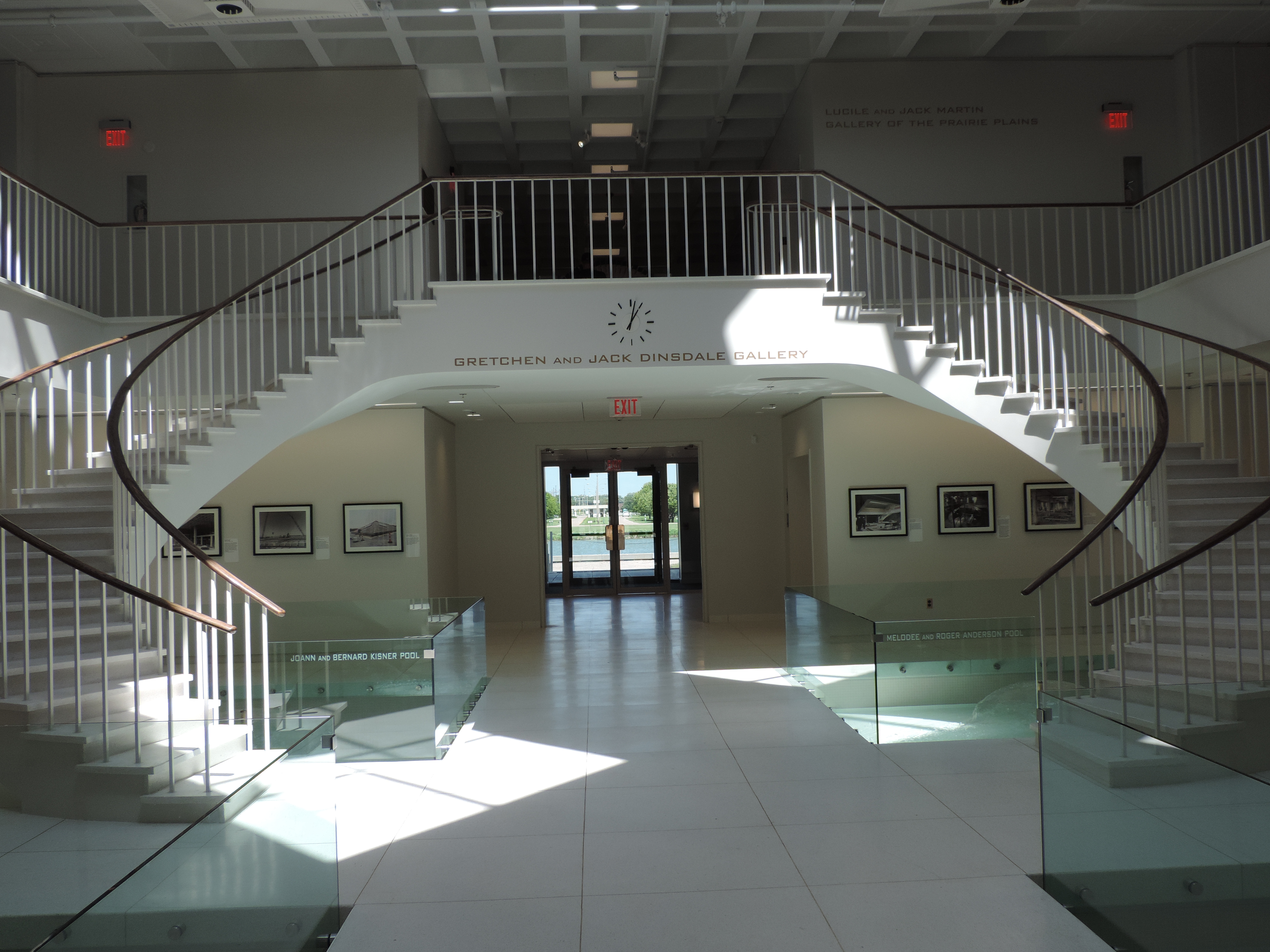
Stuhr Museum Main Building

Stuhr Museum Main Building

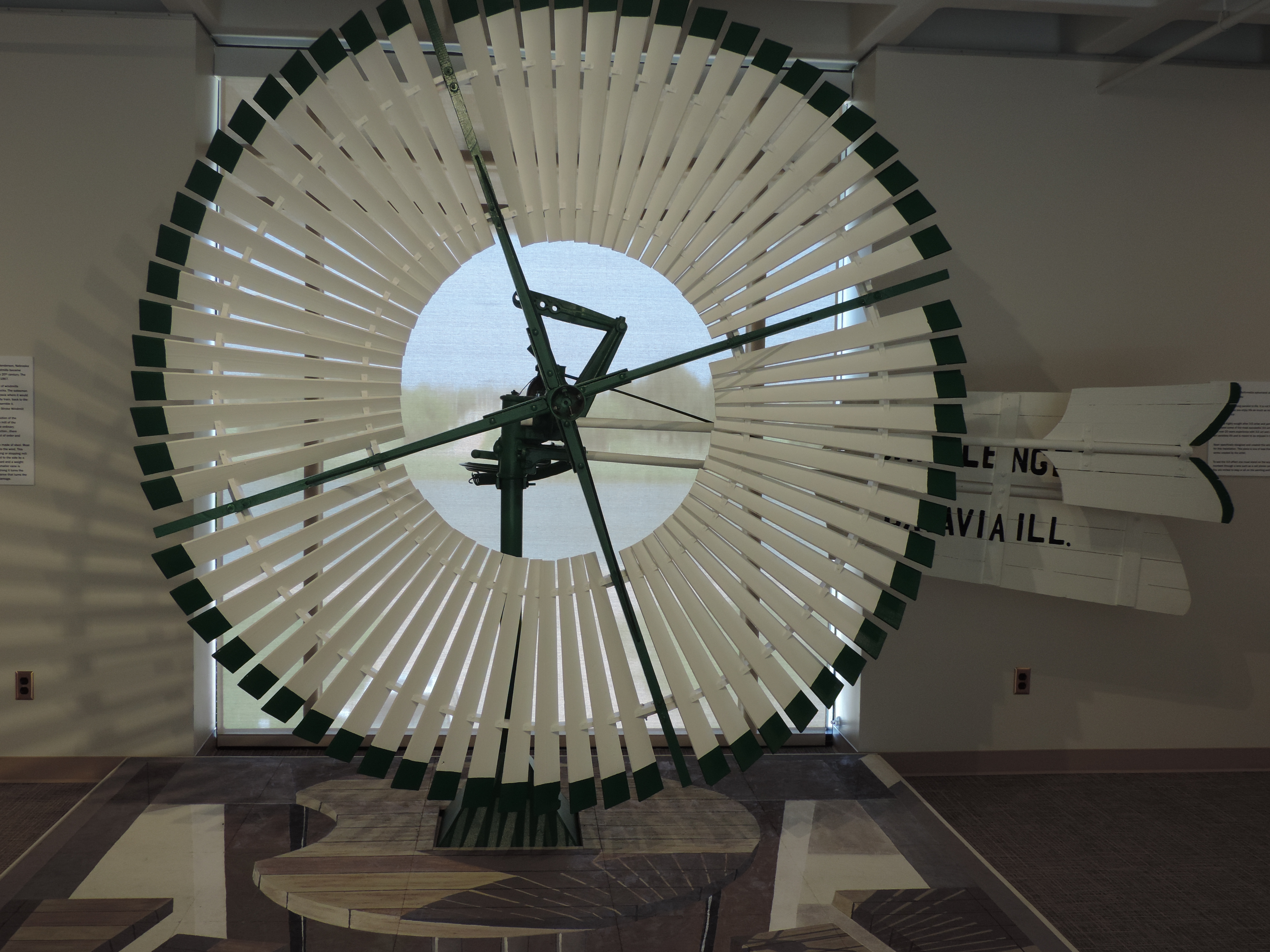
Windmill

Windmill

Outside the main building you will find ducks and fish swimming in the pond.

Ducks

Ducks

Pond

Pon

There is a garden you can walk through to access the Railroad Town. If you go during the last spring or summer, you can see the daylilies in bloom.

DSCF5861

DSCF5860

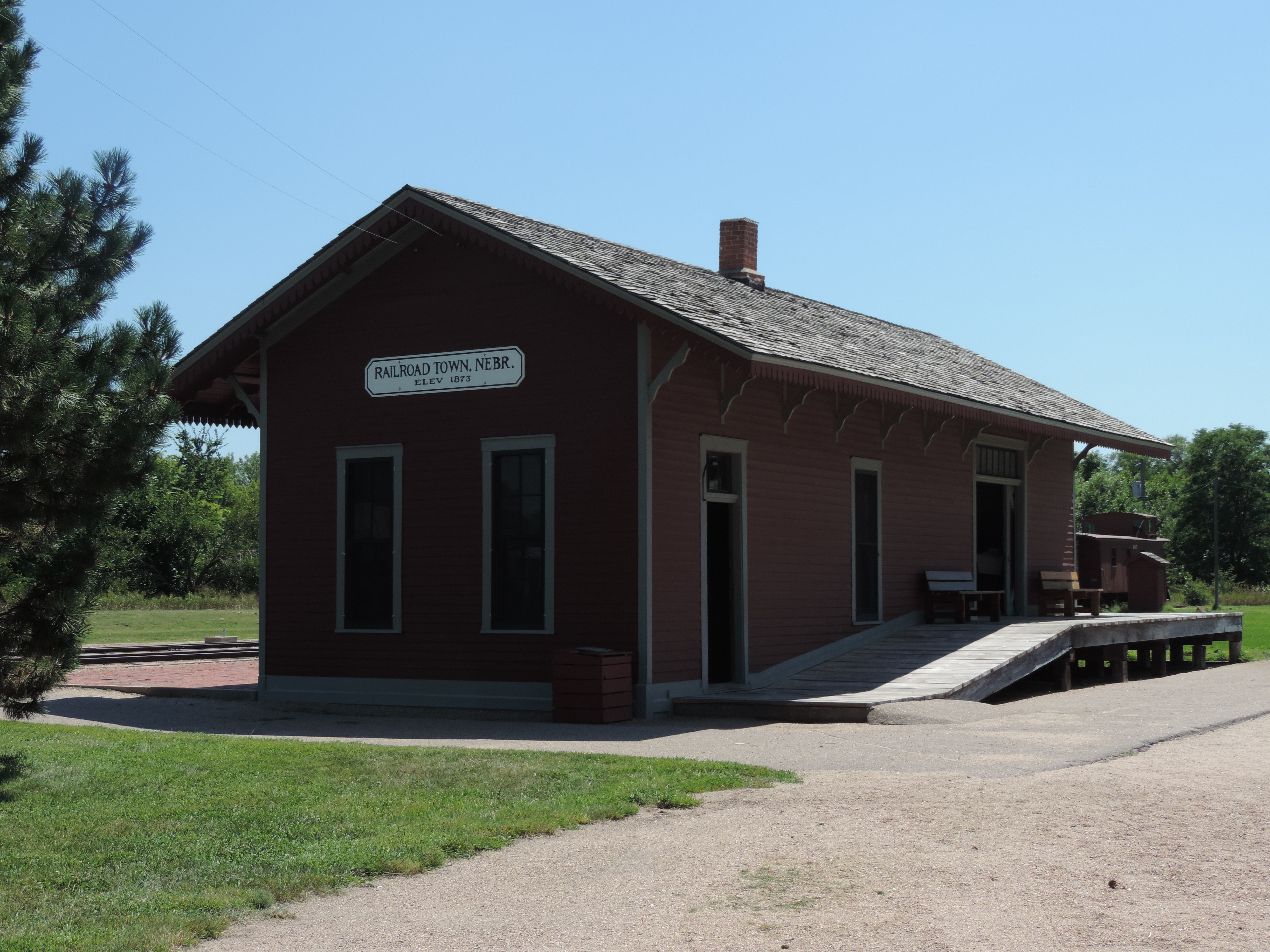
While visiting the Stuhr Museum, don’t miss Railroad Town.  It has old trains to tour and numerous historical buildings that has been preserved.  If you visit on the correct days, you can see demos from the hat maker, blacksmith, tin smith and carpenter.  There are several houses you can tour.

DSCN4886

DSCN4867

DSCN4891

DSCN4849

DSCN4839

While visiting the Railroad Town, stop by the General Store for some handmade items and the Restaurant for some ice cream.

As you are exploring Stuhr Musuem, watch you step there are many of ducks and goose around.

DSCN4921

Ravensburger North American Skyline Puzzle Review

20150928_100732

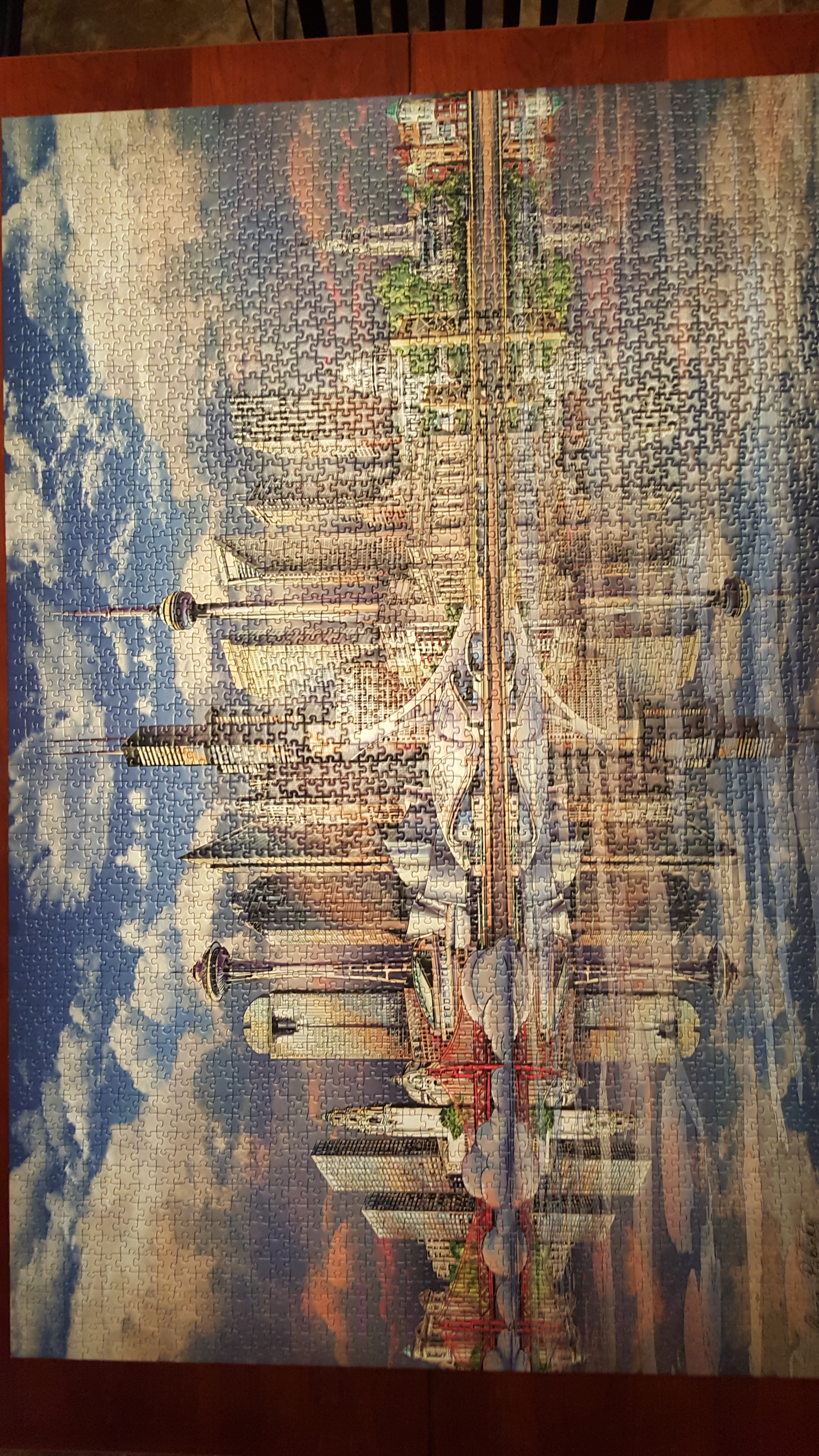
I purchased the Ravensburger North American Skyline puzzle to put together, with my husband, over the Fourth of July weekend.  I selected the puzzle because the picture was beautiful and it had 3000 pieces.  Most of the puzzles I could purchase locally only went up to 1000 pieces and those would have been done in a few hours.  I was looking forward to this puzzle adventure, because we hadn’t put a puzzle together in at least a decade.

My husband gave up on the puzzle before the border was mostly completed stating that he was having trouble telling a difference between the colors on the pieces.  Yes, I was having a little trouble too, but I pressed on.  The border wasn’t completed until most of the puzzle was done, because those last few border pieces liked hiding.

The next challenge I experienced was telling the top part of the puzzle from the bottom part of the puzzle.  They both looked a lot like, almost identical.  The only difference was the bottom pieces usually had lines on them to indicate water.  I ended up separating the top pieces from the bottom pieces.  And, yes those few border pieces were still hiding.

What was suppose to be a three day adventure ended up being a three months adventure.   Ok, I travel some, about 3 weeks, during those three months and some days I only worked on it a few minutes and other days I didn’t work on it at all.

20150928_101046

This puzzle ended up being extremely challenging.   If you moved a puzzle piece two inches away, it usually changed colors.  A lot of pieces were different shades of blue, but it didn’t matter.  Even the light blues appeared dark blue during the process.  The pieces fit together very well.  Still I think I will avoid Ravensburger puzzles in the future.

Silhouette Curio – Cutting the Design

In my last post, Silhouette Studio – The First Design, I discuss creating a test design with the Silhouette Studio Software.  Below is the design I created.  It has some text and images.

My First Studio Design

My First Studio Design

The Curio came with a cutting mat, embossing mat, and three other mats that I later learned was platform mats.  I removed the film from the cutting mat and place it onto Curio’s tray according to the image on the Silhouette Studio design screen.  I carefully placed the card stock on top, since the cutting mat has a sticky surface.

I gently slid the tray into the machine.  The instructions says “push into machine until tray sticks out back”  and it says “push into machine until notch passes front of machine.”  If you have trouble seeing the notch, push the tray into the machine until the top left hand corner of the material in directly under the cutting/embossing blades.

I looked at the cutting blade and it cut was set to zero.  I figured out that the by placing the cap that came with the blade on to it and turning, I was able to adjust the cut size.  I set it on 3.  It seemed right, but the instruction manual did not specify.   I placed the cutting blade into the Curio in the first slot and turned on the Curio.  Now for cutting.

I went back to the software and noticed that the paper size didn’t match the Design Page setting.  I adjusted the design page setting to match my paper size.  Then I had to move a few of my designs so they would be inside the cutting area.  Next I clicked Cut Settings cut settings icon icon.  My design now has thick lines around it, see below.  I assumed this is where the design would be cut.

before cut

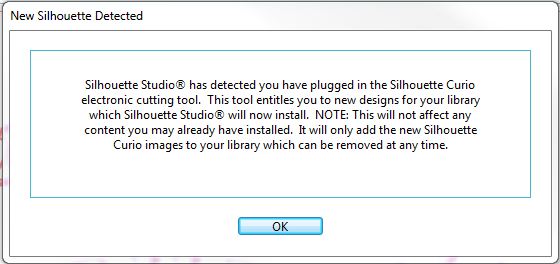
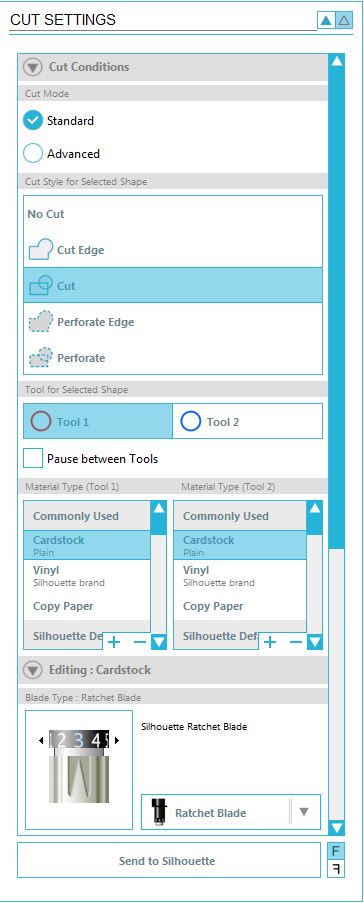
I looked over the cut setting.  The Standard mode was fine.  I left the cut style on Cut.  Tool 1 was selected, this was fine because that is where I put the cutting blade.  Under Material Type, I clicked Cardstock was even though it was already selected.  As soon as I clicked Cardstock the Editing menu opened and displayed the recommended blade setting.   Sometime during the process of setting up the cut setting and cutting the design, this message appeared on the screen.

new designs

I have some new designs in my library!  I clicked on the library and approximately 50 designs were added to the library.  I am assuming since the it appears anyone can download the Silhouette Studio software, this is how the company distributes content to individuals that have purchased the device.

Library

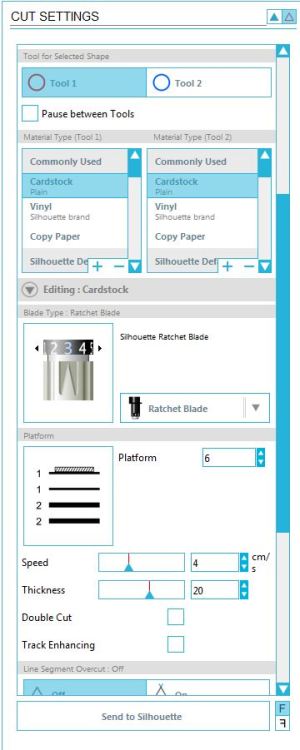
After I looked at the library, I finally went back to the cut setting and pressed Send to Silhouette.  The machine is a little loud, but it is working.  Wait, there is no cut on the paper.  What did I do wrong?  I looked over the cut setting again and made sure the blade was set on 3.  I scrolled down in the cut setting and there are more options.

Cut Setting Top

Cut Setting Bottom


The platform setting showed that I needed 6 platforms on the tray. I added 6 platforms on the tray and sent the design to be cut once again.  The paper cut this time.  Yay!   What I learned on my first design.  The text is too delicate for my first cut.  To remove it perfectly from the cutting board, will take time.  The balloon came out great, and the border needs work because it came out is many pieces.

Next embossing….

Silhouette Studio – The First Design

In the last two posts, I talked about setting up the Silhouette Curio and installing the Silhouette Studio software.  Click here to read those posts.  This post covers the my first design.

This is my first design attempt.  Nothing fancy.
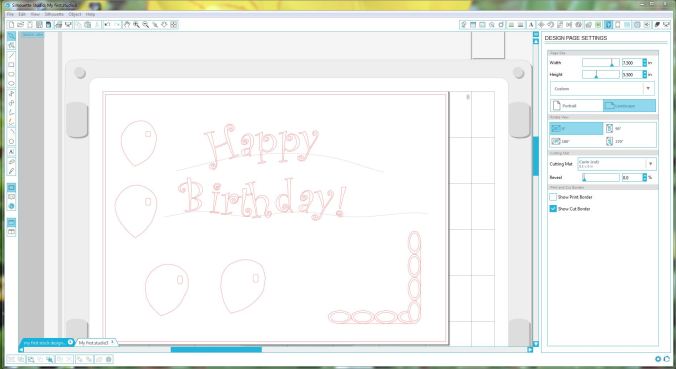
My First Studio Design

My First Studio Design

To start a new design in Silhouette Studio double-click on the icon and click Design.   The design window opens with a clean working area.

I clicked the Text text icon icon to begin to place text in the design area.  On the right-side of the screen, a Text Style menu appeared.  The menu let me define my text attributes before or after I put the text in the design area.  Scrolling through the fonts, I noticed that it allows me to use any font that is saved on my computer.  Yay!  No, limits there.

I noticed the little circle fit to path to the bottom right of my text.  Looking through the manual, I discovered this allows you to fit the text to a path.  I drew a couple of wavy lines on the screen using the curve curve tool.  I doubled clicked on the first line of text, to select it, and dragged the text to the first wavy line and than I repeated the process with the second line of text.  Easy enough, my text was now wavy.

Selecting the text that was fit to path, I was no longer able to rotate it or change it size by dragging a corner.  I was able to adjust the rotation Rotate by selecting it’s line.  There was also a slide bar that allowed me to change the text position on the line.

If I am doing a birthday theme design, some balloons are needed.  I knew the oval oval would not work for me because balloons are bigger on the top than the bottom.  I selected the curve curve tool to draw my balloon.  I put multiple points around the balloon to get the general shape I wanted.  The bottom point, where the balloon ties, is still too round.  I clicked the Edit Points Edit Points

Just for fun I drew a few more balloons.  Balloons usually have a shiny spot on them that is reflecting the light.  I use the rectangle rectangle tool to draw this area on a couple of balloons.  It didn’t look quite right, so I selected the rounded rectangle rounded rectangle tool to draw the shiny spot on the other balloons.

If I move the balloons around the canvas, I wanted the balloon and shiny area to move together.  I dragged my curser over both objects and selected the grouping grouping icon to keep them together.  To separate items after they are group, select the Ungroup icon next to the Group icon.

A border for my birthday theme design would be nice.  I drew a couple of rectangles rectangle and I drew numerous ovals oval.  First I drew one oval, then I used the copy/paste feature so all the ovals would be the same size.  I tried rotating a oval from the design area, but I found for a precise rotation the Rotate option for the Object menu worked better.   I used the Align option under the Object menu to align, center, and space the ovals on around the rectangles.

I didn’t like how some of the lines in the design.  The Erase and Knife cut and erase was a nice feature for removing unwanted lines.  I was able to adjust the settings in the right menu as each tool was being used.

A feature that the Silhouette Studio software is missing, is the ability for me to zoom in and out using the scroll button on my mouse.  Zoom in and Zoom out is available from the top icon bar.

The manual that came with the Curio did not cover all of these functions.  But, the manual that is available from the Help Menu in the software does provide detail information about all tools, menus, and functions.  I like to play around with any software before reading manuals.  However, this manual is beneficial for using the software and Curio.

The next blog will cover my experience with cutting and embossing.  For now, I will save my work.  This isn’t the first time I have saved my work.  One of my saying is “Save Often! Save Regularly!”  You can’t press save too often.

Silhouette Curio

When I have the time, I usually make all my Christmas card.  My first card I made was in 1996 using CorelDraw V3.  Recently, the cards have been getting more and more elaborate.  No matter what I do to the card, the background and inside writing is usually done with CorelDraw.

The idea for the card came early this year.  The background is already done.  The problem is to complete the idea will require a lot of cutting and embossing.  And, I never done embossing!

I decided to purchase a machine to do the cutting for me.  I looked a many models and decided on the Silhouette Cameo.  What I liked about it was, the software it came with, Silhouette Studio, I could use it with SVG files (for an added cost), and I could used it with .CDR files (for even more cost.)  It had decent reviews, so I waited and considered this purchase.

Then I saw the newer model, the Silhouette Curio.  It has more functions, like cutting thicker media.  I may need that.  It embossed.  The only things the reviews didn’t like was the smaller cutting mat and the instruction manual was difficult to read.  The cutting size wasn’t a big deal since it would be my first machine, something to learn on.  The reviews were correct about the manual.  It is difficult to read.

You can find my experience with the Silhouette Studio software here.   In this posting, I will continue with the review the device.

The Curio comes with: USB cable; power cable; two blades, cutting and embossing; print and emboss squares; Software CD; base with cutting mat and embossing mat; material fasteners; replacement snaps; and instruction book.

Setup of the machine was easy, basically just unbox it, install the software, and plug it in.  However, the USB Cable and Power Cable plugged into the right-side of the machine.  If your PC is located on the left-side of the machine or located on the floor, the USB cable may not be long enough to reach it.  You may want to consider getting a USB Extension cable.

Loading the mat into the machine took some figuring out.  The instruction manual was not clear, but it was helpful in recommending to remove out film from cutting and embossing mat.  To load the cutting/embossing boards on the mat properly, refer to the Cut Settings in the Silhouette Studio software.  You will need to turn off the Curio every time you load and unload the board from the machine.

Cut Settings

Cut Settings

The cutting blade needs to be adjusted according to the cut settings.  This is done by using the cap to turn the blade setting.  The blades loaded into the device as expected.  I turn the knob to insert the blade, then I turned it again to secure them in place.

Each cut and each emboss, I am learning more about the device.

Silhouette Studio – Opening the Box

The Silhouette Studio software comes with the Silhouette cutting machines (Cameo and Curio).  Since I purchased the machine, the software installation was a simple process.  Place the CD in drive and follow the prompts.  After the installation was complete, the Silhouette Studio software launched.

Silhouette Studio Start Screen

Silhouette Studio Start Screen

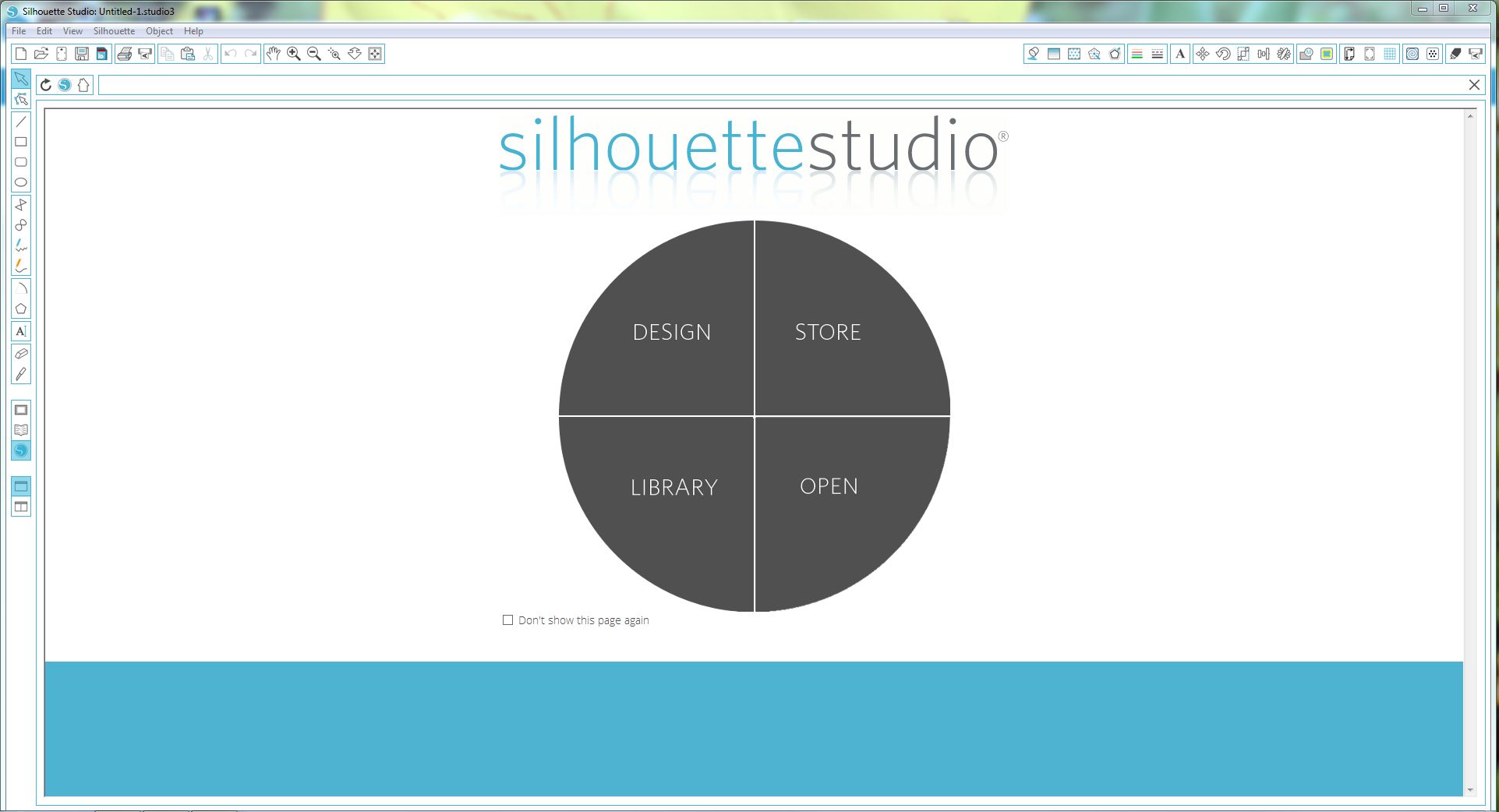
I wasn’t expecting this screen.  To be honest, I am not sure what I was expecting.  I knew if I clicked Design it would let me design a graphic for cutting.  Also, if I clicked Open it would prompt me to open a previous saved design.  I assumed that if I clicked Library, I would see some graphics.  That was the second surprise.  There wasn’t any graphics in the Library.   I thought that was odd, maybe it was something that you could download.  I clicked on the Store.
TheStore

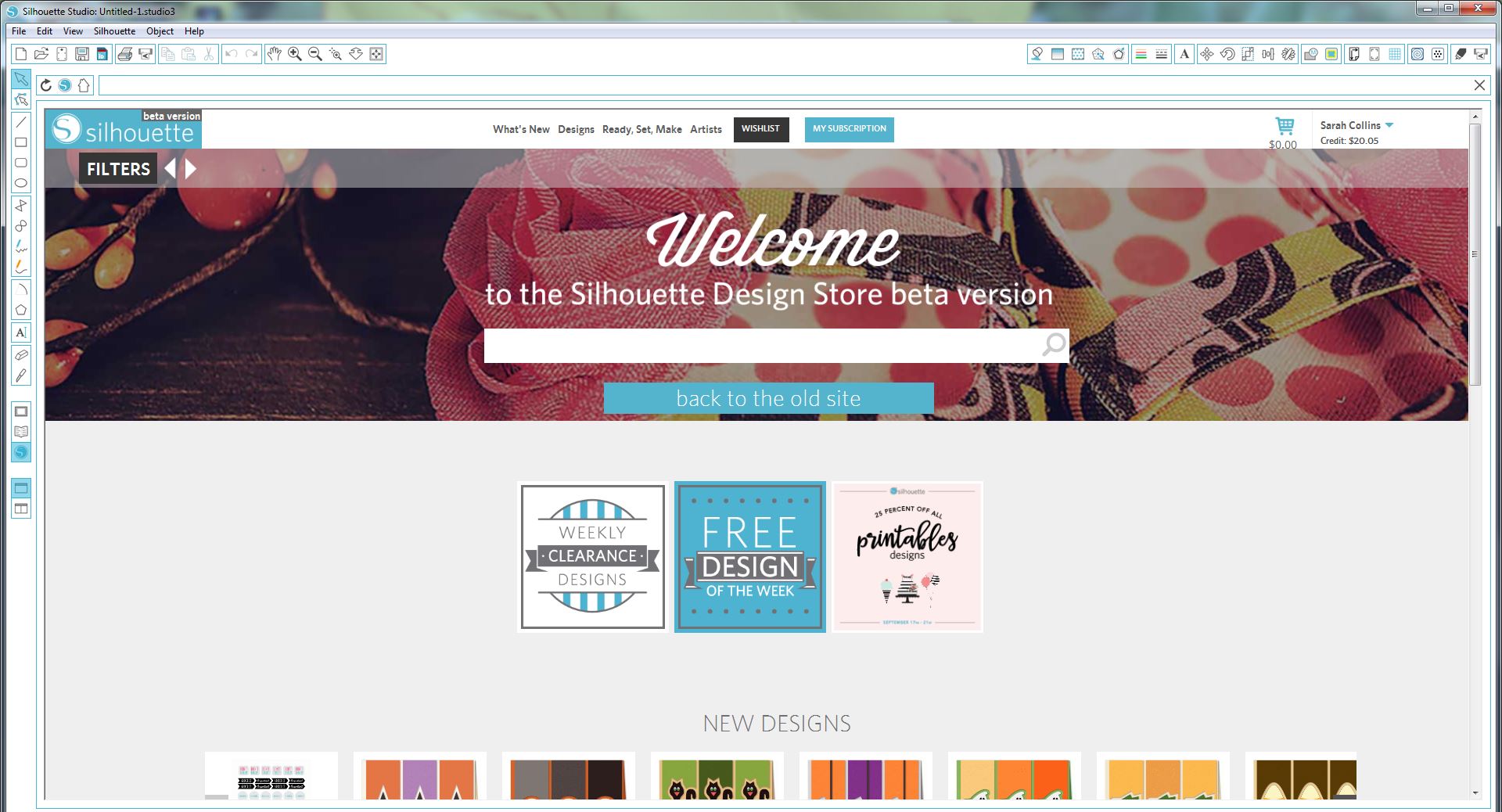
The Silhouette Design Store wanted me to sign in, or create an account.  So, I signed in with the account I created when I registered the Curio.

TheStore2JPG

It appears that the store wants to charge you for everything.  After looking over the store, I remembered the cards that came with the Curio title “1 month free.”  I followed the instruction on the card and it provided a month subscription and $25 credit.  I am not sure yet of the benefits of a subscription, but I will figure that out as I explore more.

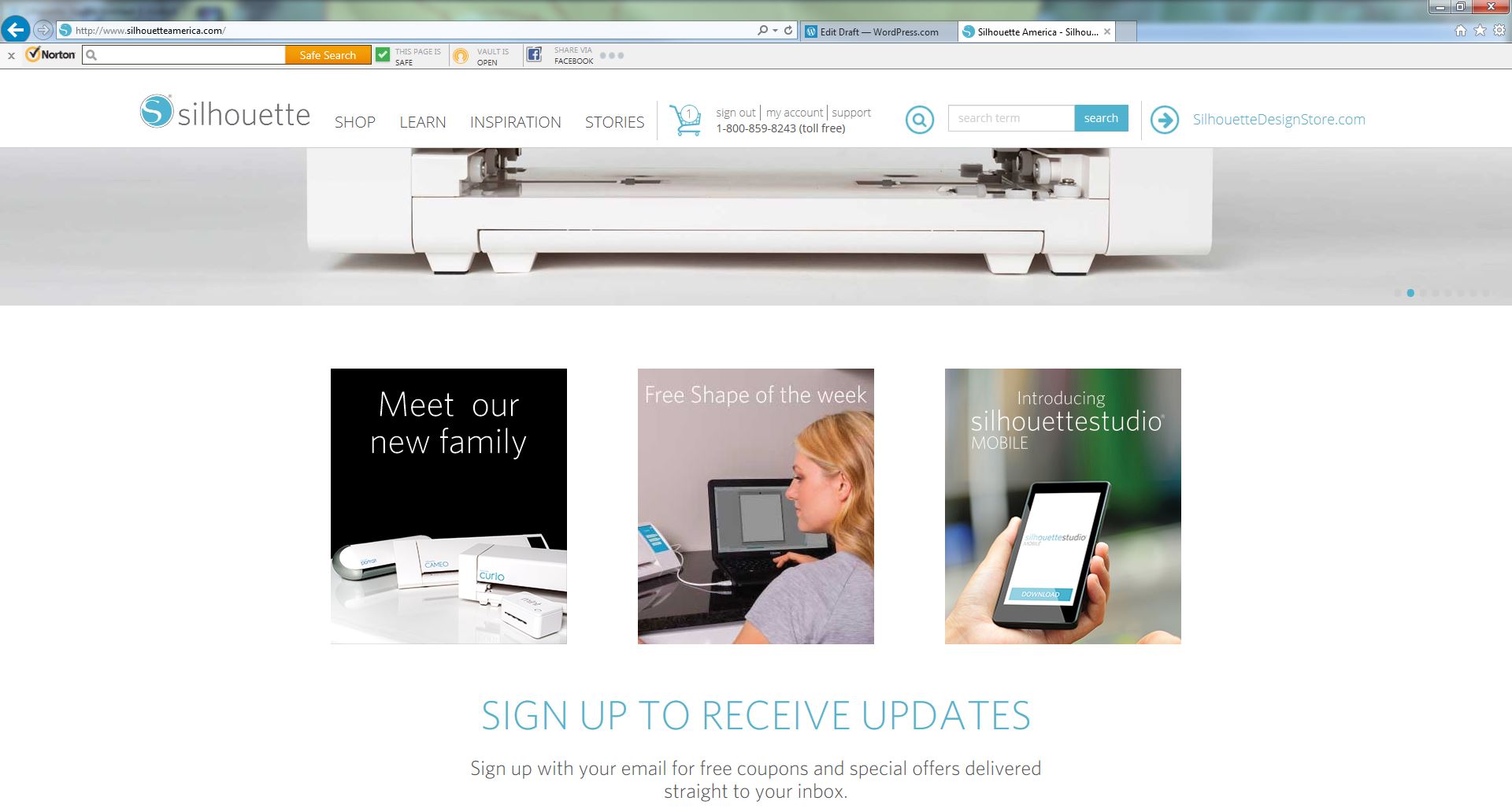
After looking over the store, the problem still remained.  The Library was empty.  Being the Techie I am, I decided maybe the software needed to be update.  Off to http://www.silhouetteamerica.com I went.  You don’t need to remember that URL or save it as a favorite.  If you are into the Silhouette Studio software, it has the link listed under Help.

silhouettewebsite

It took me a while to find where the Software Update was located on the site.

  1. Sign into your account; it is the same one you created when you registered the machine.
  2. Click Support, it is listed next to the Sign in.
  3. Click Silhouette Studio then scroll all the way to the bottom of the page.  There you will find the update and download.
  4. Select one to download.  You do not have to run both the update and the download, because they are the same file.
  5. After the software downloads, run it.

After I went through all these steps below, I realized you can check for software updates from the Silhouette Studio software.  Look under Help > Check for Updates.

I went through the process of updating the software to see if any graphics would appear in the library, it was still empty.  I occurred to me “Maybe the $25 created was so you could select your own graphics.”

Back to the Silhouette Design Store to get some graphics with my credit.  The store had some very impressive designs. I selected a few for testing but adding them to the shopping cart.  When I went to check-out, it told me that these designs were for personal use only.  What I liked about the entire store, since I have credit it did not ask for my credit card.

My adventure with Silhouette Studio will continue…