Creating and Using Shapes in Tinkercad

The way I design in Tinkercad changed on July 20, 2022, when I learned that I could create shapes from my 3D Designs. For a lot of my designs such as the Cow Depot, Saloon, Mill, Barber Shop, Houmas House… anytime I wanted to reuse a shape I would save it out as an STL file and import a copy back into the design. Now, if the design is not to complicated, I can save it as a shape in Tinkercad and use it over, and over, and over again.

Since I am so excited about this feature, I wrote an instructable on Creating and Using Shapes in Tinkercad.

Here are some of the new shapes I have created:

The Chicken: This design answers the question of which came first, the Chicken or the Egg. The answer is the egg. Because only egg shapes were used to create the chicken, except when I used the cubic hole to cut the egg in half.

The Sheep: To create the sheep, first I made a fluff ball and saved it out as a shape and used the fluff ball to create the sheep. I also used the fluff ball to make a tail from my bunny.

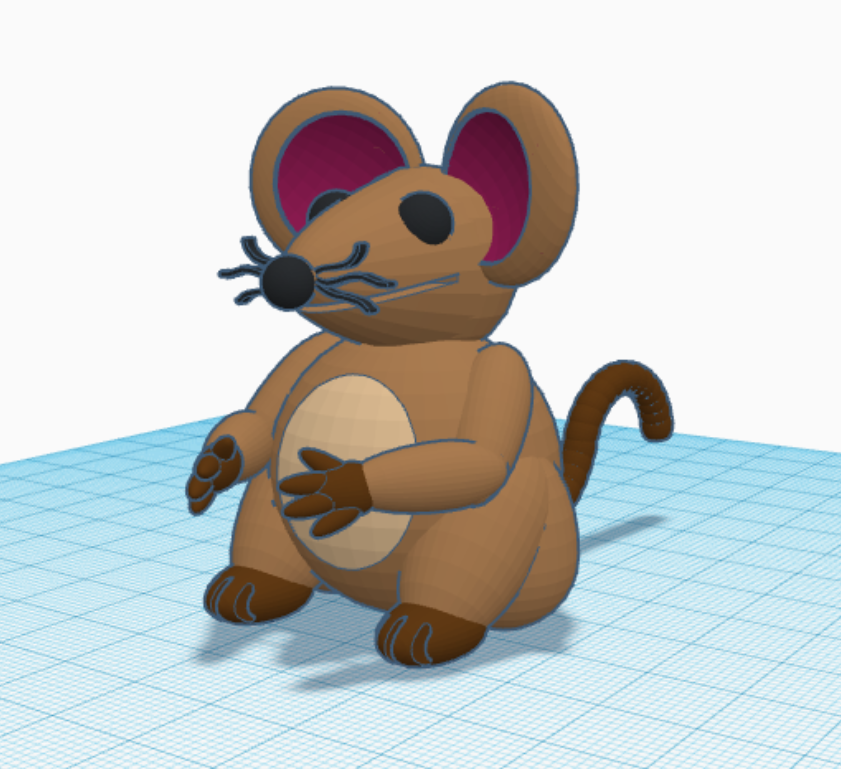
The Mouse: There is nothing really special about the mouse, except a little cuteness.
I have created a Youtube video on Creating a Shape in Tinkercad.

As I was typing this, I realized some of my buildings are not covered in the blog. So, more posts about Tinkercad are coming.
Creating an Umbrella using Tinkercad

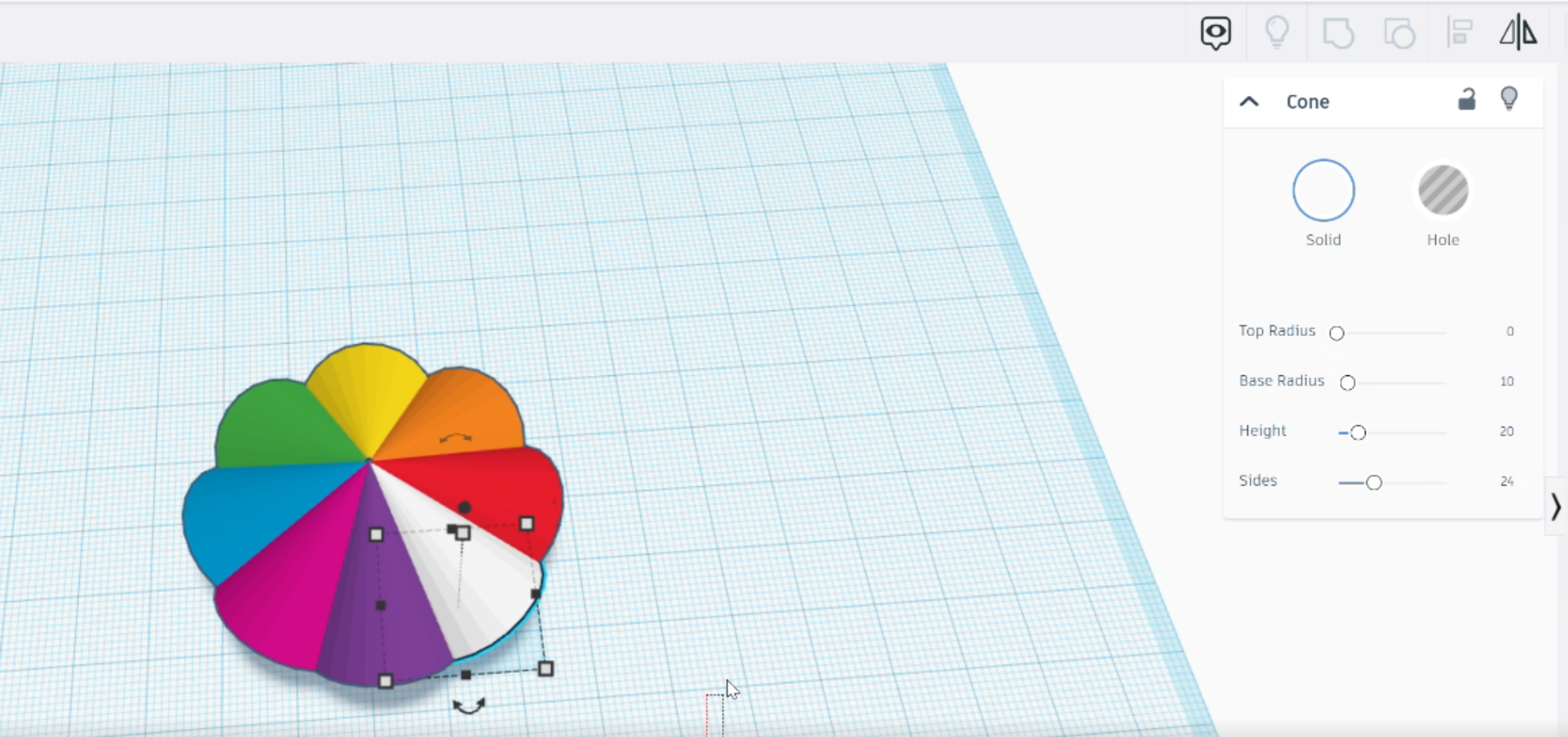
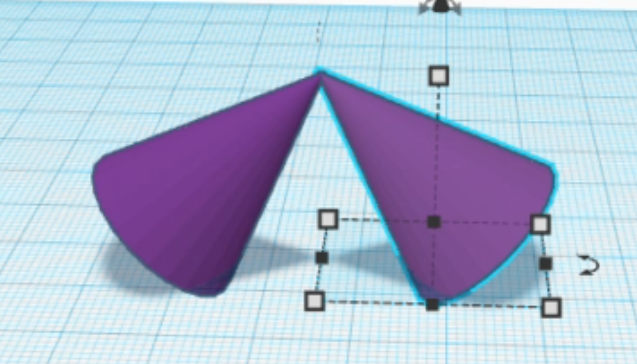
I am currently working on two projects in Tinkercad. One of the projects is huge and needs lots of parts. During the planning for this big project, I decided to create an umbrella. Not only did I create the umbrella, I also wrote instructions on how create an umbrella in Tinkercad. The instructions are available at on Instructables: Creating a Colorful Umbrella

The process is simple:

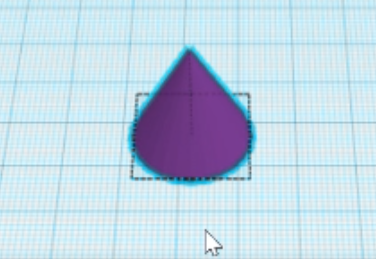
Add a Cone Shape
Duplicate the Shape
Change the Colors
Create a Hole
Create a Handle
Align the shapes
Add a little flare. You have an umbrella.

Okay, maybe it is simple for me. The video on how I created the umbrella is available on my YouTube channel.

Hot Air Balloon Festival

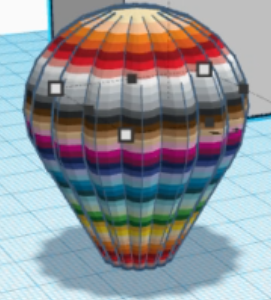
I wanted to create a Hot Air Balloon in Tinkercad. Creating a balloon is easy, the hard part is getting multiple colors. To resolve this issue, I created a template to create colorful hot air balloons. It was so much fun, before I knew it, I had a Festival of Balloons.

This is the multi-color balloon:

Balloon without basket

This balloon was created using the Tinkercad Logo:

The American Flag balloon was created from the flag I designed several years ago.

I’ve used Instructables to provide instructions on how to create a Hot Air Balloon.

Click here for instructions on creating a balloon.

Hot Air Balloon Festival

You may view the festival by clicking this link.

There are two YouTube videos on how I create some of the balloons:

Multi-color Hot Air Balloon
Hot Air Balloon with Text

Creating a Christmas Tree with Tinkercad

In 2020, I haven’t painted much, nor have I drawn much. Most of my time being creative was spent in Tinkercad. I used Tinkercad to create a replicate of the Houmas House. I have created many building for my Railroad Town. Other designers are asking “How?” or “Teach me!” Since it is Christmas Time, I decided to provide instructions on how I created a Christmas Tree using Tinkercad. The instructions on instructable: https://www.instructables.com/Designing-a-Christmas-Tree-With-Tinkercad/. Or you can watch the video:

Yes, I also created an angel to go on top of the tree.

You need to watch to video to see how I created the Angel.