3D Printer – Setting Up

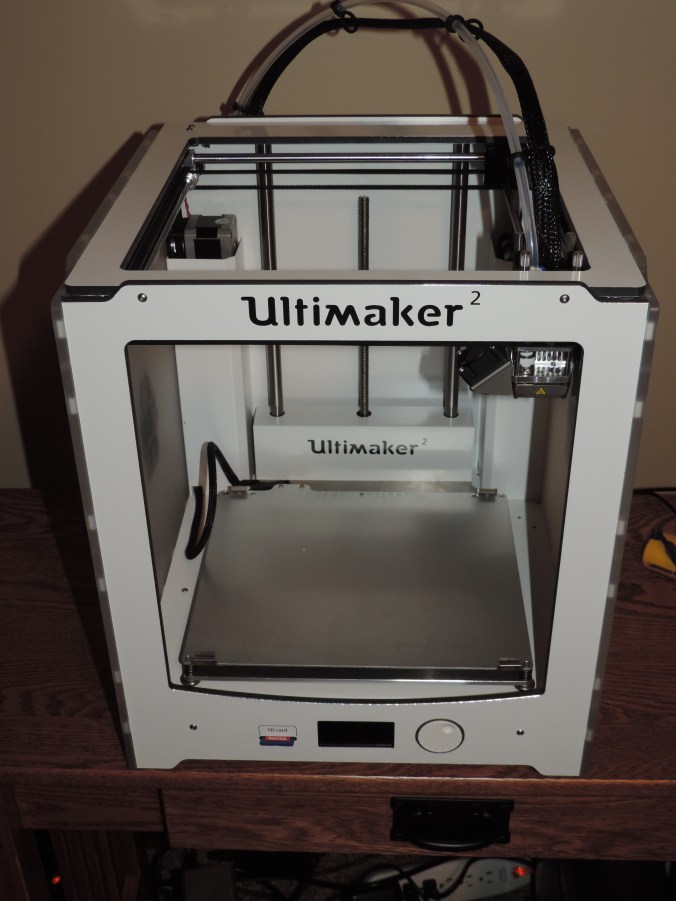
Yes, for Christmas I was given a 3D Printer.  It is an Ultimaker 2.  It one thing that I have been wanting, but I would never asked for one.  If you listen to the TV, it says that most women want jewelry.  For me, I do love my computer and gadgets.

The first challenge I experienced with my new printer was find a sturdy table to place it on.  I knew the printer would have a lot of movement during printing, so I wanted a table to set it on that would have very little movement.  My computer desk is already full with two monitors, a key board, a mouse, a camera, a speakers, 4 pair of reading glasses, etc.

The Ultimaker web site contains step by step instructions for unboxing the printer and setting it up.  They also has an app.  But, the apps basically only provide tutorials and access to their community sites.

DSCN6604

One thing to remember as you are removing it from the box, only lift my it’s frame. Do not pull on it cables, cords, or moving parts. After looking at the troubleshooting guide, you may be doing this a lot in the future.

DSCN6608

Install the filament spool holder.  Simple enough.

DSCN6609

Insert the glass plate.  Careful, be very careful.  Those metal glass holder are a little difficult to open and are very sharp.
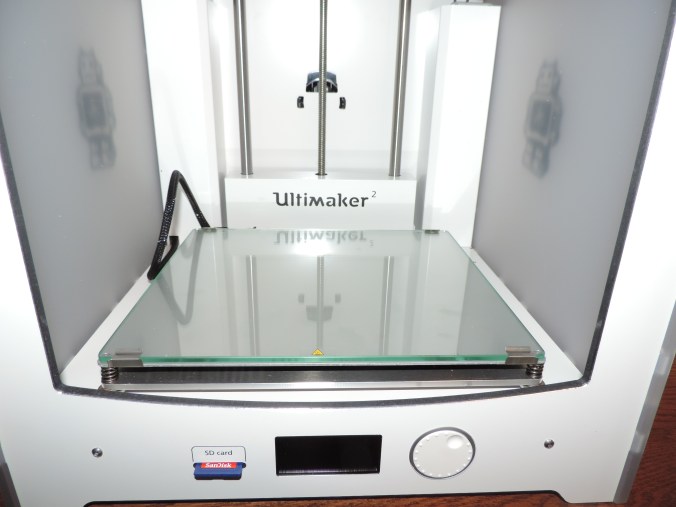
DSCN6610DSCN6606

Let the set up begin.  Even though, the printer comes with a USB cable you do not need to attach it to your computer to do the prints from the SD Card.

DSCN6614

Challenge number 2.  How big is a millimeter?  Off, to find the ruler.  After I found the ruler, I saw in the set up guide that this measurement does not have to be precise.
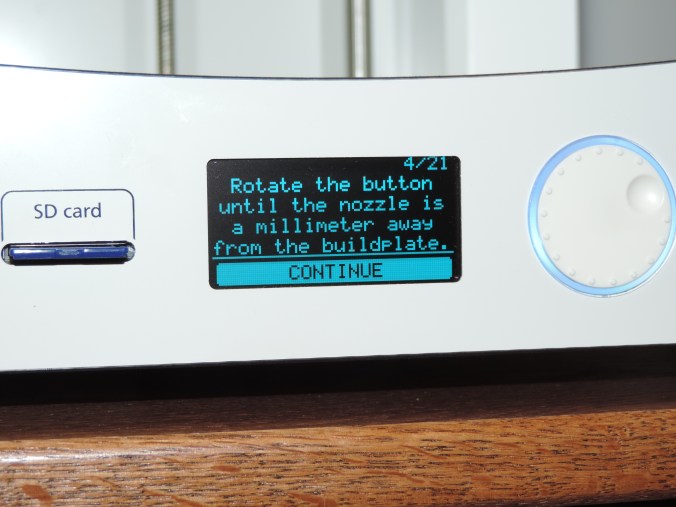
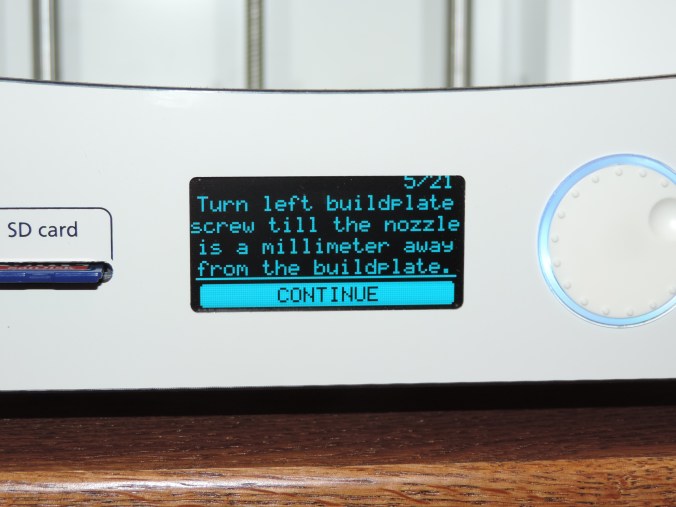
DSCN6616DSCN6617DSCN6615

For the next step, you do not need an entire sheet of paper.

DSCN6618

Time to insert the filament.  There is a hole in the small gear box on the back of the printer that is used to feed the filament through.  First you insert it through the gear box, and second you allow the printer to feed it to the print head.
DSCN6619

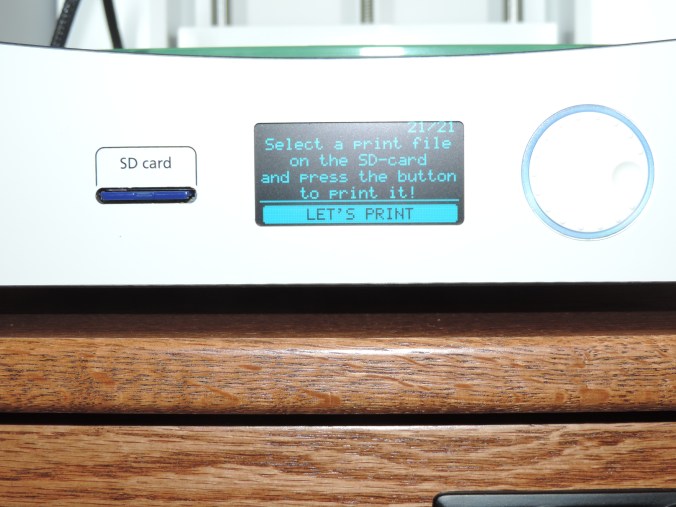
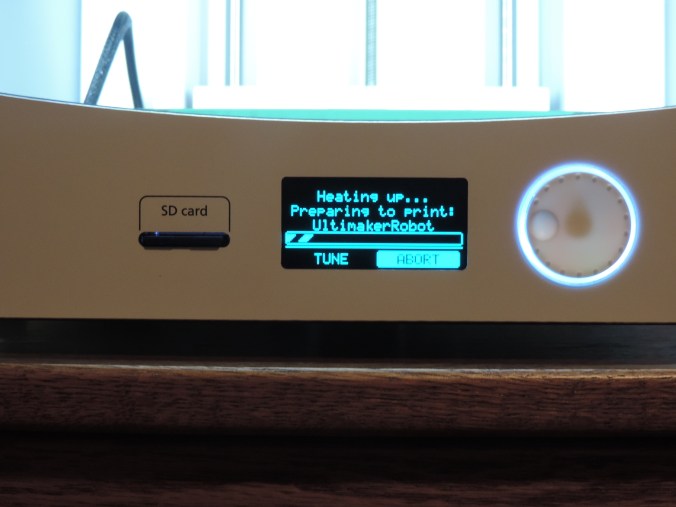
Let’s print!!!

DSCN6622


DSCN6624

Here is where the major challenge began.  After printing the base of the object, the printer stopped feeding filament through the print head.  It took me several days to figure out the problem.  Keeping in mind some great advice I received “If you have a problem, take a break and work on it later.”

The problem was grinding of the filament at the gear box feeder.  I removed the filament from the printer and trimmed off the grinded part.

I installed Ultimaker Cura software on my PC and attached the printer.  I then updated the firmware on the printer.  This did not fix the problem.

The tension in the gear box was either not enough or too much.  There is a screw on top to the gear box to control the tension.  Keeping in mind that clockwise rotation tightens and counter clockwise rotation loosens, in America, I gentle tighten the gear box to it’s max.  Then I took some can air and blew out the gear box to remove all the filament fragments.  Afterwards, I loosen the screw on the gear box with a couple of rotation of the hex wrench.  I feed the filament back through the gear box and allowed the printer to feed it to the print head.

Success!!!! The printer is printing the first object.

Silhouette Studio – The First Design

In the last two posts, I talked about setting up the Silhouette Curio and installing the Silhouette Studio software.  Click here to read those posts.  This post covers the my first design.

This is my first design attempt.  Nothing fancy.
My First Studio Design

My First Studio Design

To start a new design in Silhouette Studio double-click on the icon and click Design.   The design window opens with a clean working area.

I clicked the Text text icon icon to begin to place text in the design area.  On the right-side of the screen, a Text Style menu appeared.  The menu let me define my text attributes before or after I put the text in the design area.  Scrolling through the fonts, I noticed that it allows me to use any font that is saved on my computer.  Yay!  No, limits there.

I noticed the little circle fit to path to the bottom right of my text.  Looking through the manual, I discovered this allows you to fit the text to a path.  I drew a couple of wavy lines on the screen using the curve curve tool.  I doubled clicked on the first line of text, to select it, and dragged the text to the first wavy line and than I repeated the process with the second line of text.  Easy enough, my text was now wavy.

Selecting the text that was fit to path, I was no longer able to rotate it or change it size by dragging a corner.  I was able to adjust the rotation Rotate by selecting it’s line.  There was also a slide bar that allowed me to change the text position on the line.

If I am doing a birthday theme design, some balloons are needed.  I knew the oval oval would not work for me because balloons are bigger on the top than the bottom.  I selected the curve curve tool to draw my balloon.  I put multiple points around the balloon to get the general shape I wanted.  The bottom point, where the balloon ties, is still too round.  I clicked the Edit Points Edit Points

Just for fun I drew a few more balloons.  Balloons usually have a shiny spot on them that is reflecting the light.  I use the rectangle rectangle tool to draw this area on a couple of balloons.  It didn’t look quite right, so I selected the rounded rectangle rounded rectangle tool to draw the shiny spot on the other balloons.

If I move the balloons around the canvas, I wanted the balloon and shiny area to move together.  I dragged my curser over both objects and selected the grouping grouping icon to keep them together.  To separate items after they are group, select the Ungroup icon next to the Group icon.

A border for my birthday theme design would be nice.  I drew a couple of rectangles rectangle and I drew numerous ovals oval.  First I drew one oval, then I used the copy/paste feature so all the ovals would be the same size.  I tried rotating a oval from the design area, but I found for a precise rotation the Rotate option for the Object menu worked better.   I used the Align option under the Object menu to align, center, and space the ovals on around the rectangles.

I didn’t like how some of the lines in the design.  The Erase and Knife cut and erase was a nice feature for removing unwanted lines.  I was able to adjust the settings in the right menu as each tool was being used.

A feature that the Silhouette Studio software is missing, is the ability for me to zoom in and out using the scroll button on my mouse.  Zoom in and Zoom out is available from the top icon bar.

The manual that came with the Curio did not cover all of these functions.  But, the manual that is available from the Help Menu in the software does provide detail information about all tools, menus, and functions.  I like to play around with any software before reading manuals.  However, this manual is beneficial for using the software and Curio.

The next blog will cover my experience with cutting and embossing.  For now, I will save my work.  This isn’t the first time I have saved my work.  One of my saying is “Save Often! Save Regularly!”  You can’t press save too often.

Silhouette Curio

When I have the time, I usually make all my Christmas card.  My first card I made was in 1996 using CorelDraw V3.  Recently, the cards have been getting more and more elaborate.  No matter what I do to the card, the background and inside writing is usually done with CorelDraw.

The idea for the card came early this year.  The background is already done.  The problem is to complete the idea will require a lot of cutting and embossing.  And, I never done embossing!

I decided to purchase a machine to do the cutting for me.  I looked a many models and decided on the Silhouette Cameo.  What I liked about it was, the software it came with, Silhouette Studio, I could use it with SVG files (for an added cost), and I could used it with .CDR files (for even more cost.)  It had decent reviews, so I waited and considered this purchase.

Then I saw the newer model, the Silhouette Curio.  It has more functions, like cutting thicker media.  I may need that.  It embossed.  The only things the reviews didn’t like was the smaller cutting mat and the instruction manual was difficult to read.  The cutting size wasn’t a big deal since it would be my first machine, something to learn on.  The reviews were correct about the manual.  It is difficult to read.

You can find my experience with the Silhouette Studio software here.   In this posting, I will continue with the review the device.

The Curio comes with: USB cable; power cable; two blades, cutting and embossing; print and emboss squares; Software CD; base with cutting mat and embossing mat; material fasteners; replacement snaps; and instruction book.

Setup of the machine was easy, basically just unbox it, install the software, and plug it in.  However, the USB Cable and Power Cable plugged into the right-side of the machine.  If your PC is located on the left-side of the machine or located on the floor, the USB cable may not be long enough to reach it.  You may want to consider getting a USB Extension cable.

Loading the mat into the machine took some figuring out.  The instruction manual was not clear, but it was helpful in recommending to remove out film from cutting and embossing mat.  To load the cutting/embossing boards on the mat properly, refer to the Cut Settings in the Silhouette Studio software.  You will need to turn off the Curio every time you load and unload the board from the machine.

Cut Settings

Cut Settings

The cutting blade needs to be adjusted according to the cut settings.  This is done by using the cap to turn the blade setting.  The blades loaded into the device as expected.  I turn the knob to insert the blade, then I turned it again to secure them in place.

Each cut and each emboss, I am learning more about the device.

Silhouette Studio – Opening the Box

The Silhouette Studio software comes with the Silhouette cutting machines (Cameo and Curio).  Since I purchased the machine, the software installation was a simple process.  Place the CD in drive and follow the prompts.  After the installation was complete, the Silhouette Studio software launched.

Silhouette Studio Start Screen

Silhouette Studio Start Screen

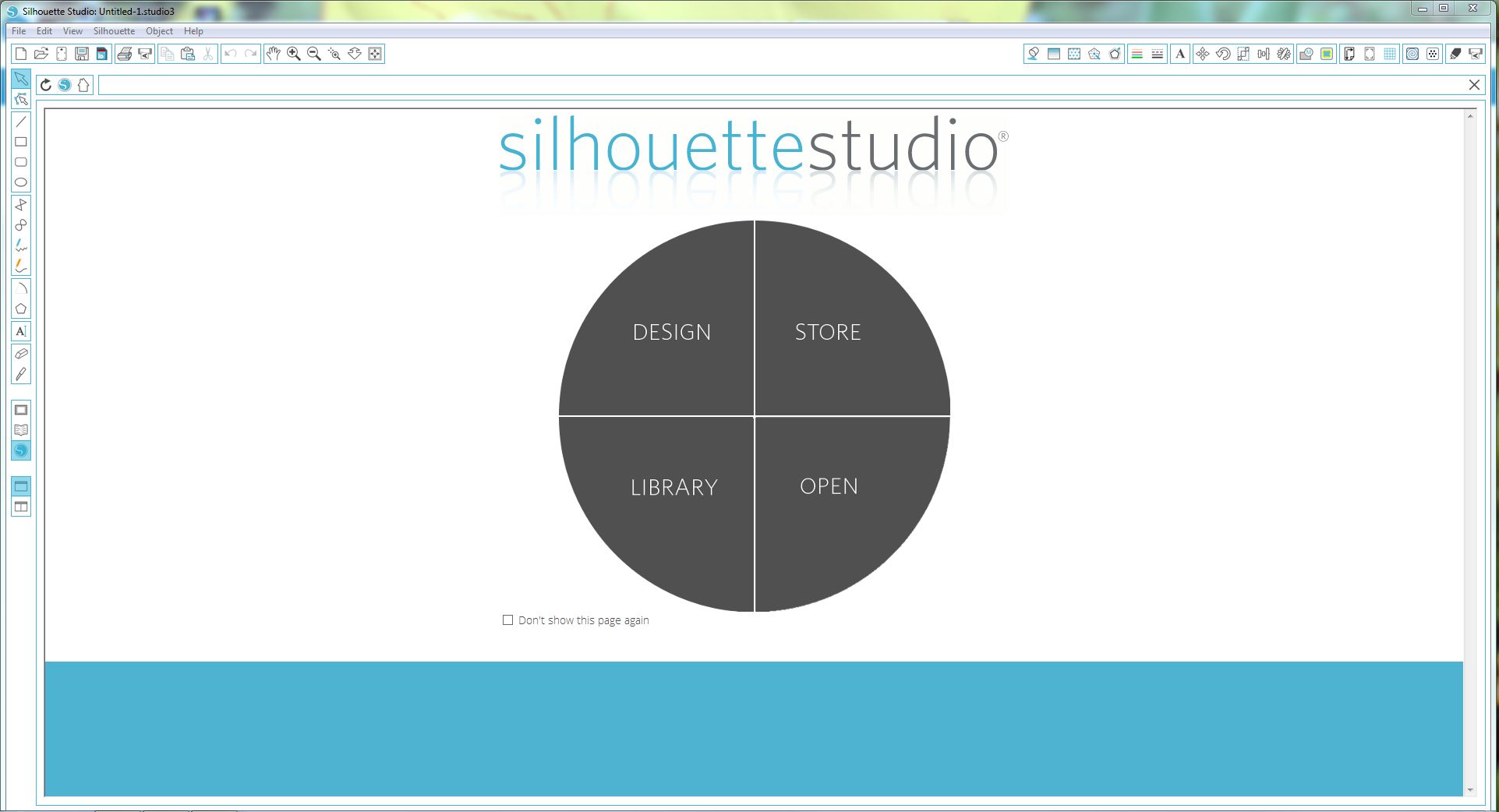
I wasn’t expecting this screen.  To be honest, I am not sure what I was expecting.  I knew if I clicked Design it would let me design a graphic for cutting.  Also, if I clicked Open it would prompt me to open a previous saved design.  I assumed that if I clicked Library, I would see some graphics.  That was the second surprise.  There wasn’t any graphics in the Library.   I thought that was odd, maybe it was something that you could download.  I clicked on the Store.

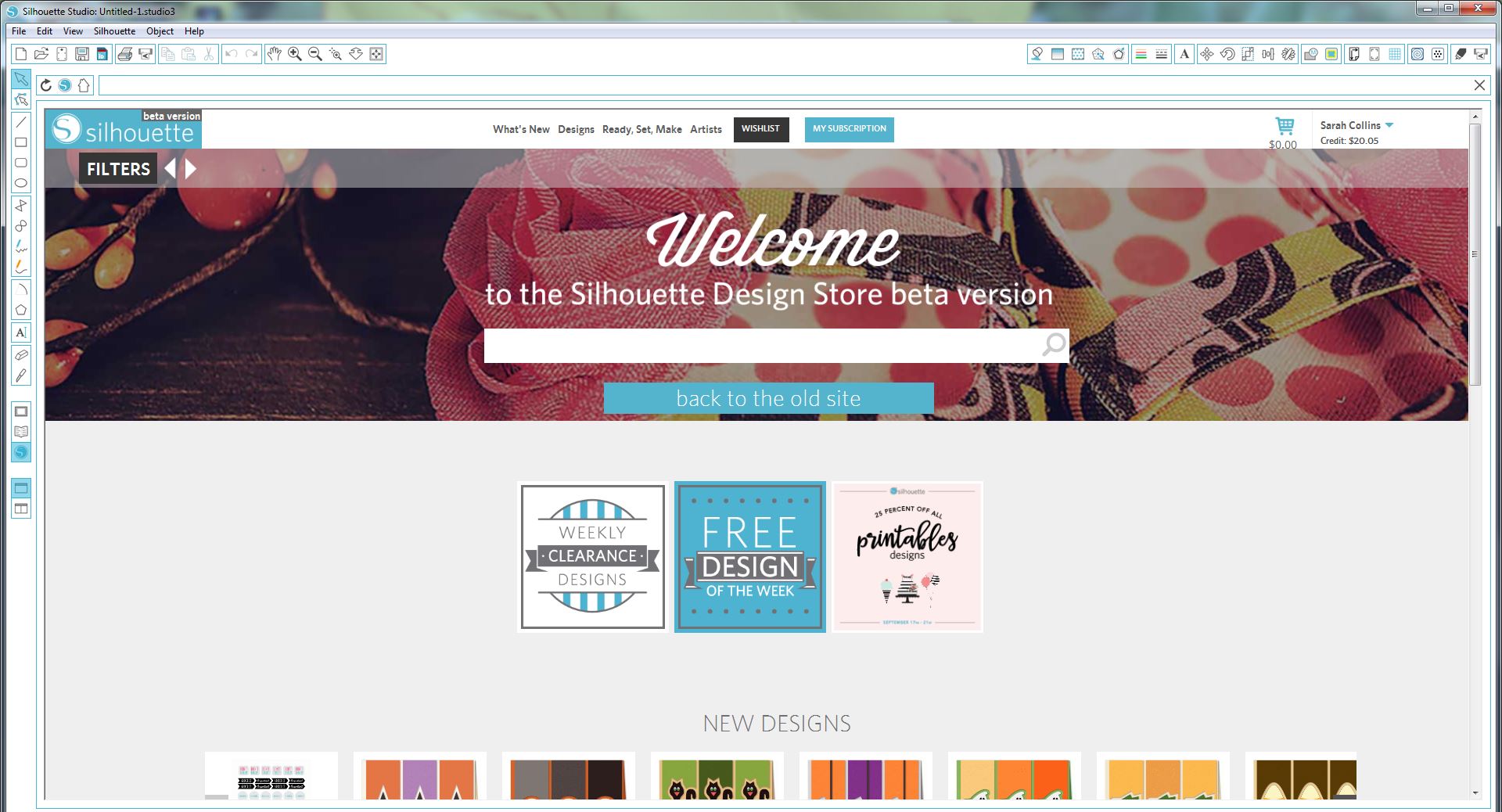
TheStore

The Silhouette Design Store wanted me to sign in, or create an account.  So, I signed in with the account I created when I registered the Curio.

TheStore2JPG

It appears that the store wants to charge you for everything.  After looking over the store, I remembered the cards that came with the Curio title “1 month free.”  I followed the instruction on the card and it provided a month subscription and $25 credit.  I am not sure yet of the benefits of a subscription, but I will figure that out as I explore more.

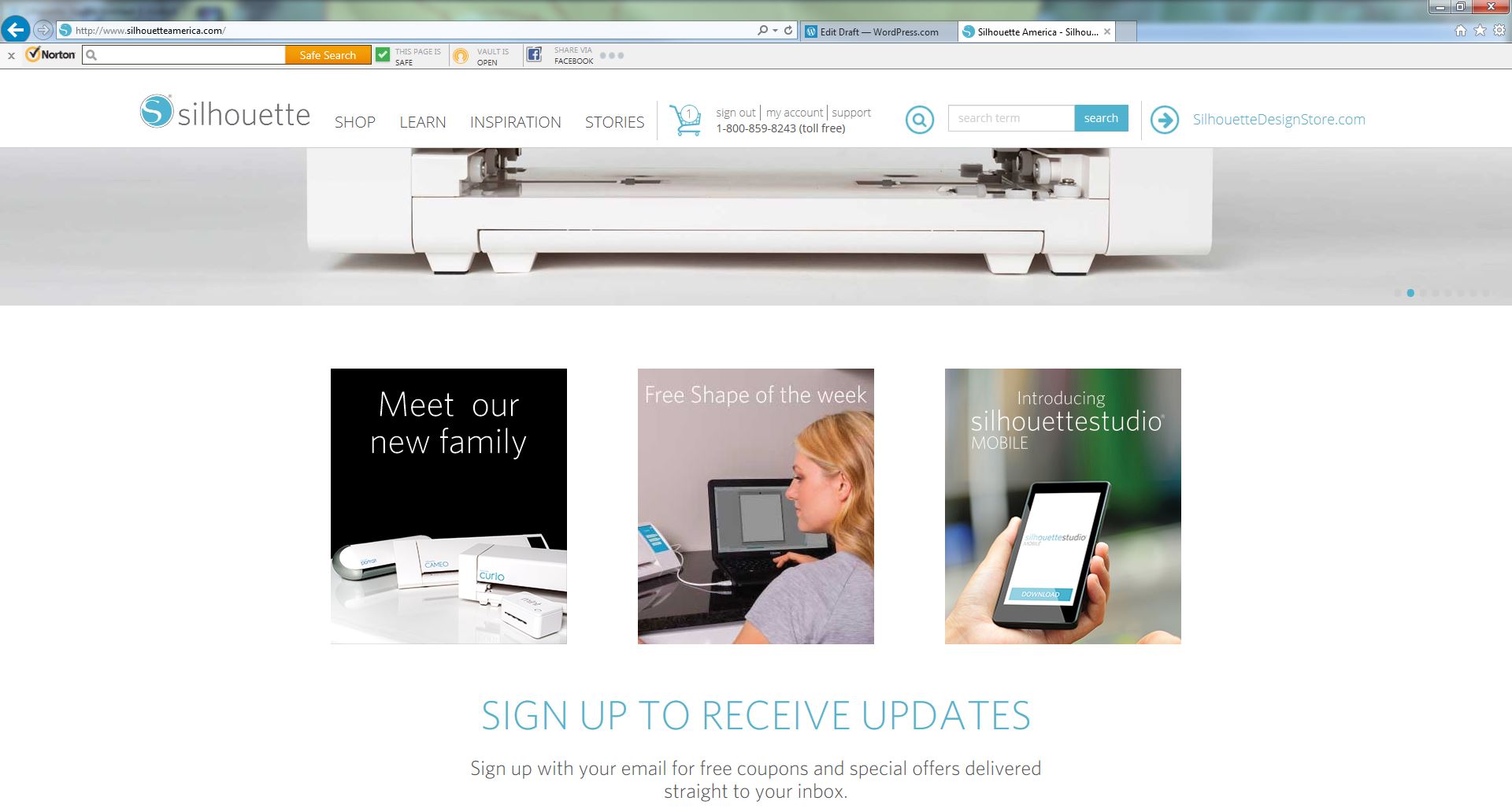
After looking over the store, the problem still remained.  The Library was empty.  Being the Techie I am, I decided maybe the software needed to be update.  Off to http://www.silhouetteamerica.com I went.  You don’t need to remember that URL or save it as a favorite.  If you are into the Silhouette Studio software, it has the link listed under Help.

silhouettewebsite

It took me a while to find where the Software Update was located on the site.

  1. Sign into your account; it is the same one you created when you registered the machine.
  2. Click Support, it is listed next to the Sign in.
  3. Click Silhouette Studio then scroll all the way to the bottom of the page.  There you will find the update and download.
  4. Select one to download.  You do not have to run both the update and the download, because they are the same file.
  5. After the software downloads, run it.

After I went through all these steps below, I realized you can check for software updates from the Silhouette Studio software.  Look under Help > Check for Updates.

I went through the process of updating the software to see if any graphics would appear in the library, it was still empty.  I occurred to me “Maybe the $25 created was so you could select your own graphics.”

Back to the Silhouette Design Store to get some graphics with my credit.  The store had some very impressive designs. I selected a few for testing but adding them to the shopping cart.  When I went to check-out, it told me that these designs were for personal use only.  What I liked about the entire store, since I have credit it did not ask for my credit card.

My adventure with Silhouette Studio will continue…

Junk Mail Beware

I use Microsoft Outlook for some of my email.  However, I have it set up to send almost everything (with a few exceptions) automatically to Junk Mail.  At last count, I have 680 items sitting in Junk Mail and that with Outlook deleting junk mail over 30 days old.

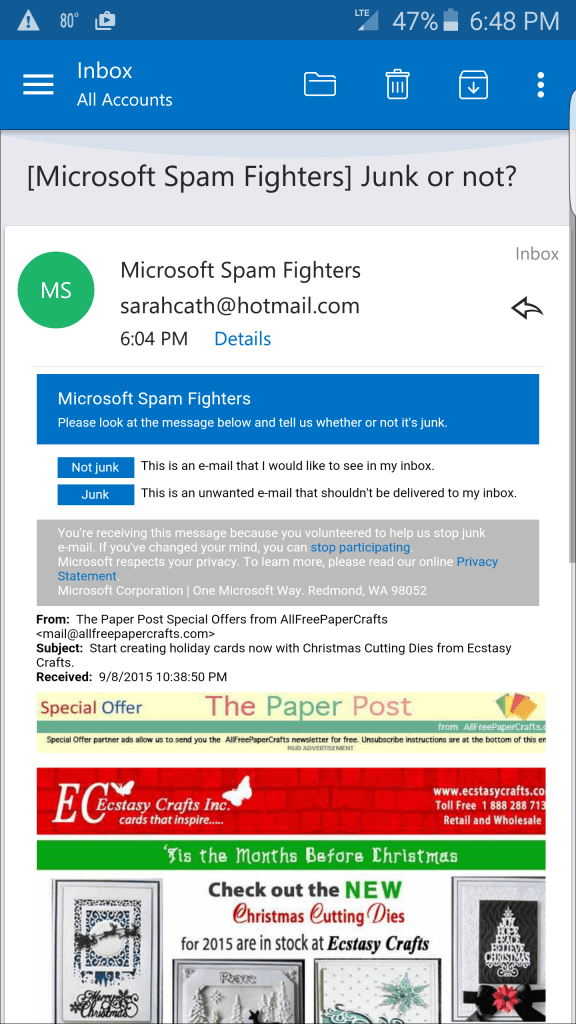
Daily I get at least one of these from Outlook:

Screenshot_2015-09-08-18-48-53

Around 90% of the time, I click the button to tell Outlook whether or not it is Junk Mail.  If I have every done business with the person or company sending it, it is Not Junk.  Because of my settings, it will stay in the Junk Mail folder.  If it is not someone I remember, I flag it as junk.  If it is a really offensive or dangerous, I block the email sender or report it to Outlook as phishing.  This is my little way of getting even with all the Spammer out there.

It was not until today, I never read the response screen from Outlook.

Screenshot_2015-09-08-15-51-43

I agree that spam is one of the great evils of this world. If you sent me some unsolicited, I will either block you or worst report you for phishing.

Connecting Laptop to TV with HDMI

Traveling again!  Many of the hotels of today (at least the ones I stay at) offer many cable TV choices, but you can not longer purchase in room movies.  And, since we are in the rerun season there is not much on TV.   Amazon Prime to the rescue.

I plugged in my Laptop to the TV using a HDMI cable.  Yes, the cable travels with me.  However, this was the first time connecting the TV since the Windows 10 upgrade.  Easy enough, it like plugging in a lamp to a power outlet.  Then I switch the input on the TV to HDMI 1.  Nope, no signal.  Then I tried HDMI 2.  That was the input.  My laptop is displaying on the TV.

I logged onto Amazon, selected a video, and clicked play.  Wait, the sound was only coming out of the laptop speakers.  I’ve checked the sound settings, and there is no HDMI listed there.  Let me try installing new device drivers.

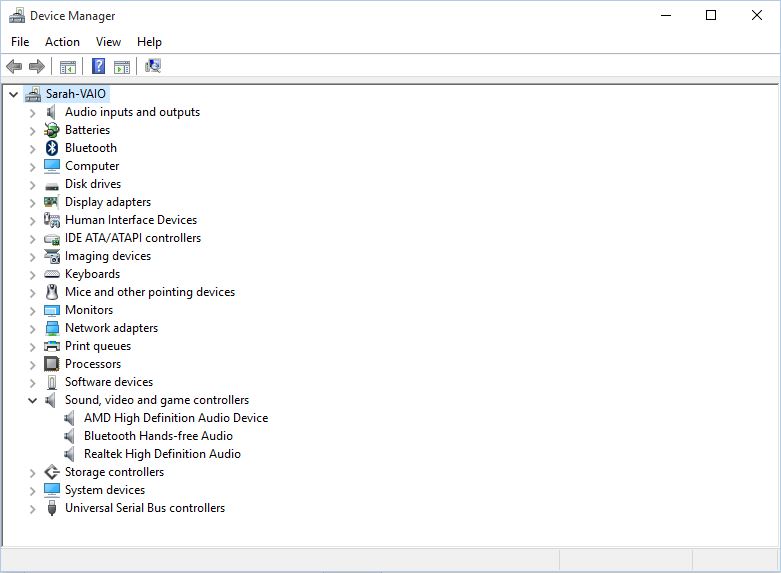
Click Start -> Settings -> in the search bar type Device Manager -> expand Sound, video and game controllers -> and right-click on the first sound device -> click Update device driver -> select Search automatically for updated driver -> wait for driver to install and repeat these steps for other sound devices.

windows 10 device manager

After all the sound devices were updated, I rebooted the machine. It was like magic. My video now has sound coming from the TV.

Yes, I am using the Chrome browser.  Amazon’s Instant Video would not play in the Microsoft Edge Browser.  That is another adventure.

Xbox Games on Windows 10

windows 10 xbox

There are several Xbox games that I have on my Windows 8.1 PC.  Lets see what happens when I try to access them from Windows 10.

Click Start (Windows Icon) to bring up the menu.  On the right-hand side of the menu there are several icon.  I’ve located the Xbox Icon and clicked on it.

After waiting many seconds for it to load, it displays a screen saying “Here’s how you look on Xbox Live”.  It important to note, but I may not use it is: “You can update these later in the Xbox app > Settings”.  I’ve looked over the other options on the screen, now lets click “Let’s play!”

windows 10 xbox lets play

The Xbox app loads and displays the Home screen which has the activity feed and list of friends and recommends friends.

On the left-side of the screen, it has menu of options:

  • My games – show the games installed on the laptop
  • Messages – I have no messages
  • Activity alerts – Again, nothing
  • Achievements – basically shows the last games played
  • Games DVR – shows the games clips and screenshots
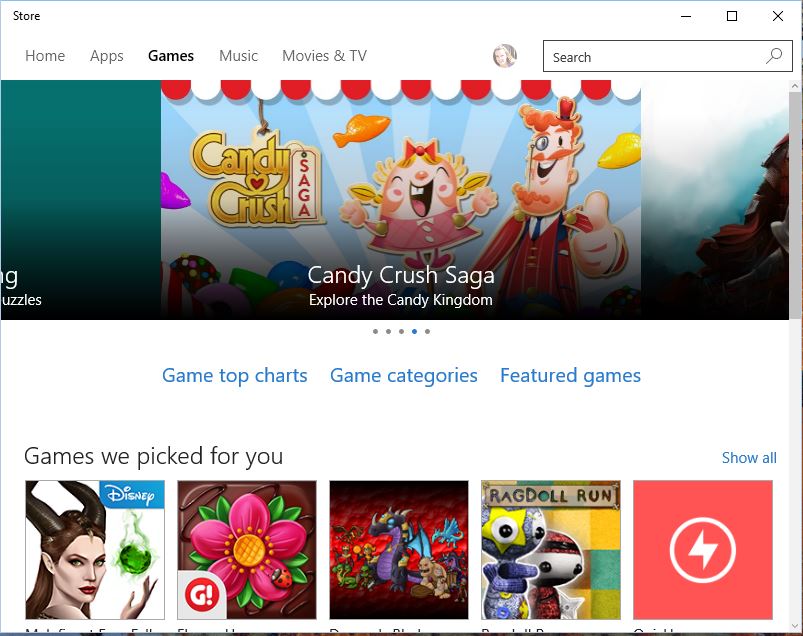
  • Store – opens the Microsoft Store (this maybe what I need to get my games to the laptop)

windows 10 microsoft store

Where oh where are my games?  They are not under Home, Apps, or Games.  Wait, there is my picture in a little circle, hiding next to the Search bar.  Let me click on my picture -> My Library.  There are my games.  Yay!  Let me click the download arrow next to the name on the right side and download them.

But, one game is missing.  I think I will just download it from the Store.  I clicked Games and since I know the name, I click the search bar and type the name in.  I found my game.  I guess the differences between this game and the other games is:  this game wants to be Installed instead of Downloaded and every time I play this game it connects to Xbox Live.

Nothing appears to be happening!  I will give it time and check back later.

It worked!  The games are on my laptop.  However, the only game that keep my progress was the one that logs into Xbox live.  I expected that to happen.

An icons for the games were not placed on the desktop.  To find my games I had to click Start -> All Apps and scroll to the list.  Alternatively, I could open the Xbox app.

For some reason, the game Candy Crush Saga was installed on this laptop.  To my knowledge I have never played this game on any Microsoft device.  I know million of people are addicted to this games, not I.  Therefore, I will be uninstalling it.  Locate the item in the Start Menu -> Right-click on it -> click Uninstall.

The adventure to be continued….

Windows 10 – The Security Adventure

Windows 10 Users Account

During my exploration in the Microsoft Cortana, it prompted me to link my laptops  credentials with my Microsoft account.  I did.  No big deal.   I mainly only use this laptop when I am traveling, so I may want access to my Microsoft Apps from this device.  After the laptop was synced with the Microsoft Account, it prompted me to create a Pin.  Before I go through my experience of create and Pin and Picture password a little rant.

What I did not expect, once I linked the laptop to my Microsoft Account, it changed my background to this ugly yellow-gold background.  Looking at the Personalization settings (Right-click on desktop -> Personalization) under Themes -> Theme settings it had selected the Synced Theme.  Really, you just couldn’t keep the original theme?

What was even more unexpected?  Once synced, it changed my Windows 8.1 PC to the Synced Theme.  Really?  That is two PCs I had to change the Theme on.

Log on Credentials:

The current password to my laptop is my Microsoft Account’s password.  Lets add a Pin to the account.

Creating a Pin:

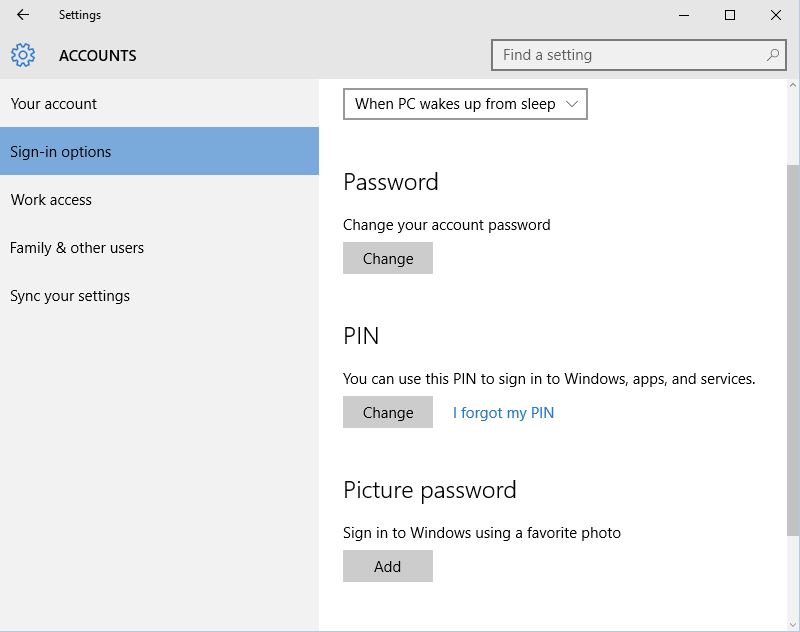
First lets ask Cortana to open the user account.  Nope, that didn’t work.  It opened Microsoft Edge Browser and did a search for user account.  To open user accounts select Start Button (Windows Icon) -> Settings -> Accounts -> Sign-in options.  Under Pin select Add.

Windows 10 Users Account Pin

Type in the Pin you would like to use.  It should be a 4 digit number.  I recommend not repeating a number or using a sequence number such as: “1111”, “1234”, “0000”, or “9876”.  Press OK.

I’ve locked my computer to test the Pin.  OK, I think I love this.  As soon as I typed in the last digit of the Pin, the computer unlocks.  I did not have to press the Enter key.  I know it is just one key.

Picture Password:

Now to setup a Picture Password.  This should be fun. From the Accounts/Sign-in Options select Add under Picture Password.

First it wants me to verify my account.  No problem, I will type in my Microsoft password.

Windows 10 Users Account Picture

Even though this is a nice picture, I think I want to use my own picture.  To change picture press the Choose picture button and find the picture you would like to use and press OK.  It will display the picture and you have the option to Use the picture or choose another.  I will be using the picture I found.  The next step, making the taps or gestures on the picture.

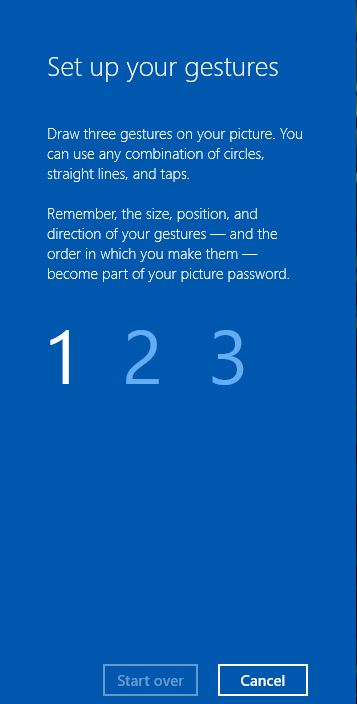
picture gesture 1 picture gesture 2

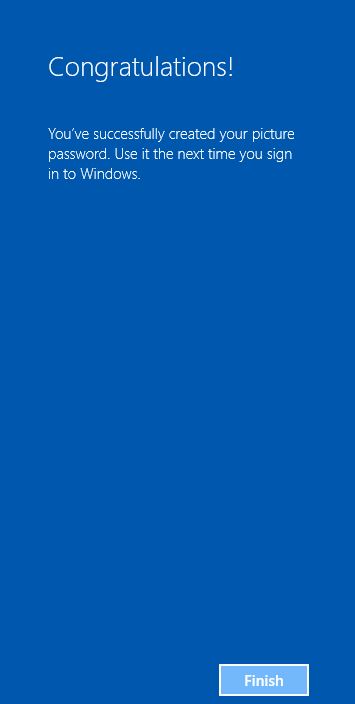
After I made my initial three gestures on the picture, the program prompted me to repeat the gestures.  Congratulation!  I have a picture password.  Let me lock the computer.

This is nice, but I think I like the Pin password better.  On the log-in screen, Windows 10 provides with the option of selecting what method you want to use to log-in: Picture, Password, or Pin.   You can select a different method and that will be the default method until you change the method.

Lock Screen:

If you scroll down on the Accounts/Sign-In options you will notice “Related settings”, under it there is “Lock screen”.  Let click on Lock screen.

I can select the Background for my Lock screen.  From the drop down list, I can either Windows spotlight, Picture, or Slideshow.  Under Picture, I can find a Picture on the device and use that for the lock screen.  Under Slideshow, I can select a directory or folder on the device and use all the pictures for the lock screen.  For this device, I will leave as the default.

The “+” under “Choose an app to show detailed status” let me select either None, Weather, Get Office, Calendar, or Xbox.

The “+” under “Choose apps to show quick status” has a few more options such as People, Alarms & Clock, Mail, and Store.

You do not have to select any, but I think I will select Weather for testing.

Screen Timeout Settings allows you to select when the screen will power off and the device will go to sleep.  It keep my settings from the before, so not changes there.

The Screen Saver Setting lets you specify what screen saver to use and how long the device is to wait with no activity before it locks.  By selecting Photos from the drop down list, you can tell it to show your photos.

I also recommend that you let Windows lock the device after a period of time.  This will help prevent unauthorized access to your device.  With the most innocent threat coming for friends and family thinking it would be funny to post something on your social media account a.k.a. Facebook, Twitter, Pinterest.

The adventure will continue….

Cortana – Windows 10 Personal Assistant

Microsoft-Cortana

Since June, my personal assistant has been the Amazon Echo (Alexa).  It mainly sets timers and alarms, but it also tells jokes, provide news briefing and plays music from my Amazon account and other sources such as IHeart Radio.  The ultimate test for Alexa was when she was ask “Alexa play WJBO.”  She from and played the specified  radio station from IHeart Radio.  Lets see how Cortana rates.

amazon edge

Amazon Edge (Alexa)

If you click in the Search box on the Taskbar it will provide you some information about Cortana and start with the setup.

Some of Cortana’s capabilities are:

  • Set Reminders, both Time and Places
  • You can tell it to remember Tasks, Dictate Messages or Chat
  • It can track status of Package or Flights
  • You can personalize it for News, Events, Weather and even Jokes

It wants access to everything that you do on the device.  If you don’t like that don’t agree to the license or disable Cortana.  Here are a few things Cortana accesses:

  • Location
  • Contacts
  • Search history
  • Calendar details
  • Communication history from messages – Skype communication may be included.
  • Other information on the device

Again, if you don’t like it, Tinker with the settings, Disable features, or just turn it off.

windows cortana agreement

Cortana Agreement

Next Cortana asked “What to call you”. If you want it to call you Master or Mistress, go right ahead.

It ran through some setup, and then it asked me to log on with my Microsoft Account (that is you Xbox Account).  Ok, not a problem.  If you don’t have a Microsoft Account, you can always set one up.

Now, we have a slight problem.  It wants to replace my log in credentials with my Microsoft Account credentials. But… Wait… OK!  I being dealing with this in Windows 8.1.   I’ve been thinking I would have to do this at some point to access my Microsoft Apps.  Credentials changed.

More security, it wants me to create a PIN.  Isn’t my account secure enough with the security code I have to type in every time I try to access my account from a new device, or browser, or after Norton deletes the cookies from my computer?  I will set up a Pin and a Picture log in, just for the adventure.

The Pin is a 4 digit number.  I would suggest something easy to remember and not “1111”, “1234”, “9876”, or any number that is repeated or in a sequence.

Yuck, it replace my desktop with this ugly yellow background.  I am need to change that.

Sorry for the side trip into security, it was just the sequence of getting to Cortana’s capability.

When you click on the Search bar at the bottom of the screen, Cortana display a news feed.  It picked out a few things to get you started, but press the “Get interests” button to customize it.  Clicking this brought up the “Notebook” menu.  You can always access the “Notebook” but click the third icon down on the left hand bar.

Some of the options listed are:

  • About Me – this is where you can change your name
  • Settings – Instead of clicking the button to talk with Cortana, you can set it to listen for you to say “Hey, Cortana!”  (On Android you would say “OK, Google!” and on Echo is you would say “Alexa”)
  • Cortana Tips
  • Eat & Drink
  • Event
  • Meeting & Reminders
  • News
  • Packages
  • and more…

Just click the option and adjust it to your preferences.

When I asked Cortana to play music the Groove Music opened.

Hey!  This might work.  When I asked Cortana to open the file explorer, it open.

Since the Echo is located in a more convenient location, I will be using it more for Timers, Shopping List, Alarms, and playing music.  Echo can search the web, but for true web surfing I will be using a computer and may use Cortana with it.

The Windows 10 Adventure to be continued….

Microsoft Edge Adventure

windows edge

Yesterday, I upgraded my little laptop (4GB Ram) to Windows 10.  Everything went smoothly, except it wanted to restart the laptop to finish an upgrade and the first link I click in the new Microsoft Edge browser, the screen went blank.  I did a hard shutdown (I pressed and held the power button until the laptop shutdown).  Now I ready to explore Microsoft’s Edge Browser.

Importing Favorites:

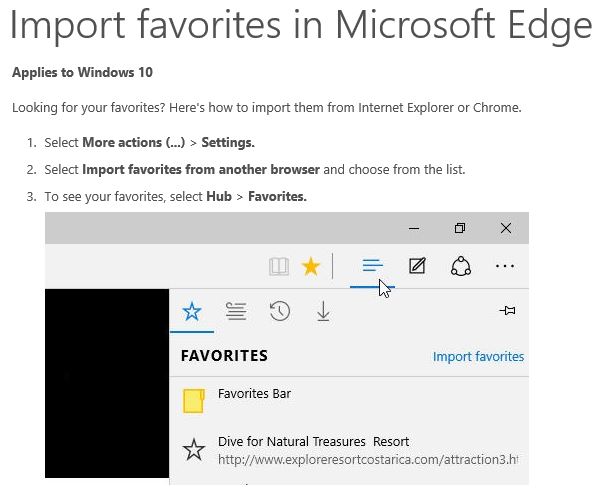
Today, when I clicked “Looking for your browser favorites?” Microsoft Edge opened a new tab with instructions on importing favorites.

Windows edge favorites

How to Import our Favorites into Microsoft Edge

Note: The words “More Action” is no where on the browser screen.  Just click the three periods “…”.  And, “Hub” is the three little lines (see image above, the pointer is on the lines.)  This process was done quickly – I had more favorites than I thought.

Exploring the Settings:

While I am in “Setting”, I might as well take a look around.

The “Favorite” bar is off by default.  Yay!  I hate the favorite bar.  Well, I hate most toolbars.  Google, Bing, ASK … I don’t like them, so I don’t use them..

The “Clear browsing data” is under Settings.  This option lets you specify the defaults for what you want to clear out when you select it from the Hub.

Advance Setting has the most interesting options.  Why is the “Home” button turned off by default?  After I turned it on, it prompted from a home site.   This is your decision.  If you want to drive Microsoft mad, set it to something not related to Microsoft.  Yes, I want it to block pop-ups.

“Use Adobe Flash Player” is turned on by default.  The flash player has been riddle recently with security holes.  For now, I think I will turn that off.  The other advance options I will leave those as the default from now.  I may come back later and change them.

Write on the Web:

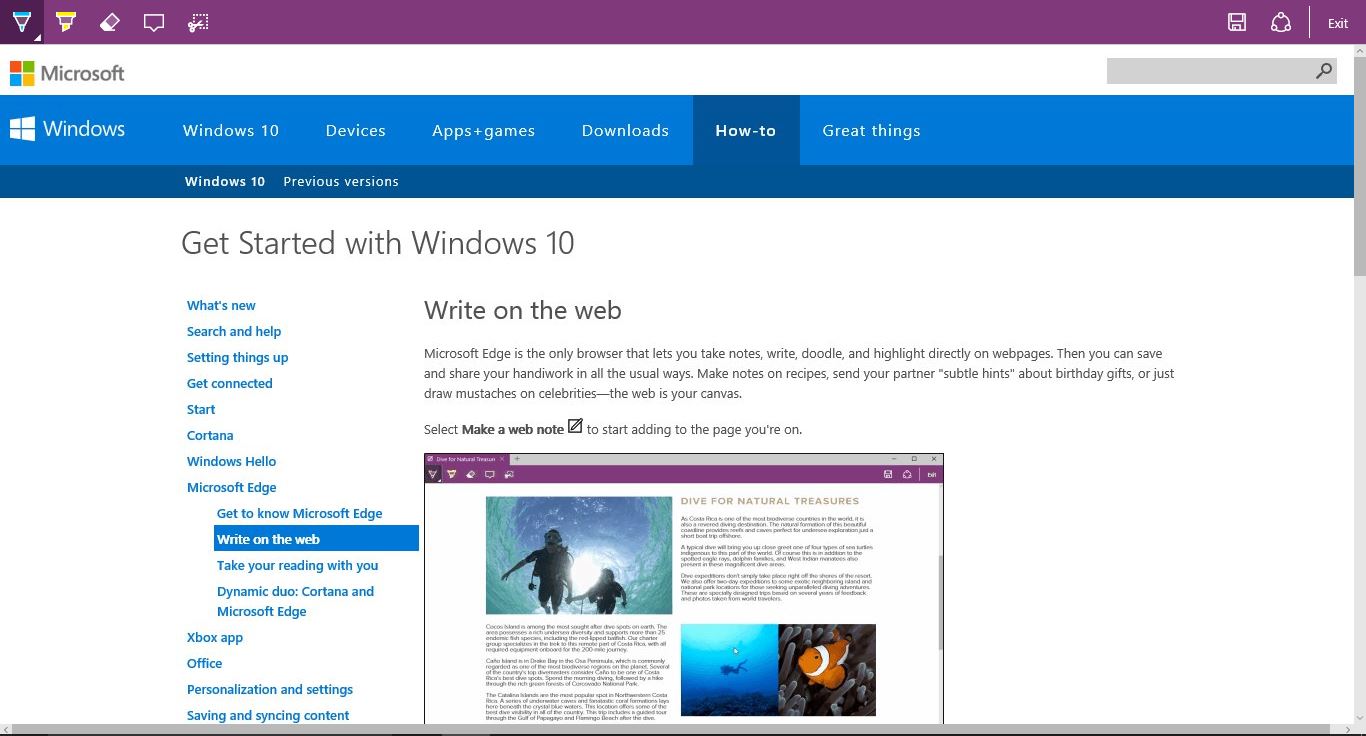
I haven’t determine the benefits of this feature.  It may come is handy if someone is writing instructions.  Since the web is now our library, highlighting and taking notes may be a necessary.  But, when I was growing up, we were always instructed not to write in books.  To turn on “Write on the Web”, click the pencil/pen in the upper right hand corner.  In the top left, you have a pen, highlighter, eraser, notepad, and clip.  In the top right, you can save your changes and exit.

Windows edge write

I have seen this type of feature better.  Yes, it is a feature in some content management software.  The Microsoft’s Write on Web feature doesn’t have nearly has many options.  Maybe it is planned for a later upgrade.

Wait, the “Clip” feature maybe very handy.

Distraction-free Reading:

It appears that you must add something to your Reading List to use Distraction-free Reading.  Since I have a tablet for most of my reading needs, I will move on to Cortana.

Personal Assistant:

Cortana – This will be explored in a different article.

Search:

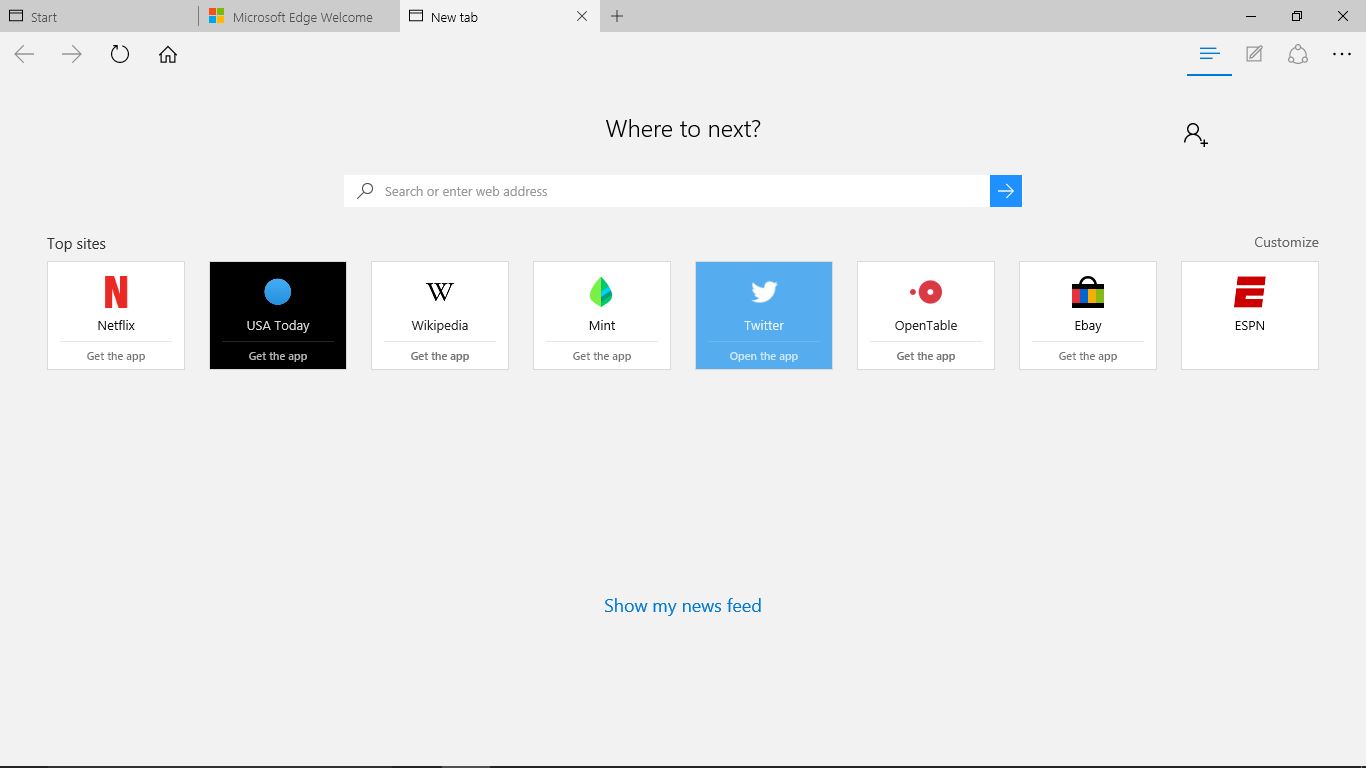
Is the most important aspect of a browser.  Let’s see how that functions.  By default, it is using Microsoft Bing.  After clicking on the “+” for a new tab, it said “Where to Next?” and showed some “Top sites”.

windows edge where to

I am only remotely interested in one of these sites, and have no interest in downloading the app on the Laptop.

For my test search I will use the term “disable Get Windows 10 icon” and I will compare the results to my desktop search with Bing using Internet Explorer 11 and Google using Chrome (latest version).

windows edge search

Search using Microsoft Edge (Bing)

chrome

Search Using Chrome (Google)

Internet Explorer search

Search Using Internet Explorer (Bing)

There are some differences, but that is how the search engine handles the search and some other factors.  The performance seem adequate.  Other websites appear to display fine.  Such as, Facebook, Pinterest, and Amazon.

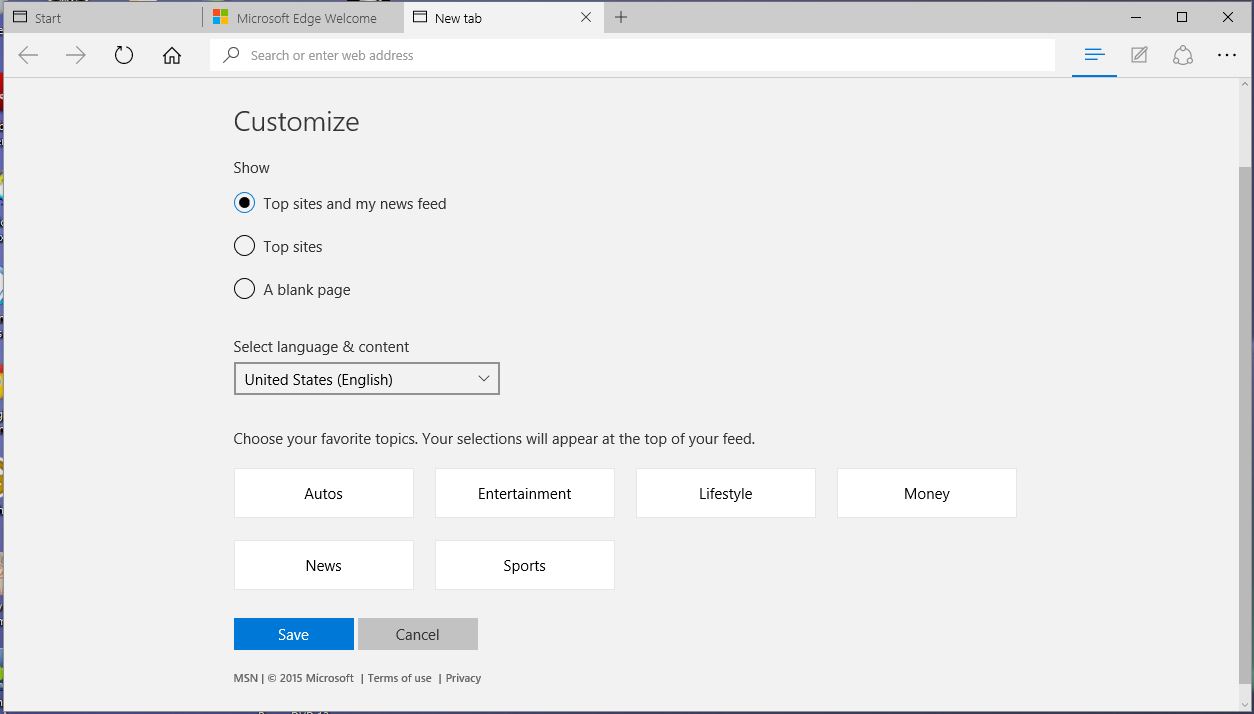
Should I dare click “Show my news feed?”  I don’t particularly like the newsfeed, let me see if I can customize it.

windows edge customize

Since I do not like any of those options, I will be changing it or using a different browser.  Under More Actions (“…”) -> Settings, the only options three options for a new tab: Top Site, News Feed, and Blank Page.

The adventure continues….